Users who have purchased both the Sepasoft Track & Trace module and the Sepasoft OEE & Downtime module are able to integrate those modules together in a variety of ways. The simplest way of doing so is to add Traceability to an existing OEE operation.
In this article, we will demonstrate how to simply add an input lot to an OEE operation, thereby becoming aware of how much raw/input material is consumed by the OEE Operation.
This article assumes that you have familiarity with both the OEE and Track and Trace modules, but need help integrating the two modules as described above.
- Create an OEE Operation in the OEE Material Manager:
- See Creating Materials and Material Production Settings for more on this step.
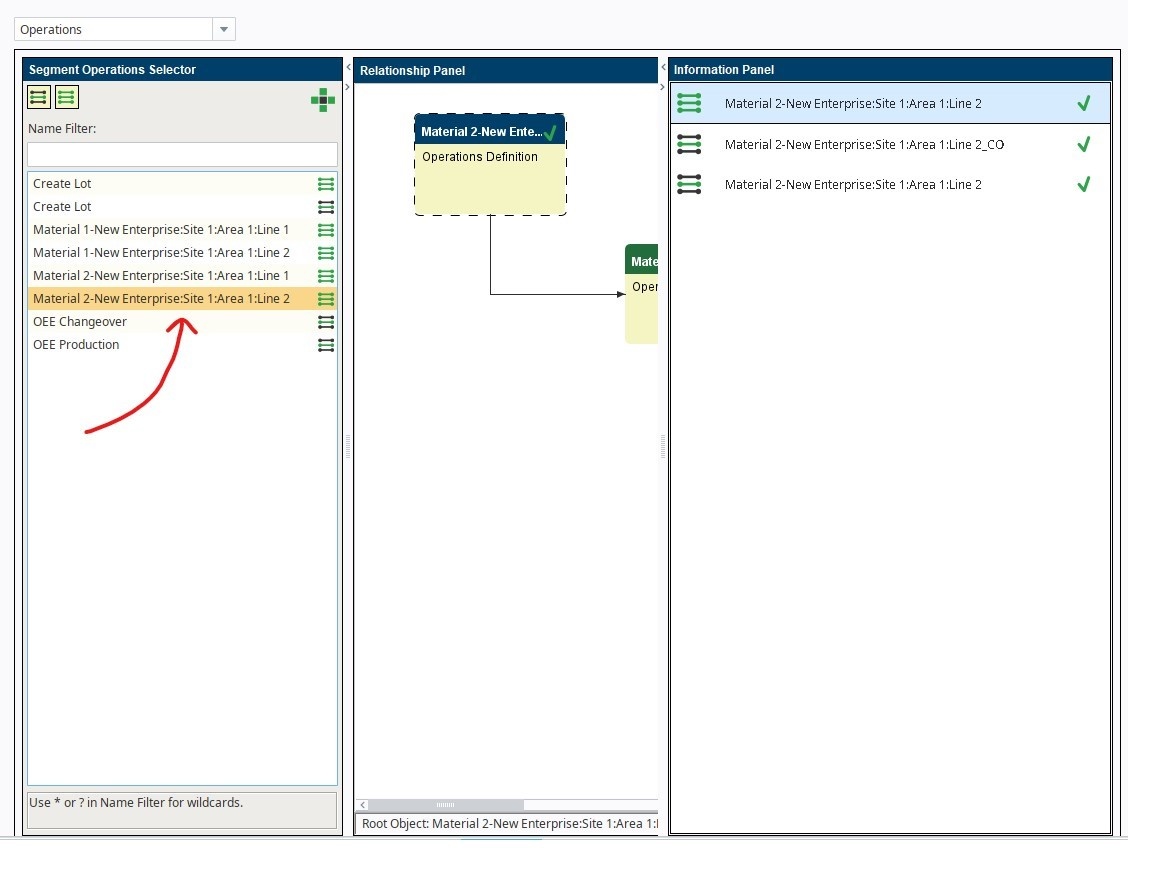
- Find your newly created OEE Operation in the Object Editor
- The names of all OEE Operations follow this pattern:
- Material Name-Path/To/Your/Line
- The names of all OEE Operations follow this pattern:
- In the Relationship Panel, you will find 3 objects, in this order:
- The Operations Definition
- A Changeover Operations Segment, with a name that ends in "_CO"
- A Production Operations Segment
- Right-click and edit the Production Operations Segment
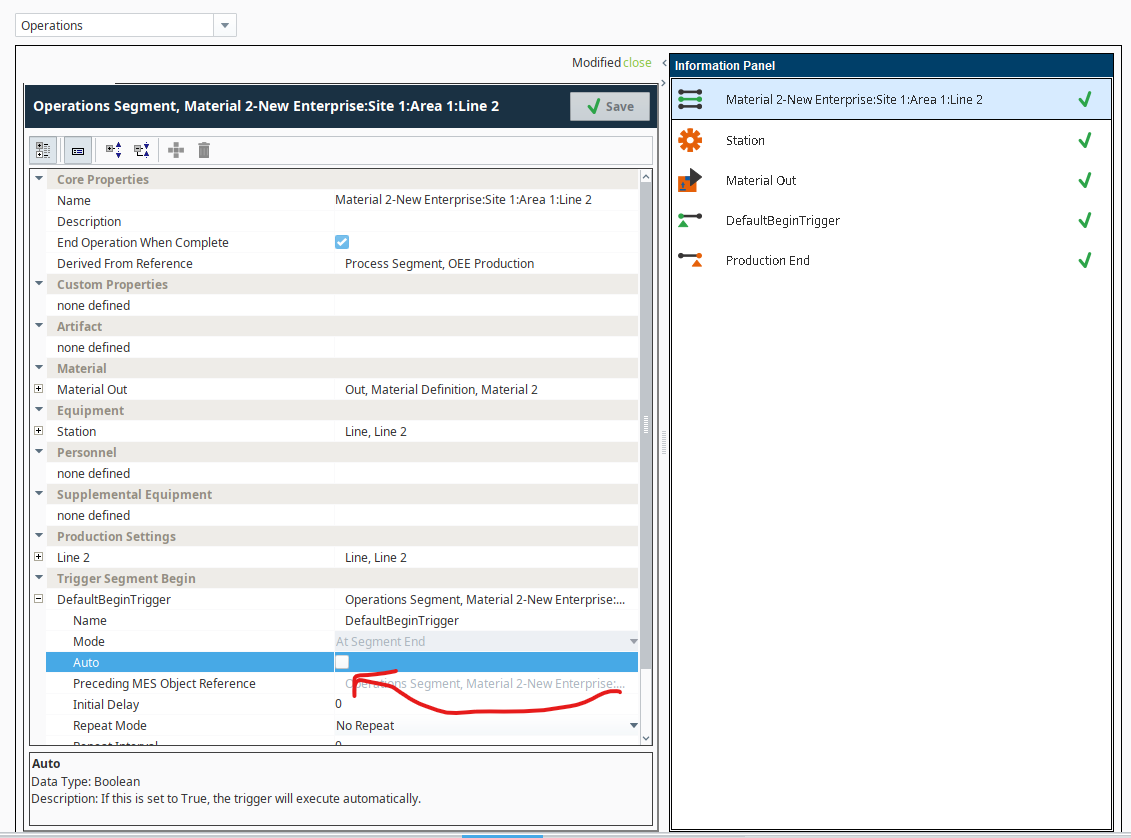
- Expand the "DefaultBeginTrigger" under "Trigger Segment Begin", and uncheck the "Auto" checkbox:
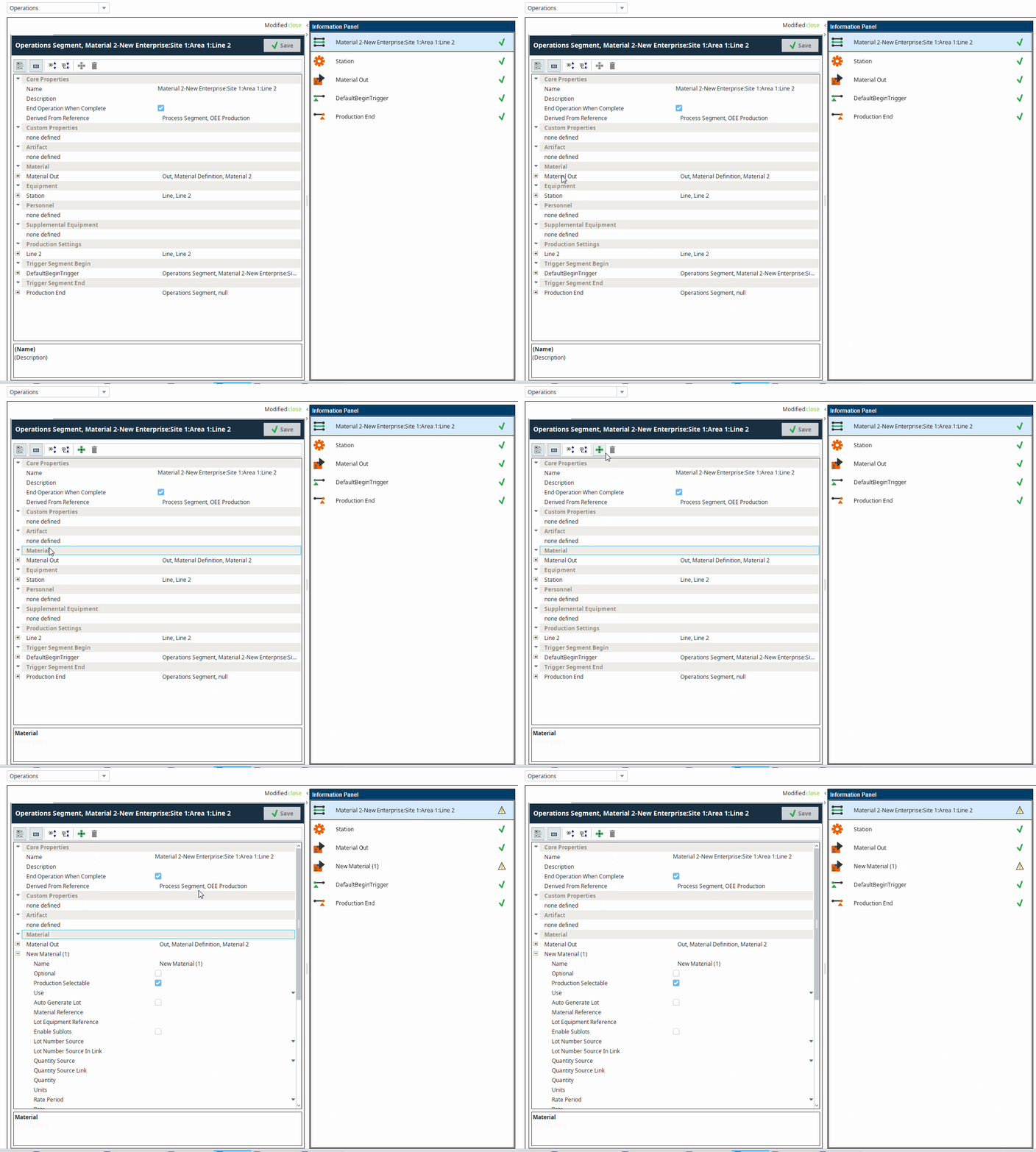
- Add an input material to the segment by selecting the word "Material" and hitting the plus sign.
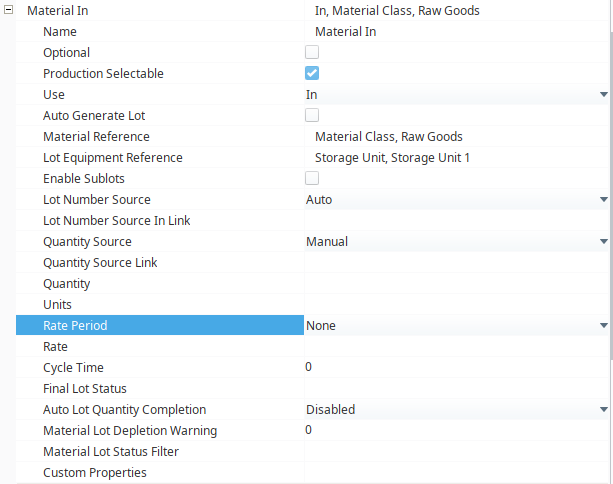
- For it to work with the screen attached to this document, you should follow the below settings exactly, but this is not the only possible correct configuration - you may wish to use "Available Lot Quantity" rather than a manual quantity, for example.
- In your new Material, set the following properties, and leave all others to their defaults:
- Name: Material In
- Use: In
- Material Reference: Your desired Material or Material Class
- Lot Equipment Reference: Your desired Storage Unit, Supplemental Equipment, or Equipment Class
- Lot Number Source: Auto
- Quantity Source: Manual
- Rate Period: None
- Hit Save.
- Now that you need to specify an Input Material to your Production Segment, beginning your OEE Operation takes a few extra steps. Essentially, you must now use the Track and Trace tools for stopping the Changeover segment and beginning the Production segment. Here are the three pieces of script for starting changeover, starting production, and ending production, respectively:
Start Changeover
Code# Nothing changes for starting Changeover - this is still the normal way system.mes.oee.beginOEERun("Material Name", "Path/To/Your/Line")Start Production
Code# You will need to end changeover using the Trace scripting functions co_seg = system.mes.getActiveSegment("Path/To/Your/Line", "Output Material Name-Path:To:Your:Line_CO") co_seg.end() # Create production segment, again, using Trace scripting functions operation = system.mes.getCurrentOperation(line_path) prod_seg = oper.createSegment("Output Material Name-Path:To:Your:Line", False) # Then, you will need to assign input and output materials prod_seg.setMaterial("Material In", "My Lot Number", 500) prod_seg.setMaterial("Material Out", "Output Material Name", "Path/To/Your/Line") # Then, begin the segment prod_seg.begin()End Production
Code# Again, this is the normal way of ending OEE Operations system.mes.oee.endOEEProduction("Path/To/Your/Line")
- If you are starting from a schedule, the above steps still apply as listed, but you'll need to begin changeover from the Operations Request Link:
Start Changeover from Schedule
Code# Nothing changes for starting Changeover from a schedule - this is still the normal way oper_req_link = system.mes.getMESObjectLink("OperationsRequest", oper_req_uuid) system.mes.oee.beginOEERun(oper_req_link)