Overview
Featuring information, recommendations, checklists, and procedures for a successful execution of OEE runs.
Applies To and Version Info
This feature applies to all versions of the OEE 3.0 module.
Production Model
Build your tag structure such that the folders match the structure of your line, starting with Enterprise. An identical tag structure and production model structure enables you to use the Parameterized Tag Paths functionality.
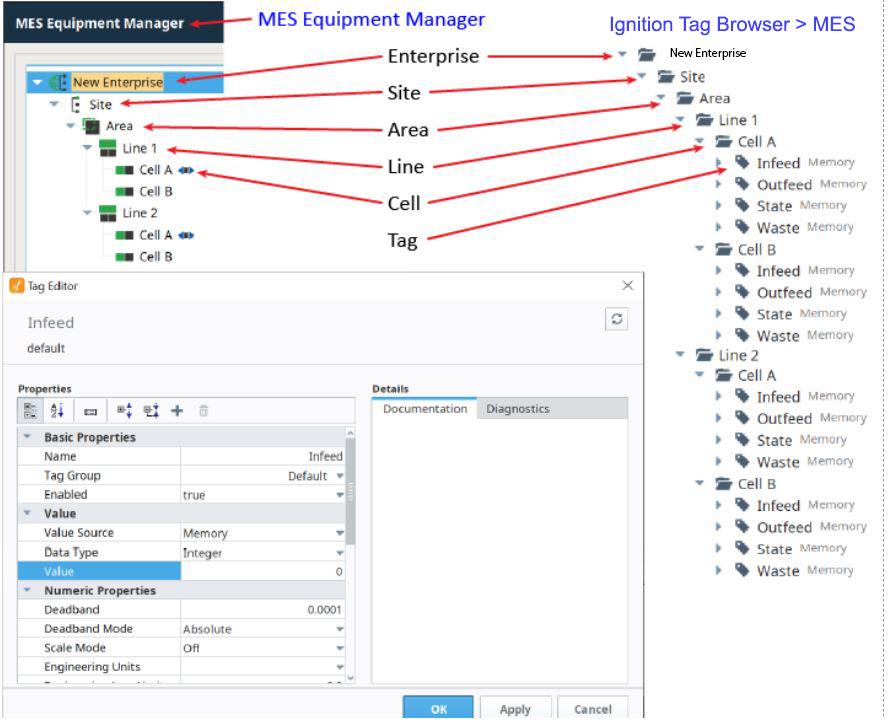
Always start counters at 1 because Sepasoft MES system doesn’t count the initial move from 0 to 1. Build out one cell first, and configure it completely with the proper counters, state, etc. Then use that cell as a template for the rest of your cells. This will definitely save your time.
OEE Run Director
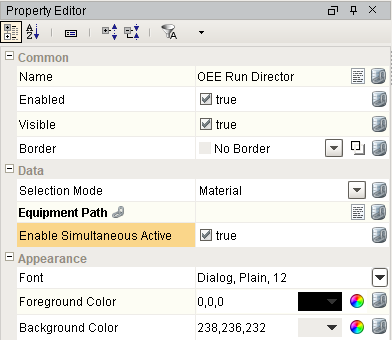
Scheduled Runs
Schedule runs can be created by dragging rows from an Ignition Power Table or the MES Work Order Table onto the MES Schedule View. See the Drag and Drop Scheduling for more details. It can also be created by right-clicking the MES Schedule View component and adding a run to the schedule manually. Runs can be set for a duration or to a particular production count. Each of the MES Work Order Table, the MES Schedule View, and the MES Schedule Selector will show the progress on scheduled runs.
Steps To Start Schedule Runs Automatically
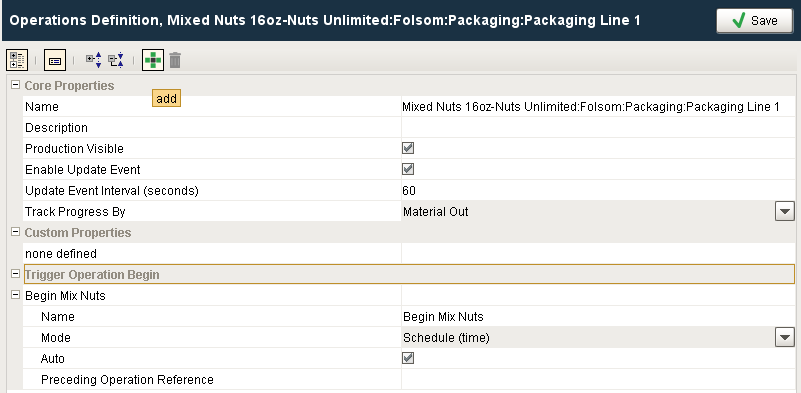
- Using the MES Object Editor, add a Trigger Operation Begin property on the Operations Definition object. Give it a name, set the mode to Schedule (time), check the “Auto” box and click save.
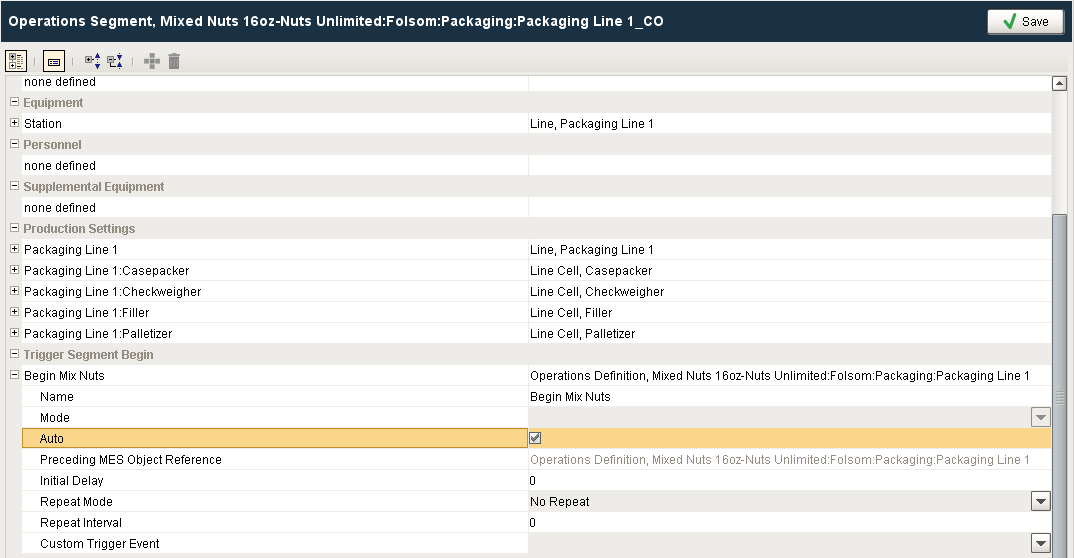
- Using the MES Object Editor, click on the Edit Settings button corresponding to the Operations Segment for the Changeover segment. Modify the existing Trigger Segment Begin property by checking the “Auto” box, and click save.
Steps To End Schedule Runs Automatically
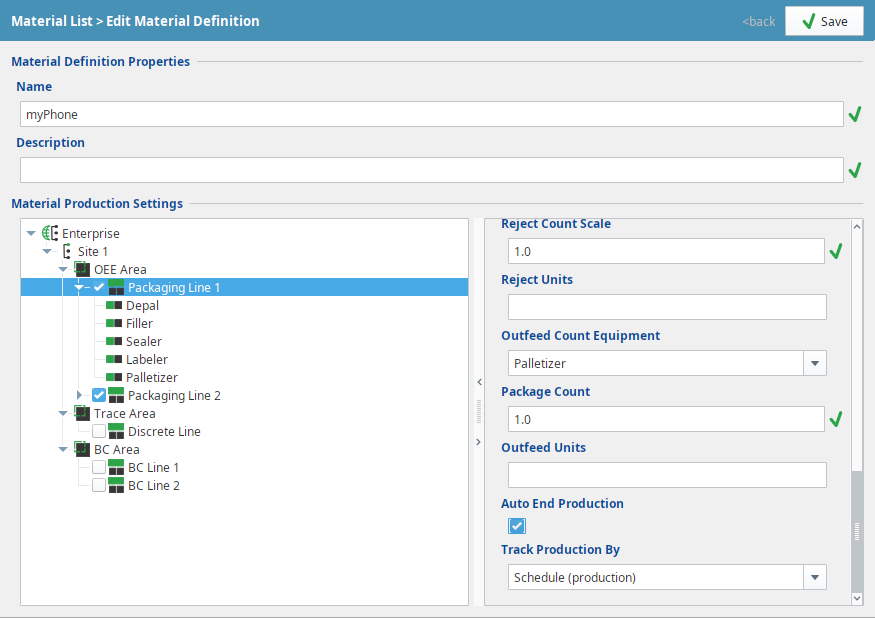
- Using the OEE Material Manager, select the corresponding material and line to end. Check the Auto End Production box, and click save.
Running Multiple Products on the line
Essentials
It is absolutely necessary that counters be on the individual cells. Infeed Count and Outfeed Count equipment should be set to cells rather than to the line. This enables counts to be apportioned to the correct production run.
Indexing A Product
There are two scripting functions available (one is optional) to control the indexing process: system.mes.oee.indexCellProduct(equipmentPath, skipChangeover) and system.mes.oee.endCellChangeover(equipmentPath). If skipCellChangeover is set to True, system.mes.oee.endCellChangeover() is no longer necessary. Live analysis can be used to track the indexing progress.
Code Snippet
Code |
#Specify the cell path
cell_path = event.source.parent.getComponent('MES Object Selector 1').equipmentItemPath
#Index product
system.mes.oee.indexCellProduct(cell_path, False) |
Code Snippet
Code |
#Specify the cell path
cell_path = event.source.parent.getComponent('MES Object Selector 1').equipmentItemPath
#End changeover
system.mes.oee.endCellChangeover(cell_path) |
Tag Driven OEE
What we mean by "Tag Driven OEE" is not that the signal to start or stop a production run is a tag, but that all production data is directly controlled by tag values (e.g. product code, standard rate, units, conversion factors, etc.). Think of this as a passive OEE Module recording approach where values are recorded on change exclusively.
If your OEE implementation is driven by tags in this sense, never use system.mes.oee script functions. Instead, use a User Defined Datatype (UDT). Also, make sure that Equipment Mode, Equipment Product Code, Equipment Work Order, Equipment Operations UUID, and other key tag collectors have the same timestamp.

|
|
Script Driven OEE
Starting OEE Production Runs
When starting OEE Production Runs via script, we must first confirm that another run is not active on the equipment, we end current runs, or manage a running changeover. As a best practice, Schedule and Work Order creation activities should be separated from direct Run control (start and stop) for purposes of thread management and data integrity. I.e. Don't bite off more than you can chew.
Example Start Script
Code |
workOrderName = 'Wo90' materialName = 'Sugar' path = '[global]\Nuts Unlimited\Site 1\Area\Line 1' activeList = system.mes.oee.getOEEAllActiveSegments(path) if activeList.size() > 0: activeSeg = activeList.get(0).getMESObject() if '_CO' in activeSeg.getName(): system.mes.oee.endOEEChangeover(path) else: system.mes.oee.endOEEProduction(path) system.mes.oee.beginOEERun(workOrderName, materialName, path) |
Ending OEE Production Runs
When ending OEE production Runs via script, ensure only one Operation is active on the line at one time when using the system.mes.oee.endProduction() function.