Overview
This article explains the configuration of a process segment (Receive Almond Milk) to blend lots.
Applies To and Version Info
This feature applies to the Track and Trace module and is available in all versions.
Configuration Details
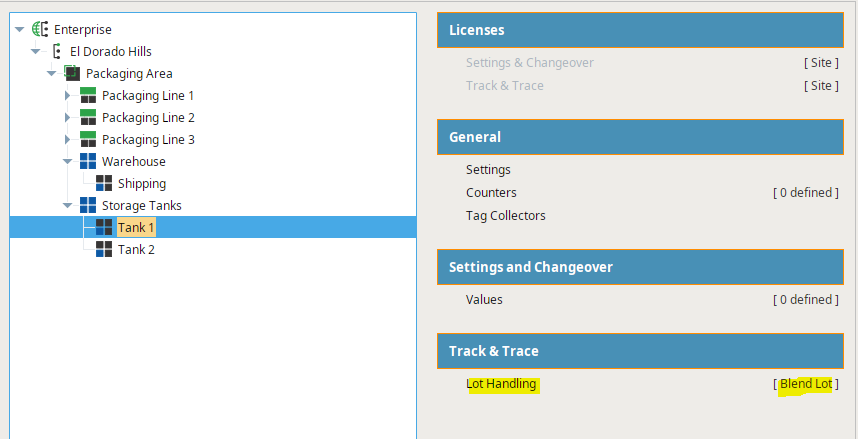
In this example, the lots that are to be blended are stored in Storage Units. These represent tanks that belong to the Receiving Storage Tanks equipment class.
The Lot Handling Mode property of each tank is set to Blend Lot in the Production Model.
The Process Segment Receive Almond Milk is now created and configured using the MES Management screen.
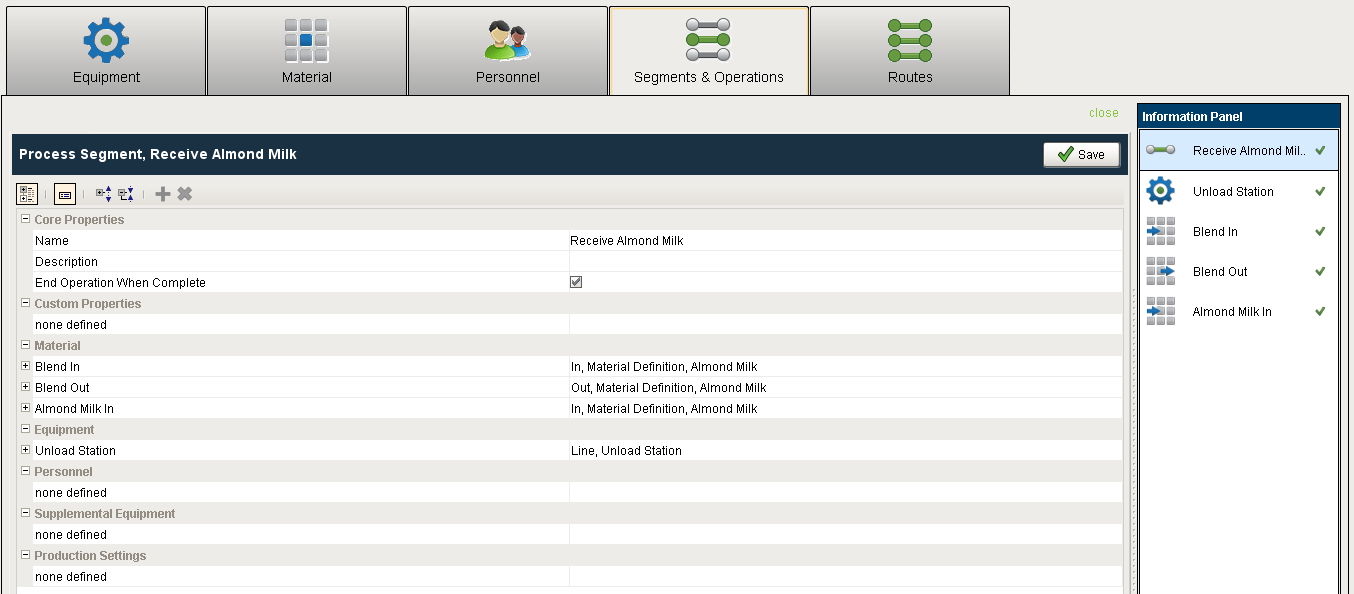
There are three material items that have to be defined to track blending.
- The Blend In is for the material that already resides in the storage tank. It will be completely consumed when this segment is performed.
- The Almond Milk In is for the new material being received that will be blended with the existing lot from the Blend In.
- The Blend Out is for the blended material going back into the storage tank.
Even though the existing material that already resides in the storage tank is not actually removed from the tank during the Receive Almond Milk segment, this is how the Track and Trace Module looks at it.
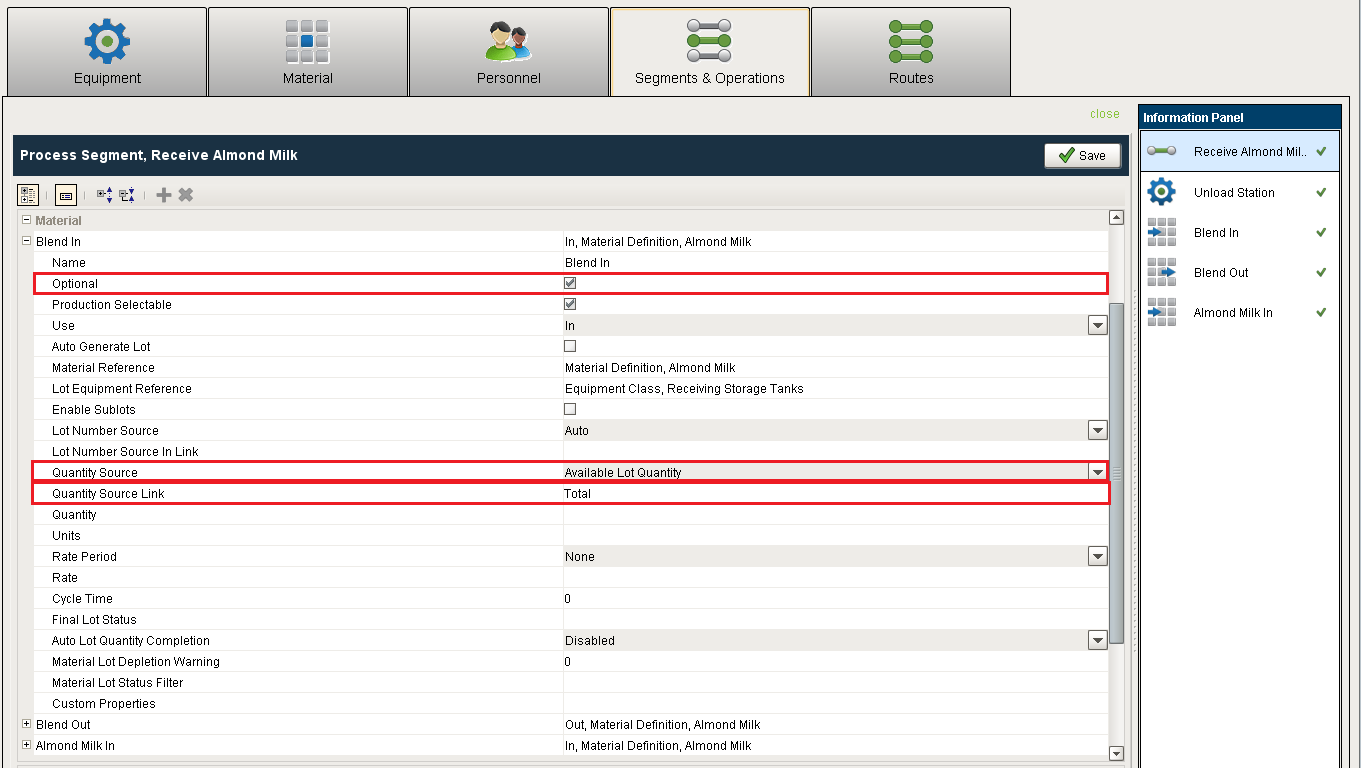
In the 'Receive Almond Milk' process segment, configure the Blend In material to be optional. This is required because the tank could be empty. Also, Available Lot Quantity is used to include all of the existing lot quantity for the blend.
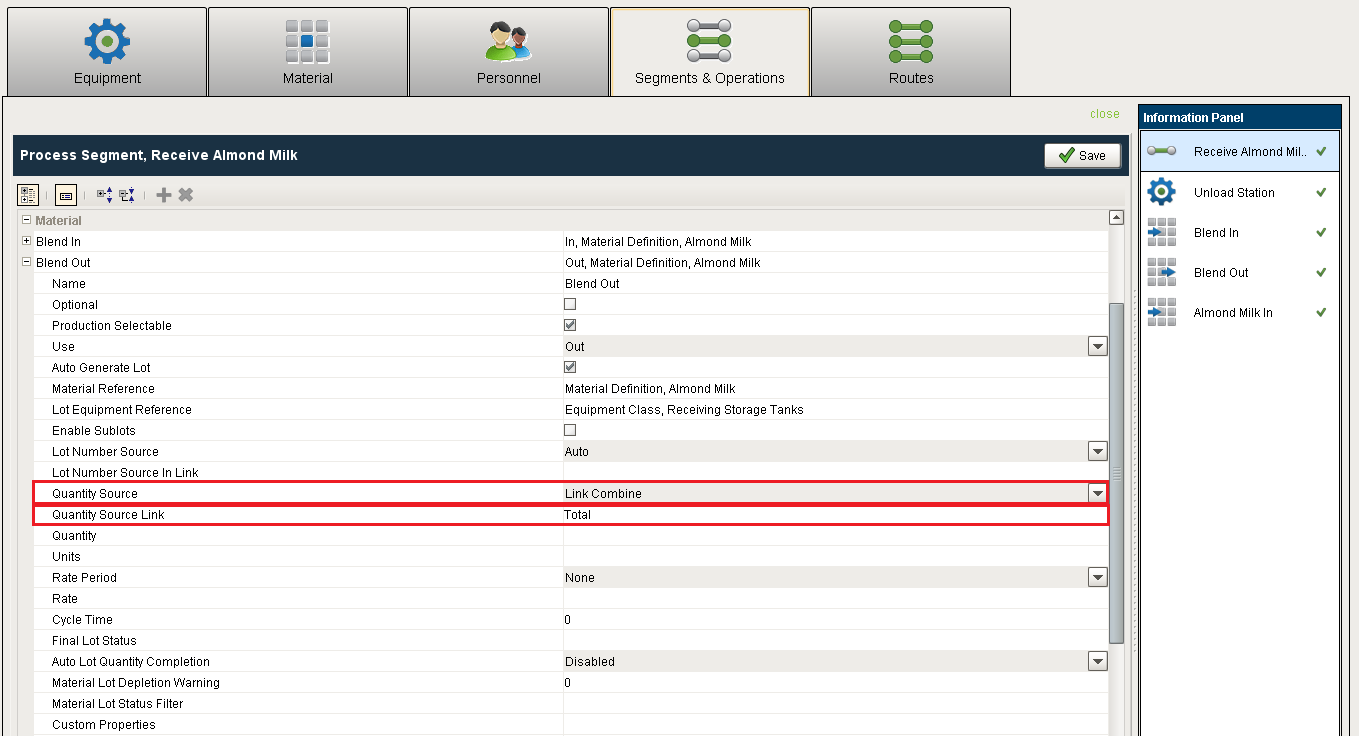
In the Receive Almond Milk process segment, configure the Blend Out material to set 'Quantity Source' to Link Combine and 'Quantity Source Link' to Total. This will set the new blended lot quantity to the sum of the Blend In and the Almond Milk In materials
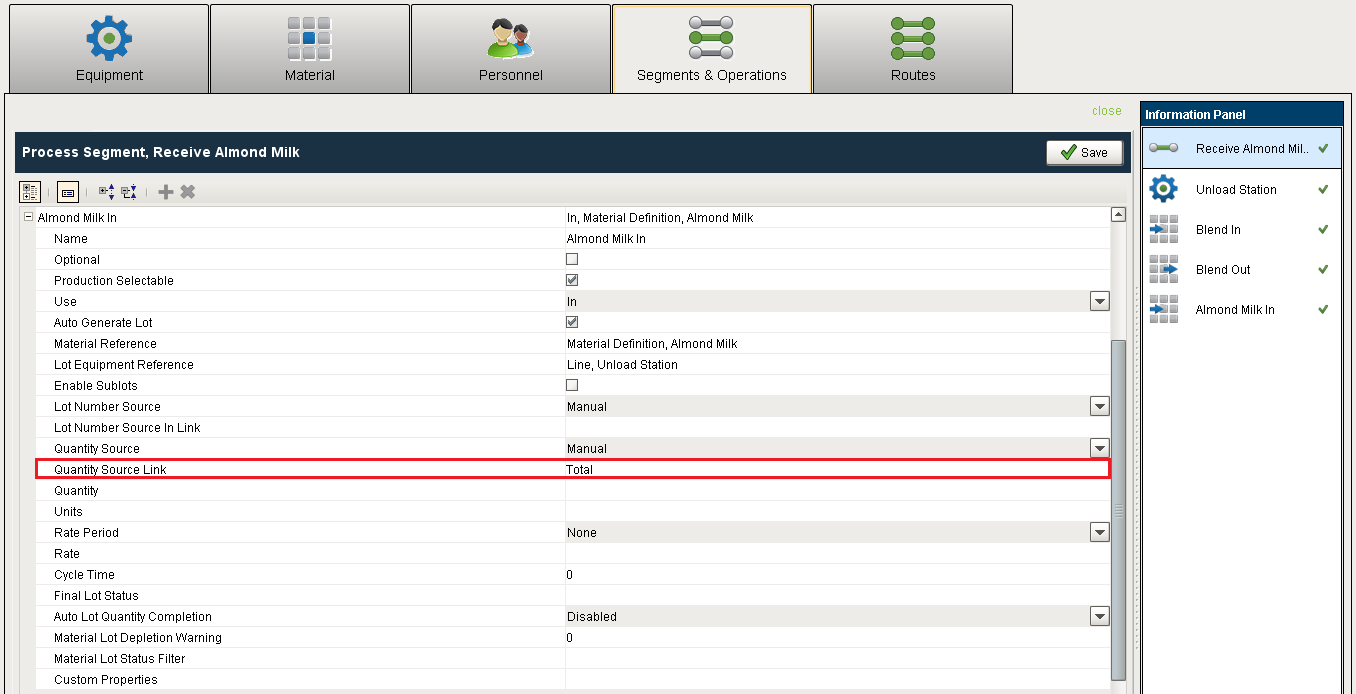
In the Receive Almond Milk' process segment, configure the Almond Milk In material to set 'Quantity Source Link' to Total.
Execution
The visual Track & Trace components can be used to execute the segment. The sample script shows how to do the same through scripting.
Results
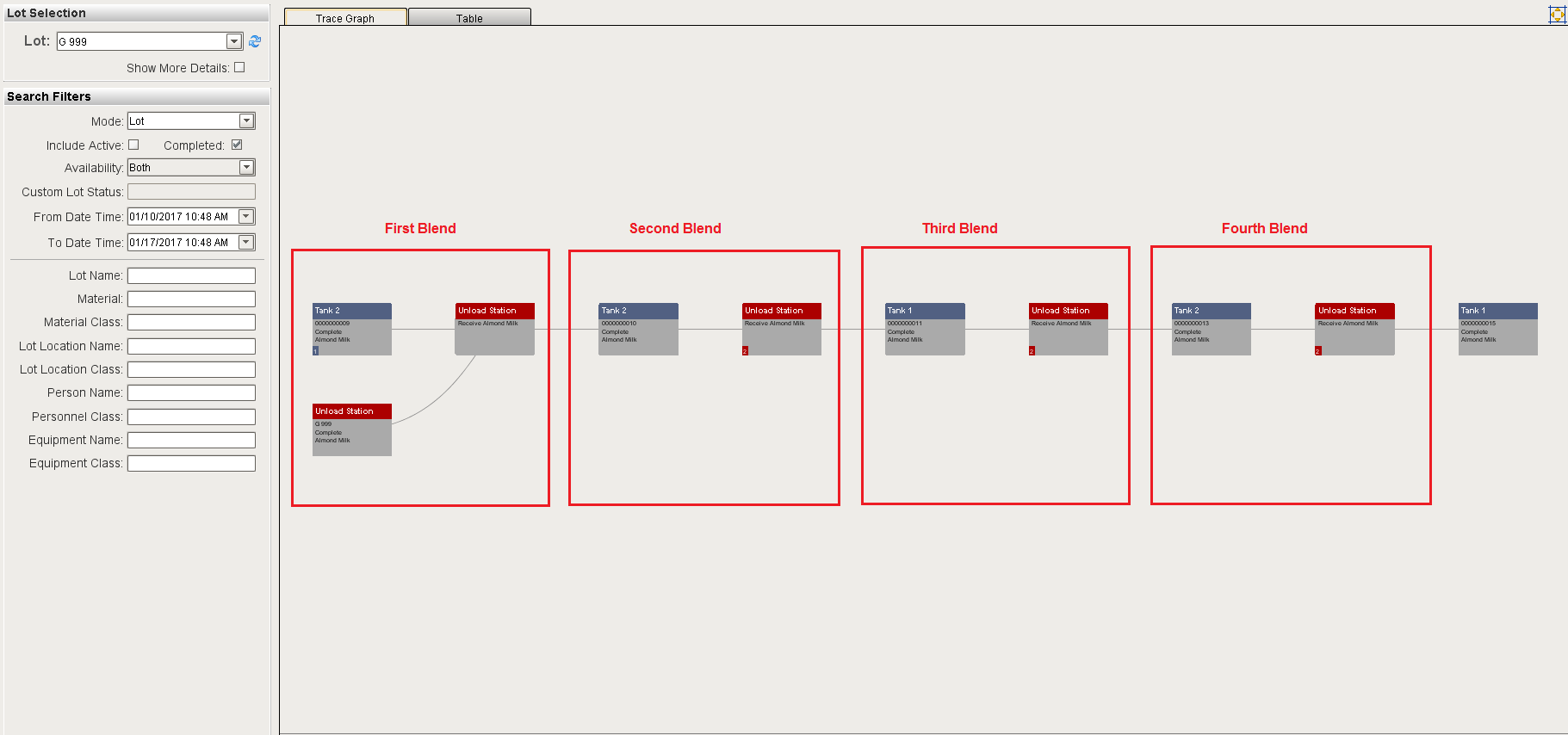
The screenshot below shows multiple blended lots in sequence. The previously blended lot for the 0000000009 is not initially shown, but it is indicated by the “1” in the lower left hand corner of the lot node. Clicking on it will show the details of the blended lot.
Code |
|