It is possible to use Work Orders for material production tracking using only the Track and Trace module. Linking the correct objects during production execution is necessary to leverage this functionality.
Below are steps to link Output material from Track and Trace to Work Order objects.
- For Material to show up in the Work Order table, the Material Class must have a parent path to the MaterialRoot object.
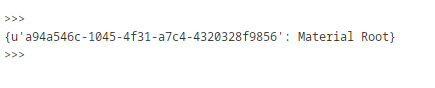
Add Root Material as Parent
Code |
|
You should now have the Material Root as the parent to your Material Class
Results
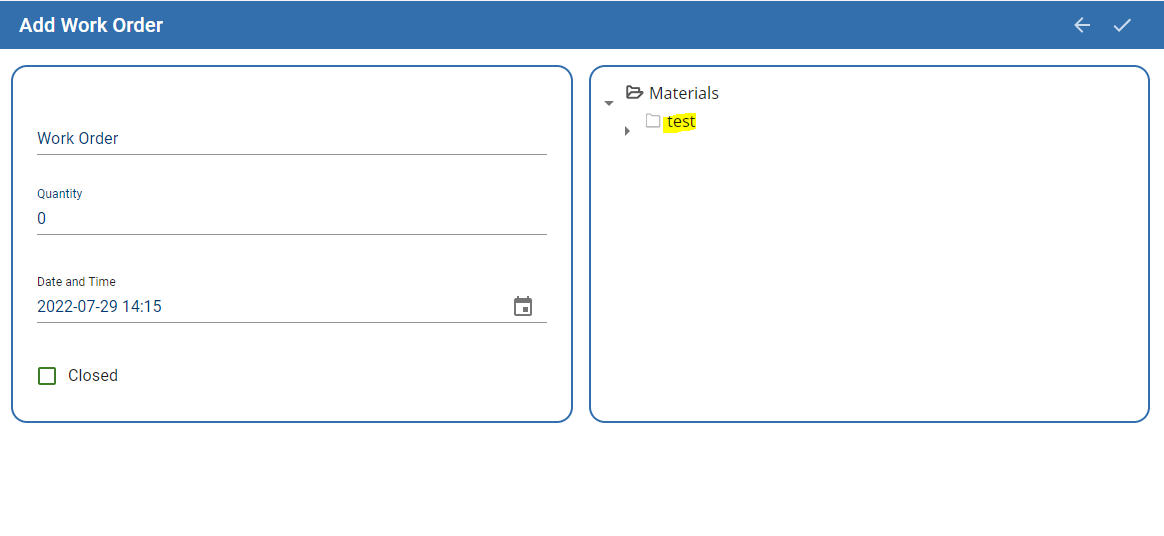
Your Material Class with any Material Definitions should now be available in the MES Work Order Table:
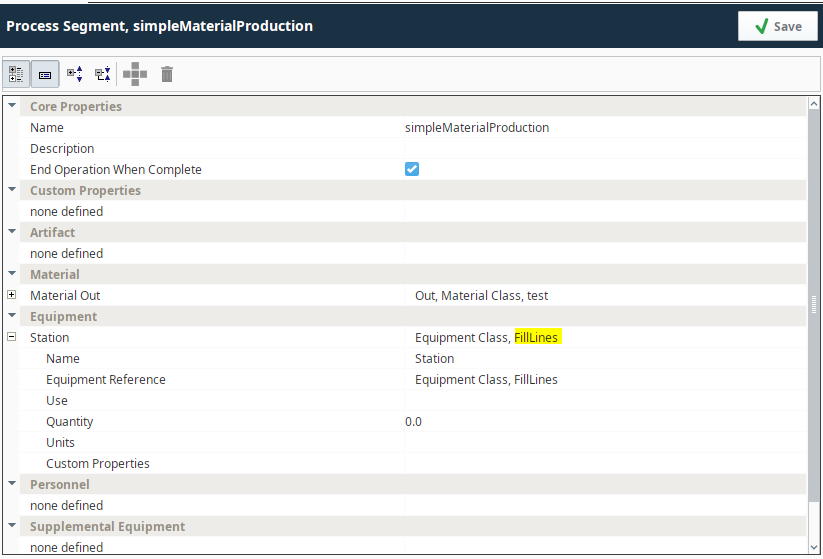
Create an Operation containing an output Material that can use a material you added as a child of the MaterialRoot object.
In this case, we have one output material and no Input material so a material lot is being generated for the first time.
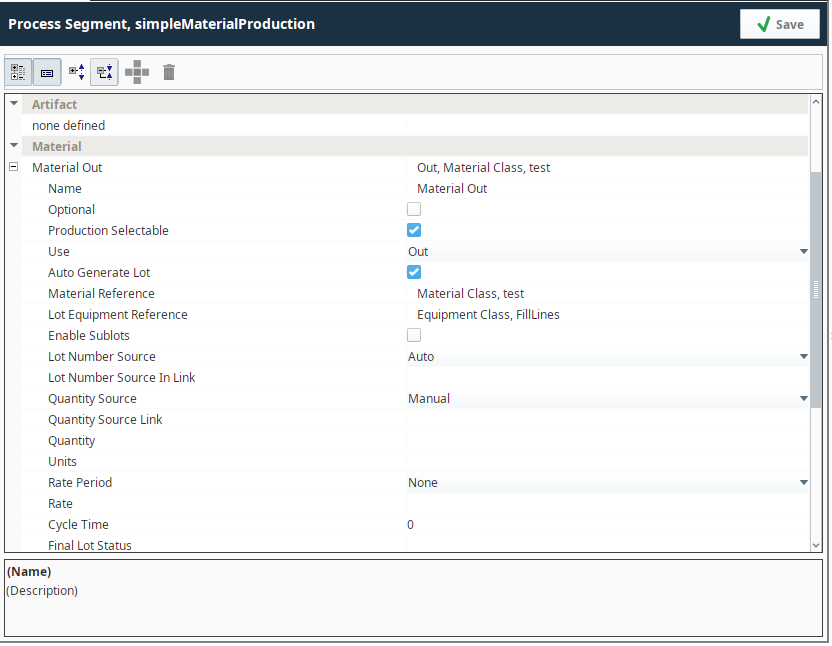
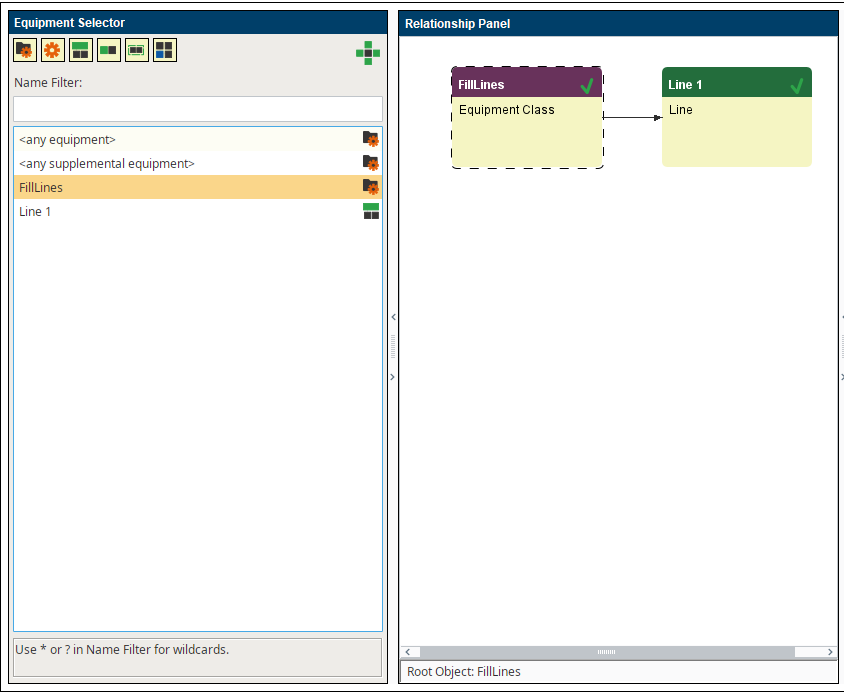
In this example, we have an Equipment Class we can add more lines to later. This allows us to model this operation for use on multiple lines without the need to create an operation for each line:
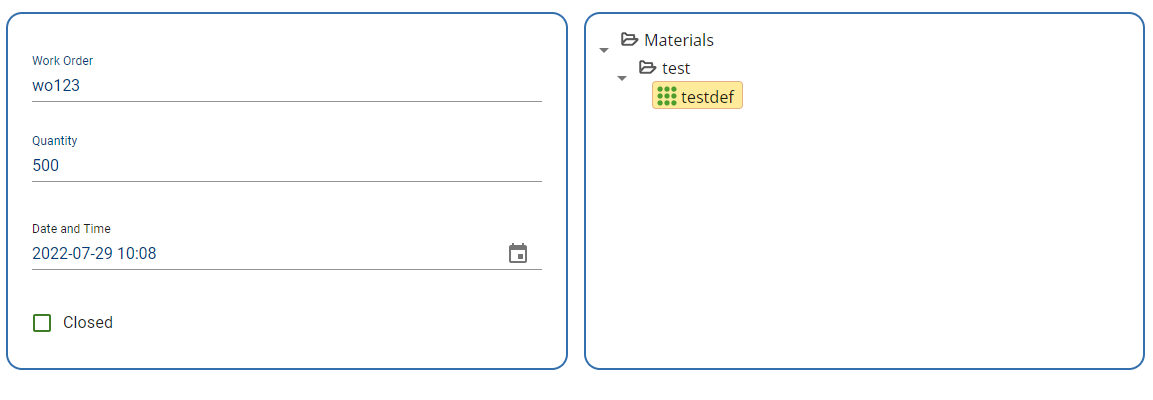
Now, we will create a new work order using the material from our material class:
We will now execute this operation called "simpleMaterialProduction" and set the quantity. In this example, we use components on screen to allow the user to modify the quantity and Line:
Execute Operation
Code |
|
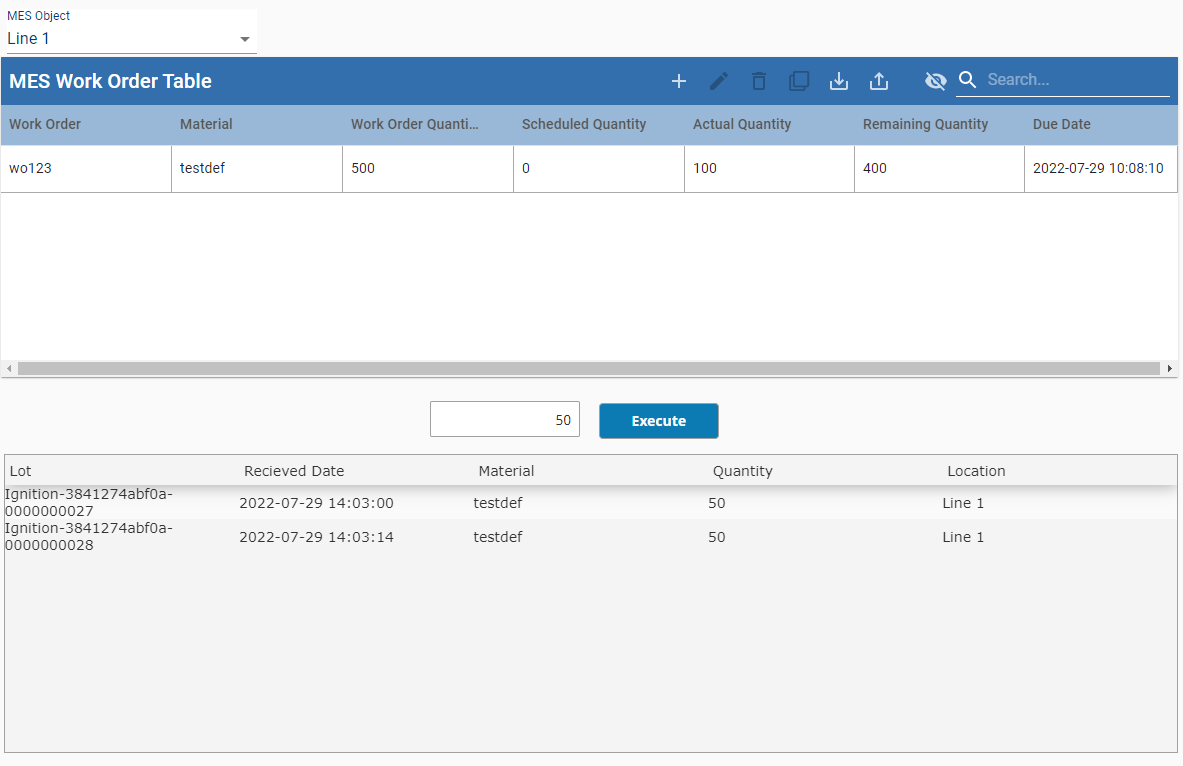
This operation has been executed twice, both at a quantity of 50, resulting in the Work Order 'wo123' having an actual quantity of 100.
We also have two material lots, each with a quantity of 50: