Batch Execution and Monitoring
Executing Batches
- In the left-side navigation, click Batch Execution. In the upper right, click the Plus icon to open New Batch.
- In the Recipe field, select the recipe you just created: messages.
- Enter a BatchID, such as msg01.
- Click Save.
- Now the batch is sitting idle in the batch queue. Click the checkmark in the batch list, and click the command-panel icon > select the Start icon.

Viewing Batches
There are two main components where you can view a batch during execution: Batch Monitor and Batch Controller.
Batch Controller vs. Batch Monitor
Both of these components are used to monitor and control batches, view and acknowledge messages and change modes: Auto, Semi-Auto and Manual. Batch Monitor allows. Batch Controller provides the ability to handle large recipes and manual control over parameters.
- From the left navigation, open Batch Monitor. In Batch ID, select the batch that was just executed. Notice the batch is waiting for the operation to enter a value in the value prompt.
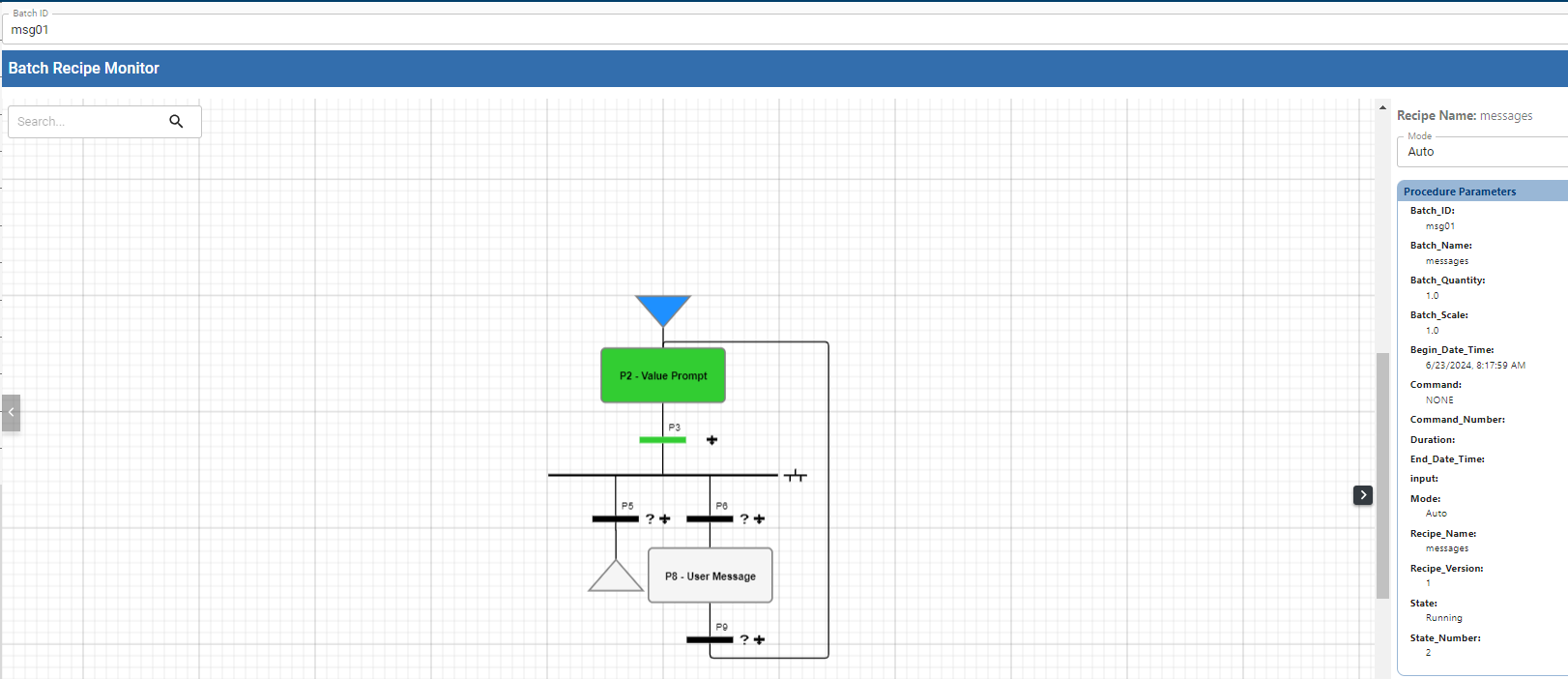
- In the left-side navigation, click MESSAGE LIST.
- Click the message waiting in the list.
- Enter any number other than '0' so the batch will loop back. Click Respond.
Notice if you are not logged in and message appears. The Sign-in icon in the upper right allows you to log in.
- Log in and and go to the message. Click Respond.
- View in Batch Monitor. (open from leftside navigation > BATCH MONITOR). Notice the execution is down to the User Message.
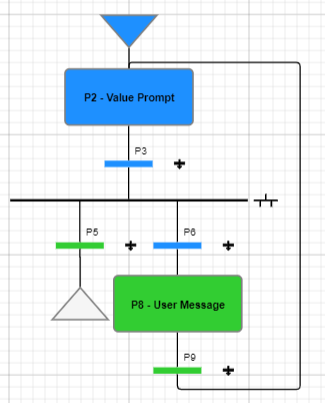
- In the upper-right, click the message icon to acknowledge the message.
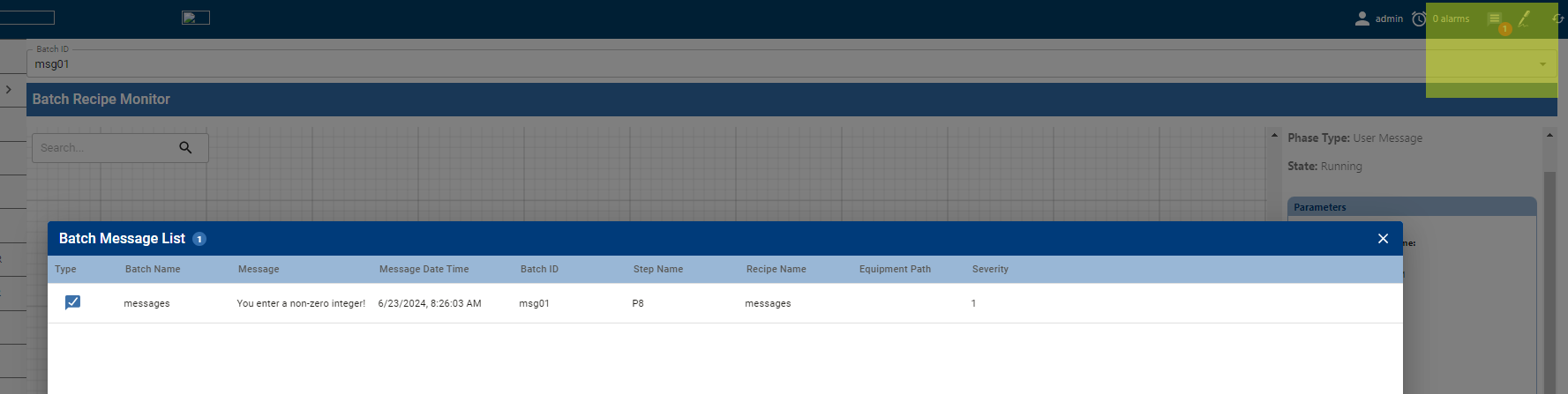
- Select the message and then click ACKNOWLEDGE.
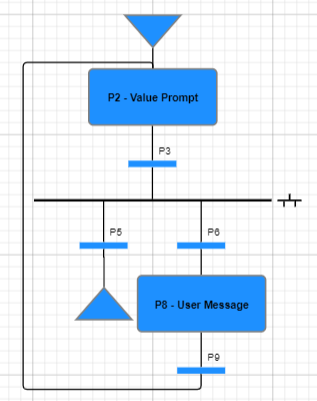
- Notice the execution goes back up to the start and goes through the steps again.
- Go to the MESSAGE LIST and enter '0' to complete execution.
Reference Documentation:
- Batch Recipe Authoring
- Using Batch Recipe Editor
- Batch Recipe Editor Component Reference
- Batch Procedure Phases | Base Phases