Downloading Production Orders with Business Connector
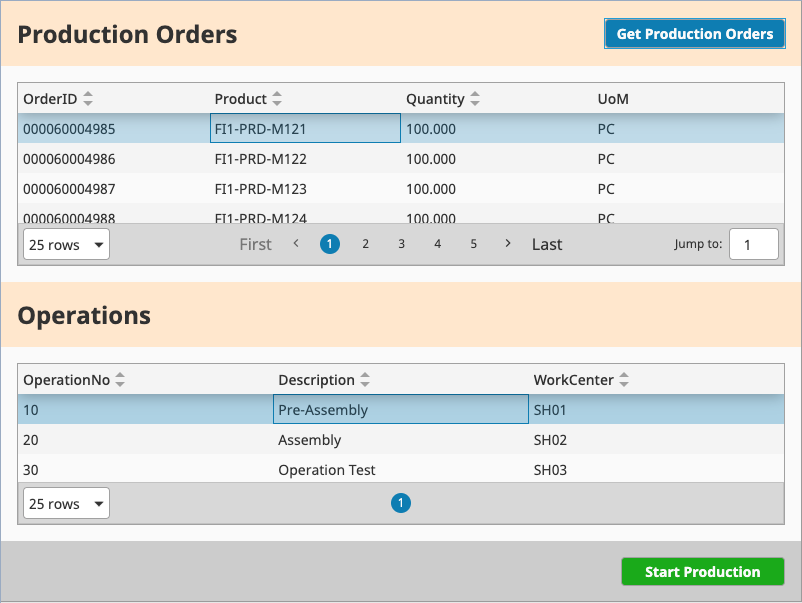
The following procedure will walk through developing a Business Connector Chart to download Production Orders and modifying a sample screen to execute the Chart upon a button press.
Create the Chart
- Create a new chart under the Business Connector → Tutorial → SAP folder called Get Production Orders.
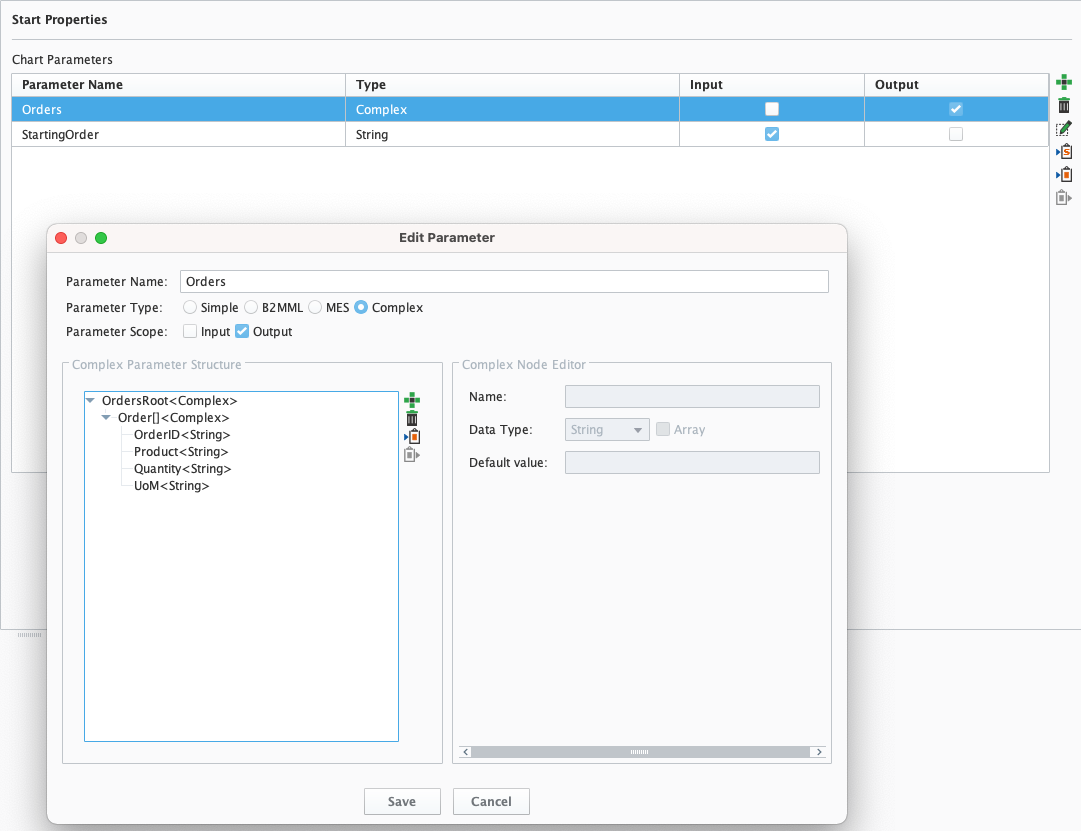
- Create an input parameter called StartingOrder of type String.
- Create an output parameter called Orders of type Complex with the structure shown below.
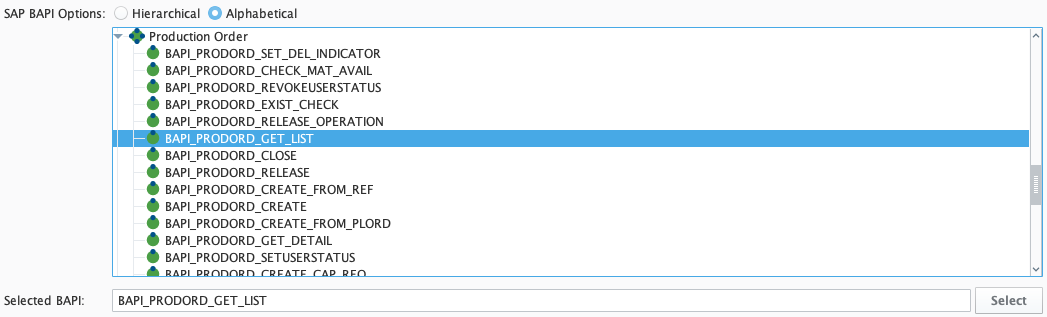
- Drag on an SAP BAPI Action Block and connect it to the Start Block. Provide a Name and Destination, and select the Alphabetical view.
- Navigate to the BAPI_PRODORD_GET_LIST BAPI located beneath the Production Order Business Object. Click to highlight the BAPI, and then click Select.
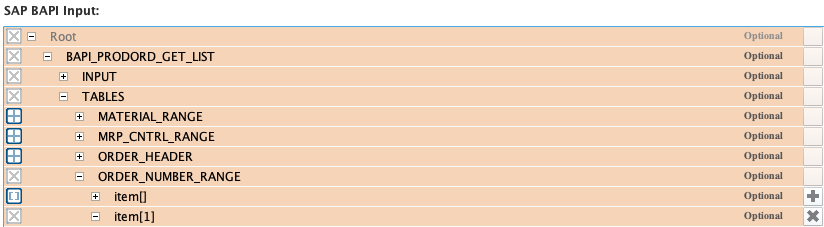
- Click on the SAP BAPI Action Block. From the Input tab, expand the BAPI Input structure on the right and instantiate a new array element for the item[] array beneath the ORDER_NUMBER_RANGE table parameter to create an item[1] element, as shown below.
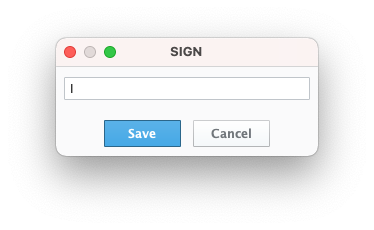
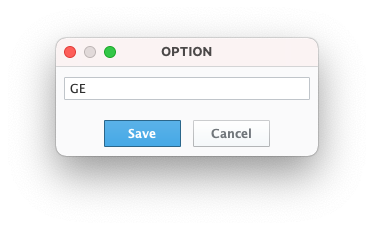
- Right-click on SIGN, set a fixed value of "I" (for "Include"), and click Save. Then right-click on OPTION, set a fixed value of "GE" (for "Greater than or Equal to"), and click Save.
- Add StartingOrderfrom the Parameters list on the left using the Add button

- Click and drag a connection from StartingOrderto LOWwithin the item[1] element, as shown below.

- From the Output tab, add Orders from the Parameters list on the right using the Add button.
- Expand the BAPI structure to find the item[] array beneath the ORDER_HEADER Table Parameter.
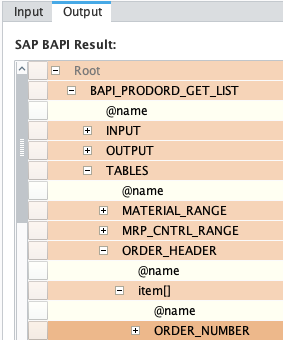
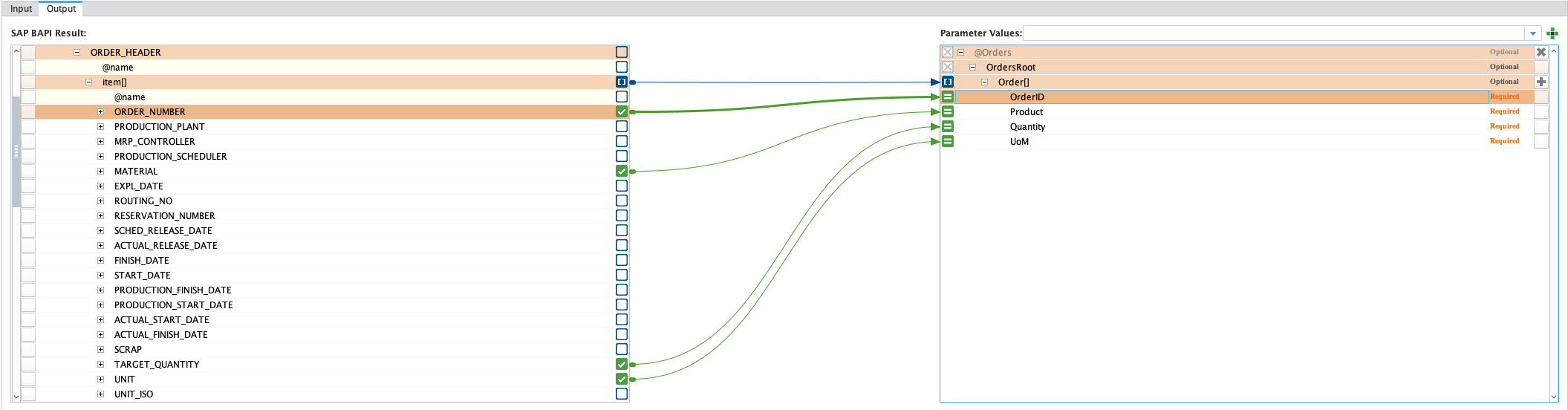
- From the item[] array on the left to the parameters under Orders on the right, drag four new connections, as listed below:
- ORDER_NUMBER → OrderID
- MATERIAL → Product
- TARGET_QUANTITY → Quantity
- UNIT → UoM
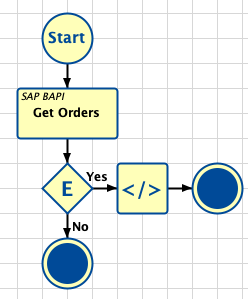
- Drag on an Exception Block and connect it to the Get Orders block. Then drag on a Script Block and connect it to the Exception Block. A "Yes" label should appear along the Edge.
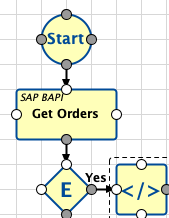
Add the following two (2) lines of code inside the executeScript function body of the Script Block, making sure both lines are indented:
Script Block Code
Pythonlogger = system.util.getLogger('Get Production Orders')
logger.error('Exception when calling BAPI.')Add two (2) End Blocks and connect them as shown below to complete the chart. Make sure to save!

Edit the Button to Call the Chart
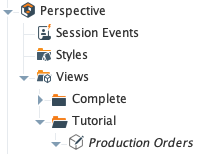
- Open the Production Orders View beneath the Tutorial folder.
- Navigate to the Get Production Order button, right-click, and click on Configure Events...
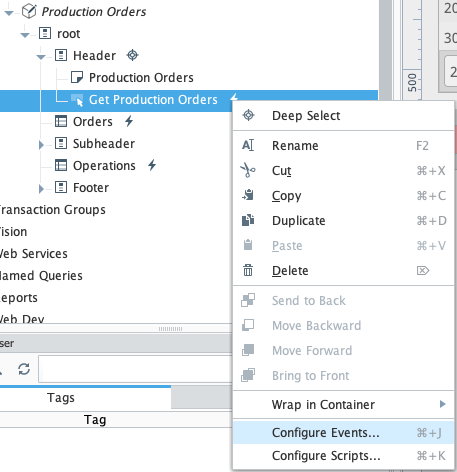
Add a new Script action to the onClick Mouse Event with the following lines of code inside the runAction function definition, and then click OK:
Configure Script Action
Python# clear table
self.parent.parent.getChild("Orders").props.data = {}
# populate Orders table
results = system.mes.bc.executeChartSynchronous('Training/SAP/Get Production Orders', {'StartingOrder' : '60004985'}, ['Orders'])
self.parent.parent.getChild("Orders").props.data = results['Orders']['OrdersRoot']['Order']
Run the Chart
- Click Play to go into Preview Mode. Then click the Get Production Orders button. Verify that the table is populated. Don't forget to save!