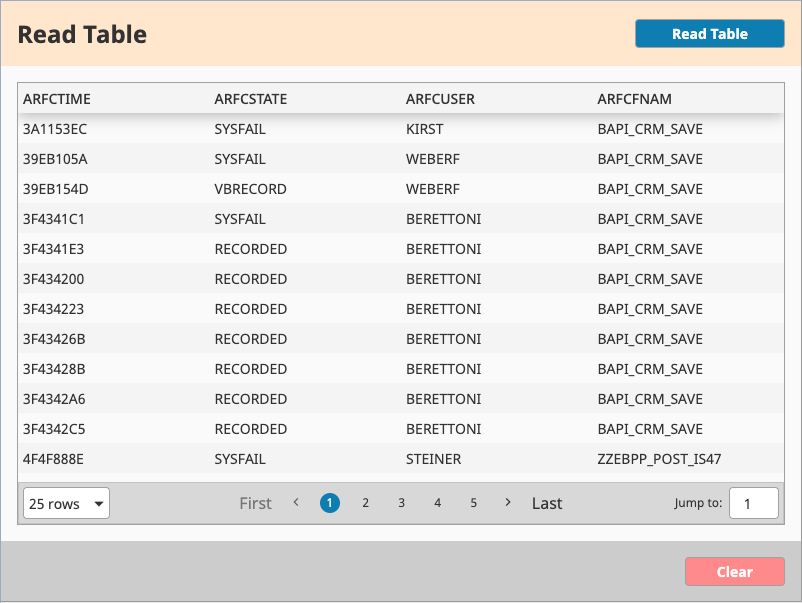
Reading Data From SAP Table
The following procedure will walk through developing a Business Connector Chart to read data from an arbitrary SAP table and modifying a sample screen to execute the Chart upon a button press.
Create the Chart
- Create a new chart under the Business Connector > Tutorial > SAP folder called "Read Table".
- Create all of the parameters shown below:
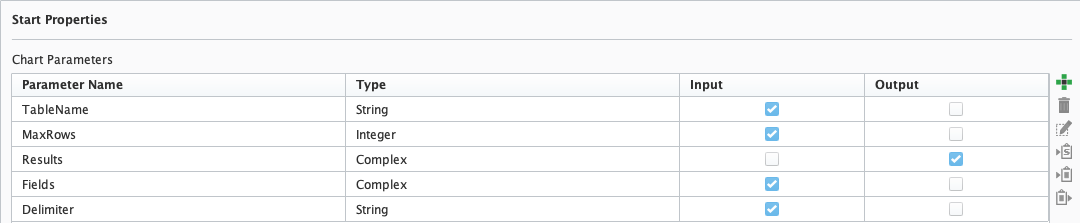
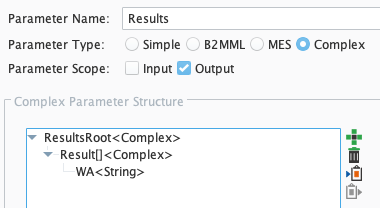
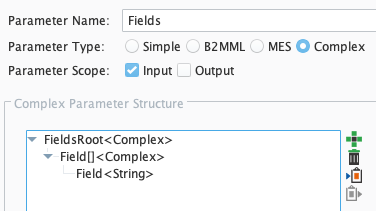
- Drag in an SAP RFM Action block and connect it to the Start block. Provide a name and destination, and using a wildcard character for the Function Group Filter ("*"), Query for the RFC_READ_TABLE RFM. Click on the RFM, and then click on Select.
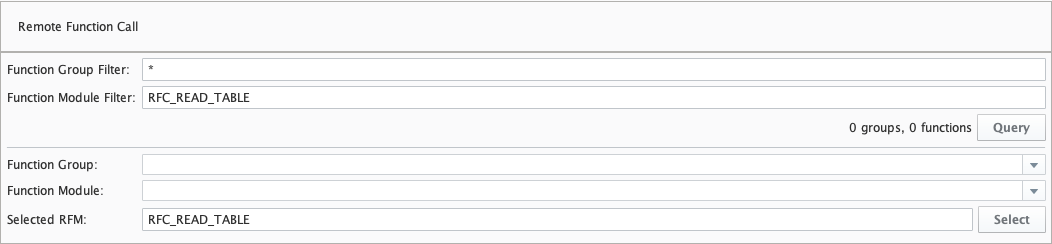
- Click on the SAP RFM block. From the Input tab, add all of the created Input Parameters and map them as follows.

- Right-click on the ROWCOUNT input and click Add function.
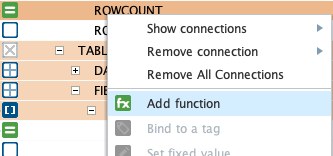
Add the following line of code to the Function Editor, within the getValue function definition, and click Commit:
Function Editor
Pythonreturn str(parameters[0])
- From the Output tab, add Results from the Parameters list on the right using the Plus ("-") button. Expand the BAPI structure to find the WA element within the item[] array beneath the DATA Table Parameter, and map it as shown:

- Drag in an Exception block and connect it to the Read Table block. Then drag in a Script block and connect it to the Exception block. A "Yes" label should appear along the Edge.
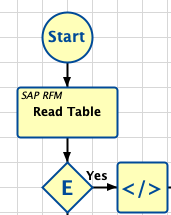
Add the following two (2) lines of code inside the executeScript function body of the Script block, making sure both lines are indented:
Script Block Code
Pythonlogger = system.util.getLogger('Read Table')
logger.error('Exception when calling RFM.')- Add two (2) End blocks and connect them as shown below to complete the chart. Make sure to Save!
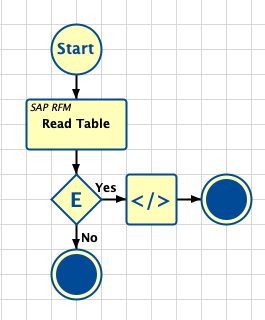
Edit the Button action to call the Chart
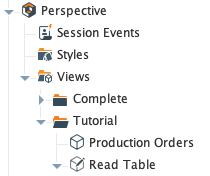
- Open the Production Orders View beneath the Tutorial folder.
- Navigate to the Read Table button, right-click, and click on "Configure Events..."
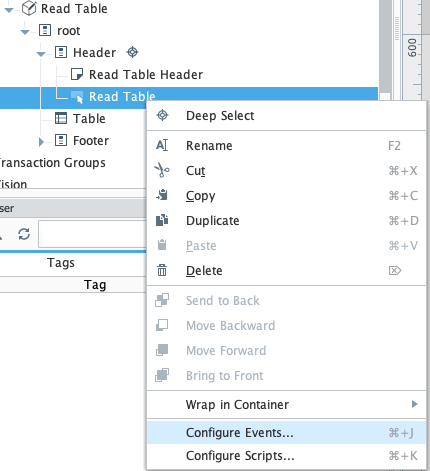
Add a new Script action to the onClick Mouse Event with the following lines of code inside the runAction function definition, and click OK:
Configure Script Action
Python# clear table
self.parent.parent.getChild("Table").props.data = {}
table = 'ARFCSSTATE'
fields = ['ARFCTIME','ARFCSTATE','ARFCUSER','ARFCFNAM','ARFCTIDCNT']
max_rows = 1000
delimiter = '|'
chart = 'Tutorial/SAP/Read Table'
results = shared.bc.sap.read_table(table, fields, max_rows, delimiter, chart)
self.parent.parent.getChild("Table").props.data = results- Click the Play button to put the View in Preview Mode. Then click the "Read Table" button and verify that the table is populated. Don't forget to Save!