Setting Up for Production Runs | OEE Using Perspective
In this section we will build some basic runtime related views.
- Setting Up for Production Runs | OEE Using Perspective
- Configuring Runtime View for Perspective
- Set Up Run Director
- Set Up Downtime Table
- Set Up OEE Time Chart
- Creating a Live-Analysis Based Runtime View
- Live Analysis Set Up
- Runtime Data Display
Configuring Runtime View for Perspective
This view allows a user to start and stop production runs manually at a given line as well as see real-time downtime information.
The OEE Run Director enables on-screen start and stop commands to be issued, putting plant floor data previously configured (production counters, equipment status signals) in context.
The OEE Downtime Table allows a user to see in real time what line level events represent downtime. Bear in mind that the line level downtime may be distinct from cell level downtime. While each machine on a line can go up or down with events, the line uses the Downtime Detection Method selected in the Equipment Manager to process cell level events and determine the line status.
Follow the steps outlined below to configure the screen, then start and stop runs so you can investigate the data and understand the functionality.
Set Up Run Director
- Add a Perspective View.
-
Add these components:
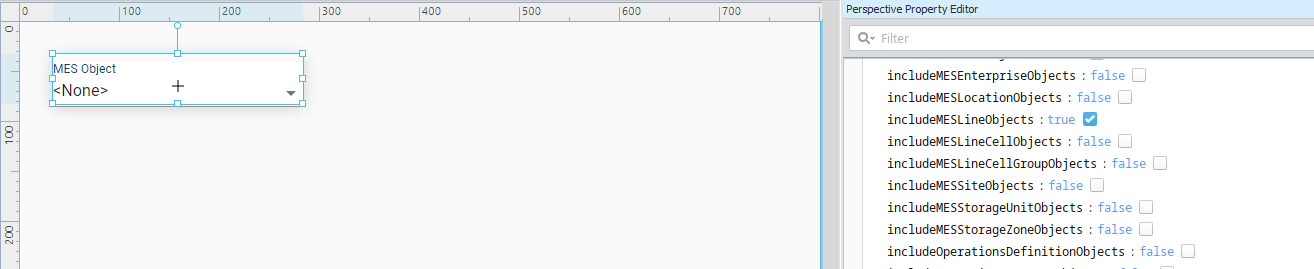
- Production > MES Object Selector to the top of the page.
- OEE Downtime > OEE Runtime Director under the object selector.
- Enable the "Include Line Objects" flag on the MES Object Selector.
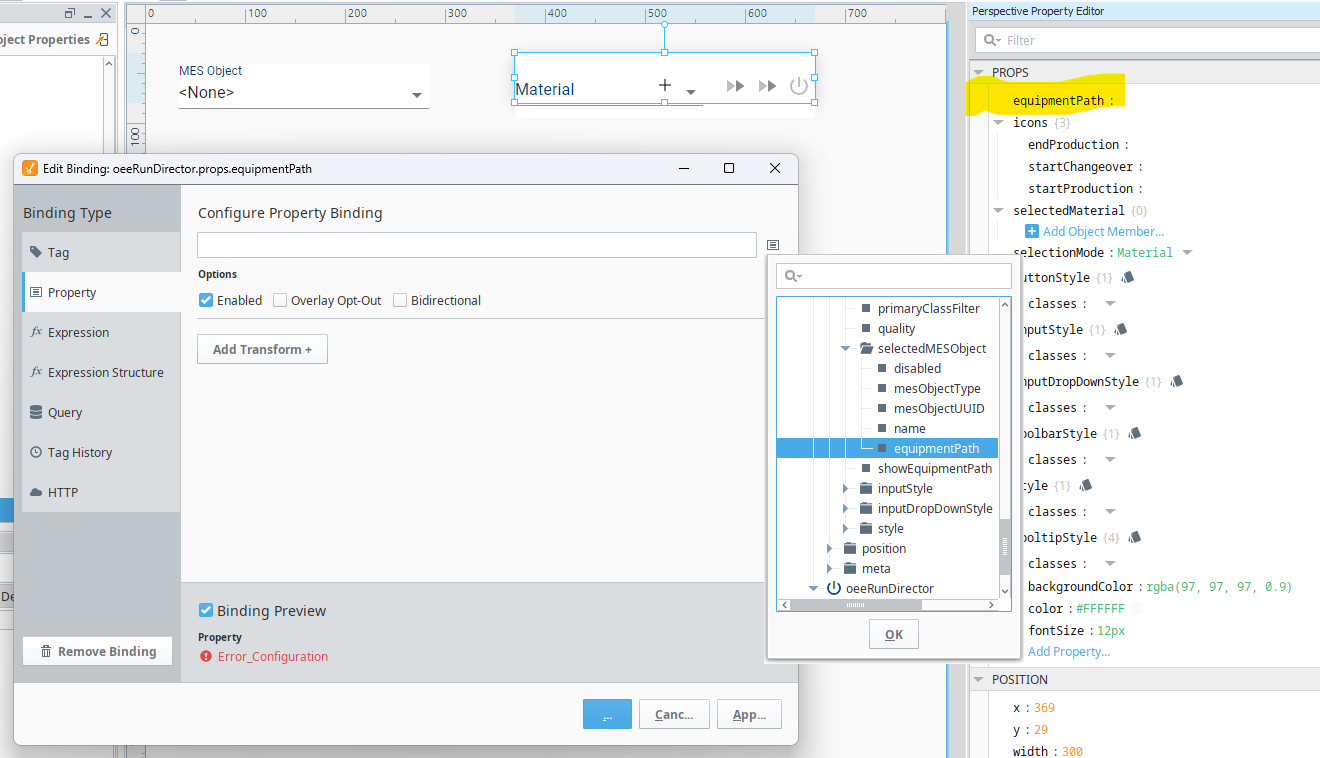
- Bind the Equipment Path property of the OEE Run Director component to the MES Object Selector's selected MES Object's Equipment Item Path property.
- The OEE Run Director will now reflect the available Materials or Work Orders available for execution on the selected line in the MES Object Selector (our de facto line drop down tool).
Set Up Downtime Table
-
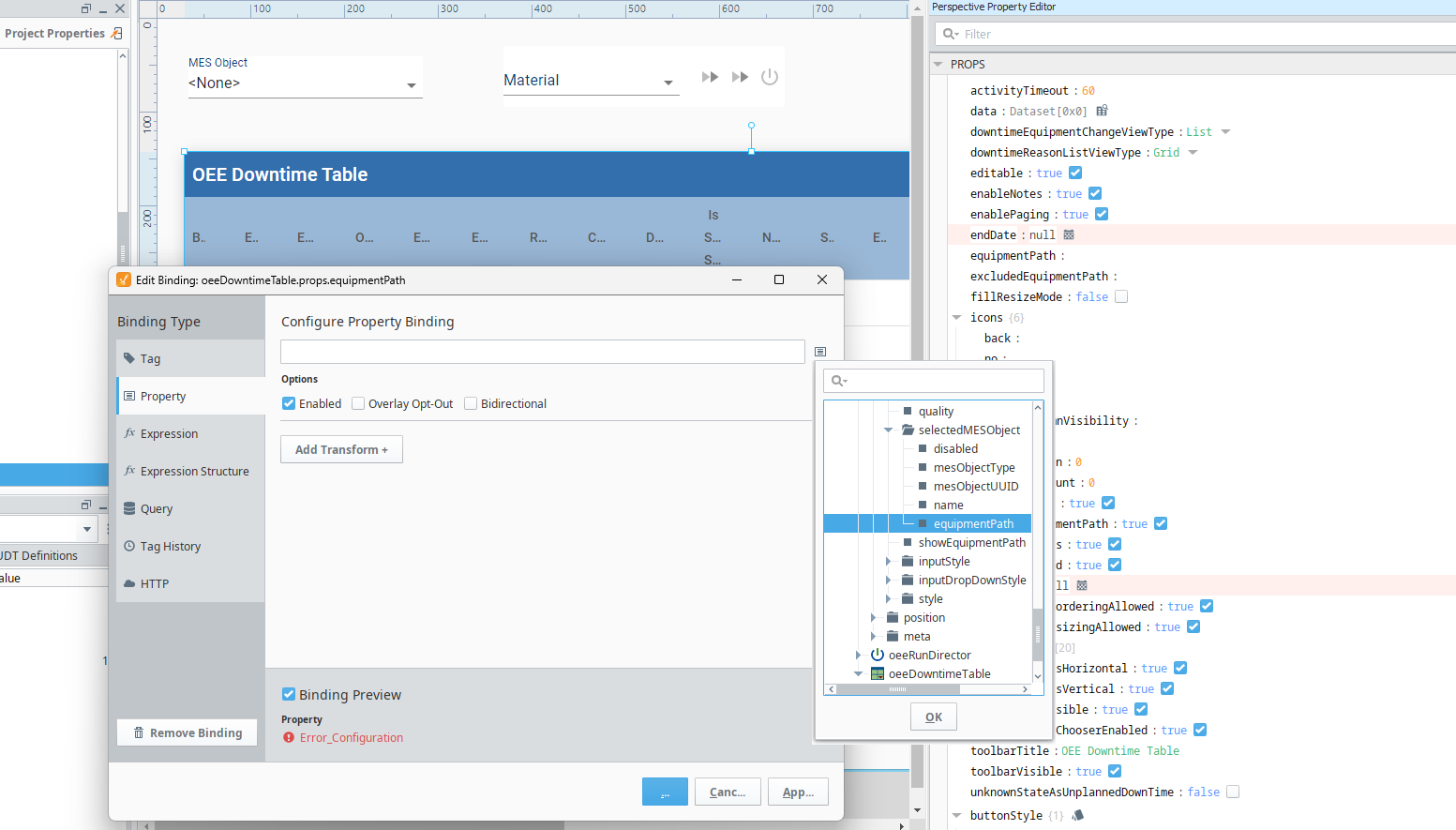
Repeat the same Equipment Path binding for the OEE Downtime table that we previously performed with the OEE Run Director.
- Add the OEE Downtime Table to the view.
- Bind the Equipment Path property to the MES Object Selector's Selected MES Object Equipment Item Path property.
- Take care to mind the start and end dates for the Downtime Table and/or the Run Lookback Count.
Set Up OEE Time Chart
- Add the OEE Time Chart component to the view.
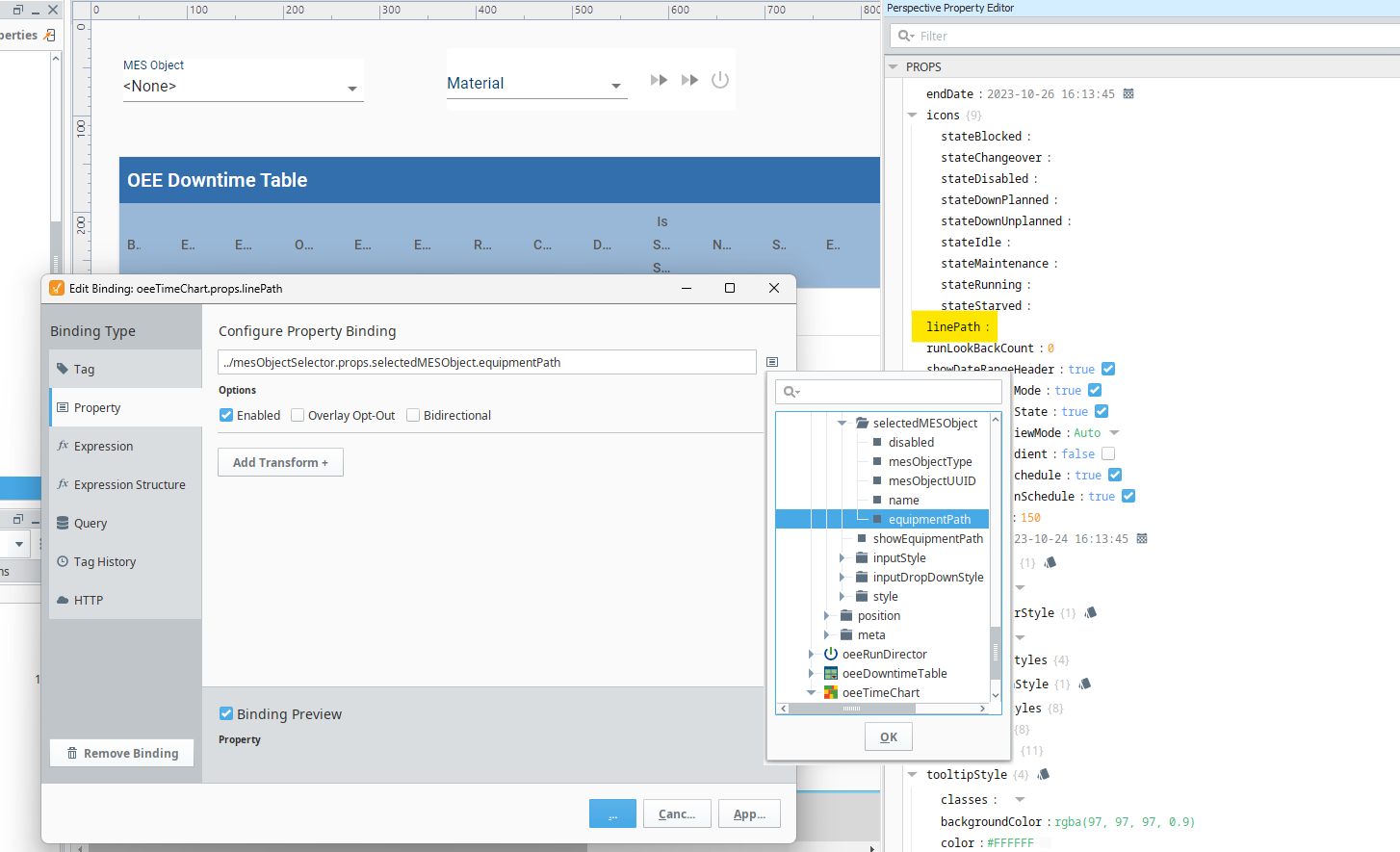
- The equipment path must now be bound for the OEE Time Chart. There is one small change to this procedure as the Time Chart calls the equipment path the "Line Path". Use the same MES Object Selector Binding to complete this set up step. This name difference indicates that this component is only available for Line level use.
Creating a Live-Analysis Based Runtime View
This view allows a user to see runtime data live from the OEE Downtime module's Live Analysis features. Live Analysis allows individual equipment to have their own live reporting by publishing values to the tag server. Therefore, configuration on screen is very simple, as text and components can reference data from Ignition Tags.
Follow the steps outlined below to configure the Live Analysis, then configure on screen display of the live data.
Live Analysis Set Up
- Open the Equipment Manager view previously configured.
- In preview mode, navigate to the Line or Cell for which you want runtime data.
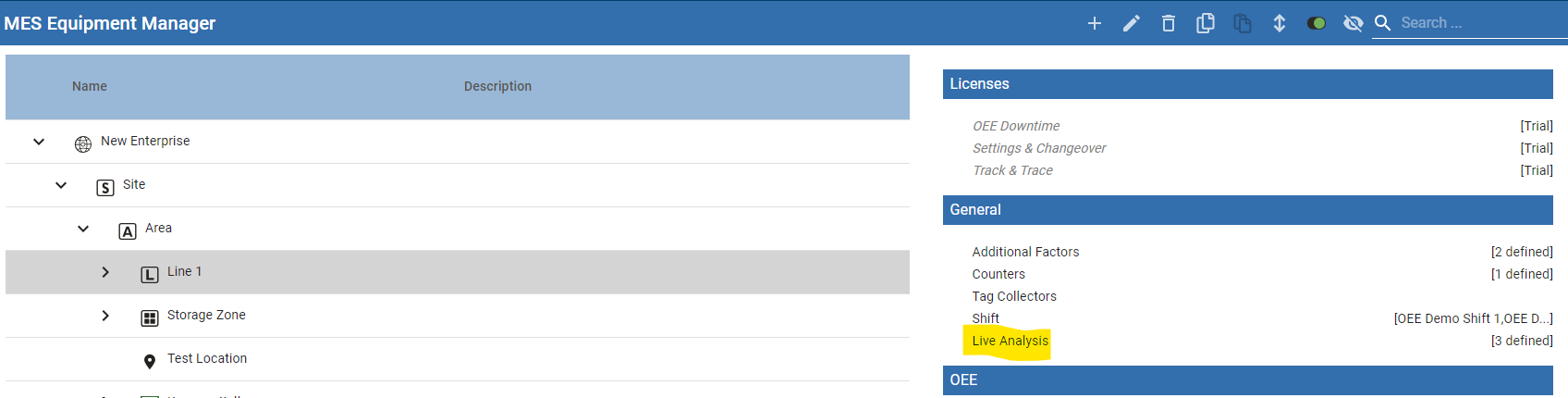
- Select "Live Analysis" under the General section.
- Create a new Live Analysis with the plus icon.
-
Name the Live Analysis, select the period of evaluation, then select the data points.
- For more detail on the data points, consult the reference documentation here.
- Once saved, the values selected will be calculated for the time period selected, then published in the MES tag provider within Ignition.
Runtime Data Display
- Now that the Live Analysis (or analyses, as desired) are configured, on-screen display can be configured with bindings.
- Tag bindings. See the Ignition User Documentation.
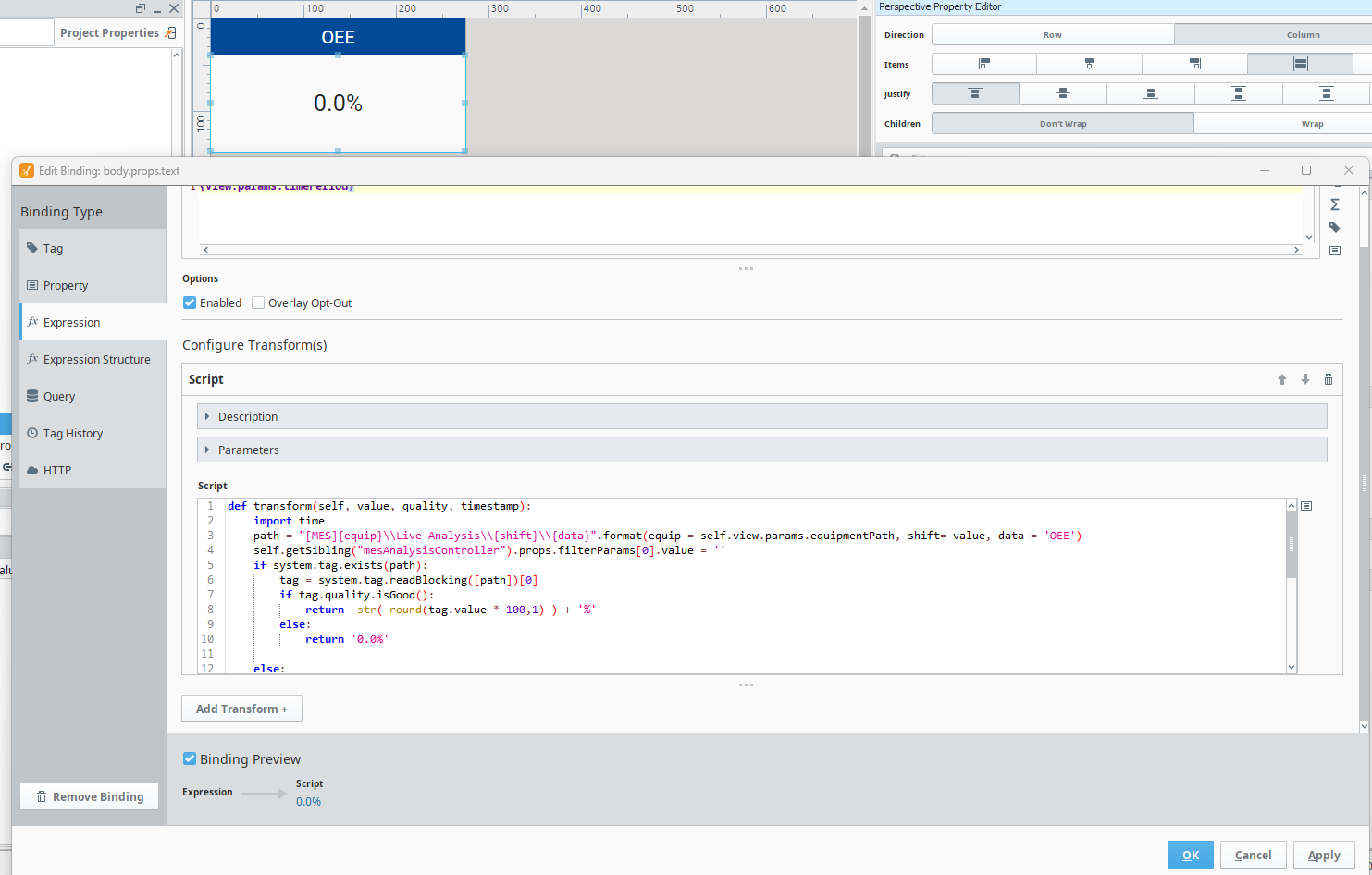
- For more advanced users, the example at right is given, with parameterization and utilization of an MES Analysis Controller as a backup if the Live Analysis was not actually configured.