Building the Operator Interface for Sample Collection
The goal of this section is to construct a user-friendly and efficient interface for manual data entry. A well-designed operator screen is crucial for ensuring data accuracy and consistency on the factory floor, which in turn guarantees the reliability of the entire SPC system.
Assemble the Interface Components
- Create a new View called SPC_01_GUI/Production Control and create page url for later use.
The Manual Sample Collection set-up on the view has four main components:
2. Ignition Dropdown Component
3. Sample Entry
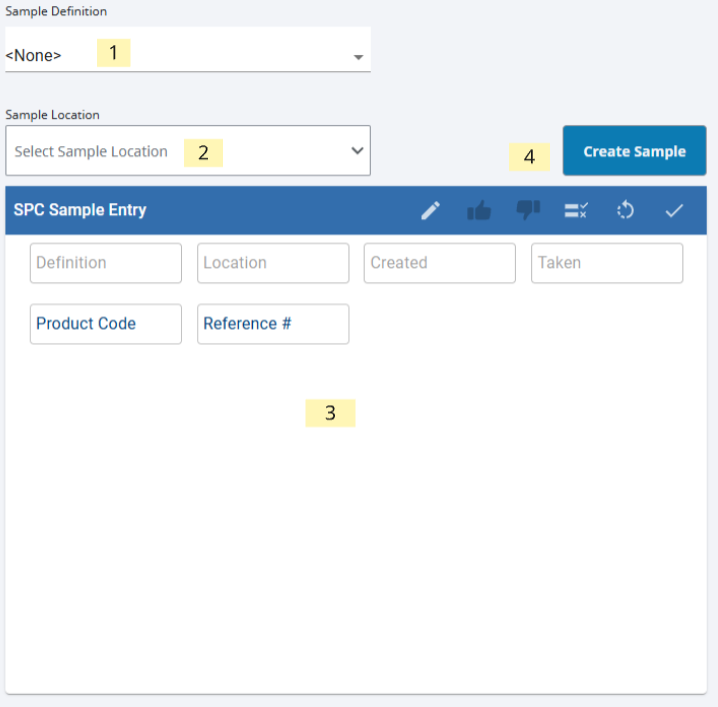
Area 1: MES Object Selector
Purpose: Allows users to select the desired Sample Definition from a list.
Area 2: Location Selector (Dropdown)
Purpose: Shows the available equipment locations where the selected sample definition can be applied.
Area 3: SPC Sample Entry
Purpose: Provides the input fields for the sample attributes (LocationX, LocationY, Diameter).
Area 4: Create Sample Button
Purpose: Triggers the data collection process for a new sample.
Configure Sample Definition Selector
- Drag an MES Object Selector component onto the view. From the Component Properties, set includeSampleDefinitionObjects = true
- Rename the component mos_sampleDef in the project browser
Configure Location Selector
Drag an Ignition Dropdown component onto the view.
Location the options[] array in the component props.
Select binding
Set a property binding to the mos_sampleDef component previously created.
Bind to the mos_sampleDef.props.selectedMESObject.mesObjectUUID
Add a script transform below. This returns all locations applied for a given sample definition and populates the dropdown options:
Python |
def transform(self, value, quality, timestamp): locations = [] if not value: return locations obj = system.mes.loadMESObject(value) if obj.getMESObjectTypeName() != 'SampleDefinition': return locations for loc in obj.getAllSampleLocationProperties(): locationPath = loc.getLocationLink().getMESObject().getEquipmentPath() locations.append({'value':locationPath,'label':locationPath}) return locations |
Configure Sample Entry Component
- Drag an SPC Sample Entry component from the Perspective Component list in the Statistical Process Control section to the view.
- No further configuration is required.
Configure Create Sample Button
- Drag an Ignition Button to the view.
- Create an onActionPerformed event script. This script will create a sample and add it to the Sample Entry component for data input:
Python |
def runAction(self, event): sampleDef = self.getSibling("mos_sampleDef").props.selectedMESObject.name locationPath = self.getSibling("drp_locations").props.value sample = system.quality.sample.data.getCreateSampleByName('',sampleDef, locationPath) system.quality.sample.data.updateSample(locationPath, sample, False) self.getSibling("Sample Entry").props.sampleUUID = sample.getSampleUUID() self.getSibling("Sample Entry").props.sampleTakenDateTime = system.date.now() |
- Add labels as desired.
- Save Project.