Configure Sample Collection
Create a new view SPC_03_Scripting/Production Control
The production control screen demonstrates how to manually collect samples (not triggered by the SPC module). The script function system.mes.spc.sample.collect can be used in tag change scripts, timer scripts, or other event based mechanisms providing maximum flexibility for SPC sampling.
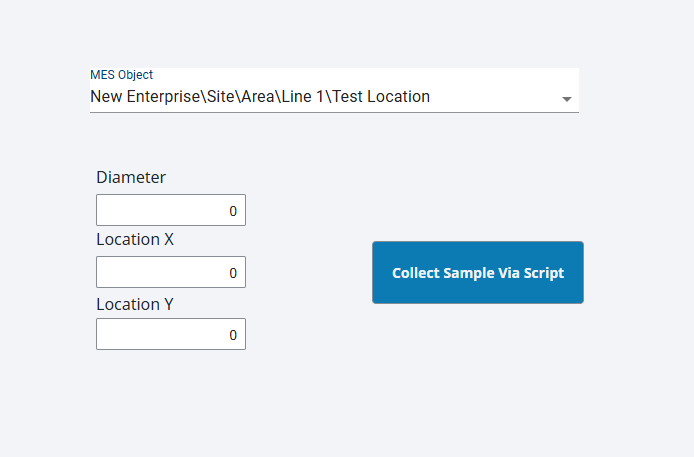
This screen is comprised of 3 main components:
1. Three - Numeric Entry Field Each will input an attribute data.
2. Button - for sample collection
3. MES Object Selector - with includeMESLocationObjects = true
Configure Labels and Numeric Text Fields
- Drag three Label components onto the window. Position and resize as shown above.
- Drag three Ignition Numeric Entry Field components onto the window. Position under each Label and resize as shown.
- Change each LabelText property:
- Top Label: Diameter
- Middle Label: Location X
- Bottom Label : Location Y
- Change each Name property:
- Top Numeric Text Field: nef_diameter
- Middle Numeric Text Field: nef_locationX
- Bottom Numeric Text Field: nef_locationY
Configure 'Collect Sample Via Script' Button
- Drag an Ignition Button component onto the window. Resize it enough to fit the text shown above.
- Change the Text property to Collect Sample Via Script.
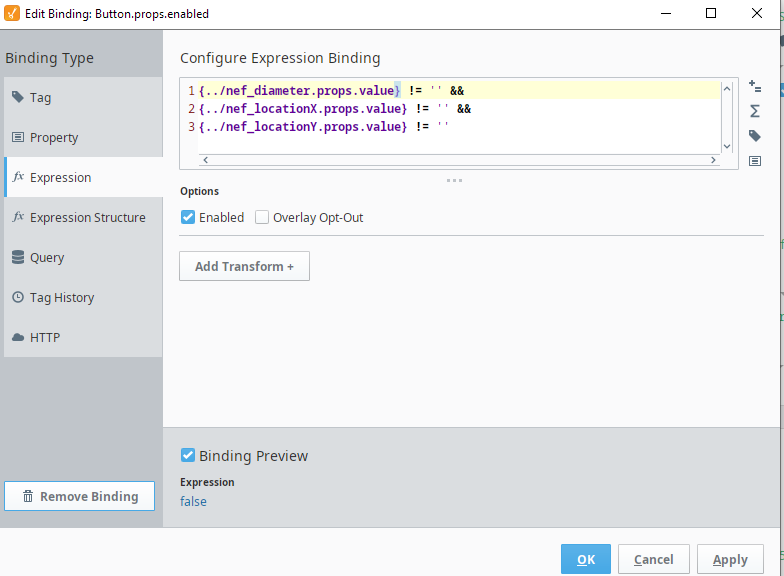
Bind the Enabled property with the following expression:
Expression for Enabled property
Code{../nef_diameter.props.value} != '' && {../nef_locationX.props.value} != '' && {../nef_locationY.props.value} != ''- Open the Component Scripting dialog box (Ctrl-J), select the actionPerformed event handler script area and paste in the script below:
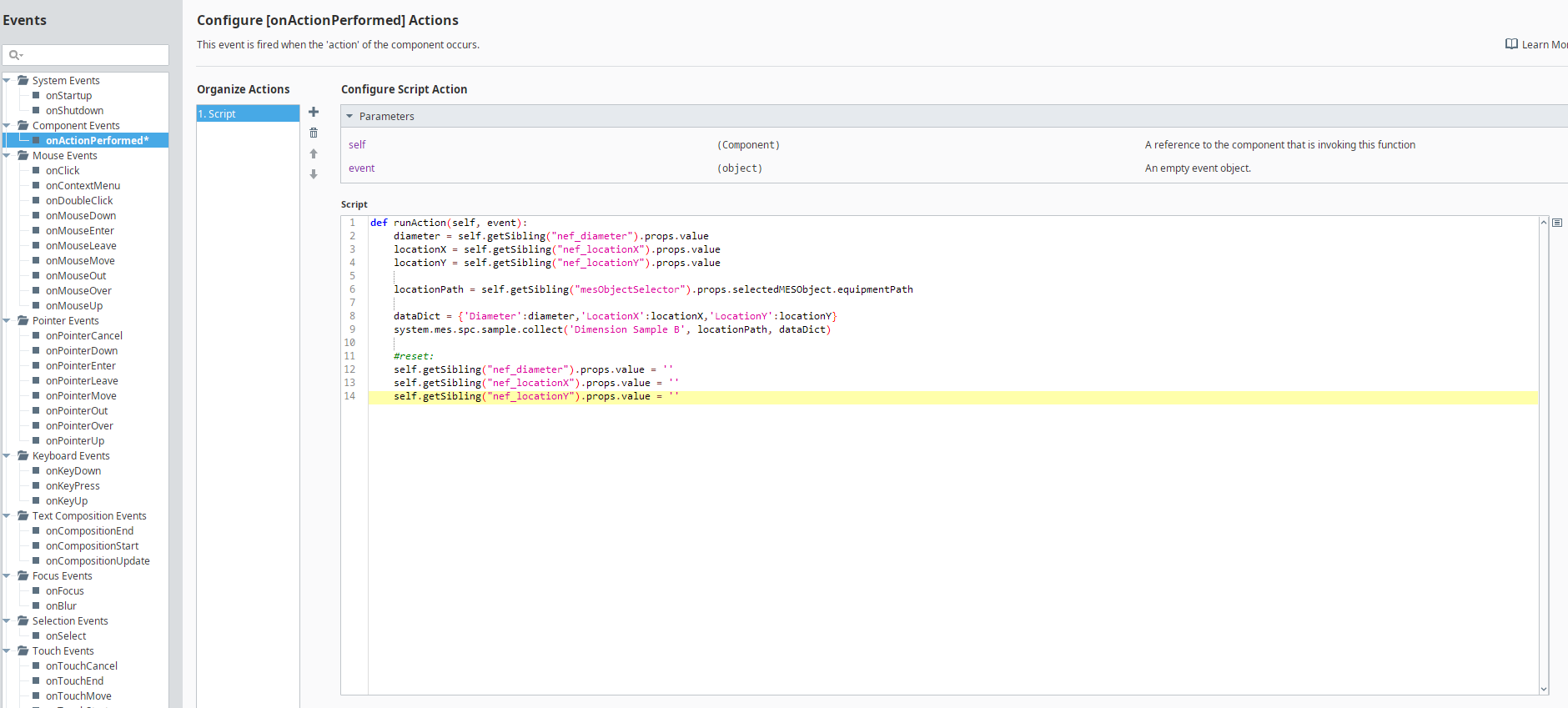
Script for onActionPerformed event handler
Code |
|
Button enabled expression binding:
Button event handler: