Configure Spec Limits
Collecting sample history for Tags can also include collecting Tag data in relation to pre-configured or custom Control Limits and/or Signals configured at the Enterprise level of the Production Model (using the MES Equipment Manager component).
Create Custom Control Limits
For this tutorial, create two custom Control Limit Scripts in the MES Scripts section of the Project Browser:
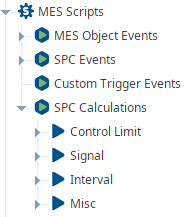
- Under MES Scripts --> SPC Calculations right click Control Limit and Add Folder.
- Rename folder to Custom Spec Limits
- Right click Custom Spec Limits folder and Add Script.
- Rename script to Upper Spec Limit
- Add the following script to the script block:
- Python
logger = system.util.getLogger('Spec Limit Logger')
logger.warn('Setting Upper Spec Limit')
event.setControlLimitValue(8.0)- Rename script to Upper Spec Limit
- Add the following script to the script block:
- Right click Custom Spec Limits folder and Add Script.
- Rename script to Lower Spec Limit.
- Add the following script to the script block:
- Python
logger = system.util.getLogger('Spec Limit Logger')
logger.warn('Setting Lower Spec Limit')
event.setControlLimitValue(6.0)
Add Custom Spec Limits to SPC
Open Equipment Manager
Select New Enterprise (Enterprise Equipment Object)
In the SPC panel, select Control Limits
Click Add

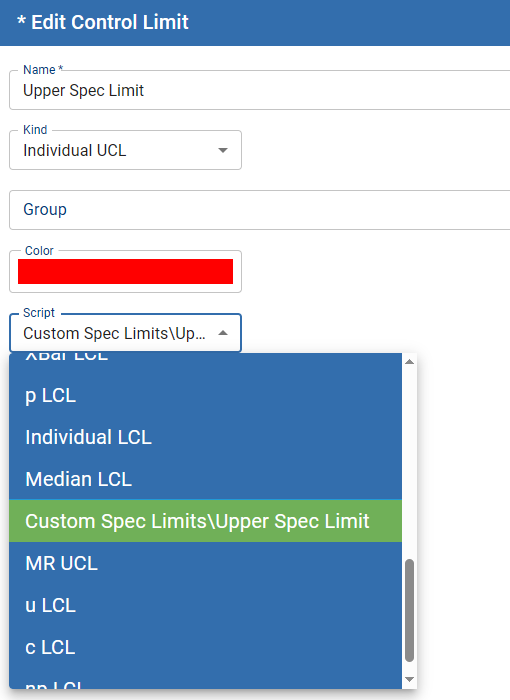
Find New Control Limit and rename to Upper Spec Limit
Set Kind to Individual UCL
Set Script to Custom Spec Limits\Upper Spec Limit
- Click Save

- Add Lower spec limit: Click Add
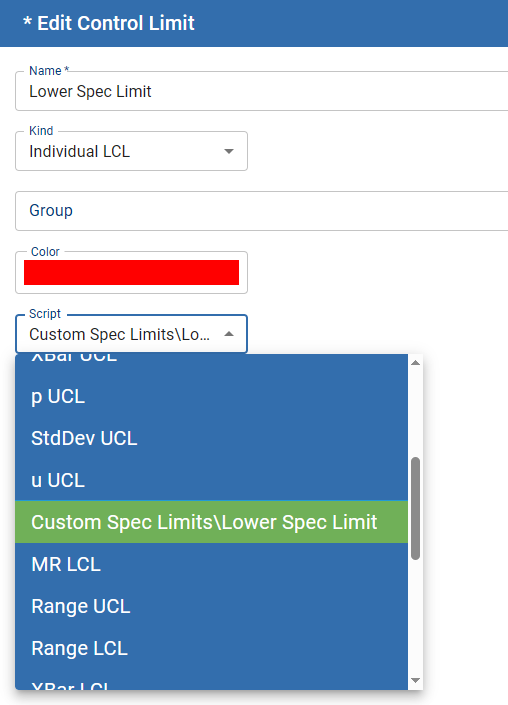
Find New Control Limit and rename to Lower Spec Limit
Set Kind to Individual LCL
Set Script to Custom Spec Limits\Lower Spec Limit
- Click Save
- Apply Custom Spec Limits to Sample Definition
- Open Sample Definition Manager
- Select pH Sensor sample definition
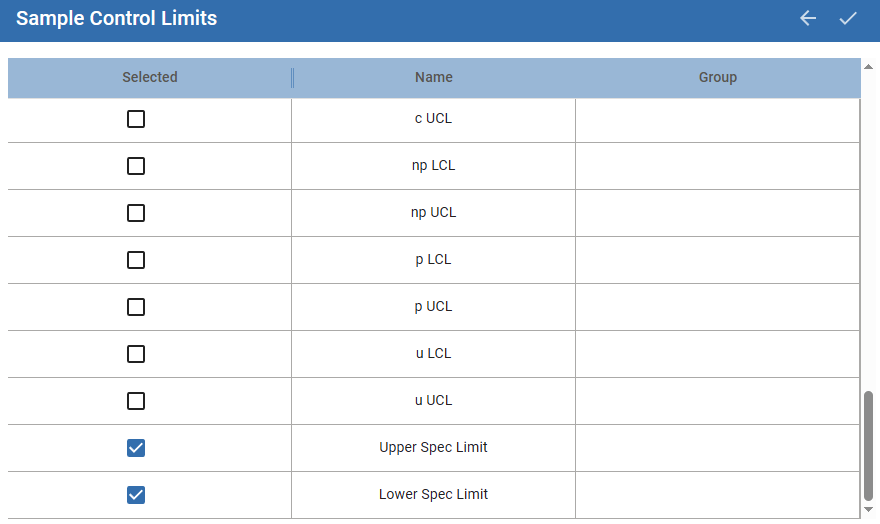
- Select Control Limits
- Find and Check Upper Spec Limit and Lower Spec Limit
- Save