Sepasoft MES Module Suite
MES Material Manager
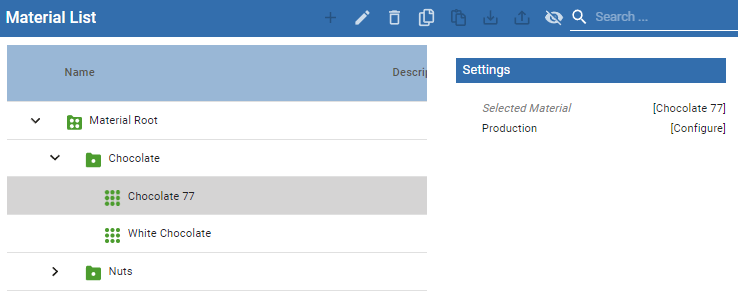
Use Material Manager to add materials to an MES system. There can only be one Material Root to an Ignition Gateway.
You can add, edit, delete, copy, paste, import and export Material Definitions and Material Classes in Material Manager.
Importing and Exporting Materials in XML Format
Import or export materials at the Material Class level. Use the icons in the toolbar.

Material List Export
Code |
|
Material Manager User Interface
| Icon | Name | Functionality | ||
|---|---|---|---|---|
| Add | Adds a new Material Class or Material Definition. Clicking this icon while a Material Class is selected brings up the options of adding either a new Material Class or a new Material Definition.
| ||
| Edit | Edits the selected material. | ||
| Delete | Deletes the selected material. | ||
| Copy | Copies the selected material. | ||
| Paste | Paste in place under the selected Material Class the copied Material Class or Material Definition. | ||
| Import | Import a Material Class (and all of the child elements under it when exported) from a file on the server. | ||
| Export | Export the selected Material Class (and all of the child elements under it) to an .xml file stored to a location on the server. | ||
| Toggle Column Visibility | Individually select the visibility of the Name and Description columns in the hierarchy tree under Material Root.
|

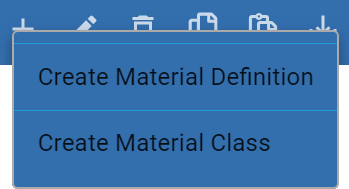


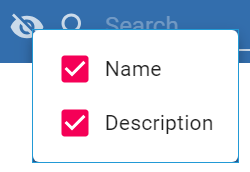
There is also a Search field for users to filter and find Material Classes and Material Definitions from their long lists. Search wildcards, such as asterisks ("*"), are allowed.

Adding a New Material Class
Material Classes can be added either to an existing Material Class or to the Material Root.
- Select either an existing Material Class where the new Material Class is to be created as a child, or the Material Root.
- Click Add and select Create Material Class from the drop-down menu. The following editor appears:
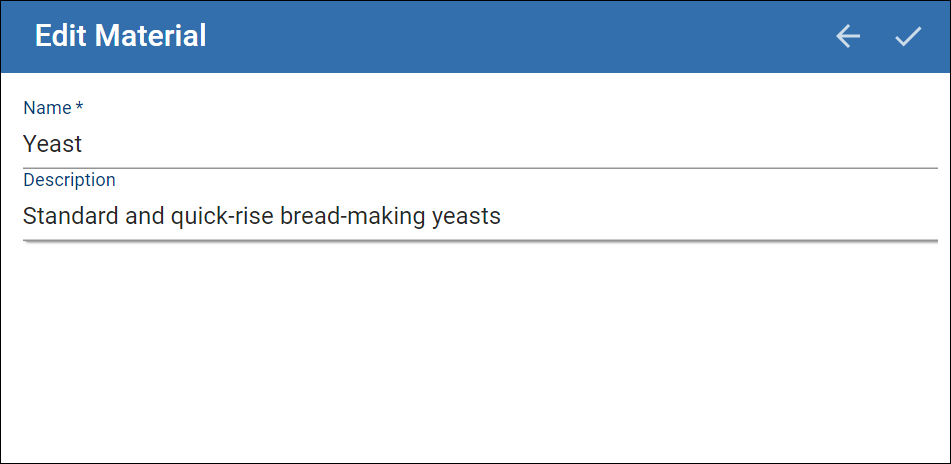
- Type in the new Material Definition name (in the example above, the Name is set to Yeast ).
- Add a Description (optional).
- Click
 to save the new Material Class.
Adding a New Material Definition
- Select the existing Material Class where the new Material Definition is to be created (as a child to it).
- Click Add and select Create Material Definition from the drop-down menu. The following editor appears:
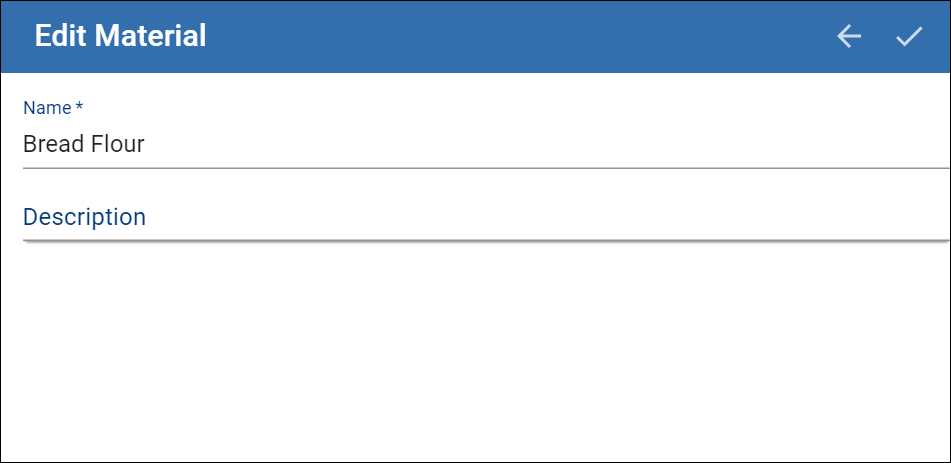
- Type in the new Material Definition name (in the example above, the Name is set to Bread Flour ).
- Add a Description (optional).
- Click to save the new Material Definition .
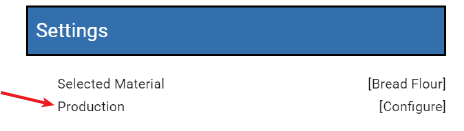
- In the Settings section, click Production.
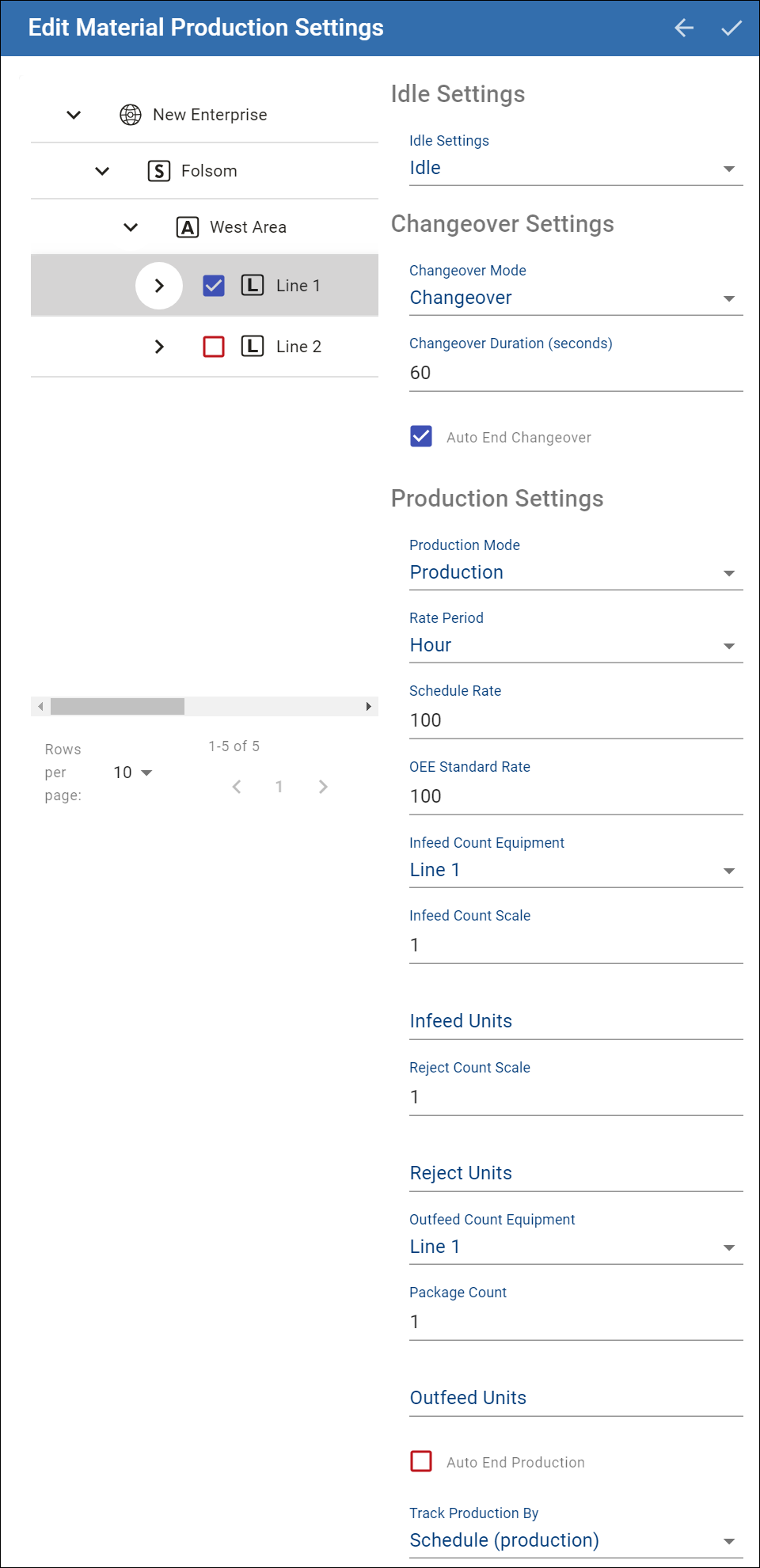
- The settings appear as shown to right. Complete the configuration.
- Click to save the settings.
Characters Not Allowed in Names
These characters are reserved by the Sepasoft modules.
Production Equipment
. ? ! # % ^ * ~ [ ] { } + = ` \ @ & ( ) < >,
MES Person
. ? ! # % ^ * ~ [ ] { } + = ` \/ " $ | < >
Other MES Objects
. ? ! # % ^ * ~ [ ] { } + = ` \/ " $ | ,
Machine Recipe Name in Settings & Changeover Module
Follows the same convention as Other MES Objects
Exception: Full-stop period . is allowed as of 3.81.10 SP2
Batch Names in Batch Procedure Module
. ? ! # % ^ * ~ [ ] { } + = ` \/ " $ | ,
Component Properties
Properties are provided that can be set to affect the operation and look of the component. They can be set through the Perspective Property Editor in the Designer or through scripting. Note that the section prefix is included before the property name (props, position, custom or meta).
PROPS
Component Properties

| Name | Scripting | Property Type | Description |
|---|---|---|---|
| Search Enabled | searchEnabled | Boolean | Allows for searching text within columns from the toolbar. |
There are also numerous styling properties available:
Version Specific

|
Improvements made in: 3.81.8 SP4 Improvements made for customizing these styling properties: checkboxStyle, dialogButtonUserStyle, dialogDividerStyle, and dialogTitleStyle. |
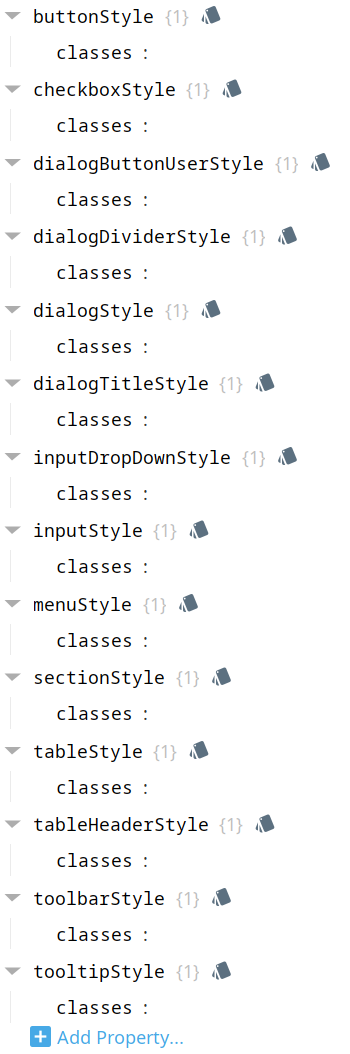
Each property above can be edited for text, background, margins and padding, border, shape, as well as opacity, cursor and overflow characteristics:
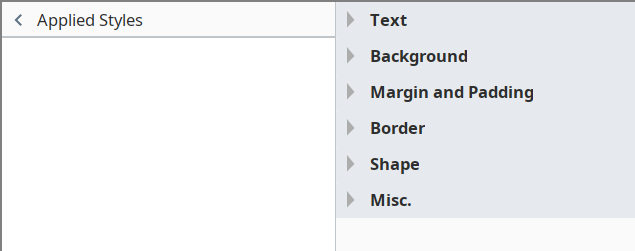
Ignition Style Editor

|
Refer to the Ignition 8 docs page Style Reference for information on modifying the properties listed below. |
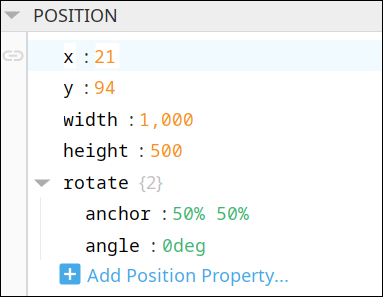
POSITION
Position Properties
The component position properties aren't usually changed by users during runtime, but they can be written and read in the same manner as other properties, if ever needed. Refer to Ignition Perspective Component Properties for details on POSITION properties.
New user-defined position properties can be created in this section.
User-defined Properties
|
|
Best practice: If user-defined properties are required, create them in the CUSTOM section instead of here. |
CUSTOM
Custom Properties
New user-defined custom properties can be created in this section.

META
Meta Properties
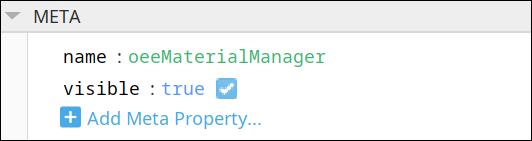
This section contains the name and visibility properties for the component.
New user-defined meta properties can be created in this section.
User-defined Properties
|
|
Best practice: If user-defined properties are required, create them in the CUSTOM section instead of here. |
Event Handlers
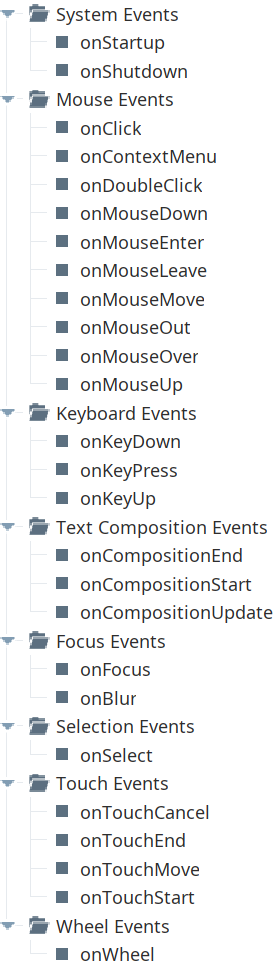
Event handlers provide the ability to add custom script when a user interacts with a component.
Refer to the Ignition 8.1 User Manual for details on using the available event handlers:
Component Functions
This component has no Component Functions.
Sepasoft MES Module Suite