Sepasoft MES Module Suite
Description
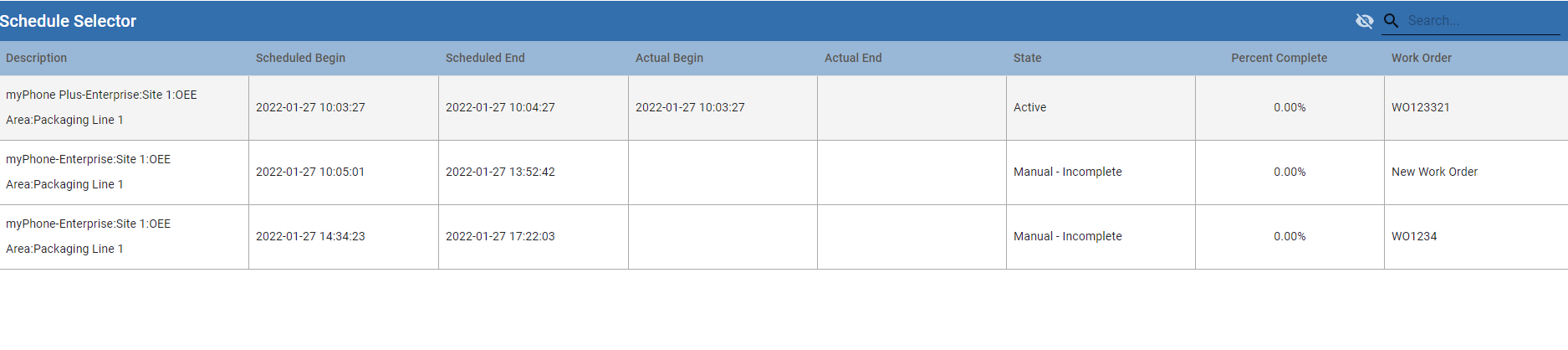
The MES Schedule Selector is a table component that can be used to view and manage production schedules. The schedule entries may be filtered by Active, Complete or Incomplete states. The nature of the schedule entry trigger - Auto or Manual - is also shown. In the example below, manually initiated schedule entries are shown.
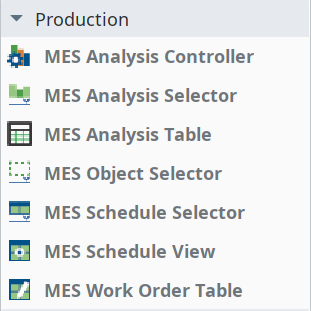
Production section of
Component Palette
Component Properties
Properties are provided that can be set to affect the operation and look of the component. They can be set through the Perspective Property Editor in the Designer or through scripting. Note that the section prefix is included before the property name (props, position, custom or meta).
Example
Code |
|
PROPS
Component Properties
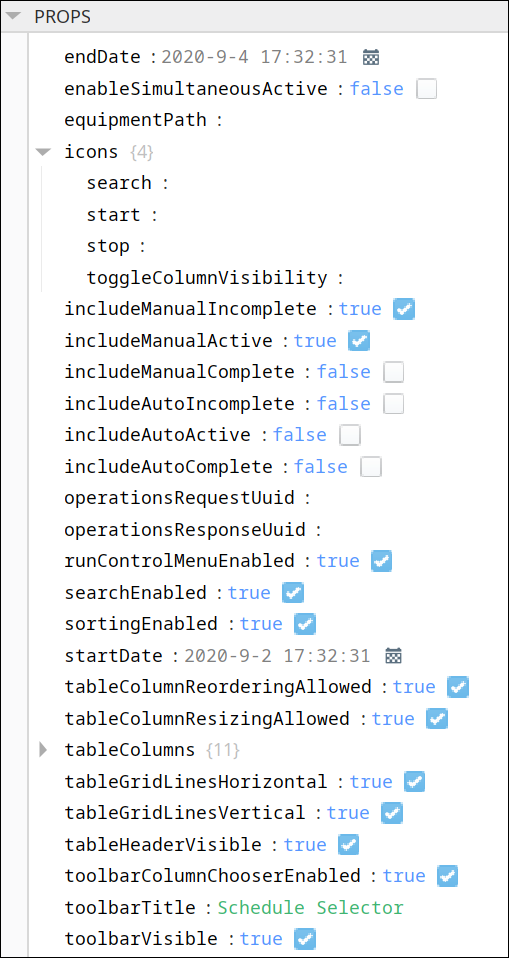
| Name | Scripting | Property Type | Description |
|---|---|---|---|
| End Date | endDate | Date | End of the time range to display. |
| Enable Simultaneous Active | enableSimultaneousActive | Boolean | If true, allows multiple operations to be active at the same time. |
| Equipment Path | equipmentPath | String | Path to the equipment to show the schedule. |
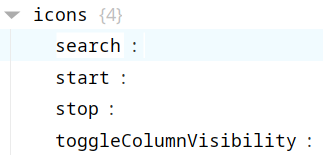
| Icons | icons | Complex? | Available Icons parameters: search, start, stop, toggleColumnVisibility. Example:
|
| Include Manual Incomplete | includeManualIncomplete | Boolean | If true, include manual start incomplete schedule entries in the list. |
| Include Manual Active | includeManualActive | Boolean | If true, include manual start active schedule entries in the list. |
| Include Manual Complete | includeManualComplete | Boolean | If true, include manual start completed schedule entries in the list. |
| Include Auto Incomplete | includeAutoIncomplete | Boolean | If true, include auto start incomplete schedule entries in the list. |
| Include Auto Active | includeAutoActive | Boolean | If true, include auto start active schedule entries in the list. |
| Include Auto Complete | includeAutoComplete | Boolean | If true, include auto start completed schedule entries in the list. |
| Operations Request UUID | operationsRequestUUID | String | The UUID for the MESOperationsRequest object associated with the schedule entry. |
| Operations Response UUID | operationsResponseUUID | String | The UUID for the MESOperationsResponse object associated with the schedule entry. |
| Run Control Menu Enabled | runControlMenuEnabled | Boolean | Enables the Run Control popup menu by mouse right-click on a row in the table. |
| Search Enabled | searchEnabled | Boolean | <<< ???????? >>> |
| Sorting Enabled | sortingEnabled | Boolean | Enables automatic multi-column sorting by clicking and CTRL-clicking on the table header. |
| Start Date | startDate | Date | Beginning of the time range to display. |
| Table Column Reordering Allowed | tableColumnReorderingAllowed | Boolean | Enables the re-ordering of columns by dragging the column headers. |
| Table Column Resizing Allowed | tableColumnResizingAllowed | Boolean | Enables the resizing of columns by dragging the margins of the column headers. |
| Table Columns | tableColumns | Complex? | Table data, by column. Descriptions provided below this table. |
| Table Grid Lines Horizontal | tableGridLinesHorizontal | Boolean | <<< ???????? >>> |
| Table Grid Lines Vertical | tableGridLinesVertical | Boolean | <<< ???????? >>> |
| Table Header Visible | tableHeaderVisible | Boolean | Allows for hiding the table's header. |
| Toolbar Column Chooser Enable | toolbarColumnChooserEnable | Boolean | <<< ???????? >>> |
| Toolbar Title | toolbarTitle | String | Toolbar title string. |
| Toolbar Visible | toolbarVisible | Boolean | <<< ???????? >>> |
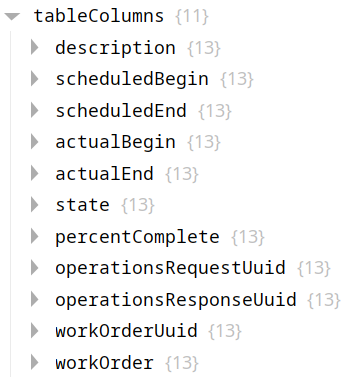
The Table Columns property (shown in table above) has the following available columns:
| Name | Scripting | Property Type | Description |
|---|---|---|---|
| Description | description | String | The operation name. |
| Scheduled Begin | scheduledBegin | DateTime | The currently-scheduled begin DateTime, taking into account automatic delays by the system. This DateTime changes minute by minute if the current time causes the schedule to be pushed out (e.g. if an operation has not yet been started but was scheduled to be started at some point earlier, it will keep getting pushed out minute by minute to keep up with the current DateTime). |
| Scheduled End | scheduledEnd | DateTime | The currently-scheduled end DateTime, taking into account automatic delays by the system. This DateTime changes minute by minute if the current time causes the schedule to be pushed out (e.g. if an operation has not yet been started but was scheduled to be started at some point earlier, it will keep getting pushed out minute by minute to keep up with the current DateTime). |
| Actual Begin | actualBegin | DateTime | The DateTime that the operation actually began. This property will read back as "None" until the operation actually begins. |
| Actual End | actualEnd | DateTime | The DateTime that the operation actually ended. This property will read back as "None" until the operation actually ends. |
| State | state | String | The schedule state. |
| Percent Complete | percentComplete | Double | The operation progress. |
| Operations Request UUID | operationsRequestUUID | String | The UUID for the MESOperationsRequest object associated with the schedule entry. |
| Operations Response UUID | operationsResponseUUID | String | The UUID for the MESOperationsResponse object associated with the schedule entry. |
| Work Order UUID | workOrderUUID | String | The UUID for the MESWorkOrder object associated with the schedule entry. |
| Work Order | workOrder | String | The name of the work order associated with the schedule entry. |
There are also several styling properties available:
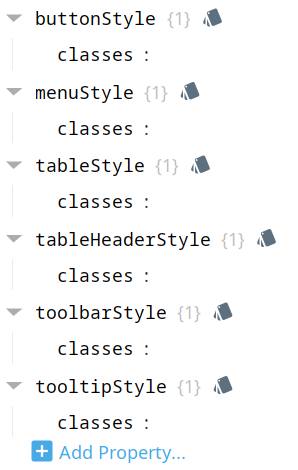
Each property above can be edited for text, background, margins and padding, border, shape, as well as opacity, cursor and overflow characteristics:
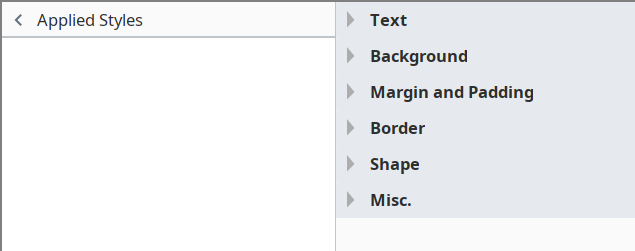
Ignition Style Editor

|
Refer to the Ignition 8 docs page Style Reference for information on modifying the properties listed below. |
| Name | Scripting | Property Type | Description |
|---|---|---|---|
| Button Style | buttonStyle | <<< ???????? >>> | |
| Menu Style | menuStyle | <<< ???????? >>> | |
| Table Style | tableStyle | <<< ???????? >>> | |
| Table Header Style | tableHeaderStyle | <<< ???????? >>> | |
| Toolbar Style | toolbarStyle | <<< ???????? >>> | |
| Tooltip Style | tooltipStyle | <<< ???????? >>> |
POSITION
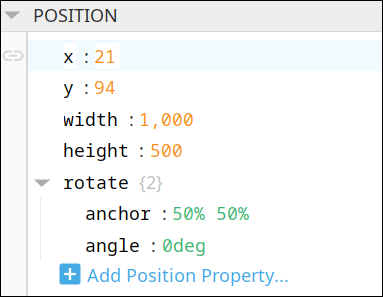
Position Properties
The component position properties aren't usually changed by users during runtime, but they can be written and read in the same manner as other properties, if ever needed. Refer to Ignition Perspective Component Properties for details on POSITION properties.
New user-defined position properties can be created in this section.
User-defined Properties
|
|
Best practice: If user-defined properties are required, create them in the CUSTOM section instead of here. |
CUSTOM
Custom Properties
New user-defined custom properties can be created in this section.

META
Meta Properties
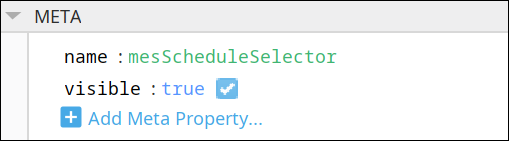
This section contains the name and visibility properties for the component.
New user-defined meta properties can be created in this section.
User-defined Properties
|
|
Best practice: If user-defined properties are required, create them in the CUSTOM section instead of here. |
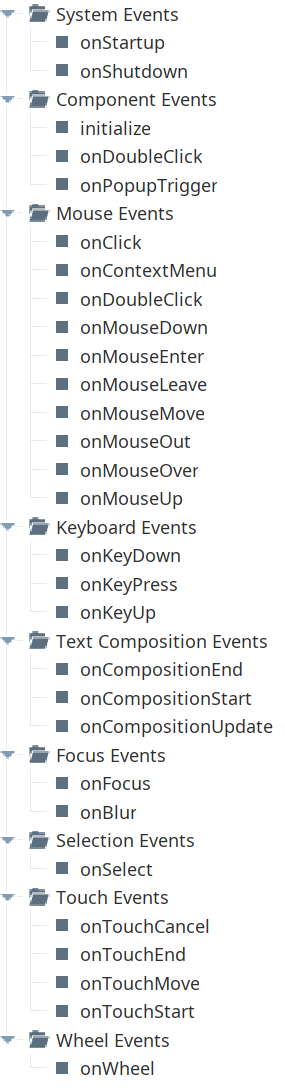
Event Handlers
Event handlers provide the ability to add custom script when a user interacts with a component.
Refer to the Ignition User Manual for details on using the available event handlers:
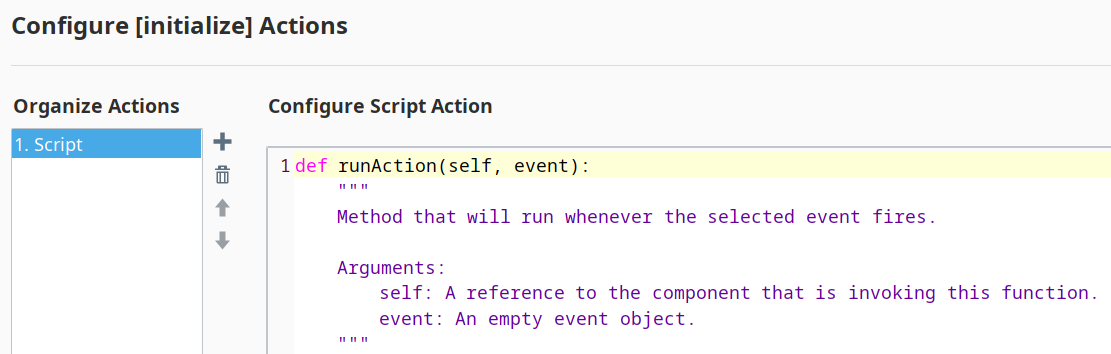
initialize
- Description
Called when the window containing this table is opened, or the template containing it is loaded. Provides a change to initialize the table further, for example, selecting a specific row.
- Parameters
self - A reference to the component that is invoking this function.
- Return
Nothing
- Scope
Client
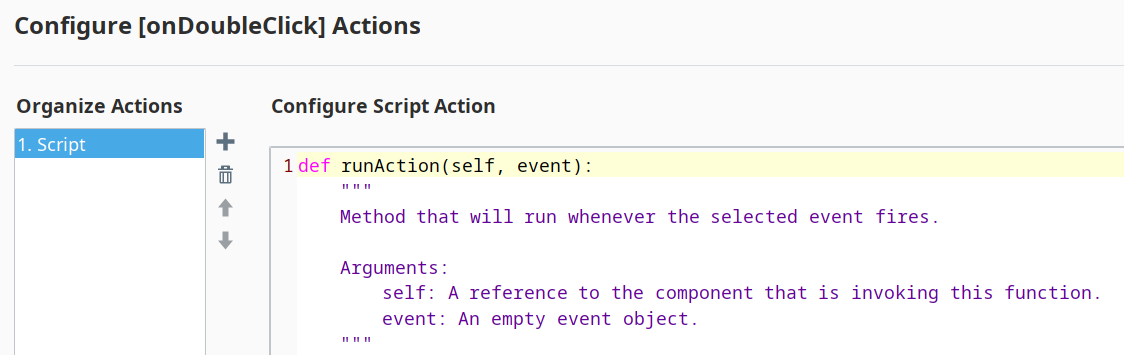
onDoubleClick
- Description
Called when the user double-clicks on a table cell.
- Parameters
self - A reference to the component that is invoking this function.
rowIndex - Index of the row, starting at 0, relative to the underlying dataset.
colIndex - Index of the column starting at 0, relative to the underlying dataset.
value - The value at the location clicked on.
event - The MouseEvent object that caused this double-click event.
- Return
Nothing
- Scope
Client
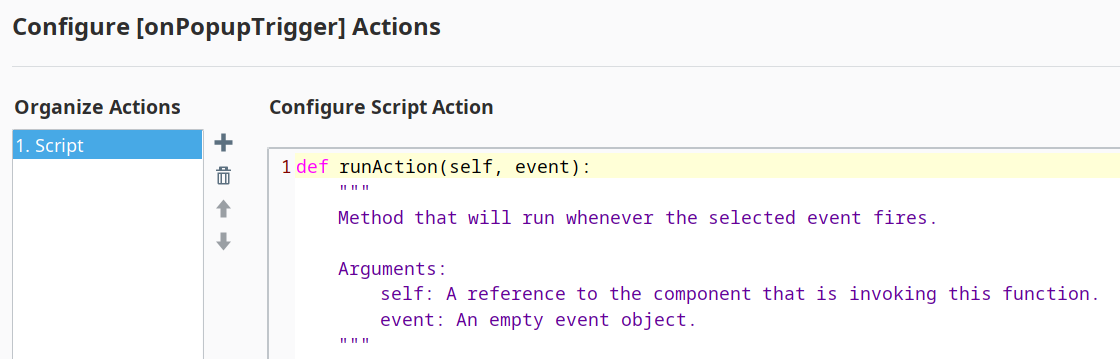
onPopupTrigger
- Description
Called when the user right-clicks on a table cell. This would be the appropriate time to create and display a popup menu.
Note: Set the Run Control Menu Enabled property to False so that the Run Control Menu won't override onPopupTrigger on right-click.
- Parameters
self - A reference to the component that is invoking this function.
rowIndex - Index of the row, starting at 0, relative to the underlying dataset.
colIndex - Index of the column starting at 0, relative to the underlying dataset.
value - The value at the location clicked on.
event - The MouseEvent object that caused this double-click event.
- Return
Nothing
- Scope
Client
Component Functions
This component provide the following functions that can be called on it. If this component has been dropped onto the windows root container, the path and an example call would be self.getSibling('MES Schedule Selector').beginSelected().
beginSelected()
- Description
This script function will begin the operation for the currently selected schedule entry. The schedule entries that appear in the MES Schedule Selector component reflect the operations requests that have been created for the equipment specified by the Equipment Path property. Typically, operations requests are created using the MES Schedule View component but can also be created using script functions for importing.
- Parameters
None
- Return
Nothing
- Scope
Client
endSelected()
- Description
This script function will end the selected operation for equipment specified by the Equipment Path property. All segments running underneath the selected operation, must be ended prior to calling this script function.
- Parameters
None
- Return
Nothing
- Scope
Client
abortSelected()
- Description
This script function will abort the selected operation for equipment specified by the Equipment Path property. When the operation is aborted, all active segments running underneath it will also be aborted.
- Parameters
None
- Return
Nothing
- Scope
Client
beginNext()
- Description
Based on the scheduled start time, this script function will begin the operation for the next selected schedule entry. The schedule entries that appear in the MES Schedule Selector component reflect the operations requests that have been created for the equipment specified by the Equipment Path property. Typically, operations requests are created using the MES Schedule View component but can also be created using script functions for importing.
- Parameters
None
- Return
Nothing
- Scope
Client
Sepasoft MES Module Suite