Sepasoft MES Module Suite
OEE Downtime Table Component
A component that displays OEE downtime events for an active production run at the line or cell level.
Allows the operator to:
- select multiple specific downtime reasons for the event.
- split downtime events at the line level (events cannot be split at the cell level).
This accommodates downtime events that have multiple reasons. For example, if a production line goes down because of a mechanical failure and when maintenance finishes the repair, it is time for break. The operator can split the downtime event into two events. One for mechanical failure and the other for break.

|
Changes made to downtime events at the cell level are visible at line level and vice versa. Example If you change downtime reason from 'Malfunction' to 'Jam' at the line level, then downtime reason at the cell level will show 'Jam' as well. User Error Example If you change a downtime event by altering downtime equipment through scripting to an equipment item under a different line than the line pointed to by the OEE Downtime Table, the component will not return the event. |
See below:
- Available Columns
- Column Descriptions
- Component Properties
- Data Properties
- Styling Properties
- Position Properties
- Custom Properties
- Meta Properties
- Event Handlers
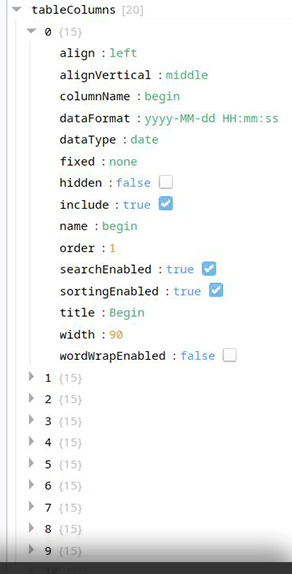
Available Columns
Below is the list of available columns and the properties for each column.
"Begin", "End", "Equipment Path", "Original Equipment Path", "Equipment Subpath", "Equipment Name", "Reason", "Code", "Duration", "Is Short Stop", "Note", "State Time Stamp", "End State Time Stamp", "Split", "Can Revert Split", "Occurrence Count", "Sequence No", "Override Type", "Override Scope", "Event Overridden" |
|
Column Descriptions
| Name | Scripting | Property Type | Description |
|---|---|---|---|
| Equipment Path | equipmentPath | String | Equipment path to show or edit downtime reasons for. If the equipment path points to the Line, all events that are considered to cause line downtime are shown. If the equipment path points a cell under a line, all downtime events for that cell will be shown. |
| Excluded Equipment Path | excludedEquipmentPath | String | Beginning part of a path to exclude from the displayed equipment paths. If the property is blank, then it will default to the line path. |
| Run Look Back Count | runLookBackCount | Integer |
Number of runs to show downtime events for within the selected date range. Set to 0 to see all runs within the date range. Set to 1 to see only the current run. Greater numbers are additive: 2 will show you events from the last 2 runs, 3 from the last 3 runs, etcetera. If set to 1 or greater, the date range will not be used. |
| Rollup Time Span | rollupTimeSpan | Integer | Rollup time span in seconds to combine events by. |
| Start Date | startDate | Date | Start date of downtime events to show. |
| End Date | endDate | Date | End date of downtime events to show. |
| Editable | editable | boolean | Determines whether downtime reasons can be edited. |
| Enable Notes | enableNotes | boolean | Determines whether notes are shown or edited for downtime reasons. |
| Show Short Stops | showShortStops | boolean | Determines whether short stop downtime reasons appear in the table. |
| Unknown State as Unplanned Downtime | unknownStateAsUnplannedDowntime | boolean | Treat unknown states as unplanned downtime states. |
| Activity Timeout | activityTimeout | Integer | Number of seconds to wait after user activity before update. |
| Column Attribute Data | columnAttributesData | Dataset | Dataset containing the data attributes |
| Data | data | Dataset | Data for this table. |
| Selected Row | selectedRow | int | Index of the first selected row, or -1 if none. |
Component Properties
Properties are provided that can be set to affect the operation and look of the component. They can be set through the Perspective Property Editor in the Designer or through scripting. Note that the section prefix is included before the property name (props, position, custom or meta).
Example
Code |
|

|
If the Rollup Time Span is set to roll up multiple events and each event has a note, then the notes will be concatenated together. |
|
|
If a downtime event that has a note is split, the note will only stay on the original downtime reason and not be copied over (duplicated) to the new split state. Once a downtime event is split, only the original event may be split again. The newly-split portion cannot be split (but a Downtime Reason note can be added). |
|
|
When reverting the split of a downtime event where notes have been added to both parts of the split event, only the note on the original event will be preserved. |
|
|
If the originally-collected downtime reason was overridden, the report will show the original reason and code along with the overridden reason and code, if DowntimeOriginalReason and DowntimeOriginalReasonCode were added to the analysis set. Add these two to the collected datapoints and the data entries will show the difference in the original downtime reason and the operator reason. |
|
|
The Duration column displays in Float8, not DateTime, so values are in minutes plus fractions of minutes (not seconds). Examples:
Note: The Date Format for the Duration column in the Table Customizer cannot be changed to DateTime (remains Float8). |
Data Properties
| Property Name | Scripting Name | Data Type | Description | ||
|---|---|---|---|---|---|
| Activity Timeout | activityTimeout | Integer | Number of seconds to wait after user activity before update. | ||
| Constrain Line State Duration To Row | constrainLineStateDurationToRow | Boolean | True constrains the results in the table to the defined time range. False returns the actual begin and end time of the production runs.
| ||
| Data | data | Dataset | Data for this table. | ||
| Downtime Equipment Change View Type | downtimeEquipmentChangeViewType | toggle | List mode (default) displays a dropdown select of Equipment to choose from. Clicking an entry selects it. Tree mode displays an equipment tree. Clicking an entry highlights it. Click Save to select it. You can use enablePaging with this option.
| ||
| Downtime Reason List View Type | downtimeReasonListViewType | toggle | List mode (default) displays a dropdown list of equipment to choose from. Tree mode displays an equipment tree. Clicking an entry highlights it. Click Save to select it. You can use enablePaging with this option.
| ||
| Editable | editable | boolean | Determines whether downtime reasons can be edited. | ||
| Enable Notes | enableNotes | boolean | Determines whether notes are shown or edited for downtime reasons. | ||
| End Date | endDate | Date | End date of downtime events to show. | ||
| Equipment Path | equipmentPath | String | Equipment path to show or edit downtime reasons for. If the equipment path points to the Line, all events that are considered to cause line downtime are shown. If the equipment path points a cell under a line, all downtime events for that cell will be shown. | ||
| Excluded Equipment Path | excludedEquipmentPath | String | Beginning part of a path to exclude from the displayed equipment paths. If the property is blank, then it will default to the line path. | ||
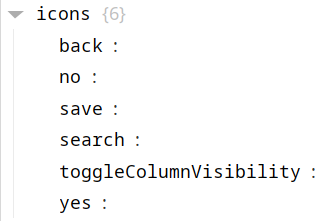
| Icons | icons | Complex | Available Icons parameters: back, no, save, search, toggleColumnVisibility, and yes. | ||
| Lookback Hours | lookbackHours | Integer | Number of hours to look back from the analysis begin date to consider for downtime cause.
| ||
| Rollup Time Span | rollupTimeSpan | Integer | Rollup time span in seconds to combine events by. | ||
| Run Look Back Count | runLookBackCount | Integer | Number of runs to show downtime events for within the selected date range. Set to 0 to see all runs within the date range. Set to 1 to see only the current run. Greater numbers are additive: 2 will show you events from the last 2 runs, 3 from the last 3 runs, et cetera.
| ||
| Search Enabled | searchEnabled | Boolean | Allows for searching text within columns from the toolbar. | ||
| Show Short Stops | showShortStops | Boolean | Determines whether short stop downtime reasons appear in the table. | ||
| Show Full Equipment Path | showFullEquipmentPath | Boolean | When True, shows equipment paths starting at the Enterprise level. When False, paths start at the Live level. Version Specific
| ||
| Sorting Enabled | sortingEnabled | Boolean | Enables automatic multi-column sorting by clicking and SHIFT-clicking on the table header. CTRL-click turns off sorting for the column. | ||
| Start Date | startDate | Date | Start date of downtime events to show. | ||
| Table Column Reordering Allowed | tableColumnReorderingAllowed | | Enabled the re-ordering of columns by dragging the column headers. | ||
| Table Column Resizing Allowed | tableColumnResizingAllowed | | Enabled the resizing of columns by dragging the margins of the column headers. | ||
| Table Columns | tableColumns | | Column configuration options. Descriptions provided below this table. | ||
| Table Grid Lines - Horizontal | tableGridLinesHorizontal | | If true, displays horizontal grid lines on the table. | ||
| Table Grid Lines - Vertical | tableGridLinesVertical | | If true, displays vertical grid lines on the table. | ||
| Table Header Visible | tableHeaderVisible | | Allows hiding the table header. | ||
| Toolbar Column Chooser Enabled | toolbarColumnChooserEnabled | | Enables displaying a button in the toolbar to show/hide columns. | ||
| Toolbar Title | toolbarTitle | | Title to be displayed in the toolbar. | ||
| Toolbar Visible | toolbarVisible | | Allows hiding the toolbar. | ||
| Unknown State as Unplanned Downtime | unknownStateAsUnplannedDownTime | | | ||
| Downtime Reason Override Filter | downtimeReasonOverrideFilter | Enum | Types of downtime reasons t show for overriding:
|

Styling Properties
The component provides numerous styling properties:
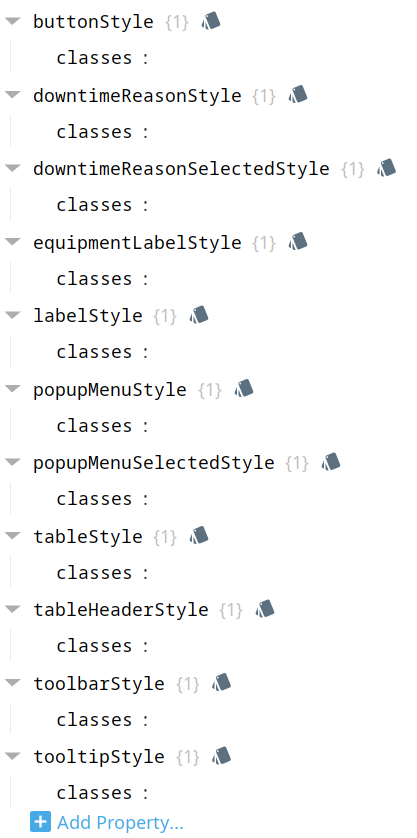
Each property above can be edited for text, background, margins and padding, border, shape, as well as opacity, cursor and overflow characteristics:
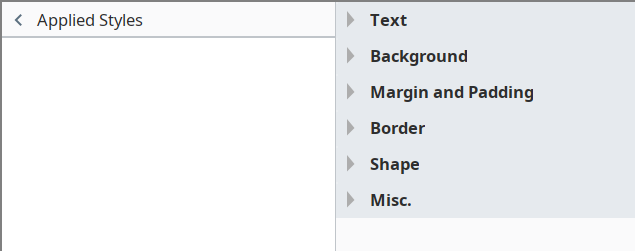
Ignition Style Editor
| | Refer to the Ignition 8 docs page Style Reference and Style Classes for information on modifying the properties listed below. |
| Name | Scripting |
|---|---|
| Button Style | buttonStyle |
| Downtime Reason Style | downtimeReasonStyle |
| Downtime Reason Selected Style | downtimeReasonSelectedStyle |
| Equipment Label Style | equipmentLabelStyle |
| Label Style | labelStyle |
| Popup Menu Style | popupMenuStyle |
| Popup Menu Selected Style | popupMenuSelectedStyle |
| Table Style | tableStyle |
| Table Header Style | tableHeaderStyle |
| Toolbar Style | toolbarStyle |
| Tooltip Style | tooltipStyle |
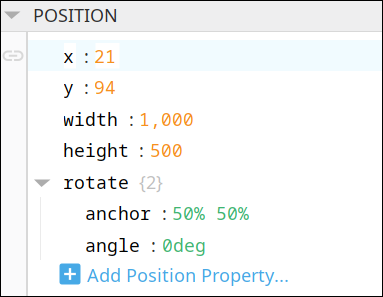
POSITION
Position Properties
The component position properties aren't usually changed by users during runtime, but they can be written and read in the same manner as other properties, if ever needed. Refer to Ignition Perspective Component Properties for details on POSITION properties.
New user-defined position properties can be created in this section.
User-defined Properties
|
|
Best practice: If user-defined properties are required, create them in the CUSTOM section instead of here. |
CUSTOM
Custom Properties
New user-defined custom properties can be created in this section.

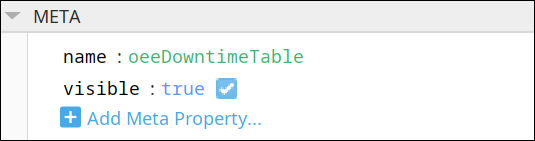
META
Meta Properties
This section contains the name and visibility properties for the component.
New user-defined meta properties can be created in this section.
User-defined Properties
|
|
Best practice: If user-defined properties are required, create them in the CUSTOM section instead of here. |
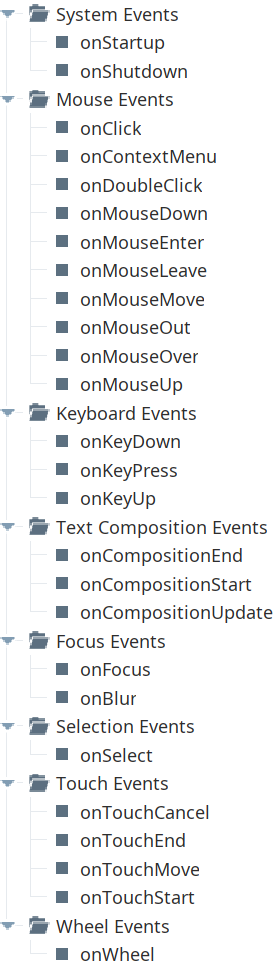
Event Handlers
Event handlers provide the ability to add custom script when a user interacts with a component.
Refer to the Ignition 8.1 User Manual for details on using the available event handlers:
- Ignition: Component Events and Actions
- Ignition: Perspective Event Types Reference
Component Functions
This component has no Component Functions.
Sepasoft MES Module Suite