Sepasoft MES Module Suite
OEE Downtime Table | Vision
A component that displays OEE downtime events for an active production run at the line or cell level.
Allows the operator to:
- select multiple specific downtime reasons for the event.
- split downtime events at the line level (events cannot be split at the cell level).
This accommodates downtime events that have multiple reasons. For example, if a production line goes down because of a mechanical failure and when maintenance finishes the repair, it is time for break. The operator can split the downtime event into two events. One for mechanical failure and the other for break.
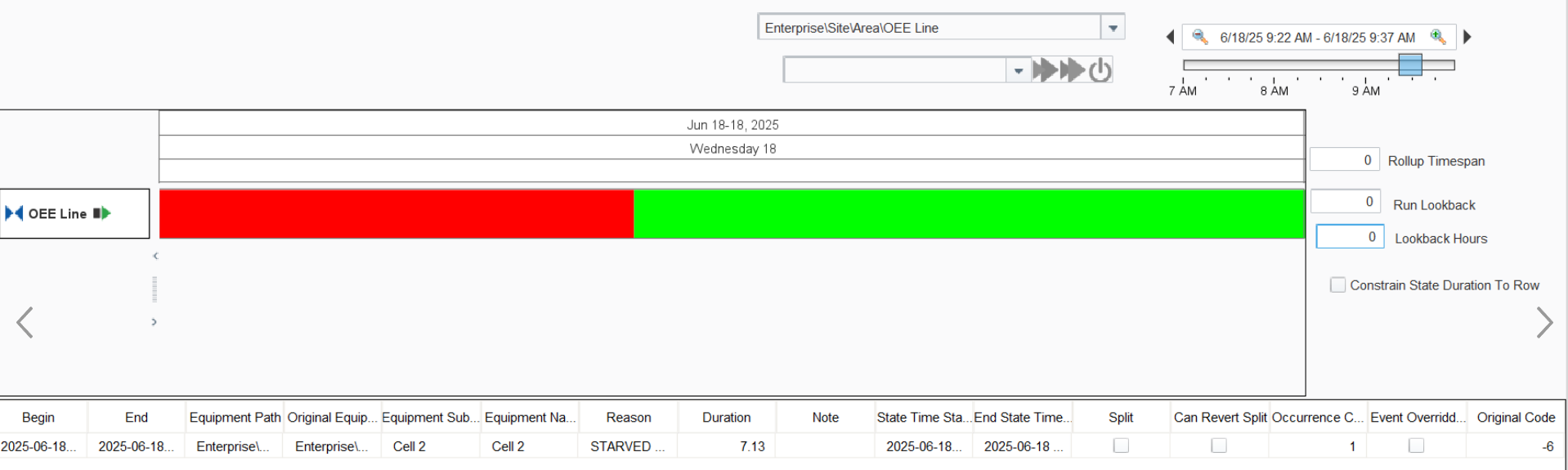
See below:
- Component Properties
- Scripting
- Event Handlers
- Extension Functions
- Custom Methods
- Table Customizer
- Custom Properties
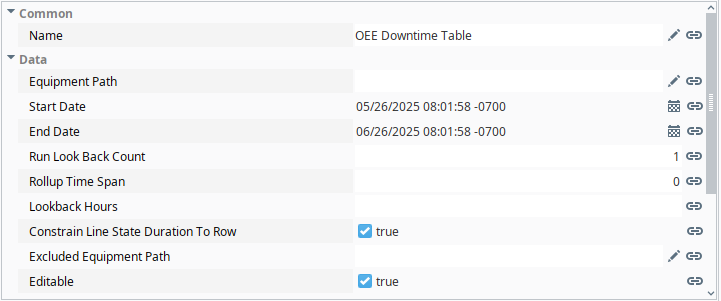
Component Properties
| Properties | Data Type | Scripting Name | Description | ||
|---|---|---|---|---|---|
| Common | |||||
Name | String | name | The name of the component | ||
| Data | |||||
Equipment Path | String | equipmentPath | Equipment path to show or edit downtime reasons for. If the equipment path points to a Line, events are Line based. If the path points to a Cell, events are Cell based. | ||
Start Date | Date | startDate | Start date of the downtime events to show | ||
End Date | Date | endDate | End date of the downtime events to show | ||
Run Look Back Count | Integer | runLookBackCount | Number of runs to show downtime events for within the selected date range. Set to 0 to see all runs within the date range. Set to 1 to see only the current run. Greater numbers are additive: 2 shows events from the last two runs, 3 shows last three runs, etc. | ||
Rollup Time Span | Integer | rollupTimeSpan | Rollup time span in seconds to combine events by. | ||
Lookback Hours | Integer | lookbackHours | Number of hours to look back from the analysis begin date to consider for downtime cause.
| ||
Constrain Line State Duration To Row | Boolean | constrainLineStateDurationToRow | True constrains the results in the table to the defined time range. False returns the actual begin and end time of the production runs.
| ||
Excluded Equipment Path | String | excludeEquipmentPath | Beginning part of paths to exclude from the displayed equipment paths. | ||
Editable | Boolean | editable | Determines whether downtime reasons are editable. |

Scripting
Event Handlers
Access event handlers by right clicking on the component in Designer and selecting Scripting.
| Event handler name | Description |
|---|---|
| propertyChange | Fires whenever a bindable property of the component changes. Applicable for standard and custom properties. |
Extension Functions
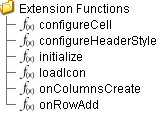
Access these functions by right clicking on the component in Designer and selecting Scripting.
| Extension function name | Description |
|---|---|
| configureCell | Provides a chance to configure the contents of each cell. Return a dictionary of name-value pairs with the desired attributes. Available attributes included:
You may also specify the attribute 'renderer' which is a jvax.seing.jComponent which is used to render the cell. |
| configureHeaderStyle | Provides a chance to configure the style of each column header. Returns a dictionary of name-value pairs with the desired attributes. Available attributes inlcude:
|
| initialize | Called when the window or template containing the table is opened and loaded. |
| loadIcon | Changes an icon. Based on the icon-name parameter returns the icon-image path to use in place of the default icon. |
| onColumnsCreates | Called when columns are created in the table. Can add custom columns. Returns a dictionary of custom column name-type pairs. |
| onRowAdd | Called when a row is added in the table. Can insert values to custom columns. Returns a dictionary of custom column name-type pairs. |
Custom Methods
Custom methods allow you to add your own component functions to a component that can be called through scripting. This is a useful and clean method of re-using script that is specific to the component (say you want to update a visual aspect of the component in the same way whether a user clicks on the component or a window property value changes). See Component Custom Methods in the Ignition Help Manual for more information.
Table Customizer
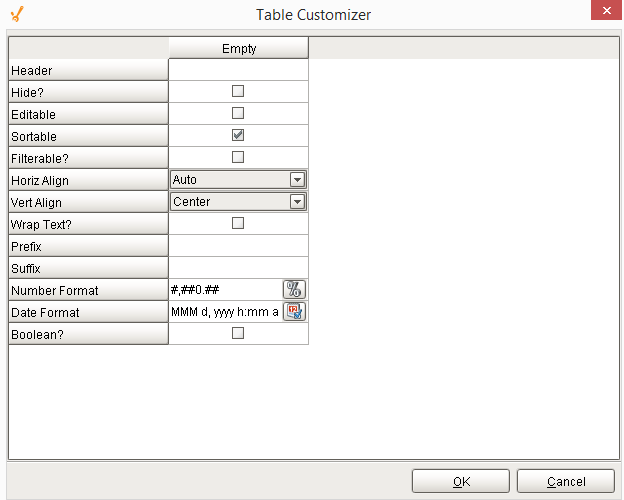
Table Customizer manages the data entered into the OEE Downtime Table. It will allow you to modify the data which is stored inside the OEE Downtime Table. Thus the formatting and alignments are made easy.
A table customizer is available by right clicking the Downtime table in the designer and selecting "Customizers" -> "Table Customizer". It is similar to the table customizer in a standard Ignition table. Table Customizer shown below manages the data entered into the Downtime Table.
Custom Properties
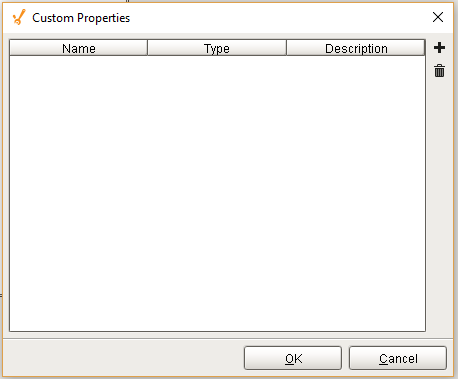
The custom properties can be used to add user defined properties.
Sepasoft MES Module Suite