Sepasoft MES Module Suite
Stored SPC Selector
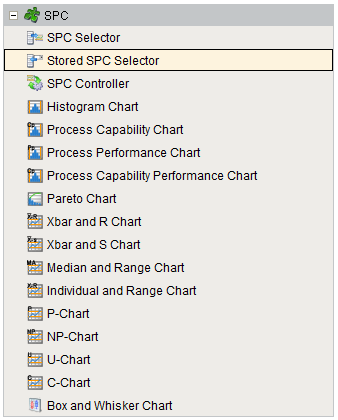
A component that allows creating, recalling and saving SPC selections in the SPC Selector component. This component will automatically use the available SPC Selector in the container. Keep in mind that whenever a new sample definition is created, the new stored SPC settings items will be created with the default values. This being said, additional stored SPC settings items can be created each with different filters, attribute, control limits and signals.
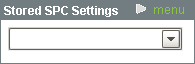
Stored SPC Selector
By clicking on the  link, a menu with the option to create new, save, delete and rename SPC settings will popup.
To add a new saved SPC settings item, click on New menu item, enter a name, select a sample definition and click OK. This will create a default SPC Settings item. Now the user can select filters, attribute, control limits and signals that will be saved and can easily be selected at a later time.
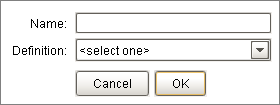
New Stored SPC Settings

|
The 3.0 Stored SPC Selector behaves differently from 2.0. In 3.0 it doesn't create a "default chart". The user must create one themselves. Old Qual_Store_SPC table containing Store SPC settings is now replaced by the MESAnalysisSettings. Store SPC settings are upgraded to the MESAnalysisSettings type |
To rename a stored SPC Settings item, select an item and click on the Rename menu item, enter a new name and click OK.
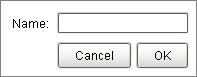
Rename Stored SPC Settings
To delete a stored SPC Settings item, select an item and click on Delete menu item, and select Yes to the confirmation message.
If changes to a stored SPC settings values have been made and the user selects a different stored SPC Settings, they will be prompted to save the changes. Alternatively, the changes can be saved by clicking on the Save menu item.
Component Properties
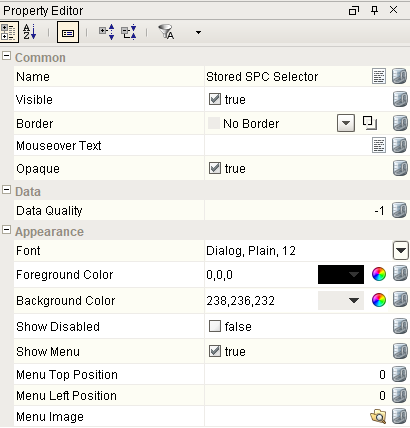
Properties are provided that can be set to affect the operation and look of the component. They can be set through the Property Editor in the Designer or through scripting.
Example
Code |
|
Appearance
| Name | Scripting | Property Type | Description |
|---|---|---|---|
| Show Disabled | showDisabled | Boolean | If true, include disabled definitions. |
| Show Menu | showMenu | Boolean | Display the menu for the selector. |
| Menu Top Position | menuTopPos | Int4 | The top position of the menu. |
| Menu Left Position | menuLeftPos | Int4 | The left position of the menu. |
| Menu Image | menuImagePath | String | Image to show for the menu. |
Event Handlers
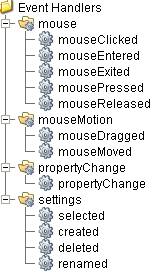
Event handlers provide the ability to add custom script when a user interacts with a component such as by clicking a mouse, selecting a menu item or when a component property changes.
menu
userMenuItemClicked
This event fires when the menu item is clicked, or if the user selects the menu item using the keyboard and presses the Enter key. It can also occur if an access key or shortcut key is pressed that is associated with the MenuItem.
| Property | Description |
|---|---|
| .source | The component that fired this event. |
| .menuItemName | Name of the user menu item that triggered the event. |
| .nodeName | Name of the node. This is the same as the name of the MES object that is associated with the node. |
| .objectType | Name of the MES object type that is associated with the node. |
| .uuid | UUID of the MES object that is associated to the node. |
| .lotUUID | UUID of the material lot. |
| .lotName | Name of the material lot. |
| .lotSequence | The sequence number associated with the material lot. |
| .lotUse | The lot use type of the material. |
| .beginDateTime | Date and Time at which the event was triggered. |
| .materialUUID | UUID of the material. |
| .materialName | Name of the material. |
| .lotEquipmentUUID | UUID of the equipment lot. |
| .lotEquipmentName | Name of the equipment lot. |
| .segmentUUID | UUID of the segment. |
| .segmentName | Name of the segment. |
| .segmentEquipmentUUID | UUID of the segment equipment. |
| .segmentEquipmentName | Name of the segment equipment. |
mouse
mouseClicked
This event signifies a mouse click on the source component. A mouse click the combination of a mouse press and a mouse release, both of which must have occurred over the source component. Note that this event fires after the pressed and released events have fired.
| Property | Description |
|---|---|
| .source | The component that fired this event. |
| .button | The code for the button that caused this event to fire. |
| .clickCount | The number of mouse clicks associated with this event. |
| .x | The x-coordinate (with respect to the source component) of this mouse event. |
| .y | The y-coordinate (with respect to the source component) of this mouse event. |
| .popupTrigger | Returns True (1) if this mouse event is a popup trigger. What constitutes a popup trigger is operating system dependent, which is why this abstraction exists. |
| .altDown | True (1) if the Alt key was held down during this event, false (0) otherwise. |
| .controlDown | True (1) if the Ctrl key was held down during this event, false (0) otherwise. |
| .shiftDown | True (1) if the Shift key was held down during this event, false (0) otherwise. |
mouseEntered
This event fires when the mouse enters the space over the source component.
| Property | Description |
|---|---|
| .source | The component that fired this event. |
| .button | The code for the button that caused this event to fire. |
| .clickCount | The number of mouse clicks associated with this event. |
| .x | The x-coordinate (with respect to the source component) of this mouse event. |
| .y | The y-coordinate (with respect to the source component) of this mouse event. |
| .popupTrigger | Returns True (1) if this mouse event is a popup trigger. What constitutes a popup trigger is operating system dependent, which is why this abstraction exists. |
| .altDown | True (1) if the Alt key was held down during this event, false (0) otherwise. |
| .controlDown | True (1) if the Ctrl key was held down during this event, false (0) otherwise. |
| .shiftDown | True (1) if the Shift key was held down during this event, false (0) otherwise. |
mouseExited
This event fires when the mouse leaves the space over the source component.
| Property | Description |
|---|---|
| .source | The component that fired this event. |
| .button | The code for the button that caused this event to fire. |
| .clickCount | The number of mouse clicks associated with this event. |
| .x | The x-coordinate (with respect to the source component) of this mouse event. |
| .y | The y-coordinate (with respect to the source component) of this mouse event. |
| .popupTrigger | Returns True (1) if this mouse event is a popup trigger. What constitutes a popup trigger is operating system dependent, which is why this abstraction exists. |
| .altDown | True (1) if the Alt key was held down during this event, false (0) otherwise. |
| .controlDown | True (1) if the Ctrl key was held down during this event, false (0) otherwise. |
| .shiftDown | True (1) if the Shift key was held down during this event, false (0) otherwise. |
mousePressed
This event fires when a mouse button is pressed down on the source component.
| Property | Description |
|---|---|
| .source | The component that fired this event. |
| .button | The code for the button that caused this event to fire. |
| .clickCount | The number of mouse clicks associated with this event. |
| .x | The x-coordinate (with respect to the source component) of this mouse event. |
| .y | The y-coordinate (with respect to the source component) of this mouse event. |
| .popupTrigger | Returns True (1) if this mouse event is a popup trigger. What constitutes a popup trigger is operating system dependent, which is why this abstraction exists. |
| .altDown | True (1) if the Alt key was held down during this event, false (0) otherwise. |
| .controlDown | True (1) if the Ctrl key was held down during this event, false (0) otherwise. |
| .shiftDown | True (1) if the Shift key was held down during this event, false (0) otherwise. |
mouseReleased
This event fires when a mouse button is released, if that mouse button's press happened over this component.
| Property | Description |
|---|---|
| .source | The component that fired this event. |
| .button | The code for the button that caused this event to fire. |
| .clickCount | The number of mouse clicks associated with this event. |
| .x | The x-coordinate (with respect to the source component) of this mouse event. |
| .y | The y-coordinate (with respect to the source component) of this mouse event. |
| .popupTrigger | Returns True (1) if this mouse event is a popup trigger. What constitutes a popup trigger is operating system dependent, which is why this abstraction exists. |
| .altDown | True (1) if the Alt key was held down during this event, false (0) otherwise. |
| .controlDown | True (1) if the Ctrl key was held down during this event, false (0) otherwise. |
| .shiftDown | True (1) if the Shift key was held down during this event, false (0) otherwise. |
mouseMotion
mouseDragged
Fires when the mouse moves over a component after a button has been pushed.
| Property | Description |
|---|---|
| .source | The component that fired this event. |
| .button | The code for the button that caused this event to fire. |
| .clickCount | The number of mouse clicks associated with this event. |
| .x | The x-coordinate (with respect to the source component) of this mouse event. |
| .y | The y-coordinate (with respect to the source component) of this mouse event. |
| .popupTrigger | Returns True (1) if this mouse event is a popup trigger. What constitutes a popup trigger is operating system dependent, which is why this abstraction exists. |
| .altDown | True (1) if the Alt key was held down during this event, false (0) otherwise. |
| .controlDown | True (1) if the Ctrl key was held down during this event, false (0) otherwise. |
| .shiftDown | True (1) if the Shift key was held down during this event, false (0) otherwise. |
mouseMoved
Fires when the mouse moves over a component, but no buttons are pushed.
| Property | Description |
|---|---|
| .source | The component that fired this event. |
| .button | The code for the button that caused this event to fire. |
| .clickCount | The number of mouse clicks associated with this event. |
| .x | The x-coordinate (with respect to the source component) of this mouse event. |
| .y | The y-coordinate (with respect to the source component) of this mouse event. |
| .popupTrigger | Returns True (1) if this mouse event is a popup trigger. What constitutes a popup trigger is operating system dependent, which is why this abstraction exists. |
| .altDown | True (1) if the Alt key was held down during this event, false (0) otherwise. |
| .controlDown | True (1) if the Ctrl key was held down during this event, false (0) otherwise. |
| .shiftDown | True (1) if the Shift key was held down during this event, false (0) otherwise. |
propertyChange
propertyChange
Fires whenever a bindable property of the source component changes. This works for standard and custom (dynamic) properties.
| Property | Description |
|---|---|
| .source | The component that fired this event. |
| .newValue | The new value that this property changed to. |
| .oldValue | The value that this property was before it changed. Note that not all components include an accurate oldValue in their events. |
| .propertyName | The name of the property that changed. NOTE: Remember to always filter out these events for the property that you are looking for! Components often have many properties that change. |
settings
selected
Is fired when a different SPC Settings item is selected menu item is selected.
| Property | Description |
|---|---|
| .source | The component that fired this event. |
| .settingsName | The name of the newly selected SPC Settings item. |
| .settings | The SPCSettings object that contains the filter, attribute, control limit and signal selections. |
| .prevName | The previous name of the SPC Settings item. |
created
| Property | Description |
|---|---|
| .source | The component that fired this event. |
| .settingsName | The name of the newly selected SPC Settings item. |
| .settings | The SPCSettings object that contains the filter, attribute, control limit and signal selections. |
| .prevName | The previous name of the SPC Settings item. |
deleted
| Property | Description |
|---|---|
| .source | The component that fired this event. |
| .settingsName | The name of the newly selected SPC Settings item. |
| .settings | The SPCSettings object that contains the filter, attribute, control limit and signal selections. |
| .prevName | The previous name of the SPC Settings item. |
renamed
| Property | Description |
|---|---|
| .source | The component that fired this event. |
| .settingsName | The name of the newly selected SPC Settings item. |
| .settings | The SPCSettings object that contains the filter, attribute, control limit and signal selections. |
| .prevName | The previous name of the SPC Settings item. |
Extension Functions
This component does not have extension functions associated with it.
Custom Methods
Custom methods allow you to add your own component functions to a component that can be called through scripting. This is a useful and clean method of re-using script that is specific to the component (say you want to update a visual aspect of the component in the same way whether a user clicks on the component or a window property value changes). See Component Custom Methods in the Ignition Help Manual for more information.
Customizers
This component does not have any custom properties.
Component Functions
This component does not have functions associated with it.
Sepasoft MES Module Suite