Overview
This kb article will explain how to edit spec limits for sample definitions. There are three proposed methods to accomplish this, a:
- Graphical User Interface approach
- Simple Scripting based approach at run-time
- System Level Scripting approach based on configuration
Applies To and Version Info
This feature applies to SPC module and is available in all versions.
The GUI Approach:
To set a hard-coded spec limit through the user interface:
1) Using the Chart components:
a) Vision Control Charts: Right click on the control limits value on the right side of a control chart. You can also set the Edit Control Limit Image property on any of the control chart components and it will display an icon that the user can click on to display the control limit panel. See screenshots below.
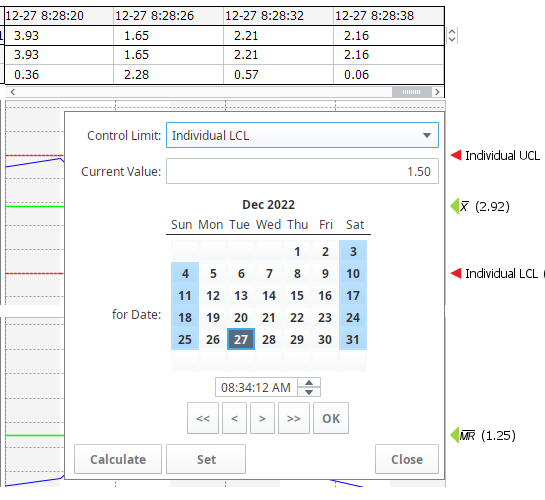
After you type in the value, select a datetime to start that control limit value, then select the "Set" button to manifest the new value, then close the pop-up interface.
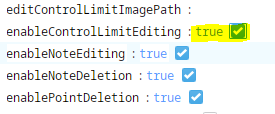
b) Perspective Control Charts: Ensure the enableControlLimitEditing property is set to True. This will display the Control Limit Edit button to the user.
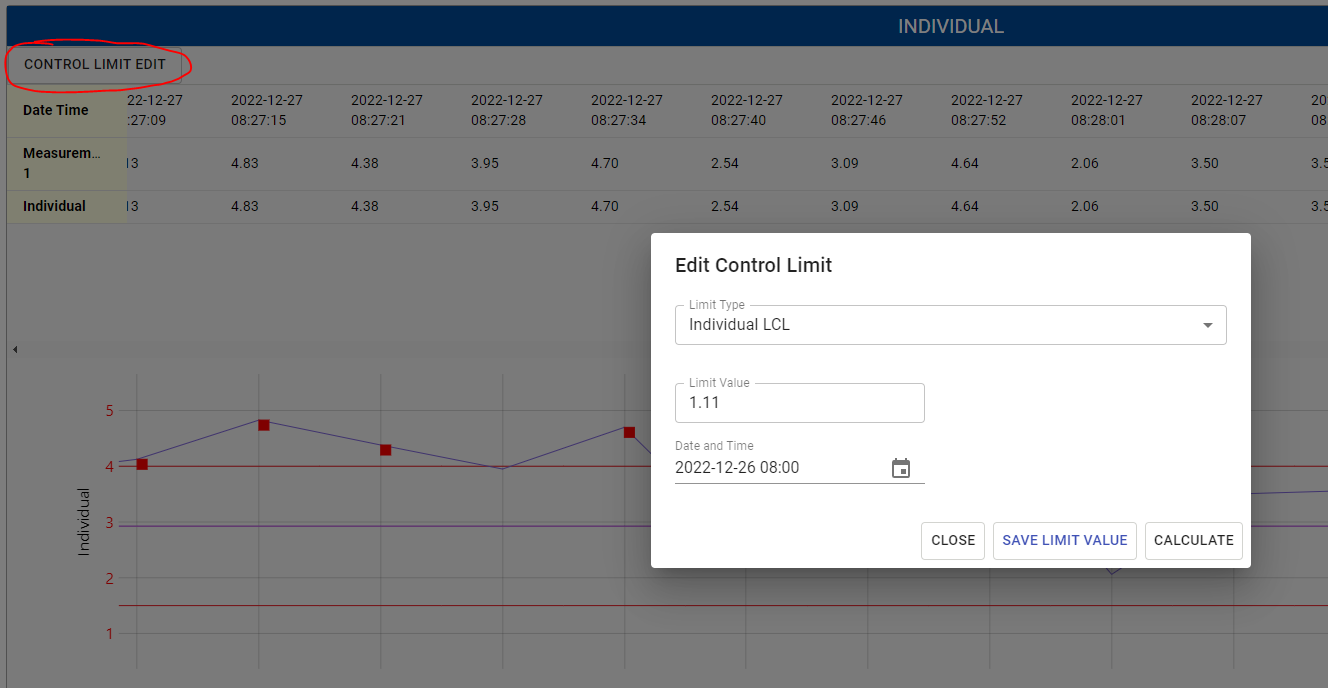
Select the control limit desired, your datetime to start the control limit value, and enter your value. Save the Limit Value.
The Simple Scripting Approach:
You can set a control limit simply by calling the following script:
system.mes.spc.controllimit.setControlLimitValue()
Pass in the required and optional params desired.
The System Level Scripting Approach:
The simple scripting approach is fine for some use cases, but a more robust and manageable solution may be necessary. Further, you may not want to over-ride the calculated control limits (e.g. Individual UCL, etc.), but supplement it with a separate specification limit. This last approach addresses these concerns.
This Document explains the system level approach: Setting Up an SPC Control Limit Script