Sepasoft MES Module Suite
MES Signature Template Manager
The MES Signature Template Manager component provides configuration control to administrators defining authorization challenge requirements when using the Electronic Signature features in MES. Signature Templates individually define necessary user credential requirements for a given type of authorization challenge that can then be referenced elsewhere in the project.
Version Specific

|
E-Signature is supported in 3.81.6 RC 1 and later. |
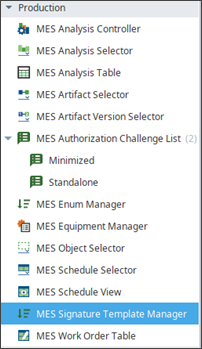
In Ignition, the MES Signature Template Manager component is located under the Production Module in the Perspective Component Palette.
Add the template manager to a perspective view in the Ignition Designer. Administrators can add and edit templates in preview mode or by launching a perspective session in Ignition.
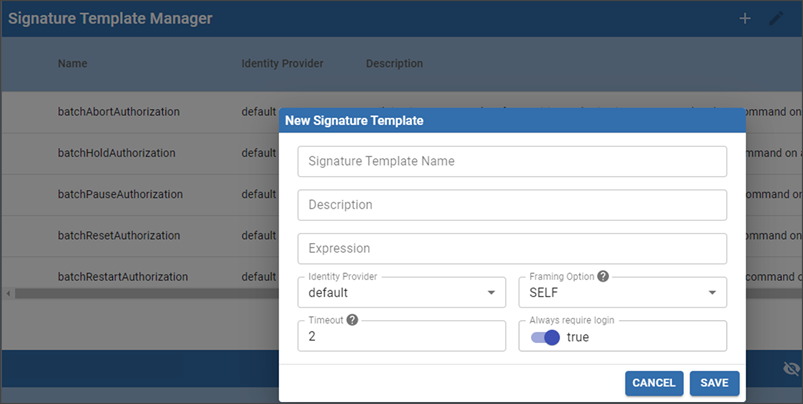
| Setting | Zone and Roles based Templates |
|---|---|
| Name | This name is exposed as a Parameter Value. Batch Procedure Security Zone and User Role level authorization: this name is exposed in a dropdown list in the e-Signature Phase parameter > Edit Parameter Value. Batch Procedure Command level authorization: Built-in templates are offered for batch commands: Abort, Hold, Pause, Reset, Restart, Stop. The names are not editable. batchAbortAuthorization |
| Description | Enter a description. Descriptions are not exposed in the e-Signature phase in Batch Procedure. Description is not editable for built-in templates. |
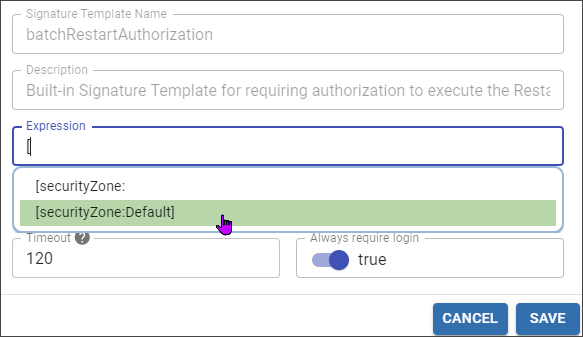
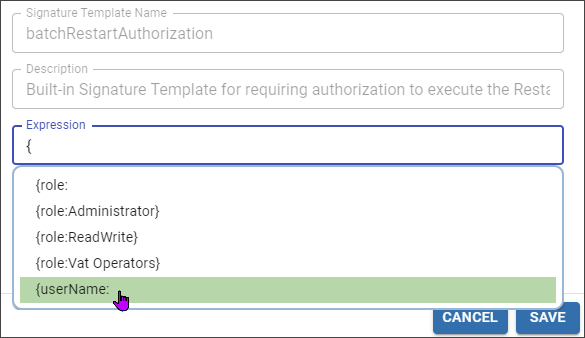
| Expression | Type a curly bracket '{' to start the autocomplete for user roles and usernames. Type a bracket '[' to start autocomplete for zones as configure in the Ignition Gateway. examples: {role:Supervisor} AND {userName:Bob} {userName:Bob} OR {role:Supervisor} See rules below under Expression Syntax |
| Identity Provider | Select an Identify Provider as configure in the Ignition Gateway. |
| Framing Option | Options for the login page: Self: replace the current page with the login page. New: Open in a new browser tab. Embedded: Open in a popup window. |
| Timeout | Specify the amount time (in minutes) the user has to enter their credentials on the login page before it timeouts. |
| Always require login | True/False. Set to True by default. |
Expression Syntax
You set an expression for a MES Signature Template in the Edit Template or New Template dialog. This component uses a Perspective Session in Ignition Designer or web browser.
| Required approval | Expression |
|---|---|
| Any Supervisor | {role:Supervisor} |
| Any Operator | {role:Operator} |
| Any Supervisor and a specific user | {role:Supervisor} AND {userName:Bob} |
| A specific User or Any Supervisor | {userName:Bob} OR {role:Supervisor} |
| Anyone at the site | [securityZone:Site] |
| Anyone at Site with Role Supervisor | [securityZone:Site] AND {role:Supervisor} |
Type '[' to use autocomplete for security zones.
Type '{' to use autocomplete for security providers and user names.
Sepasoft MES Module Suite