Sepasoft MES Module Suite
Defining Shifts
For OEE and Production data analysis across shifts, we need to provide a method for defining the current shift at any time during a production run. Shifts are defined at the Line level and enable the Scheduling Engine to accurately estimate how long a work order for a certain quantity of product code should take to complete on a given production line.
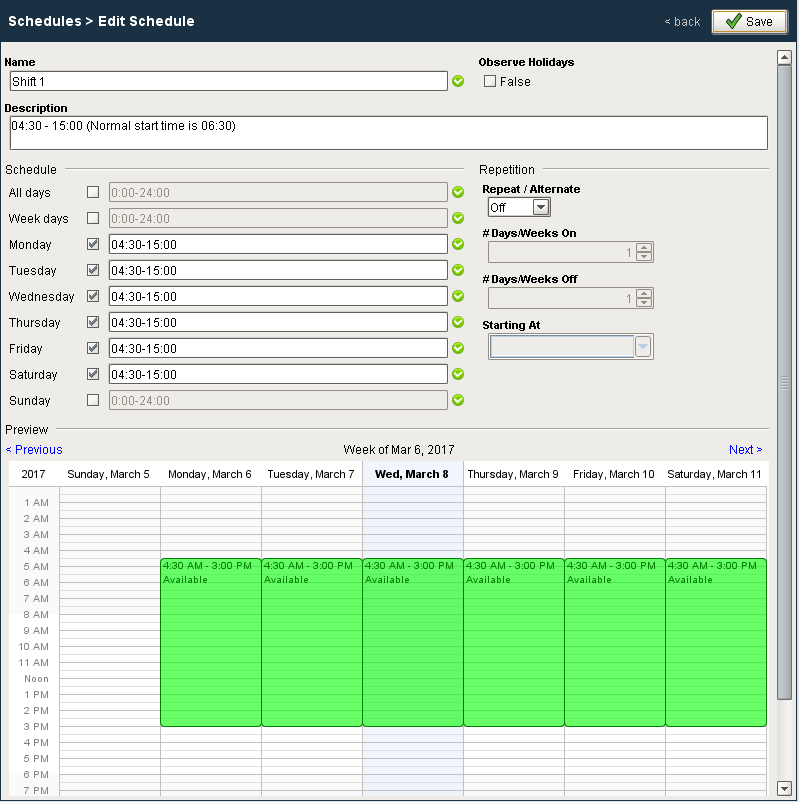
Identifying the current Shift can now be tied into the Ignition Schedule Management System, where custom shifts can be defined for daily, weekly or rotating schedules. If the Ignition Shift Schedule Management System does not support your needs or is not required, we now provide the hooks so you can tie current production into a custom shift scheduling solution through shift tag collectors in the Production model.
See Below:
- Define Shifts using the Ignition Schedule Manager
- Assign Multiple Shifts/Schedules to a Line for OEE Downtime Table
Define Shifts using the Ignition Schedule Manager
Rules & Considerations

|
CONSIDERATIONS:
To pull newest data, use: system.mes.synchronizeIgnitionSchedules() system.mes.synchronizeIgnitionSchedulesForEquipment(equipmentPath)
If there is only one shift, the analysis engine cannot detect changes. To set up shift configuration to avoid this issue:
Example: All Days 00:00-24:00 Shift A: Mon, Wed, Fri 00:00-24:00 Shift B: Tue, Thu, Sat 00:00-24:00 Shift C: Sun 00:00-24:00
Example: All Days 09:00-18:00 Shift Production: All Days 09:00-18:00 Shift Offline: All Days 18:00-09:00 |
If shifts are defined by using Ignition Schedule Management Component, enabled shifts can be selected for each production line in the Shift section of the MES Equipment Manager component as shown below.
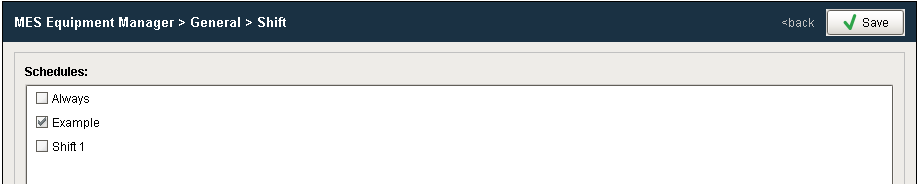
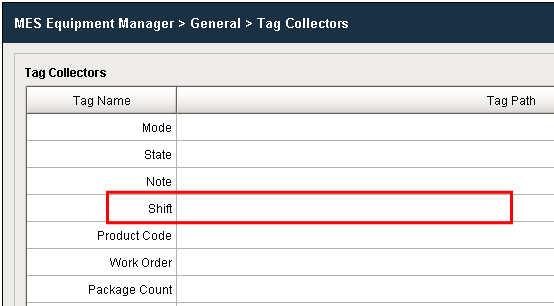
You can select valid shifts by checking the corresponding box. When implementing shift management this way, leave shift tag collectors at the line and cell level in production model blank. If requiring a custom implementation, use the shift tag collectors in the Tag Collectors section of the MES Equipment Manager component to define the current Shift.

|
Total of all Shift name characters must be <255> |

|
The names of all Shifts that are assigned to a particular Line get stored in a comma-separated list in the database. Due to database schema constraints, this list (all assigned shift names plus a comma between each) must total less than 255 characters, or an exception will be thrown when clicking Save in the MES Equipment Manager or when calling system.mes.saveMESObject via scripting. Creating and assigning 'composite' schedules to a Line can be useful in assuring the 255-character limitation is not exceeded. |
Assign Multiple Shifts/Schedules to a Line for OEE Downtime Table
You can use this script the employs the Equipment Manager object method: setIgnitionSchedule() to assign multiple shifts/schedules to a line for OEE DT.
Python |
equip = system.mes.loadMESObjectByEquipmentPath("Enterprise\Site 1\Area 1\Line 1") equip.setIgnitionSchedule("Shift 1,Shift 2") system.mes.saveMESObject(equip) |
Sepasoft MES Module Suite