Sepasoft MES Module Suite
Adding a Non-Equipment Phase
In Phase Manager in runtime:
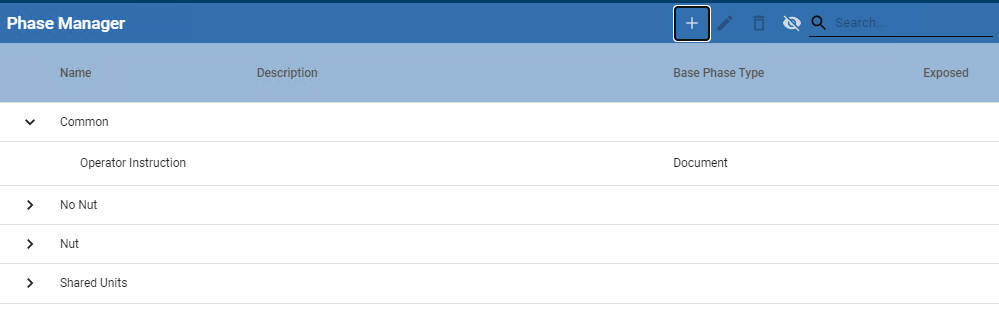
- From the top Tool Bar, click the plus icon and select Phase Class. (Phases must be in a Phase Class.)
- Enter a Phase Class name and Save.
- Select the Phase Class and click the plus icon and select Phase.
- Select a Base Phase. For a list of possible base phases, see Batch Procedure Phases.
- Decide if this phase needs to be exposed to the tag engine. Exposing the phase adds default parameters to the phase and creates UDT (User-Defined Tags) members when the Phase is added to a Unit.
- Click the Check icon to save the Phase Class.
Adding Parameters to Phases
When new parameters are added to phases, they are not automatically added to recipes. In order to add them to a recipe, open the recipe using the recipe editor and save it. This adds the new phase parameter to just that recipe. Alternatively, the recipe can be loaded using scripting and then immediately saved.
Note: Batch tags for both active and inactive units are added to MES tag provider.
Sepasoft MES Module Suite