Sepasoft MES Module Suite
Adding Blocks and Connectors | Business Connector Module
To build out a Business Connector Chart, drag Blocks onto the visual-based, two-dimensional Design Grid and connect them together into a logical sequence with Connectors. The Start Block is already in place on a new chart.

|
Ignition Vision Read Time-Out setting in the Ignition Designer Project Properties affects read-timeouts for Business Connector's SAP calls to get a list of BAPIs When retrieving BAPIs in Business Connector using the BAPI block in a chart for the first time, a read timeout occurs. This can be due to several items, such as:
You can set the Read Timeout in the Ignition Designer Project Properties dialog, under Vision > Timing > Read Timeout. If Vision is not installed, use the system.util.setReadTimeout(readTimeout) script function to set the Read Timeout setting. See the Ignition User Manager for more details. |
Blocks
Blocks are functional objects that perform a specific action either within the chart (example: branching decisions) or with the connected ERP, MES and/or Ignition Tags (example: creating new MES Objects). Every Block has its unique inputs and/or outputs. Most blocks also possess internal data-processing and logical operation capabilities.
Add a Block
To add a Block to the Design Grid, click and drag it into place in the grid area. Optionally, you can click and drag it to a new location on the grid area:
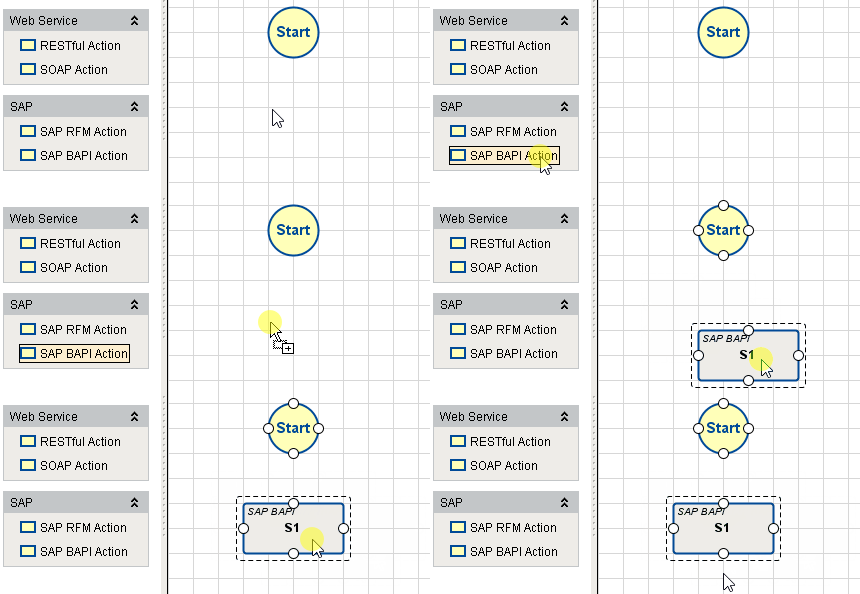
Delete a Block
To delete a Block, click on the Block and press Delete. Click Yes to Confirm.
Available Blocks

|
The item marked Selection at the top of the list in General is not a Block. It is a place to click to activate the mouse cursor for selecting an item on the Design Grid. Note that sometimes there will be a short delay when a block is clicked on (while the configuration data is being retrieved). |
Click on the name of the Block for more detailed information.
| Block | Icon | Description |
|---|---|---|
| General Blocks | ||
| Start |
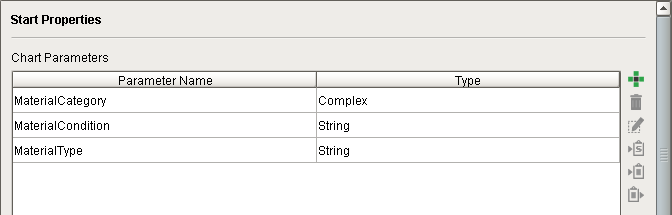
| When a chart is called from an Ignition component or MES module script, execution begins at the Start Block. User-defined Chart Parameters can be created for passing data into the chart.
|
| Decision |
| The Decision Block uses a user-configured true/false expression to decide which of its two outputs (True or False) will pass along execution control. The expression operators below can be used along with parentheses, AND and OR:
The output connections of this block represent either True (expression is true) or False (expression is false). Expressions can use Chart Parameters (configured in the Start Block), or any of the available Action Values (properties available from any Action Block in the chart). |
| Iteration |
| The Iteration Block increments a pointer to one row of data at a time in the data array selected in the Array Path field. For each row pointed to, control passes to the Block connected to its Next output. It accepts a return trigger input (Next Trigger) to increment the pointer to the next row. When there are no more rows in the selected data array, it will pass control to the Block connected to its Done output.
There are four connections required:
|
| Exception |
| The Exception Block is used to handle errors thrown by the chart. The output connections of this block represent either Yes (error exists = True) or No (error exists = False). The chart designer is expected to connect a Script Block to the Yes output to evaluate and handle the error(s) generated. The No output will be connected to the next Block in the chart sequence. |
| Script |
| The Script Block allows users to create custom data-handling scripts in Python. Scripting configured within the Block is executed when control passes to it. Chart functions are available to allow for handling the incoming and outgoing data: chart.getParameterValue(parameterPath), chart.setParameterValue(parameterPath,value), chart.getActionValue(chartPath), chart.getUserValue(name) and chart.setUserValue(name,value). |
| Enclosing Chart |
| The Enclosing Chart Block allows users to nest ('enclose') and execute other charts within the current chart. Mapping allows Chart Parameter values (including B2MML and complex) to be passed to and from the enclosed chart. The Input of this Block passes execution control to the Start Block of the enclosed chart (one of your other charts selected in the Enclosed Chart property field). Execution control passes back from the End Block in the enclosed chart to the Block connected to the Output connection. Any of your other charts will be available for 'enclosing' in an Enclosing Chart Block by selecting it in the Enclosed Chart drop-down menu:
|
| End |
| The End Block terminates chart operation. There are no associated property fields. Users must connect the End Block as the last block in the chart flow. This block is mandatory, but when a new chart is created, it will not already be in place on the Design Grid. |
| Aggregation Block |
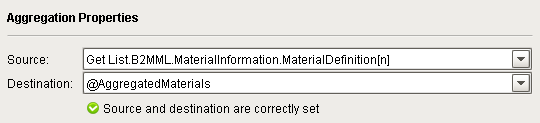
| The Aggregation Block appends iteratively-collected data values, one per pass, into a user-created Chart Parameter. Typically, this Block is placed in a loop with an Iteration Block (which indexes to one row of data per loop).
|
| MES Blocks | ||
| Verify MES Object |
| The Verify MES Object Block determines whether the incoming data can become a valid MES Object if later saved (by the Save MES Object Block). The output connections of this block represent either Yes (valid MES Object) or No (not valid MES Object). Only available when MES modules are installed. |
| Save MES Object |
| The Save MES Object Block creates <<<one or more?>>> actual MES Object<<<s>>> from the data provided at its input. The source of the data to use for creating the MES Object is set in the Target field via a drop-down list of the currently-populated Blocks on the Design Grid. Only available when MES modules are installed. |
| Web Service Action Blocks | ||
| RESTful Action |
| The RESTful Action Block retrieves and/or stores data to/from a RESTful resource at a specified URL location. A RESTful configuration source is selected from the drop-down list of sources currently populated on the Design Grid. A Python scripting area is provided for data handling prior to mapping the available REST data fields to data fields in the selected B2MML MES Object class (Operations Schedule, Operations Definition, Process Segment or Material). |
| SOAP Action |
| The SOAP Action Block retrieves and/or stores data to/from a SOAP resource at a specified URL location. A SOAP configuration source is selected from the drop-down list of sources currently populated on the Design Grid. A Python scripting area is provided for data handling prior to mapping the available SOAP data fields to data fields in the selected B2MML MES Object class (Operations Schedule, Operations Definition, Process Segment or Material). |
| SAP Action Blocks | ||
| SAP BAPI Action |
| The SAP BAPI Action Block is specifically designed to interact with BAPI schemas in an SAP database. The input is configured to connect to an existing SAP resource and includes filter parameters to specify the BAPI schema required. The output is configured by mapping the available SAP data fields (after filtering) to data fields in the selected B2MML MES Object class (Operations Schedule, Operations Definition, Process Segment or Material). |
| SAP RFM Action |
| The SAP RFM Action Block is specifically designed to interact with RFM schemas in an SAP database. The input is configured to connect to an existing SAP resource and includes filter parameters to specify the RFM schema required. The output is configured by mapping the available SAP data fields (after filtering) to data fields in the selected B2MML MES Object class (Operations Schedule, Operations Definition, Process Segment or Material). |












Connectors
Connectors link one Block in a logical execution sequence to the next Block in the sequence. Execution control 'permission' travels from Block to Block as defined by the Connector arrows.
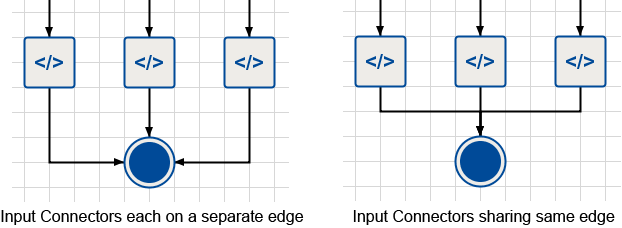
All Blocks (except the Start Block, which has no inputs) can accept an unlimited number of input connections coming from other Blocks. These input connections can be spread across up to three of the Block's edges, depending on how many edges are remaining after reserving one or more for its other dedicated-use connections (Output, Next, Yes and No, True and False). The two diagrams to the right are logically equivalent. In both cases, additional input connections may still be made to eligible edges, whether they currently have an input connection or are still empty.
Only Execution Control 'Travels' on the Connector Arrows
|
|
One important concept to understand about charts is that data does not 'travel' from Block to Block as defined by the Connector arrows. Only the execution control sequence is defined by the Connectors. Execution passes from one Block in the chart sequence into the next Block as each Block completes its task. Data 'moves' back and forth between the business system (and/or chart parameters) and B2MML array structures (and/or chart parameters) independently, via the specialized internal functionality of various chart Block options, such as the SAP BAPI Action Block (filters the range of possible BAPI arrays and then maps SAP properties to the MES Object properties available in B2MML), and the Save MES Object Block (which creates the new MES Objects from the list filtered/defined down by, for example, a SAP BAPI Action Block). |
Add a Connector
To add a Connector between two Blocks, click on one block and drag a connector to the next Block in the sequence
Delete a Connector
To delete a Connector, click on the Connector and press Delete. Click Yes to Confirm.
Sepasoft MES Module Suite