Sepasoft MES Module Suite
Overview of Authoring a Batch Recipe with E-Signatures
In Batch Procedure, use the e-signature phase and components to track: who did what and when.
To control batches using e-signatures, see Batch Command Signature.
Tracking is configured at the Batch Procedure Phase level within the Batch Procedure Framework and Batch Commands within the Batch Command-State Sequence.
In MES 3.81.13 SP1, MES 4.83.3 SP1, and later, a custom Perspective screen can require a Signature Template for each recipe-level command. See Batch Command Signature.
Version Specific

|
E-Signature is supported in 3.81.6 RC 1 and later. |
FR21 Part 11 Code FDA Compliance

|
Sepasoft and Ignition used in solutions that require 21 CFR part 11 compliance. |
Scripting:
system.mes.signature
Authoring a Batch Recipe with e-Signature
You create the signature template and then add the e-Signature phase to a recipe. When you execute the batch, the authorization challenges displays in the list.
To set this up:
- You need to add the Signature Template Manager to your project. And then, create an e-Signature Template with the desired approvers on it.
- Add the e-Signature step to a Batch Recipe prior to the step that requires approval.
- Ensure the "approved" and "reject" paths are separate branches in the Batch Recipe.
- Run the Batch Recipe from the Batch Execution component.
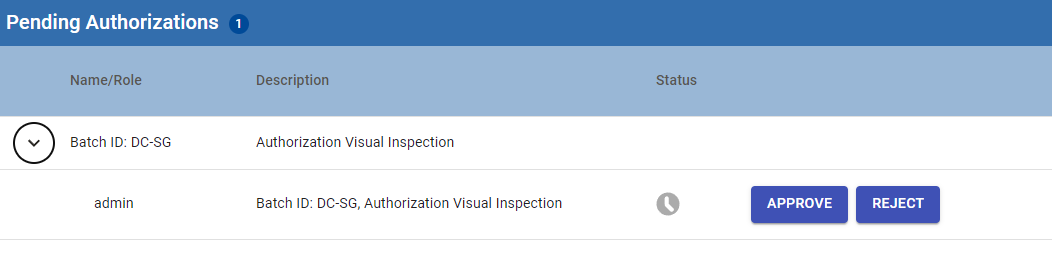
- When the e-Signature step runs, the Pending Authorization list shows the challenge from the template.
In MES 3.81.12 SP4, MES 4.83.1 SP4, and later, with grouped set to True, an OR expression is one challenge. One matching role approves that part. An AND expression requires every part. Reject on any required part follows the rejected path.
- Users approve or reject the challenge.
- If the challenge(s) are approved by ALL required users, the Recipe takes the "approved" path.
- If the challenge(s) are rejected by any ONE of the users, then the "rejected" path is followed.
Sepasoft MES Module Suite