Sepasoft MES Module Suite

Description
The Decision Block uses a user-configured Boolean expression to decide which of its two outputs (True or False) it will pass execution control to. The Block is strictly for branching based on an expression. It does not have scripting capability. Expressions can use Chart Parameters (configured in the Start Block), or any of the available Action Values (properties available from any Action Block in the chart).
Connections
Three connections are required (must be connected in the order below):
Input — (input) Receives execution control from the previous Block in the sequence. Unlimited input connections are allowed (spread across one or two available edges).
True — (output) Execution control passes to the Block connected to this output when the user-configured expression is True.
False — (output) Execution control passes to the Block connected to this output when the user-configured expression is False.
Properties
The optional Name and Description fields are included on most Blocks for clarity and documentation benefit.
Expressions can use Chart Parameters (configured in the Start Block), or any of the available Action Values (any of the filtered mapping properties available in any of the Action Blocks in the current chart, plus any of the available B2MML properties).
The expression operators in the Operators section can be used along with parentheses, AND and OR.
The output connections of this block represent either True (expression is true) or False (expression is false).
Usage
Connecting the Decision Block
- Drag a Decision Block onto the Design Grid (position to be the next Block in the chart sequence).
- Click on the previous Block in the sequence and draw a Connector to the Decision Block (any available edge). Repeat for another input Block, if applicable (unlimited connections are allowed on up to two edges).
- You will need two other Blocks to accept the True and False outputs from the Decision Block. Drag those two Blocks onto the Design Grid.
- Click on the Decision Block and draw a Connector (from any available edge) to the Block chosen to accept the True output.
- Click on the Decision Block and draw a Connector (from any available edge) to the Block chosen to accept the False output.
- Configure the Expression, as shown below:
Configuring the Expression
The user-configured Expression is used to decide which of its two outputs (True or False) will pass along execution control to another Block.
- Select the radio button for the desired Operator.
- Select a Chart Parameter or Action Value from the tree in Filter Items.
- Click Add Expression.
- Add the string or other data type value to evaluate the parameter/property against.
- To create more complex expressions, use parentheses, OR or AND, along with additional Operators and parameters/properties. Alternatively, expressions may be pasted in from an external text editor.
- The
 button may be used to erase the last portion of the expression added, or simply click anywhere in the expression itself and edit the text directly.
Sample Expression 1
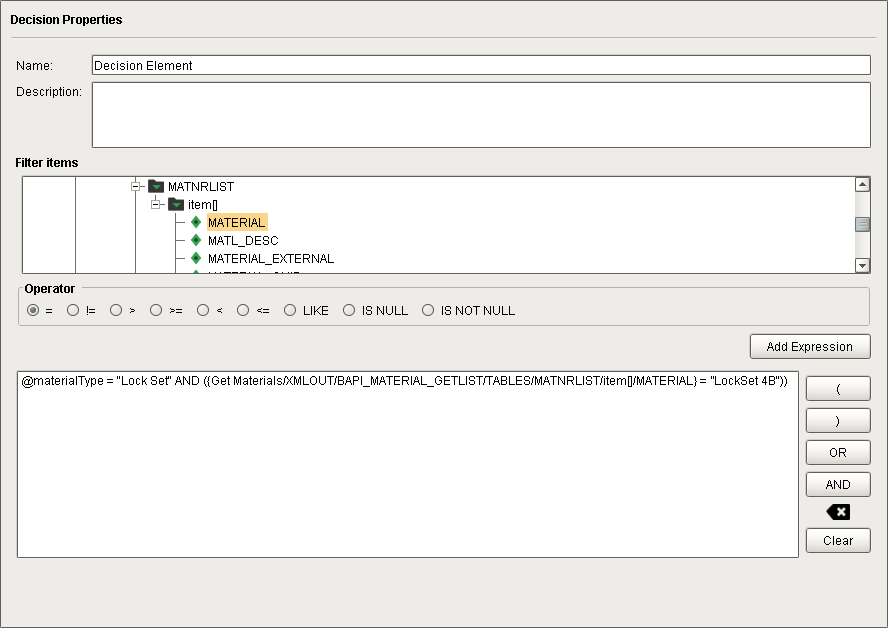
In the following example, the expression is written such that execution control will be passed along to the True output only when MaterialType = "Lock Set" and the Action Value MATERIAL = "LockSet 4B" (from an SAP BAPI Action Block called "Get Materials" in the current sample chart), else execution control will be passed along to the False output:
Sample Expression 2
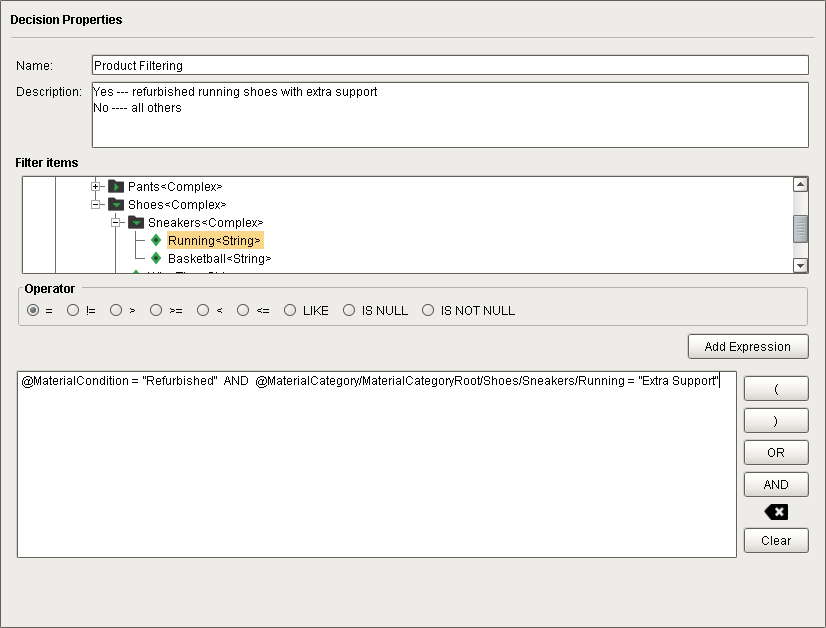
To access members of a Chart Parameter created as Complex Data Type, either type the path using forward slashes to point to the child member, or just highlight the child member in the Filter Items pane, select an Operator and then and click Add Expression. In the following example, the expression is written such that execution control will be passed along to the True output only when the Chart Parameter (simple data type) MaterialCondition = ''Refurbished" and the Chart Parameter (complex data type) MaterialCategory/Shoes/Sneakers/Running = ''Extra Support", else execution control will be passed along to the False output:
Sample Expression 3
This expression uses one Chart Parameter and two Action Values from the filtered SAP data properties available in the SAP BAPI Action Block called "Get Materials". Parentheses mandate that items are evaluated as a group, separate from the remainder of the expression:
- @MaterialCategory/Pants/LongPants IS NOT NULL AND
({Get Materials/XMLOUT/Root/BAPI_MATERIAL_GETLIST/TABLES/MATNRLIST/item[]/MATERIAL} IS NOT NULL OR
{Get Materials/XMLOUT/Root/BAPI_MATERIAL_GETLIST/TABLES/MATNRLIST/item[]/MATL_DESC} IS NOT NULL)
Example
Iteratively Create Material Definitions
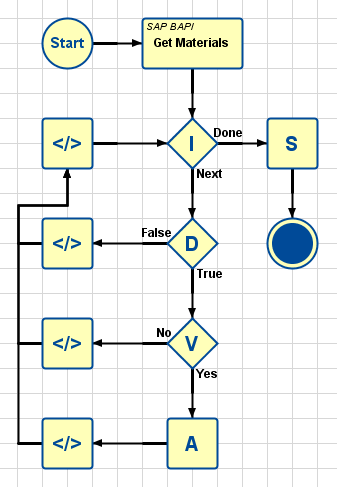
This example chart collects a list of Material Definitions from an SAP database and creates an MES Material Definition object for each.
Start Block
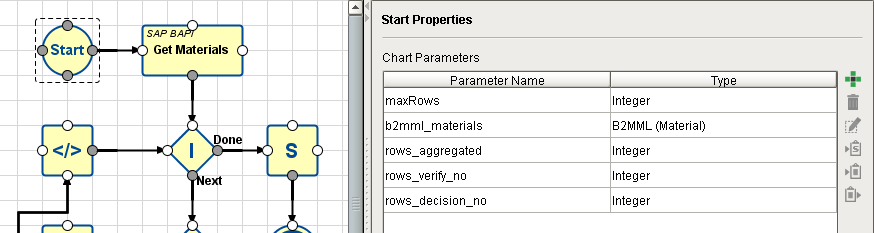
A Chart Parameter called maxRows is used to limit the number of SAP entries to fetch from the SAP database. The number will be input into the chart during the chart execution function executeChart(chartPath, chartParameters, returnChartParameters).
| Sample Setting | Description |
|---|---|
| maxRows | Integer. Used to pass in to the chart the number of rows to fetch from the database. |
| b2mml_materials | B2MML array. Used to hold the entries aggregated by the Aggregation Block (one row per loop). |
| rows_aggregated | Integer. Used to return the count of how many rows were aggregated by the Aggregation Block. |
| rows_verify_no | Integer. Used to return the count of how many rows failed the Verify MES Object Block (row data was not a proper MES Object). |
| rows_decision_no | Integer. Used to return the count of how many rows failed the Decision Block (equation was False, so decision is "No"). |
SAP BAPI Action Block - Properties
This block fetches the Material Definitions from the specified SAP database. It is configured as follows:
A Destination called My SAP Server was previously configured in the Interface for SAP ERP section of the Global area in Designer:
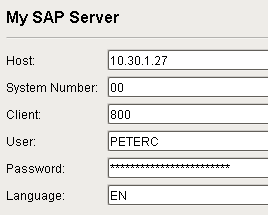
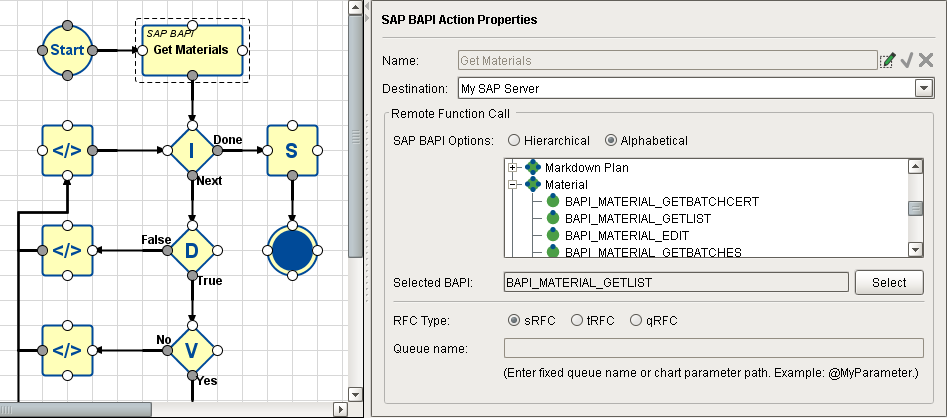
The Remote Function Call section is configured to filter down to just the BAPI_MATERIAL_GETLIST module where the Material Definitions are stored:
| Property | Sample Setting | Description |
|---|---|---|
| Name | Get Materials | Name of the Block (available, if needed, for local use within the chart by other Blocks). |
| Destination | My SAP Server | Selected SAP Connector Destination (created in the Interface for SAP section of the Global area in Designer). |
| SAP BAPI Options (Hierarchical/Alphabetical) (tree of available BAPI options) | Alphabetical checkbox and Material/BAPI_MATERIAL_GETLIST | The two checkboxes decide how the tree of available SAP BAPI options below is sorted. Alphabetical is usually chosen if you know the name of the BAPI you want, else drill down to find it in Hierarchical mode. |
| Selected BAPI | (shows the selected BAPI) | Display only. Shows (and remembers) the selected BAPI after the Select button is pushed. |
| RFC Type | sRFC | Synchronous Remote Function Call (expects an immediate answer from the receiving system, else an error will be reported). |
| Queue Name | N/A |
SAP BAPI Action Block - Mapping
The Input tab of the SAP BAPI Action Block includes mapping for the Chart Parameter maxRows to be passed into the BAPI function call that the block makes to the SQL database (limits the number of entries fetched). There is also a requirement that MATNRSELECTION in BAPI_MATERIAL_GETLIST be restricted to positive integer values only.

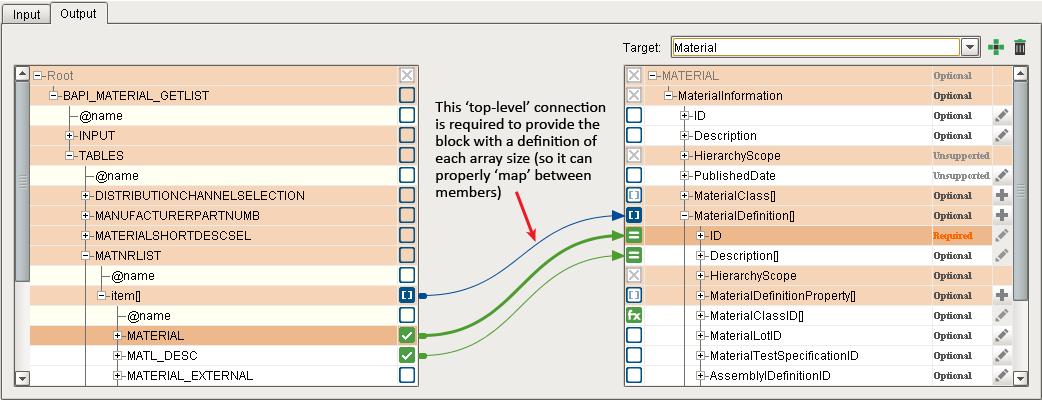
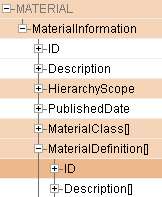
The Output tab of the SAP BAPI Action Block includes mapping for MATERIAL → ID and MATL_DESC → Description. Note that it must first include a mapping connector at the parent level, to provide the block with a means of knowing the array sizes on both sides so it can map the connections properly. Each member of the BAPI_MATERIAL_GETLIST will be mapped into a B2MML array that includes Material Definition properties of ID and Description. These are collected, one at a time by the Aggregation Block in the iteration loop (into the Chart Parameter b2mml_materials), and then turned into MES Material Definition objects by the SAVE MES Object Block.
Iteration Block
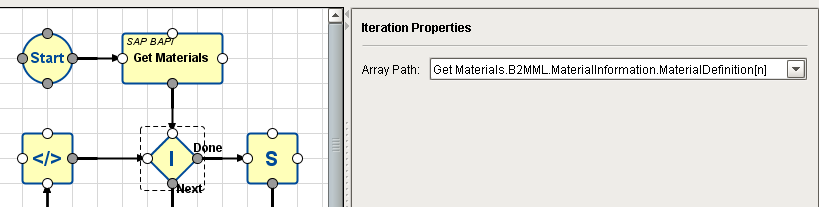
This block increments a pointer to one row of data at a time in the data array selected in the Array Path field. For each row pointed to, control passes to the Block connected to its Next output. It accepts a return trigger input (Next Trigger) to increment the pointer to the next row. When there are no more rows in the selected data array, it will pass control to the Block connected to its Done output.
In this example, the path is to MaterialDefinition in the B2MML array, MATERIAL, which contains the ID and Description properties that the Aggregation Block will append, one row at a time, to Chart Parameter b2mml_materials (which the Save MES Object Block will later use to create the MES Material Definition Objects).
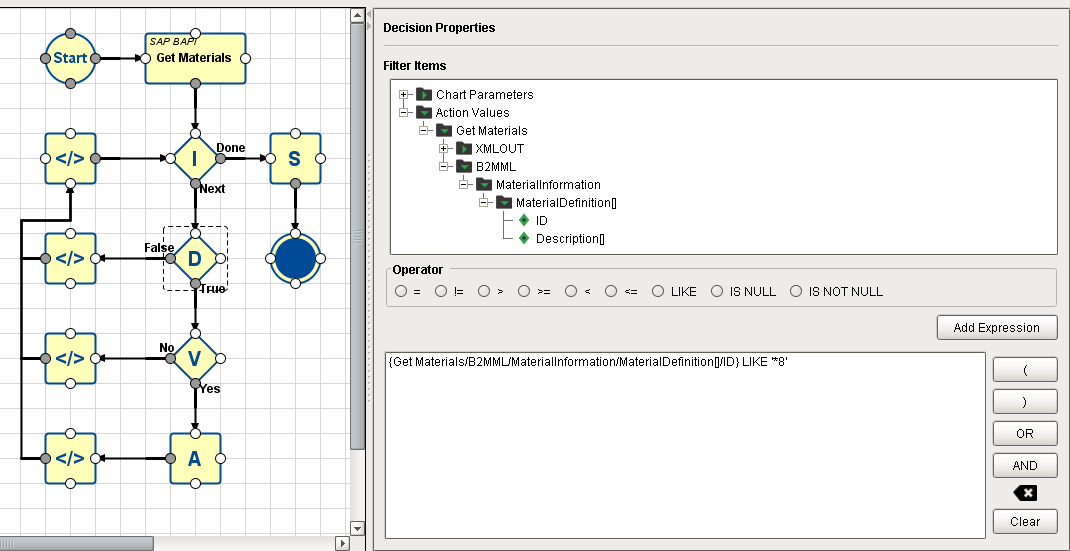
On each loop through the Iteration Block, the row pointer is incremented and control passes to the Decision Block that is connected to its Next output Connector.
Once all rows have been iterated through, control passes to the Save MES Object Block connected to its Done output.
Decision Block
In this example, the expression used to arrive at a 'True' decision is simply whether the last character in the ID property in the row currently being pointed to (by the Iteration Block) is equal to "8" (the asterisk is a wildcard that ignores all the preceding characters). If the ID ends in "8", control passes to the Verify MES Object Block connected to its True output. Otherwise, control passes to the Script Block connected to its False output.
Verify MES Object Block
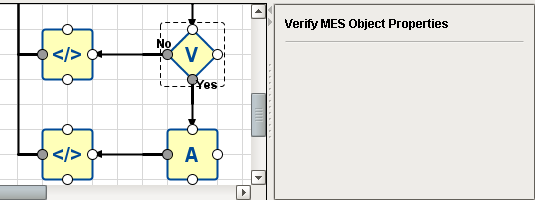
This Block is used to test whether an array of data (or a row of data pointed to by an Iteration Block) contains appropriate information to successfully create an MES Object. It does not create the object.
In this example, if the row contains appropriate information required to successfully create an MES Object, control passes to the Aggregation Block connected to its Yes output, to be appended to the end of the current b2mml_materials array. If not, then control is passes to the Script Block connected to its No output.
Aggregation Block
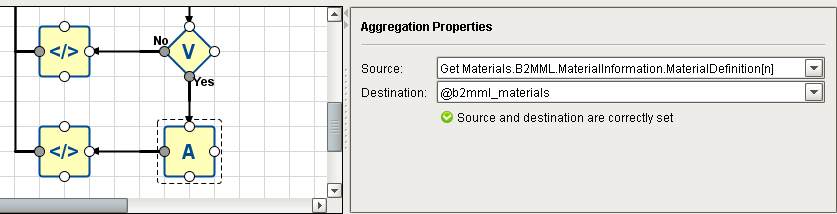
This Block appends iteratively-collected data values, one per pass, into a user-created Chart Parameter.
In this example, b2mml_materials was created in the Start Block to hold the aggregated data. Chart execution control only passes into the Aggregation Block after it has successfully passed through the Decision Block (ID property ends in "8") and the Verify MES Object Block (data is determined to be sufficient to successfully create an MES Object).
After the row has been 'aggregated' (appended to the end of b2mml_materials), control passes back to the Iteration Block and the loop repeats with the next row.
Script Block - Connected to Decision Block
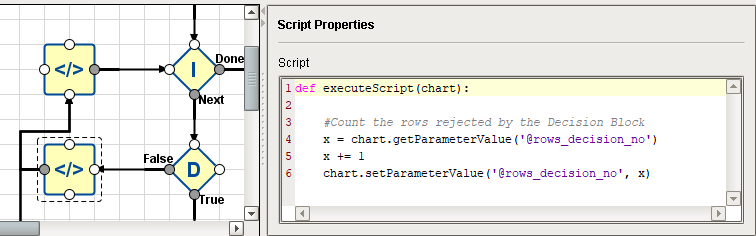
This script increments the Chart Parameter rows_decision_no any time the expression in the Decision Block resolves to False (which passes control to this Script Block).
Script Block - Connected to Verify MES Object Block
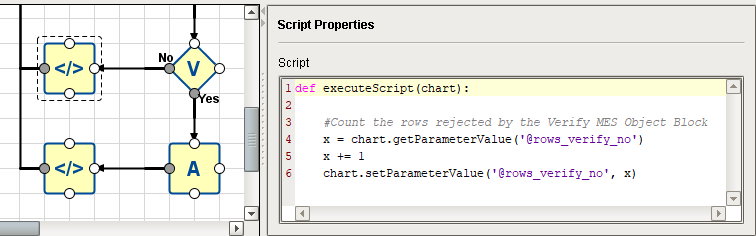
This script increments the Chart Parameter rows_verify_no any time the Verify MES Object Block resolves to No (which passes control to this Script Block).
Script Block - Connected to Aggregation Block
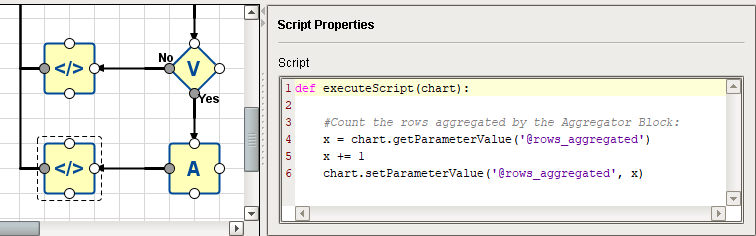
This script increments the Chart Parameter rows_aggregated immediately after the Aggregation Block completes its task (appending a row to b2mml_materials).
Script Block - Connected Last in the Iteration Loop
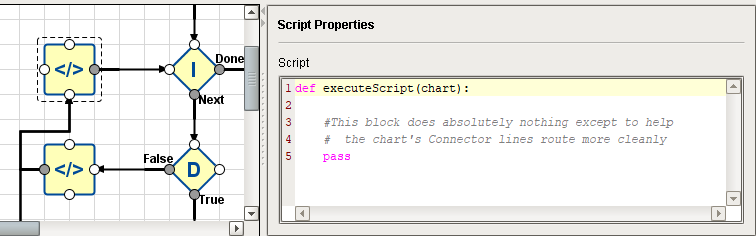
This Block has no scripting inside except for the pass instruction (which is a non-operation), so it does absolutely nothing! It is placed in the chart at its current position simply to make the Connectors exiting the three other Script Blocks flow nicely. Otherwise, they end up auto-routing strangely, making the chart more difficult to understand. Feel free to sprinkle empty Script Blocks as needed to keep your 'wiring' neat and self-explanatory.
Save MES Object Block
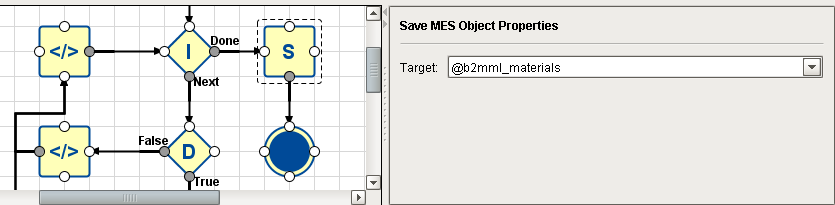
This block creates an MES Object for each entry in the selected RFM (the drop-down list Target will list all of the Action Blocks in the chart. The filtered RFM in the selected Action Block will be used to create the list of MES Objects). For this example, one MES Material Definition object will be created for each entry in the RFM selected in the "Get Materials" SAP RFM Action Block (up to the limit defined by the Chart Parameter maxRows).
| Property | Sample Setting | Description |
|---|---|---|
| Target | Get Materials | "Get Materials" is the data source selected from the drop-down list of blocks with available data (it's the only choice in this example). |
Executing the Chart
This example chart is being executed from a script within a Button component on an Ignition Designer window:
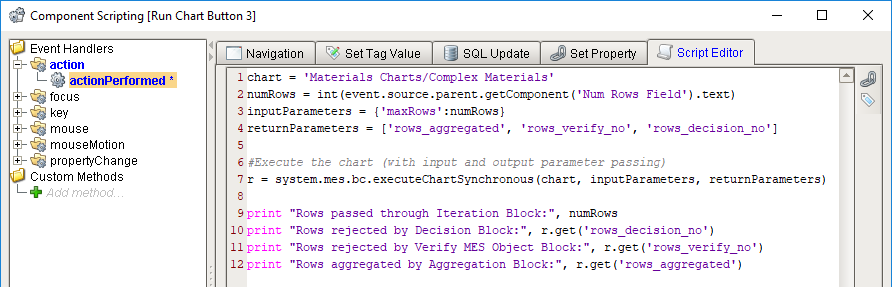
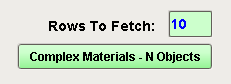
If "10" is entered into the Rows to Fetch text field, then when the Button is pressed:
- The number in the text field is loaded into numRows.
- The chart is executed, passing in numRows to the Chart Parameter maxRows in the Start Block, and listing three Chart parameters to include in the resulting object when chart execution concludes. Unlike the other two variants of .executeChart, the function will wait for chart execution to conclude so it can return a Python dictionary containing the Chart Parameters specified (in this example: rows_aggregated, rows_verify_no and rows_decision_no).
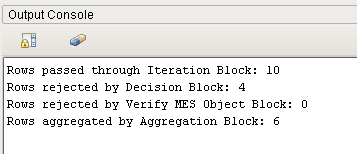
- The various counts are retrieved from the returned chart parameter object and printed to the Output Console.
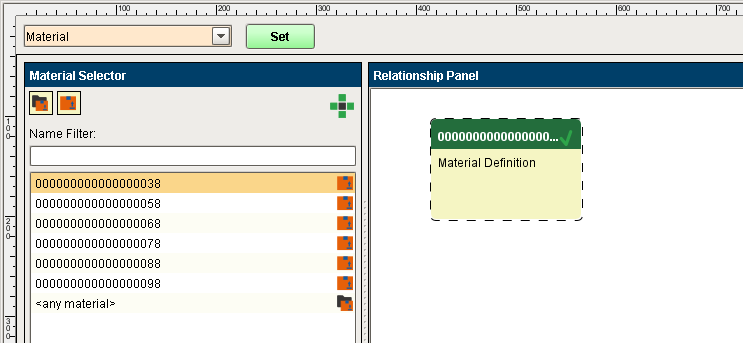
The result of the chart execution is that ten rows are fetched from BAPI_MATERIAL_GETLIST in the SAP database and six MES Material Definition objects are created (those that have an ID that ends with "8", per the Decision Block expression):
Sepasoft MES Module Suite