Sepasoft MES Module Suite
Document Management in an OEE Production Run
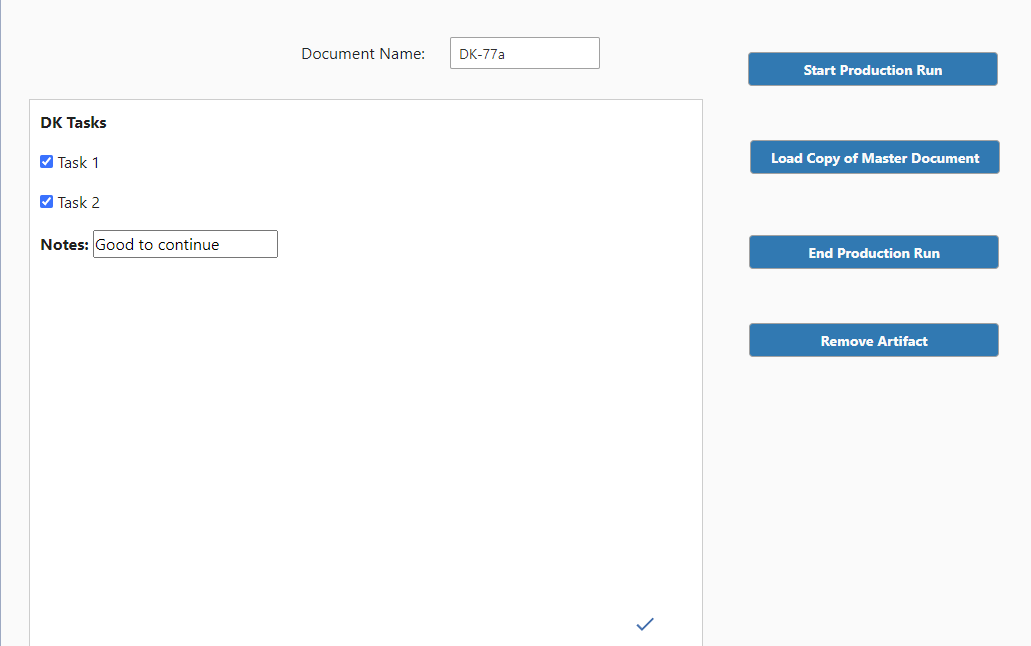
This example uses the Document Management components for Perspective to create an OEE Production Run that displays input fields within a document. A production run is initiated, and that document is loaded. The document inputs are handled and saved, and the production run is ended.

|
Required items and configuration to complete the steps below:
|
Configuring Document Management in Designer
You create and edit documents with the Document Editor in design-time and view documents in the Document Viewer component at runtime. In the system, documents are artifacts that are attached to MES Objects. This example uses the MES Object Selector component with the Document Editor to associate a Line MES object to a document artifact. Then, uses the Document Viewer to display instructions with input fields during an OEE run. The input values are printed to the console.
Setting Up a Document Editor in a Perspective View
- In Ignition Designer on a Perspective View, add an MES Object Selector component.
- Set the property includeMESLineObjects to True.
- Add a Document Editor Component, and bind the editor to the selector:
../mesObjectSelector.props.selectedMESObject
Creating and Saving a Document
Create a document artifact with text fields and checkboxes. The document is saved and later loaded during the production run.
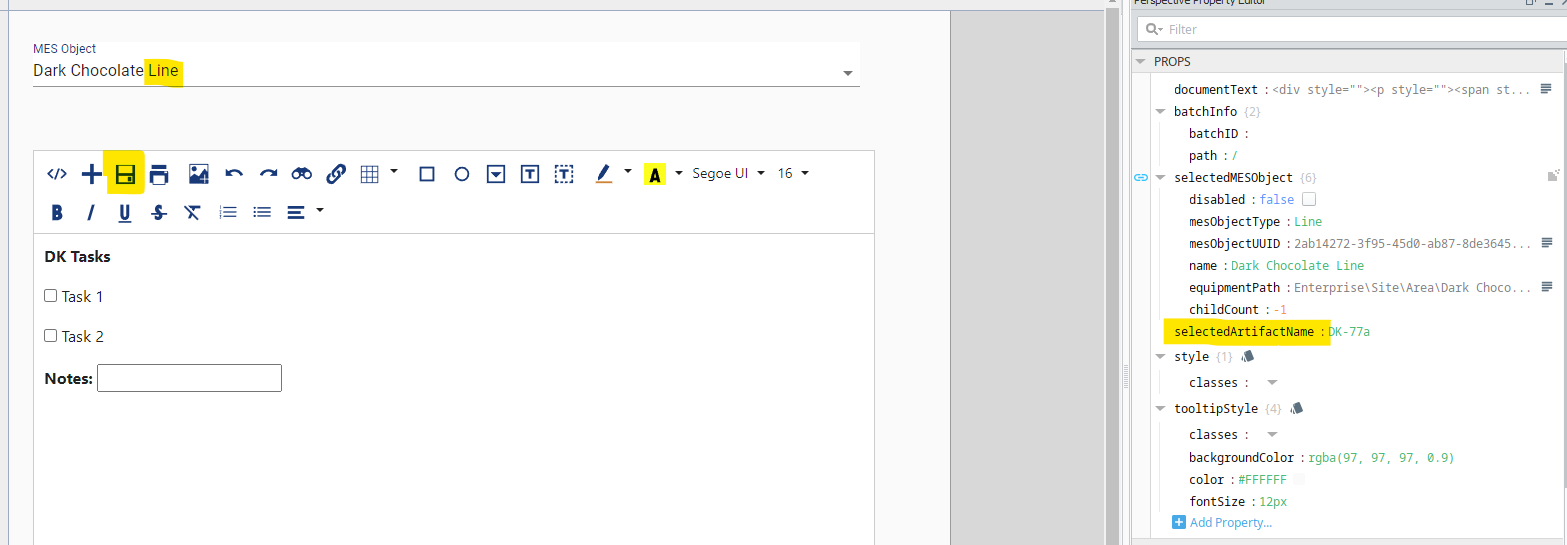
- In Designer, in Play mode, select a Line in the MES Object Selector.
- Create a document with text fields and checkboxes.
- Add a name to the selectedArtifactName property and then in the design area, click Play and then the Save icon in the Document Editor.
Scripts and Methods for Document Handling
In Ignition Designer, design a Perspective View like this one:

 | Add a Label and a Text Entry. Keep the property defaults and name them. | ||||||||||
 |
| ||||||||||
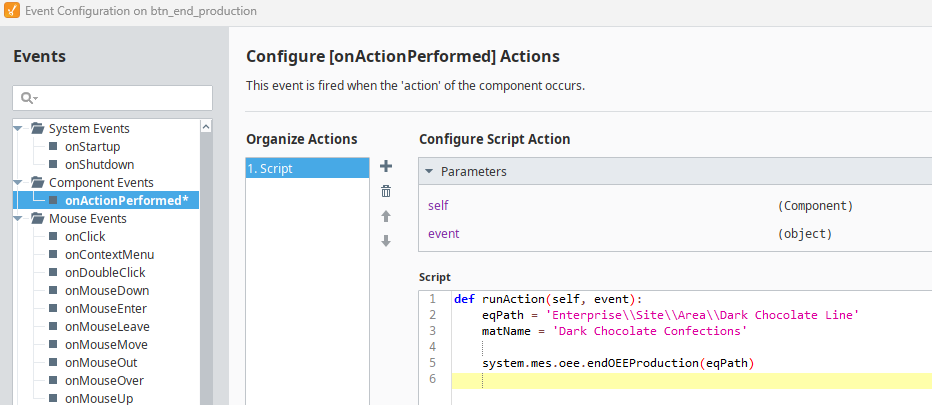
 | Start Production Run Functionality The script initializes a production run using OE downtime, equipment path, and material name.
Load and Save Document The script loads a master document using the getArtifactValueByName method. The script saves the document inputs and updates the document viewer component.
End Production
Remove Artifact The script removes an artifact from an MES object using the remove complex property method.
|
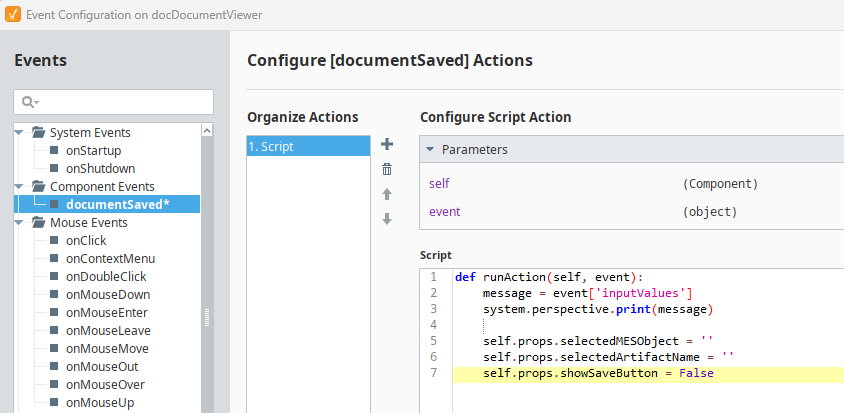
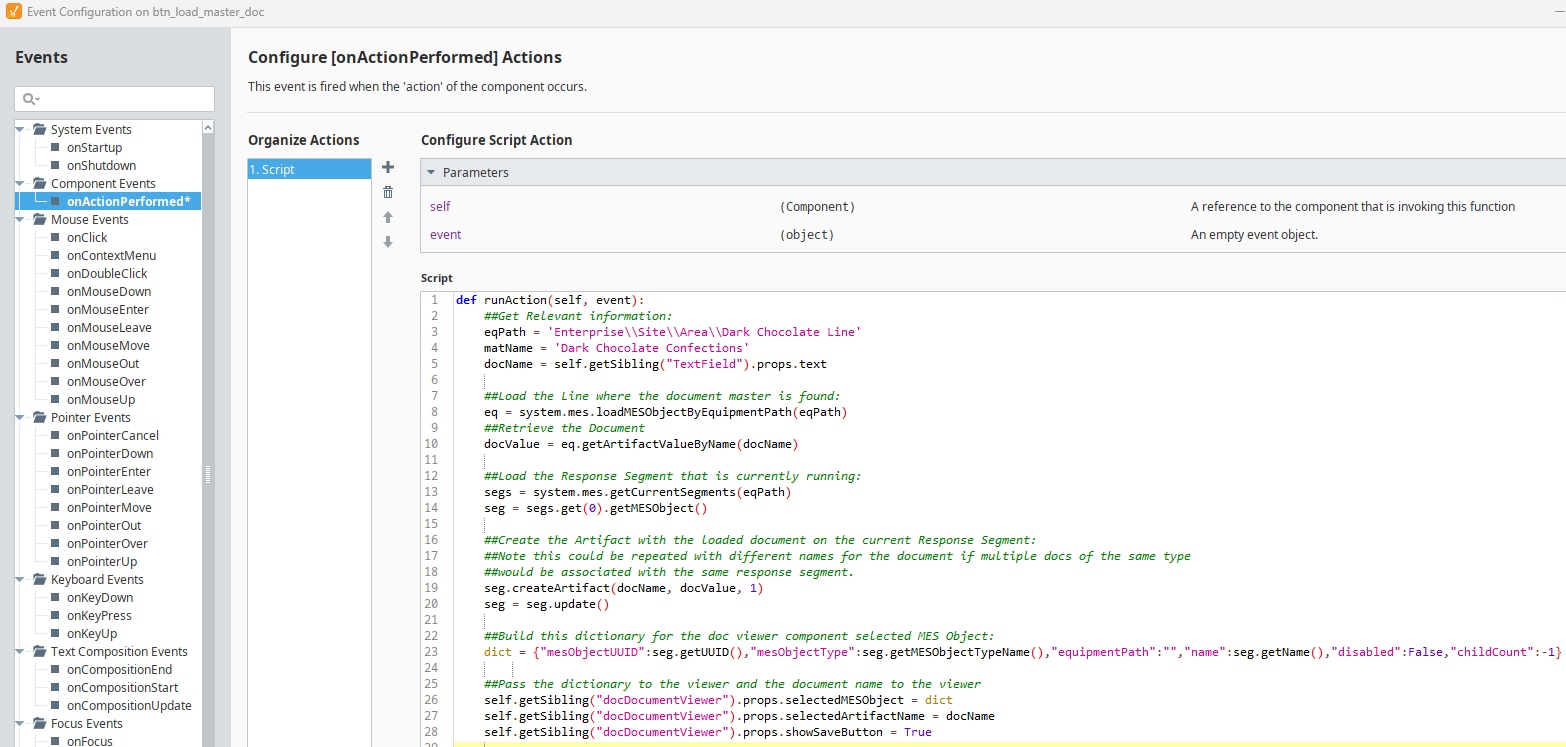
Run an OEE and add values. Look at the console for values.
- On the Perspective View where the Document Viewer is and in Play mode, click Start Production Run.
- Then, click Load Copy of Master Document.
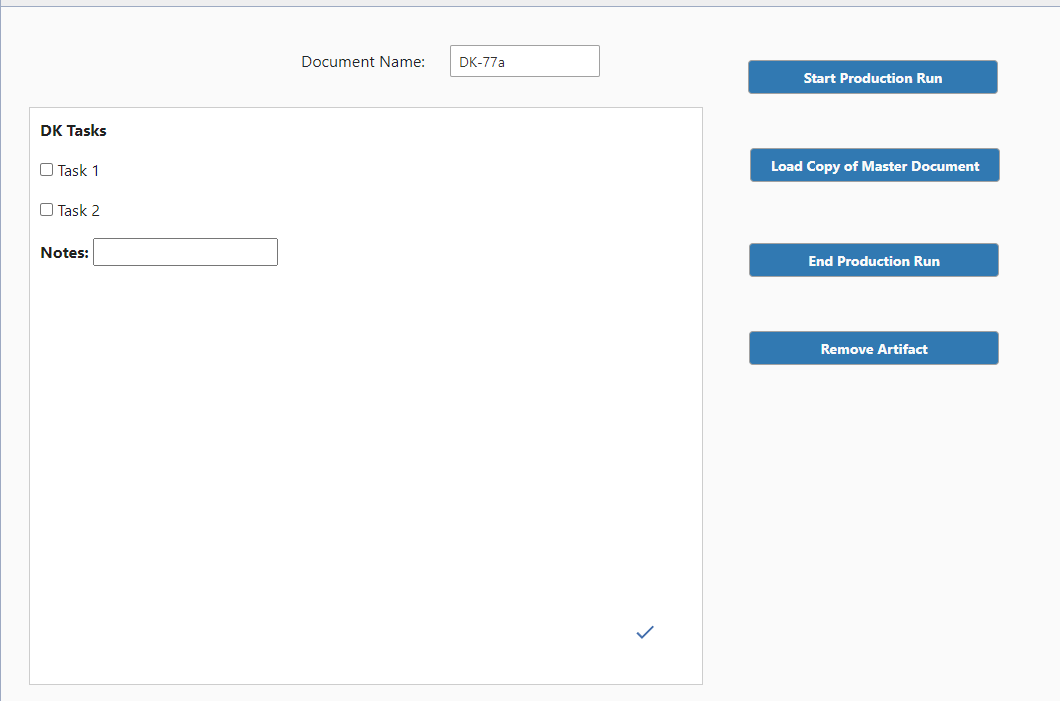
- Enter some values in the document. Then save the document by clicking the checkmark at the bottom of the page.
- Click End Production Run.
- Click Remove Artifact.
Notice in the Output Console, the name-value pairs that represent the form element and its value.

Sepasoft MES Module Suite