Sepasoft MES Module Suite
Enterprise Import and Export Gateway
A gateway configured as the root of the network provides importing and exporting of the gateway project for development or testing purposes. MES Enterprise Import/Export is a project management tool only.
Usage Scenario

|
A developer wants to edit the production gateway configuration for the engine assembly line in the customer's south building. Since changes to the Ignition and Sepasoft MES modules configurations are best done and tested offline on a development system, the developer will make a local 'copy' of the production environment and work on it in the office on their development system, before transferring the updated configuration back to the 'live' production gateway:
|
Setting Enterprise Root Adds Import and Export
Setting a gateway as Root adds the File Export and File Import page to Config > Mes > Enterprise Import/Export.
File Import
 |
| |||||
|
|
When exporting the change log, note that the relationships between objects will not be recreated if the time the parent/child relationship will not be re-created on import. |
File Export
Best Practice

|
|
Enterprise Import/Export Configuration
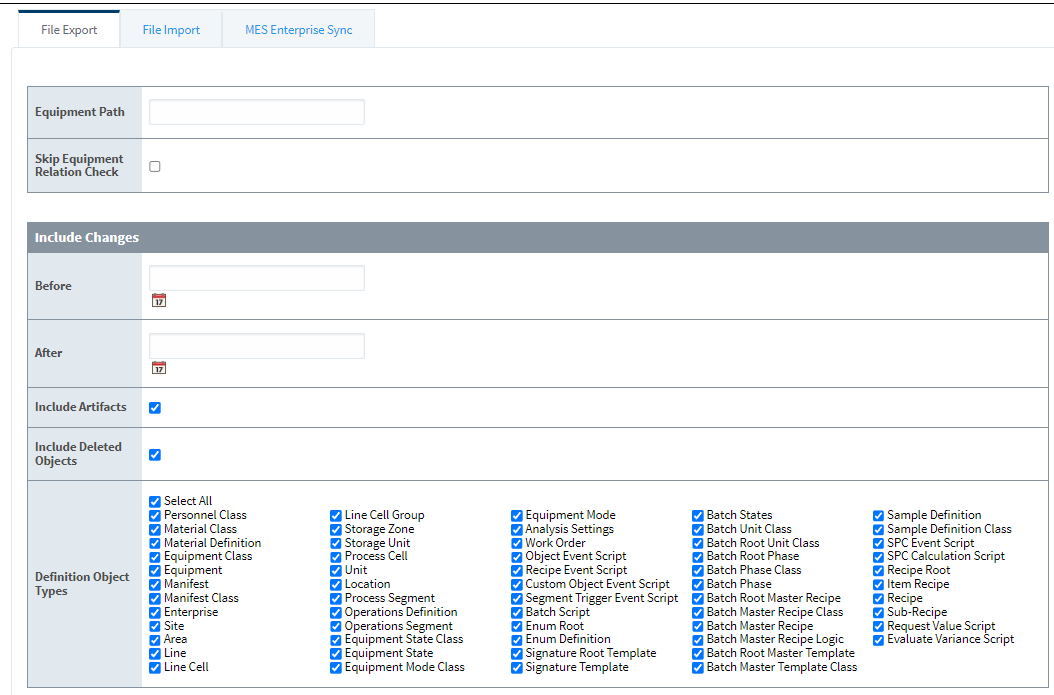
The MES File Export function creates a file that can be imported into any gateway with MES Platform 3.0 installed.
Below, the three main sections of configuration are explained:
Export objects that are not referenced by equipment
Selecting objects and artifacts to include by date
Advanced options for request, response and Batch Control recipes.
Export Objects without References

| Configuration Item | Description | ||
|---|---|---|---|
| Equipment Path | Defined by the Equipment Model in Equipment Manager. If a valid Equipment Path is entered, the export is limited to only the equipment items included within that path. If no path is entered, all MES objects is included in the export. | ||
| Skip Equipment Relation Check | Defaults to unchecked. When checked the Equipment Path input becomes disabled and the system skips reference checks on all the objects selected in Include Changes. MES 3.0 Version Specific
|

Include Changes
| Configuration Item | Description | ||
|---|---|---|---|
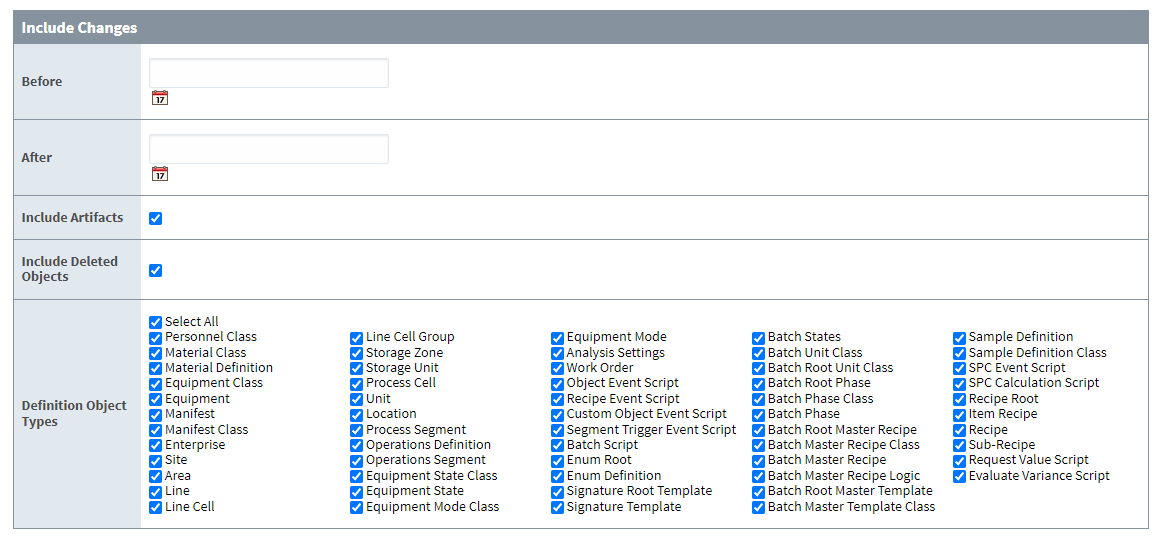
| Include Changes → Before | If a calendar date is entered, the export is limited to only the equipment and MES objects created during any whole minute on or before the specified day. | ||
| Include Changes → After | If a calendar date is entered, the export is limited to only the equipment and MES objects created during any whole minute on or after the day following the specified day. | ||
| |||
| Include Artifacts | Defaults to True, if false artifact data will not be included in the export file. This can be used to reduce the size and time of the export if moving artifacts is not desired. | ||
| Include Deleted Objects | Defaults to True. If true, deleted objects will be included in the export file. This can be set to false to reduce the size and time of the export. | ||

Definition Object Types
| Object Type | Description |
|---|---|
| Select All | Selected by default. To customize the objects to be included in an export, deselect this option. |
| Personnel Class | This is member of Resource Objects. Personnel Objects. |
| Material Class | This is member of Resource Objects. Material Objects. |
| Material Definition | Material Definitions are children of Material Classes. Material Classes and Definitions. |
| Equipment Class | This is member of Resource Objects. Equipment Objects. |
| Equipment | This is member of Resource Objects. Equipment Objects. |
| Manifest | This is member of Resource Objects. Manifest Objects. |
| Manifest Class | This is member of Resource Objects. Manifest Objects. |
| Enterprise | This is the top level of an Equipment Model. Production Equipment Model |
| Site | This is a level of an Equipment Model. Production Equipment Model |
| Area | This is a level of an Equipment Model. Production Equipment Model |
| Line | This is an item in an Equipment Model. Production Equipment Model |
| Line Cell | This is an item in an Equipment Model. Production Equipment Model |
| Line Cell Group | This is an item in an Equipment Model. Production Equipment Model |
| Storage Zone | This is an item in an Equipment Model. Production Equipment Model |
| Storage Unit | This is an item in an Equipment Model. Production Equipment Model |
| Process Cell | This is an item in an Equipment Model. Production Equipment Model |
| Unit | This is an item in an Equipment Model. Production Equipment Model |
| Location | This is an item in an Equipment Model. Production Equipment Model |
| Process Segment | This is an Operations Configuration Object. Process Segment. |
| Operations Definition | This is an Operations Configuration Object. Operations Segment. |
| Operations Segment | This is an Operations Configuration Object. Operations Segment. |
| Equipment State Class | This is an OEE Object. MES Equipment State Class. |
| Equipment State | This is an OEE Object. MES Equipment State. |
| Equipment Mode Class | This is an OEE Object. MES Equipment Mode Class |
| Equipment Mode | This is an OEE Object. |
| Analysis Settings | This object stores configuration for analysis and is used by the analysis engine to define a result set. MES Analysis Settings. |
| Work Order | This is one of the Lot Objects. MES Work Order. |
| Object Event Script | Most MES Objects have events that are fired during the life cycle of that object. This includes those scripts. MES Object Events. |
| Recipe Event Script | Machine Recipe Events. |
| Custom Object Event Script | MES Object Events. |
| Segment Trigger Event Script | This is included in the Operations Configuration Objects. Trigger Operation Begin Property. |
| Batch Script | Includes project scripts used with the Batch Procedure module. |
| Enum Root | Includes built-in and user-defined enum roots. |
| Enum Definition | Includes built-in and user-defined enum definitions. |
| Signature Root Template | Includes built-in and user-defined eSignature root templates. |
| Signature Template | Includes built-in and user-defined eSignature root templates. |
| Batch Unit Class | Includes configured Batch Procedure Unit Classes. |
| Batch Root Unit Class | Includes configured Batch Procedure Unit Classes. |
| Batch Root Phase | Includes Batch Procedure Framework. |
| Batch Phase Class | |
| Batch Phase | |
| Batch Root Master Recipe Class | |
| Batch Master Recipe | |
| Batch Master Recipe Logic | |
| Batch Root Master Template | |
| Batch Master Template Class | |
| Sample Definition | Sample Definitions Statistical Process Control | SPC |
| Sample Definition Class | |
| SPC Event Script | |
| SPC Calculation Scripts | |
| Recipe Root | Settings and Changeover |
| Item Recipe | |
| Recipe | |
| Sub-Recipe | |
| Request Value Script | |
| Evaluate Variance Script |
Export an Enterprise Configuration File
- In the gateway, go to the Config > MES Modules > Enterprise Import/Export .
- Select the File Export tab.
- Complete the optional filter fields, if required for your export (Equipment Path, Before and/or After).
- Add any required filters and verify Definition Object Types selection.
- Click Export Changes . A file containing the exported objects is downloaded.
File Type and Location
The MES File Export function creates a file named enterprise .changelog in the Downloads folder. Depending on the browser, a dialog box may appear, allowing users to change the filename and location before downloading (IE provides a 'Save As' dialog box, but Chrome does not). It is recommended to leave the ending as .changelog so it can be easily located for importing later.
MES File Import
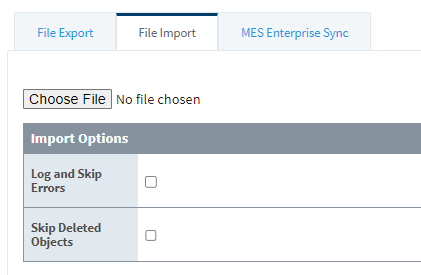
The MES File Import function is used to import the exported objects from another gateway with MES 3 installed.

| Import Option | Description |
|---|---|
| Log and Skip Errors | Defaults to False, when True any errors encountered will cause that object to be skipped and a message logged to the gateway, but the export will continue past that object. |
| Skip Deleted Objects | Defaults to False, when True it will not create a new object if it will be disabled/deleted. |
|
|
It is recommended that a backup of the current MES Definitions be done prior to performing an import. When exporting the change log, note that the relationships between objects will not be recreated if the time the parent/child relationship will not be re-created on import. |
Import MES Configuration
- In the gateway, go to the Configure > MES Modules > Enterprise Import/Export
- Click Choose File, then navigate to the exported file (the default name used by the File Export function is enterprise.changelog ).
- Click Import Changes.
File Type and Location
Import configuration files are named enterprise.changelog by default, or may have been renamed by the user during exporting (but should still end in .changelog ).
Sepasoft MES Module Suite