Sepasoft MES Module Suite
Programmable Device Simulator
This device can be configured with a user-defined hierarchy of static or function-driven values.
Adding a Production Simulator for a Batch Procedure Recipe
This is an example of an equipment simulator for a Batch Recipe.
- In the Ignition Gateway, go to Config > OPC UA > Device Connections.
- Click Create new Device.
- Scroll down and select Programmable Device Simulator.
- Configure the device simulator:
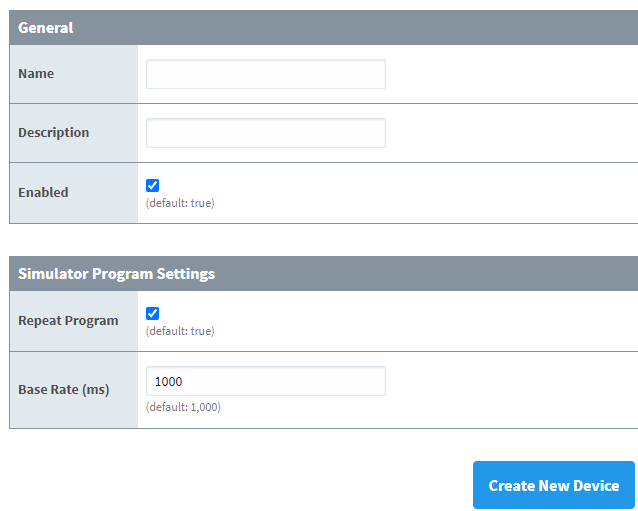
Enabled: Sets the simulator as active and running.
Repeat Program: Select to loop the program.
Base Rate (ms): Sets the frequency in milliseconds.
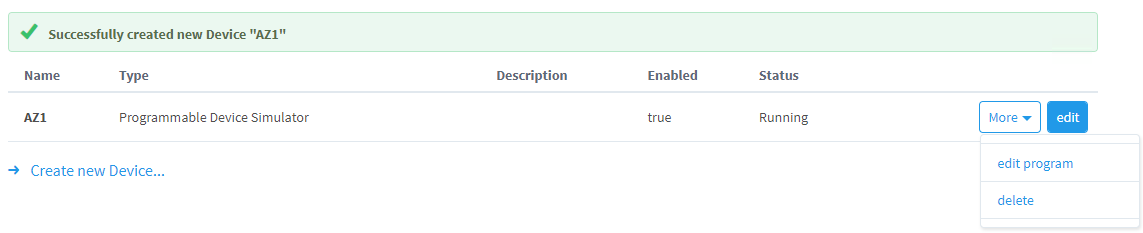
Edit Button: Allows editing of the main configuration.
More: The edit program option provides a list of simulator program options: SLC Program, Generic Program, Dairy Simulator and Load from CSV.
This examples shows the Load from CSV option.
Here's the CSV file used in this example.
- Select a CSV file > Load Program.
Example of a CSV file, shown in notepad, used to simulate a batch process:

Example of CSV file loaded in the simulator:
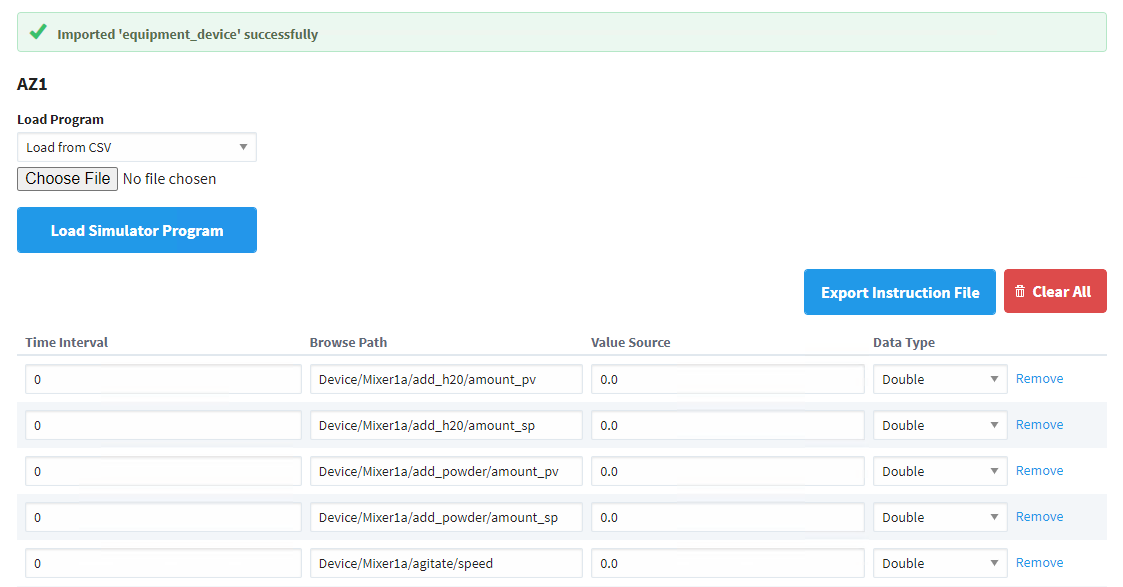
- Save Program (at the bottom of that page) starts the program running.

- In Ignition Designer > Tag Browser > System, under the Devices folder, the AZ1 device is running.
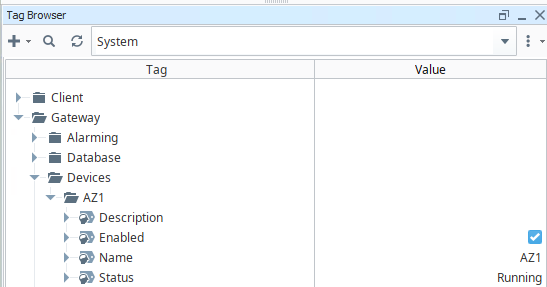
This setup could be used to simulate the equipment PLC is a batch system using the Batch Procedure module.
Sepasoft MES Module Suite