Sepasoft MES Module Suite
Script Block

The Script Block allows users to create custom data-handling Python scripts. Script within the Block begins executing when execution control passes to its Input connection. Control is passed via the Output connection to the next Block in the sequence when the script either completes all lines or encounters a return command. All Chart Parameters and Action Values available anywhere within the chart can be read and written via the chart functions below.
Connections
Two connections are required:
Input — (input) Receives execution control from the previous Block in the sequence. Unlimited input connections are allowed (spread across up to three available edges).
Output — (output) Passes execution control to the next Block in the sequence.
Properties
The optional Name and Description fields are included on most Blocks for clarity and documentation benefit.
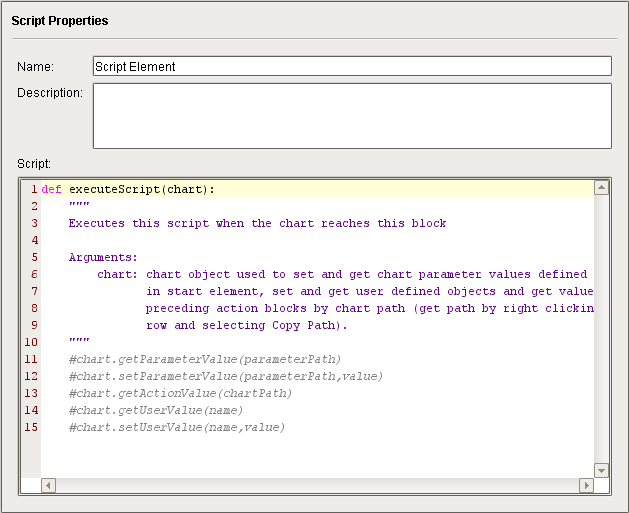
A scripting window is provided (includes the instructions and a commented-out example of all available chart functions):

|
Be sure to indent your script, since it is part of the executeScript(chart) function definition that is always included on line 1. |
Chart Functions
Chart Functions
Business Connector Blocks use the system.mes function library (these predominately work with MES objects), as well as the new chart-specific functions listed below. These chart functions are available for use in the Script Block to manipulate Chart Parameters (configured in the Start Block), or any of the available Action Values (any of the filtered mapping properties available in any of the Action Blocks in the current chart, plus any of the available B2MML properties).
chart.getParameterValue(parameterPath)
Description
Returns the value of a chart parameter element defined in the Start Block specified by parameterPath.
|
|
For now, B2MML parameters do not support data validation. That means that it should still throw an error if the data structure is completely different but if you are missing some required nodes it won't complain. B2MML parameters don't get initialized the same way as regular parameters. By default if no value was set, the data will just be a root with the name of the B2MML and no value or children. |
Syntax
chart.getParameterValue(parameterPath)
- Parameters
String parameterPath - The path of the chart parameter in the Start Block.
- Returns
The value of the chart parameter in the Start Block specified by parameterPath.
- Scope
All
Code Examples
If the Chart Parameter is defined as type String:
Code Snippet
Code |
|
Output
Code |
x will contain 'Refurbished Case 14' |
If the Chart Parameter is defined as type Complex, as shown:
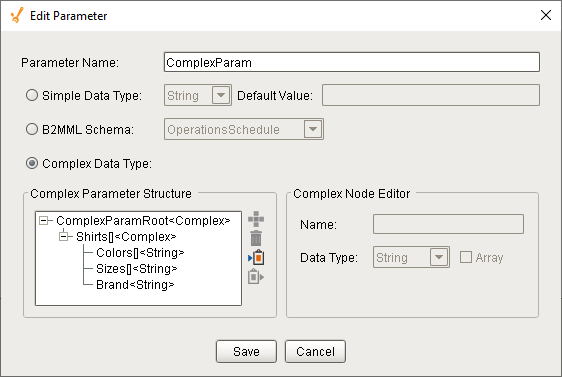
...and the current value of ComplexParam is:
{'ComplexParamRoot' :
{'Shirts' : [
{'Colors' : ['Blue', 'Red'],
'Sizes' : ['S', 'M'],
'Brand' : 'Nike'},
{'Colors' : ['Green', 'Red'],
'Sizes' : ['S', 'M', 'L'],
'Brand' : 'Adidas'}]}}
Code Snippet
Code |
|
Output
Code |
brand will contain 'Reebok' |
chart.setParameterValue(parameterPath, value)
Description
Writes a value to the chart parameter defined in the Start Block specified by parameterPath.
Syntax
chart.setParameterValue(parameterPath,value)
- Parameters
String parameterPath - The path of the chart parameter in the Start Block.
value - The value to be written to the chart parameter in the Start Block.
- Returns
None
- Scope
All
Code Examples
If the Chart Parameter is defined as type String:
Code Snippet
Code |
|
Output
Code |
Chart Parameter newMaterialClass will contain 'Refurbished Case 14' |
If the Chart Parameter is defined as type Complex, as shown:
...and the current value of ComplexParam is:
{'ComplexParamRoot' :
{'Shirts' : [
{'Colors' : ['Blue', 'Red'],
'Sizes' : ['S', 'M'],
'Brand' : 'Nike'},
{'Colors' : ['Green', 'Red'],
'Sizes' : ['S', 'M', 'L'],
'Brand' : 'Adidas'}]}}
Code Snippet
Code |
|
Output
Code |
brand will contain 'Reebok' |
chart.getActionValue(chartPath)
Description
Returns a property value available from any of the Action Blocks in the current chart (e.g. SAP BAPI, SOAP, RESTful).
Syntax
chart.getActionValue(chartPath)
- Parameters
String chartPath - The path to a property value available from any of the Action Blocks in the current chart (e.g. SAP BAPI, SOAP, RESTful).
- Returns
The value of the property specified by chartPath.
- Scope
All
Code Examples
Code Snippet - Chart
Code |
|
Code Snippet - Button
Code |
|
Output
Plastic Sheeting
chart.getUserValue(userValue)
Description
Reads the value of a local variable (chart-scoped, called a User Value) that has been previously created with the chart.setUserValue(userValue, value) function.
Syntax
chart.getUserValue(userValue)
- Parameters
String userValue - The name of the User Value.
- Returns
Object value - The Python object stored in userValue.
- Scope
Chart
Code Examples
Code Snippet
Code |
|
Output

chart.setUserValue(userValue, value)
Description
Sets the value of a local variable (chart-scoped, called a User Value). If the User Value does not exist, it will be created. Values can be any Python object.
Syntax
chart.setUserValue(userValue, value)
- Parameters
String userValue - The name of the new (can be any legal string name) or existing User Value.
Object value - The Python object to be stored in userValue.
- Returns
None
- Scope
Chart
Code Examples
Code Snippet
Code |
|
Output

Usage
Scripts are typically used to:
- Receive and process incoming Chart Parameter values (Script Block is placed first in line after the Start Block, to immediately handle incoming values passed by the Ignition component that executed the chart).
- Process and pass returning Chart Parameter values (Script Block is placed last in line, just before the End Block, to handle values to be pass back to the Ignition component that executed the chart). Note: If a Script Block elsewhere in the chart has already handled values to be returned, then a Script Block prior to the End Block is not necessary).
- Handle chart errors thrown (Script Block is connected to the Yes out put of an Exception Block, which will 'catch' a chart error and direct execution control accordingly). Scripting may be used to repair the reason for the chart error or to substitute values to allow the chart to 'fail gracefully'.
- Handle other housekeeping activities each time the chart is executed. Tags and Ignition component properties may be read and written within a Script Block.
Connecting the Script Block
- Drag a Script Block onto the Design Grid (position to be the next block in the chart sequence).
- Click on the previous Block in the sequence and draw a Connector to the Script Block (any available edge). This becomes the Input connection. Repeat for any additional input Blocks, if applicable (unlimited connections are allowed on up to three edges).
- Click on the Script Block and draw a Connector (from any available edge) to the next Block in the sequence. This becomes the Output connection.
|
|
There is no Save or <back button for the Script Block. Save your project in the Ignition Designer to preserve edits. |
How the Script Block Works
Scripting configured within the Block is begins executing when execution control passes to its Input connection. Control is passed via the Output connection to the next Block in the sequence after the Python script either completes all lines of code or encounters a return command. All Chart Parameters and Action Values available to the chart can be read and written to by chart functions listed above.
|
|
The print function does not work within chart scripts (unlike from an Ignition component script, which will print to the Output Console). Using Logger in Place of Print Command
|
Example
Iteratively Create Material Definitions
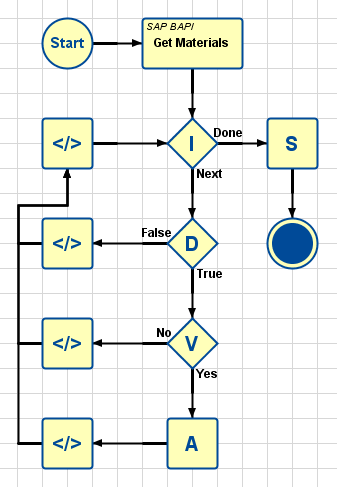
This example chart collects a list of Material Definitions from an SAP database and creates an MES Material Definition object for each.
Start Block
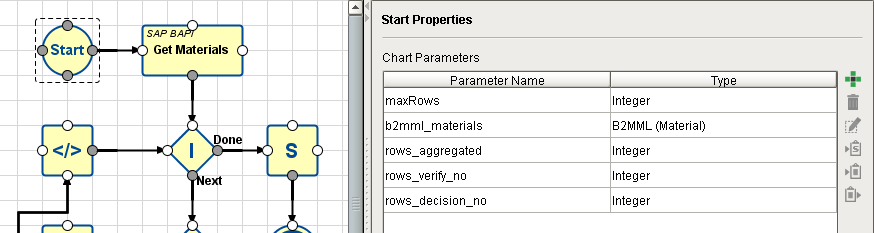
A Chart Parameter called maxRows is used to limit the number of SAP entries to fetch from the SAP database. The number will be input into the chart during the chart execution function executeChart(chartPath, chartParameters, returnChartParameters).
| Sample Setting | Description |
|---|---|
| maxRows | Integer. Used to pass in to the chart the number of rows to fetch from the database. |
| b2mml_materials | B2MML array. Used to hold the entries aggregated by the Aggregation Block (one row per loop). |
| rows_aggregated | Integer. Used to return the count of how many rows were aggregated by the Aggregation Block. |
| rows_verify_no | Integer. Used to return the count of how many rows failed the Verify MES Object Block (row data was not a proper MES Object). |
| rows_decision_no | Integer. Used to return the count of how many rows failed the Decision Block (equation was False, so decision is "No"). |
SAP BAPI Action Block - Properties
This block fetches the Material Definitions from the specified SAP database. It is configured as follows:
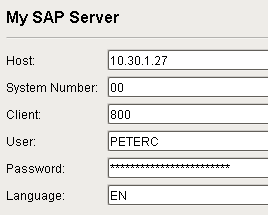
A Destination called My SAP Server was previously configured in the Interface for SAP ERP section of the Global area in Designer:
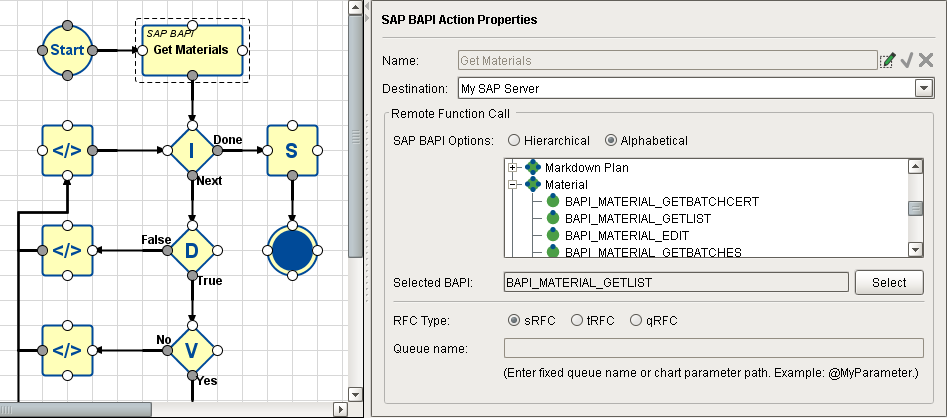
The Remote Function Call section is configured to filter down to just the BAPI_MATERIAL_GETLIST module where the Material Definitions are stored:
| Property | Sample Setting | Description |
|---|---|---|
| Name | Get Materials | Name of the Block (available, if needed, for local use within the chart by other Blocks). |
| Destination | My SAP Server | Selected SAP Connector Destination (created in the Interface for SAP section of the Global area in Designer). |
| SAP BAPI Options (Hierarchical/Alphabetical) (tree of available BAPI options) | Alphabetical checkbox and Material/BAPI_MATERIAL_GETLIST | The two checkboxes decide how the tree of available SAP BAPI options below is sorted. Alphabetical is usually chosen if you know the name of the BAPI you want, else drill down to find it in Hierarchical mode. |
| Selected BAPI | (shows the selected BAPI) | Display only. Shows (and remembers) the selected BAPI after the Select button is pushed. |
| RFC Type | sRFC | Synchronous Remote Function Call (expects an immediate answer from the receiving system, else an error will be reported). |
| Queue Name | N/A |
SAP BAPI Action Block - Mapping
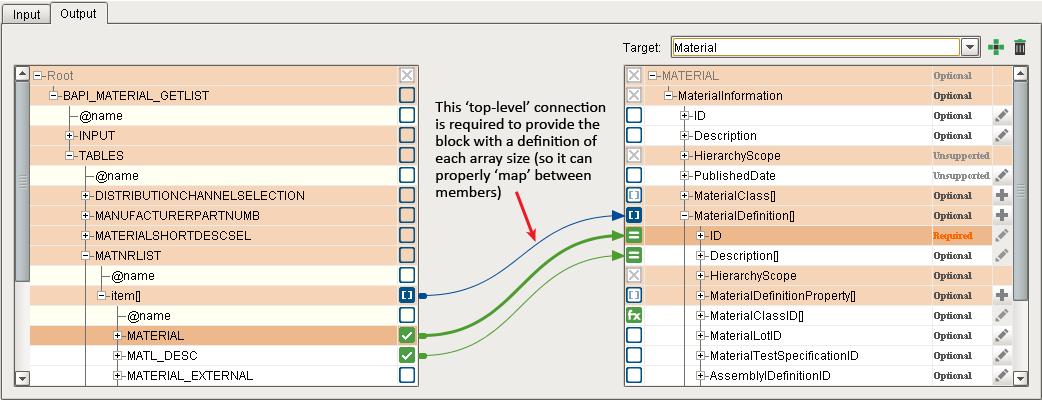
The Input tab of the SAP BAPI Action Block includes mapping for the Chart Parameter maxRows to be passed into the BAPI function call that the block makes to the SQL database (limits the number of entries fetched). There is also a requirement that MATNRSELECTION in BAPI_MATERIAL_GETLIST be restricted to positive integer values only.

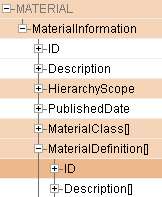
The Output tab of the SAP BAPI Action Block includes mapping for MATERIAL → ID and MATL_DESC → Description. Note that it must first include a mapping connector at the parent level, to provide the block with a means of knowing the array sizes on both sides so it can map the connections properly. Each member of the BAPI_MATERIAL_GETLIST will be mapped into a B2MML array that includes Material Definition properties of ID and Description. These are collected, one at a time by the Aggregation Block in the iteration loop (into the Chart Parameter b2mml_materials), and then turned into MES Material Definition objects by the SAVE MES Object Block.
Iteration Block
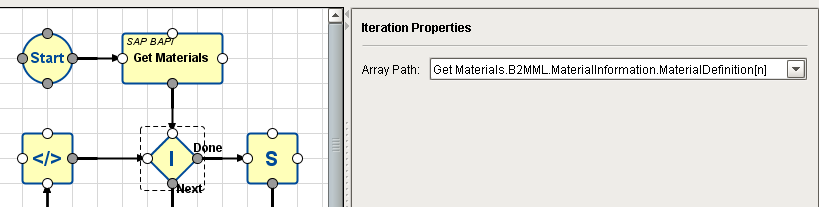
This block increments a pointer to one row of data at a time in the data array selected in the Array Path field. For each row pointed to, control passes to the Block connected to its Next output. It accepts a return trigger input (Next Trigger) to increment the pointer to the next row. When there are no more rows in the selected data array, it will pass control to the Block connected to its Done output.
In this example, the path is to MaterialDefinition in the B2MML array, MATERIAL, which contains the ID and Description properties that the Aggregation Block will append, one row at a time, to Chart Parameter b2mml_materials (which the Save MES Object Block will later use to create the MES Material Definition Objects).
On each loop through the Iteration Block, the row pointer is incremented and control passes to the Decision Block that is connected to its Next output Connector.
Once all rows have been iterated through, control passes to the Save MES Object Block connected to its Done output.
Decision Block
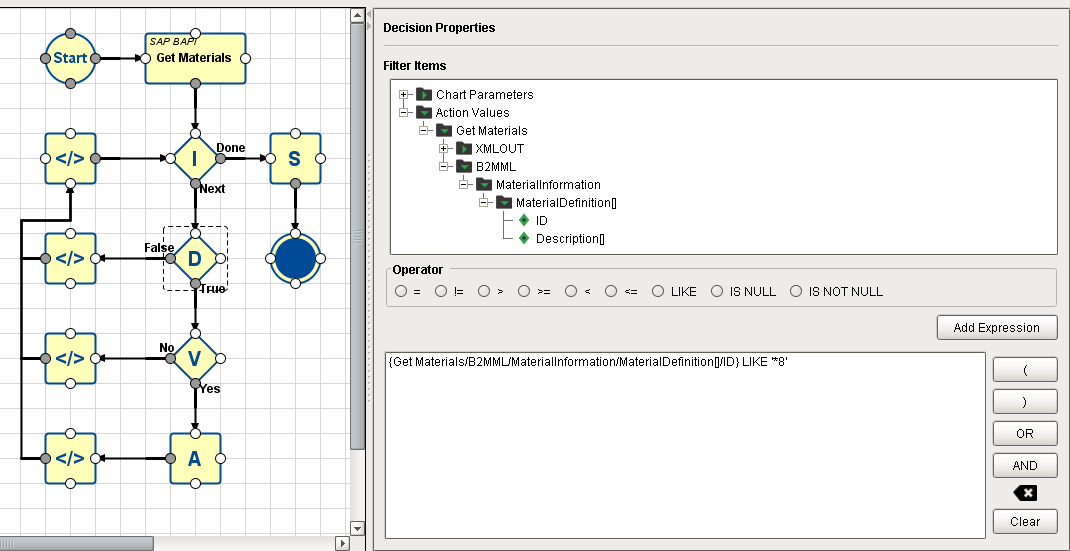
In this example, the expression used to arrive at a 'True' decision is simply whether the last character in the ID property in the row currently being pointed to (by the Iteration Block) is equal to "8" (the asterisk is a wildcard that ignores all the preceding characters). If the ID ends in "8", control passes to the Verify MES Object Block connected to its True output. Otherwise, control passes to the Script Block connected to its False output.
Verify MES Object Block
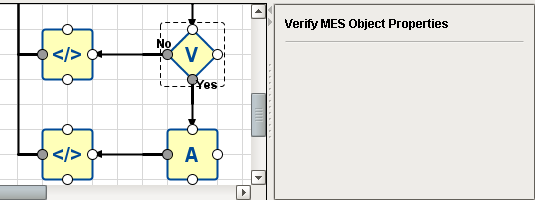
This Block is used to test whether an array of data (or a row of data pointed to by an Iteration Block) contains appropriate information to successfully create an MES Object. It does not create the object.
In this example, if the row contains appropriate information required to successfully create an MES Object, control passes to the Aggregation Block connected to its Yes output, to be appended to the end of the current b2mml_materials array. If not, then control is passes to the Script Block connected to its No output.
Aggregation Block
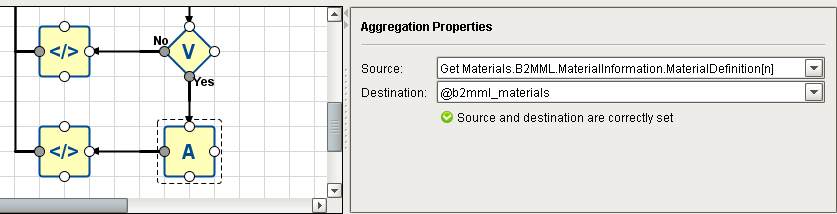
This Block appends iteratively-collected data values, one per pass, into a user-created Chart Parameter.
In this example, b2mml_materials was created in the Start Block to hold the aggregated data. Chart execution control only passes into the Aggregation Block after it has successfully passed through the Decision Block (ID property ends in "8") and the Verify MES Object Block (data is determined to be sufficient to successfully create an MES Object).
After the row has been 'aggregated' (appended to the end of b2mml_materials), control passes back to the Iteration Block and the loop repeats with the next row.
Script Block - Connected to Decision Block
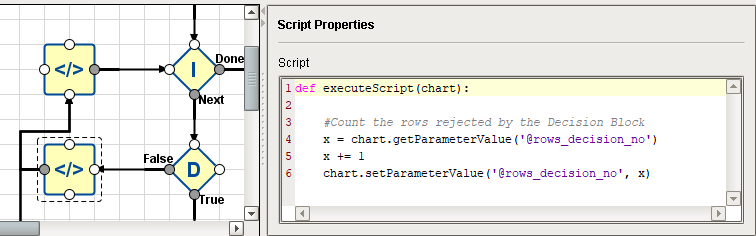
This script increments the Chart Parameter rows_decision_no any time the expression in the Decision Block resolves to False (which passes control to this Script Block).
Script Block - Connected to Verify MES Object Block
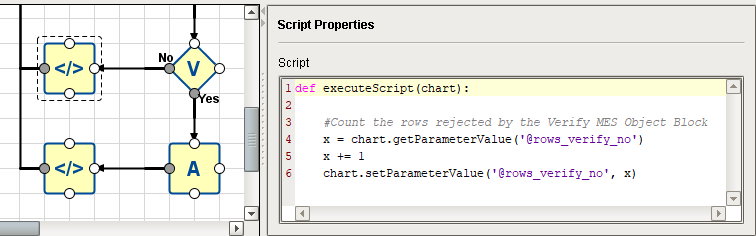
This script increments the Chart Parameter rows_verify_no any time the Verify MES Object Block resolves to No (which passes control to this Script Block).
Script Block - Connected to Aggregation Block
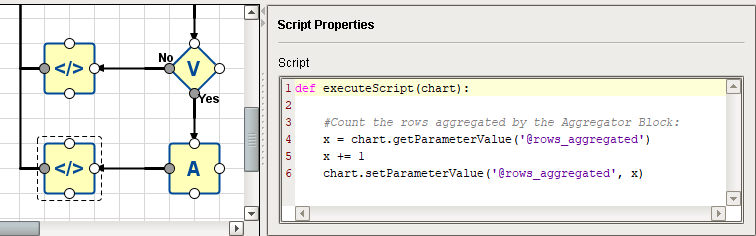
This script increments the Chart Parameter rows_aggregated immediately after the Aggregation Block completes its task (appending a row to b2mml_materials).
Script Block - Connected Last in the Iteration Loop
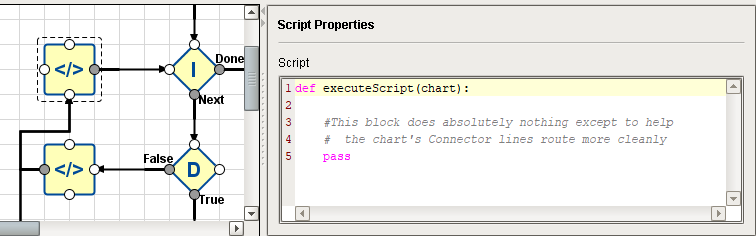
This Block has no scripting inside except for the pass instruction (which is a non-operation), so it does absolutely nothing! It is placed in the chart at its current position simply to make the Connectors exiting the three other Script Blocks flow nicely. Otherwise, they end up auto-routing strangely, making the chart more difficult to understand. Feel free to sprinkle empty Script Blocks as needed to keep your 'wiring' neat and self-explanatory.
Save MES Object Block
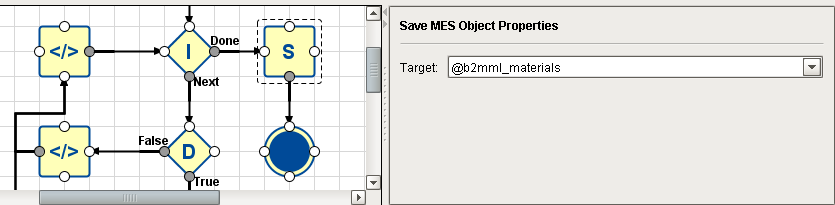
This block creates an MES Object for each entry in the selected RFM (the drop-down list Target will list all of the Action Blocks in the chart. The filtered RFM in the selected Action Block will be used to create the list of MES Objects). For this example, one MES Material Definition object will be created for each entry in the RFM selected in the "Get Materials" SAP RFM Action Block (up to the limit defined by the Chart Parameter maxRows).
| Property | Sample Setting | Description |
|---|---|---|
| Target | Get Materials | "Get Materials" is the data source selected from the drop-down list of blocks with available data (it's the only choice in this example). |
Executing the Chart
This example chart is being executed from a script within a Button component on an Ignition Designer window:
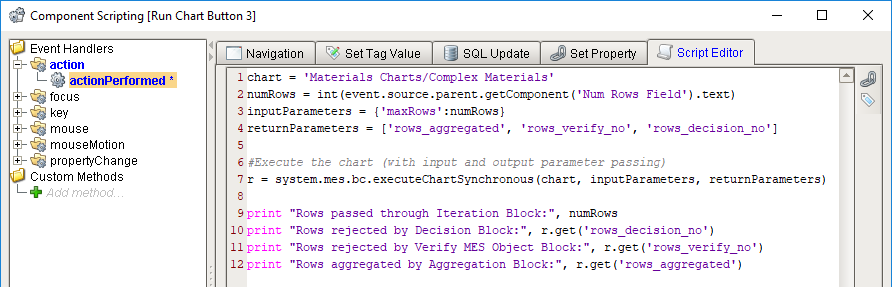
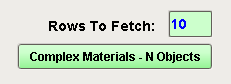
If "10" is entered into the Rows to Fetch text field, then when the Button is pressed:
- The number in the text field is loaded into numRows.
- The chart is executed, passing in numRows to the Chart Parameter maxRows in the Start Block, and listing three Chart parameters to include in the resulting object when chart execution concludes. Unlike the other two variants of .executeChart, the function will wait for chart execution to conclude so it can return a Python dictionary containing the Chart Parameters specified (in this example: rows_aggregated, rows_verify_no and rows_decision_no).
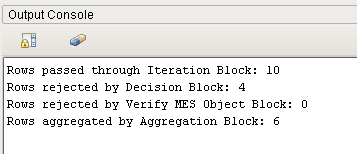
- The various counts are retrieved from the returned chart parameter object and printed to the Output Console.
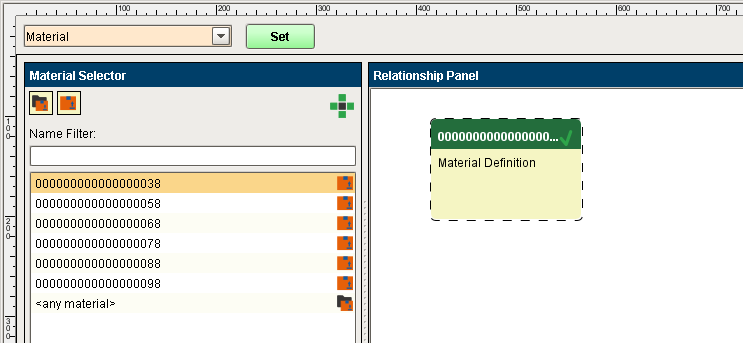
The result of the chart execution is that ten rows are fetched from BAPI_MATERIAL_GETLIST in the SAP database and six MES Material Definition objects are created (those that have an ID that ends with "8", per the Decision Block expression):
Sepasoft MES Module Suite