---
title: "Scripting a Mapping Connection"
id: "scripting-a-mapping-connection"
project: "MES User Manual"
url: "https://docs.sepasoft.com/articles/user-manual/scripting-a-mapping-connection"
updated: 2026-07-31T14:57:06Z
---
# Scripting a Mapping Connection
**Sepasoft MES Module Suite**
### Adding Mapping Connections via Scripting
User-created Python scripts can be used to clean, convert, filter and/or error-check one or more incoming business system properties (each connected with an arrow connector) before passing the results into the selected destination property.
The overall process is:
1. Drag an arrow connector for an business system property over to into a destination property.
2. Repeat for any additional business system properties to be connected to the same destination property.
3. Create the scripting function utilizing the incoming business system properties.
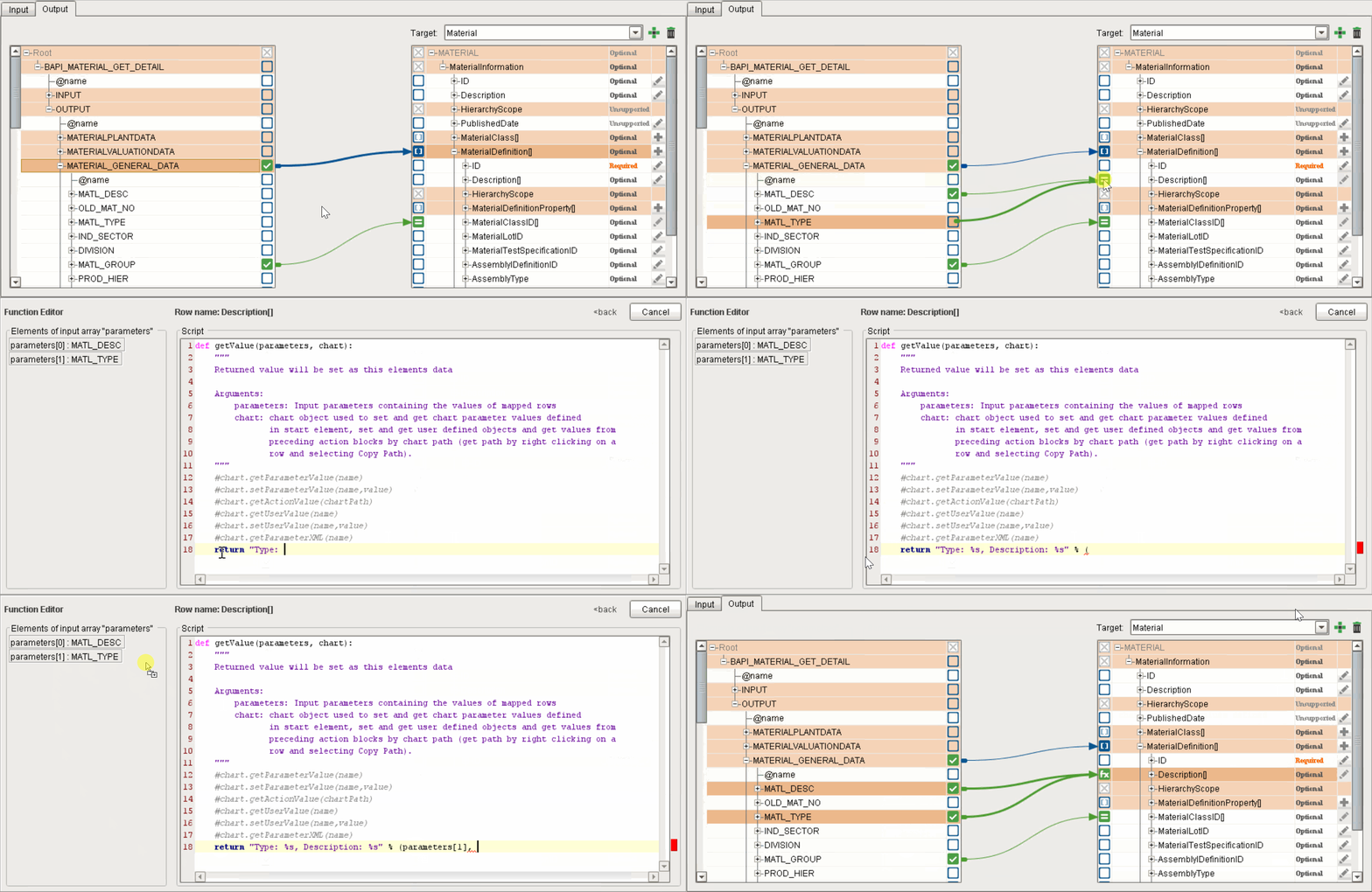
Sample mapping and scripting (creating a string from **MATL\_TYPE** and **MATL\_DESC** to pass to **Description**)
Source row entities supply name and datatype attributes
|  | Each source row entity (see image) can be expanded to expose its ***name*** and ***datatype*** attributes, for use in scripting on the destination side. These attributes can be mapped to the destination side in the same manner as source row entities. The attributes can be helpful for error prevention, such as type-checking incoming data.
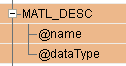
Simple rows inherit their datatype from the element definition in the xsd. Complex nodes don't have data, so their data type is null. |
| --- | --- |
* * *
#### Creating or Editing a Scripting Function
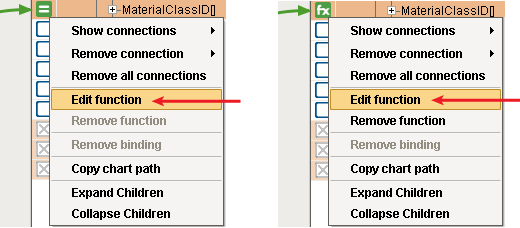
To create a new scripting function, right-click on the empty box oricon of an eligible destination property and select **Edit function**.
To edit an existing script, right-click on theicon in the box next to a destination property and select **Edit function**.
Whether creating or editing a scripting function, **Edit function** will open the scripting area for the selected destination property (as shown above).
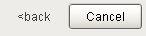
After writing or editing your script, click **<back** to save the changes and close the scripting area. To exit without saving your changes, click **Cancel**.
* * *
#### Removing a Scripting Function
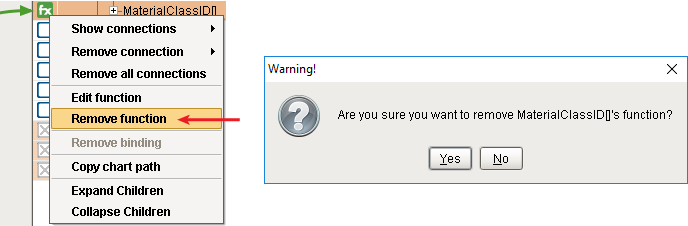
To remove (delete) an existing scripting function, right-click on theicon on the box of an eligible destination property and select **Remove function**. Confirm the removal.
Theicon in the box will change back to eitheror , depending on whether a mapping connection is present or not. Existing mapping connection(s) will remain connected after the script is removed.
|  | Removed scripting functions are deleted from the scripting area, not merely disabled. |
| --- | --- |
|  | The **def** statement in the first line of the scripting area is always read-only. It cannot be modified or deleted because it is pre-configured by Business Connector for executing the script. |
| --- | --- |
|  | It is recommended that you save a backup copy of each script, since scripts are automatically deleted when any incoming connection to a destination property is deleted (and there is no "Undo" command for this). |
| --- | --- |
* * *
**Sepasoft MES Module Suite**