Sepasoft MES Module Suite
Setting Line and Cells with Production Settings
Production settings include references to equipment, mode (production, maintenance, etc.) and count information. There are two options for creating or editing Production Settings in a Process Segment of a Line, as well as all of that Line's Cell Areas and Cells: One is via the MES Object Editor and the other is through scripting. Each method has different behaviors that are described here and that you should consider as you build out your solution.
Setting/Modifying Production Settings via MES Object Editor
This option uses the MES Object Editor with Editor Mode set to '1' for Segment Operation.
When users create new Production Settings on a Process Segment for a Line and Save, the MES Object Editor creates default Production Settings for all the Cell Areas and Cells under the Line. These settings override any settings for the Line.

|
For example, if Line 1 has two cells, Cell A and Cell B, when users create new Production Settings on a Process Segment for Line 1 in MES Object Editor, the two cells will be populated with default Production Setting values, regardless of what Production Setting values are entered for Line 1. This can pose a problem if, for example, the user is setting Mode Reference = "Maintenance" on the Line, since the default, Mode Reference = "Production", will be set for all of the Cell Areas and Cells under that Line. It is up to the user to manually modify all the Cell Areas and Cells to "Maintenance" as well, to prevent improper OEE calculations. |
The reason for this MES Object Editor behavior is that, in essence, the module executes system.mes.oee.verifyProductionSettings(segment) on the segment. This function automatically adds default values to all the Cell Areas and Cells under the Line specified in the equipment path, as described above. See system.mes.oee.verifyProductionSettings for details.
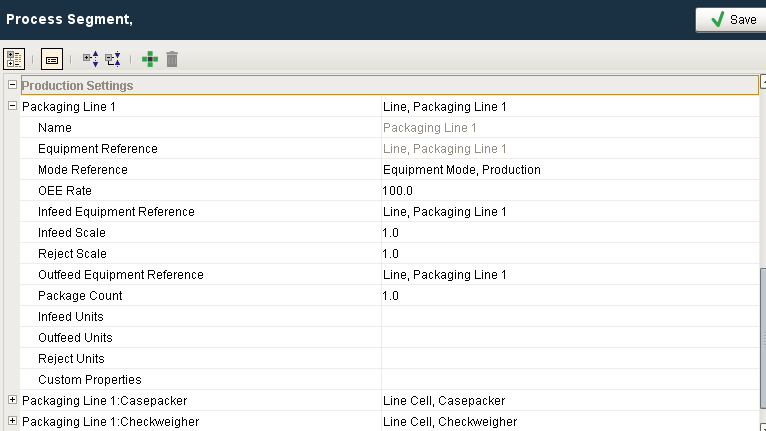
Setting/Modifying Production Settings via Scripting
To mimic the MES Object Editor's behavior of creating default Production Settings for all the Cell Areas and Cells under the specified Line, once you have set all the desired Production Setting properties for the Line's Process Segment via scripting, follow up by executing system.mes.oee.verifyProductionSettings(segment). This function automatically creates default Production Settings for all the Cell Areas and Cells under the specified Line, as previously described. The behavior of your script will now be the same as if you had created Production Settings for the Line using the MES Object Editor. See system.mes.oee.verifyProductionSettings for details.
Code Snippet
Python |
#Create a Process Segment for a Line ps = system.mes.createMESObject('ProcessSegment') ps.setPropertyValue('Name', 'Process Segment Object Function Testing') line_path = 'Nuts Unlimited\TestSite\TestArea\TestLine' equip = system.mes.loadMESObjectByEquipmentPath(line_path) mode = system.mes.loadMESObject('Production', 'EquipmentMode') #Set various Production Settings for the segment #(note that the OEE Rate is being set to a non-default value) prod_settings = ps.createComplexProperty('ProductionSettings', 'Prod Settings') prod_settings.setEquipmentRefType(equip.getMESObjectTypeName()) prod_settings.setEquipmentRefUUID(equip.getUUID()) prod_settings.setModeRefType(mode.getMESObjectTypeName()) prod_settings.setModeRefUUID(mode.getUUID()) prod_settings.setOEERate(90.2) equip_prop = ps.createComplexProperty('Equipment', 'Line to Run On') equip_prop.setEquipmentRefType(equip.getMESObjectTypeName()) equip_prop.setEquipmentRefUUID(equip.getUUID()) #Save the new Production Settings system.mes.saveMESObject(ps) #This command will set default values (including OEE Rate = 100) on the two Cells in the Line system.mes.oee.verifyProductionSettings(ps) |
Best Practices for Setting/Modifying Production Settings
- When using the MES Object Editor to create Production Settings for a Line's Process Segment, keep in mind that it will automatically create default Production Settings for all the Cell Areas and Cells under that Line.
- When writing custom scripting to create Production Settings for a Line's Process Segment, keep in mind that all the Cell Areas and Cells under that Line will remain unmodified (no Production Settings created).
- To exactly mimic MES Object Editor behavior when using custom scripting to create Production Settings for a Line's Process Segment, follow up by executing system.mes.oee.verifyProductionSettings(segment) on the segment to create default Production Settings for all the Cell Areas and Cells under that Line (or script custom settings, as desired, on each Cell Area and Cell individually).
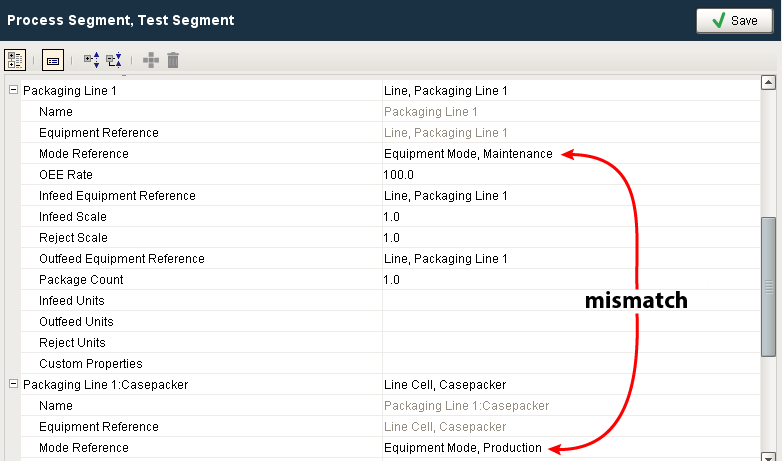
In the example below, note that after creating Production Settings for the Line that include Mode Reference = "Maintenance", the MES Object Editor automatically created default Production Settings for all the Cells under the Line (which includes the default setting of Mode Reference = "Production"). This could lead to problems with OEE downtime tracking and other OEE calculations. Therefore, make sure to manually (in the MES Object Editor or via script) set the Cell Areas and Cells to match the Line, as needed for your situation.
Sepasoft MES Module Suite