Sepasoft MES Module Suite
C-Chart in Perspective
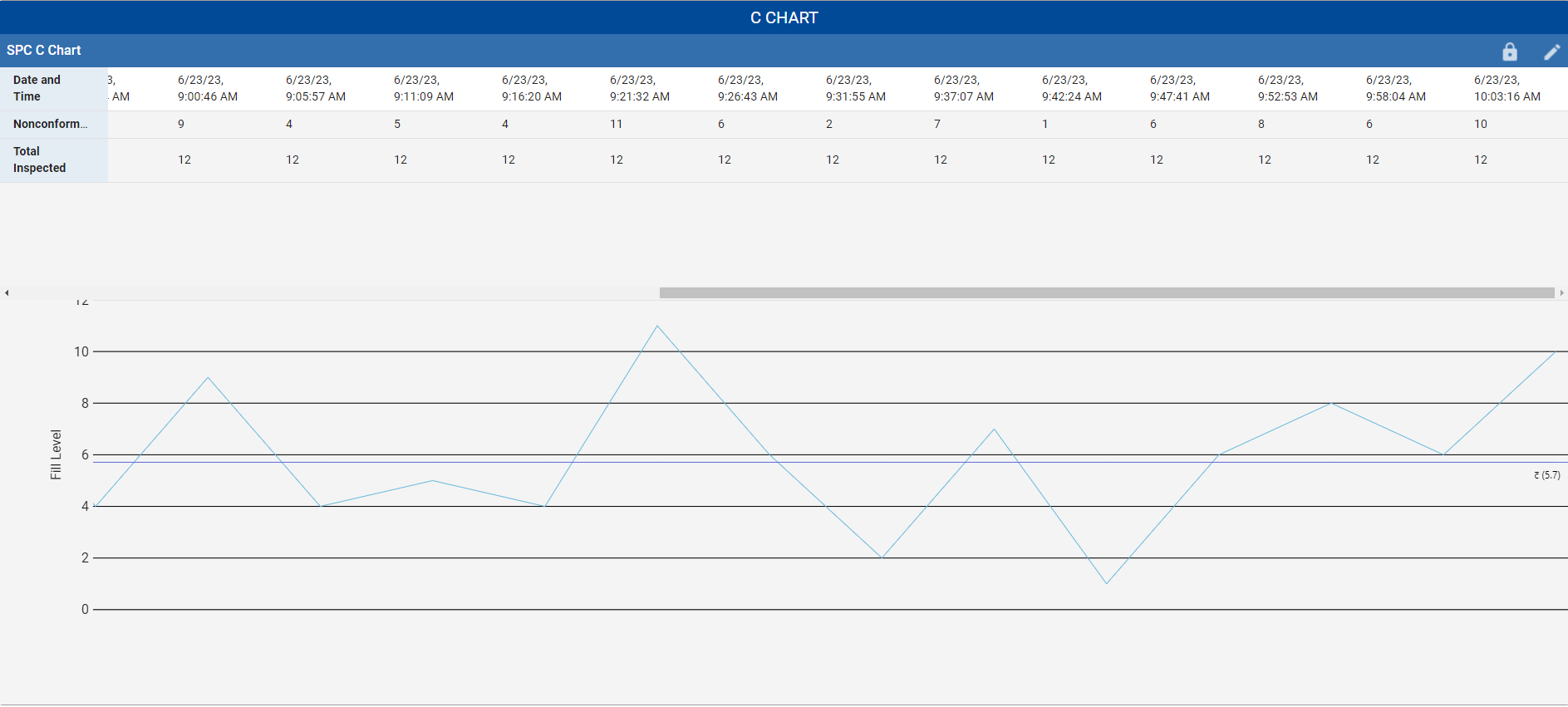
A c-chart is an attributes control chart used with data collected in subgroups that are the same size. C-charts show how the process, measured by the number of nonconformities per item or group of items, changes over time. The c chart is used to monitor the number of defects in a sample while the u chart monitors the average number of defects per sample unit. The c chart is similar to the np chart except that it counts defects as opposed to defectives.
SPC C-Chart includes two UI elements: A table for selection and numeric detail and a primary chart for value plots, control limits and mean.
Table Chart Scroll Locking

|
This feature is available in versions: MES 3.81.11 SP7 and later MES 4.83.0 RC2 and later |
State | Detailed Description |
Locked | UI: The lock icon in the taskbar appears closed and filled. Behavior: The chart view is locked to the right, automatically jumping to the end of the table whenever new data is received. Tooltip: Hovering over the icon displays the text: "Allow Free Scrolling". |
Free Scrolling | UI: The lock icon in the taskbar appears open and unfilled. Behavior: The chart maintains its current scroll position, even when new data is received. Tooltip: Hovering over the icon displays the text: "Lock Scrolling". |
Included in Sepasoft Versions:

|
MES 3.81.7 RC1 and later |
Ignition Designer
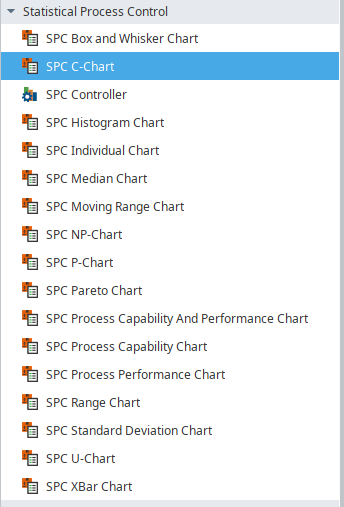
Perspective Component Palette
Chart Properties
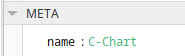
use the name to reference the chart in scripting:
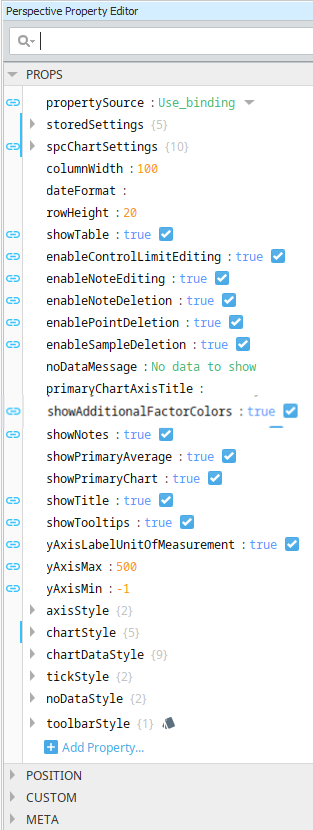
Properties are provided that can be set to affect the operation and look of the component. They can be set through the Property Editor in the Designer or through scripting.
Python |
self.getSibling("C-Chart").showTable = False |
SPC Perspective Chart Dataset Properties
These properties are available in the Ignition Properties Palette for SPC Charts.
| Property Source | |
Sets the datasource mode. Toggle two options: Use_stored_settings | Use_binding Included in Sepasoft Versions:
Use_stored_settings: Sets the chart to receive data from Stored Settings. To use this, enter property values under storedSettings, see below.
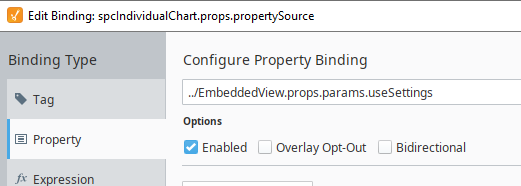
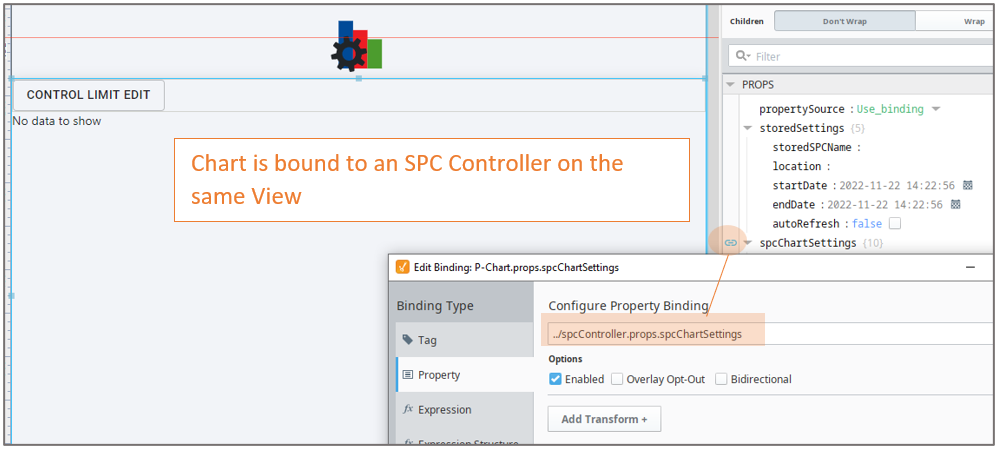
Use_binding: Sets the chart to receive data from an SPC Controller. To use this, bind to an SPC Controller under spcChartSettings, see below. When clicking the binding icon on the left side of the propertySource, the Configure Property Binding dialog appears.
|
||||||||||||||||||||||||||||||||||||||||
| Stored Settings | storedSettings |
Set property values here when propertySource is set to Use_stored_settings |
||||||||||||||||||||||||||||||||||||||||
|
|
|
|||||||||||||||||||||||||||||||||||||||||
| SPC Chart Settings |
spcChartSettings
Set property values here when propertySource is set to Use_Binding
Bind to the SPC Controller |
|||||||||||||||||||||||||||||||||||||||||
|
|
|
|||||||||||||||||||||||||||||||||||||||||
|
|
settings
|
|||||||||||||||||||||||||||||||||||||||||
|
|
histogram
|
|||||||||||||||||||||||||||||||||||||||||
|
|
dynamic When using an SPC Controller to populate a Perspective SPC Chart, these dynamic filters can be used to filter the data for display in a chart.
|
|||||||||||||||||||||||||||||||||||||||||
|
|
spcResults SPC Results including data, measurement count, messages and calculated value information. definitionUUI
measurementCount
spcData: dataset - The SPC data.
|
|
||||||||||||||||||||||||||||||||||||||||
| showTable | Boolean | Enable to display the data table. The table is updated as new data comes in. Table Chart Scroll LockingThe table chart scroll locking feature provides a user-controlled mechanism to either automatically navigate to the most recent data upon its arrival or maintain the current scroll position. The scroll lock feature operates in two distinct modes, each with specific UI indicators and behavioral responses to new data.
| ||||||||||||||||||||||||||||||||||||||||


Properties Common to SPC Charts with Measurable Values
These properties are available in the Ignition Properties Palette for SPC Charts that have values that are measurable with datatypes such as floats and integers.
Name Scripting Reference | Data Type | Description | ||||||||||
|---|---|---|---|---|---|---|---|---|---|---|---|---|
| columnWidth | Integer - The width of the table columns. | |||||||||||
| dateFormat | The date formatting pattern used to display the date MM/dd/yyyy dd-M-yyyy hh:mm:ss dd MMMM yyyy | |||||||||||
| rowHeight | The height of the table rows. | |||||||||||
| scrollX | The scroll bar x position. | |||||||||||
| showTable | Boolean - Toggle to show or hide the sample data table. When showTable is set to True: Table Chart Scroll LockingThe table chart scroll locking feature provides a user-controlled mechanism to either automatically navigate to the most recent data upon its arrival or maintain the current scroll position. The scroll lock feature operates in two distinct modes, each with specific UI indicators and behavioral responses to new data.
| |||||||||||
| editControlLimitImagePath | Boolean - Image icon to show to edit control limits. | |||||||||||
| enableControlLimitEditing | Toggle show/hide When enabled, an edit button is displayed. Once a control-limit type is selected and Calculate is checked, a limit value is calculated and displayed. If the value box is populated and date is selected, you can choose to set the limit value. A message displays:
| |||||||||||
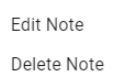
| enableNoteEditing | Boolean - If true, you can add and edit notes on the chart. |
| ||||||||||
| enableNoteDeletion | Boolean -If true, you can delete notes on the chart. | |||||||||||
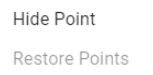
| enablePointDeletion | Boolean -If true, you can hide/restore data points on the chart. |
| ||||||||||
| enableSampleDeletion | Boolean -If true, you can exclude samples on the chart. |
| ||||||||||
| limitDialogOffsetX | Integer - The horizontal offset to display the control limit dialog box. Works in conjunction with enableControlLimitEditing | |||||||||||
| limitDialogOffsetY | Integer -The vertical offset to display the control limit dialog box. Works in conjunction with enableControlLimitEditing | |||||||||||
| markerImagePath | String - The relative path of an image to display for markers. | |||||||||||
| noteImagePath | String -The relative path of an image to display for notes when showNotes is enabled. | |||||||||||
| primaryChartAxisTitle | String -Title to show for the primary axis. The color attribution is based on the sequence in which the additional factors are added to the SELECT statement in the FilterBy clause. | |||||||||||
| showAdditionalFactorColors | Boolean - Defaults to True. In 3.81.11 SP1 and later The color attribution of the points on a chart is based on the sequence in which you add additional factors to the FilterBy clause of the Select statement. When a point on a chart is outside a Control Limit the circled is filled-in as a solid circle. When inside the limits, the circle is an outline.
| |||||||||||
| showAttributeNameAsTitle | Boolean - Defaults to False. In 3.81.10 SP8 and later. When true the first attribute on the chart is used as the chart title. If there is more than one attribute displayed on the chart, then the first attribute name is used. If the attribute displayed on the chart is changed, then the title changes to match the attribute. Supersede the Chart Title. | |||||||||||
| showNotes | Boolean -If true, notes display on the chart. | |||||||||||
| showPrimaryAverage | Boolean -Set to true to display the average line on the primary chart. | |||||||||||
| yAxisMax | String and Integer -Plots all the values up to and including the maximum value. | |||||||||||
| yAxisMin | String and Integer -Plots all the values down to and including the minimum value. | |||||||||||
| axisStyle | ||||||||||||
| rightAxisWidth | Integer | Width of the right chart axis | ||||||||||
| chartStyle | ||||||||||||
| horzGridLineColor | Boolean | If true, show horizontal grid lines on charts. | ||||||||||
| primaryChartBackground | Color, picker available | The background color of the primary chart. | ||||||||||
| showHorizontalGridLines | Boolean | f true, show horizontal grid lines on charts. | ||||||||||
| vertGridLineColor | Color, picker available | The color of vertical grid lines. | ||||||||||
| chartDataStyle | ||||||||||||
| calcBackground | Color | Sets the background color. | ||||||||||
| calcFont | Font family | Sets the font family | ||||||||||
| calcForeground | Color, picker available | Sets the foreground color | ||||||||||
| dataBackground | Color | Sets the background color. | ||||||||||
| dataFont | Font family | Sets the font family | ||||||||||
| dataForeground | Font family | Sets the foreground color | ||||||||||
| dateBackground | Color | Sets the background color. | ||||||||||
| dateFont | Font family | Sets the background color. | ||||||||||
| dateForeground | Color, picker available | Sets the foreground color | ||||||||||
| visibleMeasurements | int | The number of measurements to show in the table. | ||||||||||
| chartMarkerStyle | ||||||||||||
| markerLabelFont | Font family | The font family to use for markers. | ||||||||||

| Name | Scripting Reference | ||||
|---|---|---|---|---|---|
| noDataStyle | | ||||
| noDataForeground | Color, picker available | The foreground color of the no data message. | |||
| | noDataFont | Font family | The font to use for the no data message. | ||
Meta Properties in the Perspective Property Editor
Name Scripting Reference | Data Type | Description | ||
|---|---|---|---|---|
| name | String | Name of the component. Used in scripting and component tree paths by name, such as during Property Binding. | ||
| visible | Boolean | Whether or not this component should display. | ||
| tooltip | ||||
enable | Boolean | Whether the tooltip on hover | ||
width | Integer | The height of the table rows. | ||
text | String | The scroll bar x position. | ||
| style | Boolean | Toggle to show or hide the sample data table. | ||
| delay | Boolean | Image icon to show to edit control limits. | ||
| sustain | Integer | Time, in milliseconds, to display tooltip before removing it. A value of 0 results in the tooltip displaying until the mouse exits the components. | ||
| location | Boolean | The location where the tooltip displays. | ||
| tail | Boolean | Enables a decorative triangle on the tooltip that points to the tooltip owner. Ignored when location uses a value of 'mouse'. | ||
Event Handlers
Event handlers provide the ability to add custom script when a user interacts with a component such as by clicking a mouse, selecting a menu item or when a component property changes.
mouse
mouseClicked
This event signifies a mouse click on the source component. A mouse click the combination of a mouse press and a mouse release, both of which must have occurred over the source component. Note that this event fires after the pressed and released events have fired.
| Property | Description |
|---|---|
| .source | The component that fired this event. |
| .button | The code for the button that caused this event to fire. |
| .clickCount | The number of mouse clicks associated with this event. |
| .x | The x-coordinate (with respect to the source component) of this mouse event. |
| .y | The y-coordinate (with respect to the source component) of this mouse event. |
| .popupTrigger | Returns True (1) if this mouse event is a popup trigger. What constitutes a popup trigger is operating system dependent, which is why this abstraction exists. |
| .altDown | True (1) if the Alt key was held down during this event, false (0) otherwise. |
| .controlDown | True (1) if the Ctrl key was held down during this event, false (0) otherwise. |
| .shiftDown | True (1) if the Shift key was held down during this event, false (0) otherwise. |
mouseEntered
This event fires when the mouse enters the space over the source component.
| Property | Description |
|---|---|
| .source | The component that fired this event. |
| .button | The code for the button that caused this event to fire. |
| .clickCount | The number of mouse clicks associated with this event. |
| .x | The x-coordinate (with respect to the source component) of this mouse event. |
| .y | The y-coordinate (with respect to the source component) of this mouse event. |
| .popupTrigger | Returns True (1) if this mouse event is a popup trigger. What constitutes a popup trigger is operating system dependent, which is why this abstraction exists. |
| .altDown | True (1) if the Alt key was held down during this event, false (0) otherwise. |
| .controlDown | True (1) if the Ctrl key was held down during this event, false (0) otherwise. |
| .shiftDown | True (1) if the Shift key was held down during this event, false (0) otherwise. |
mouseExited
This event fires when the mouse leaves the space over the source component.
| Property | Description |
|---|---|
| .source | The component that fired this event. |
| .button | The code for the button that caused this event to fire. |
| .clickCount | The number of mouse clicks associated with this event. |
| .x | The x-coordinate (with respect to the source component) of this mouse event. |
| .y | The y-coordinate (with respect to the source component) of this mouse event. |
| .popupTrigger | Returns True (1) if this mouse event is a popup trigger. What constitutes a popup trigger is operating system dependent, which is why this abstraction exists. |
| .altDown | True (1) if the Alt key was held down during this event, false (0) otherwise. |
| .controlDown | True (1) if the Ctrl key was held down during this event, false (0) otherwise. |
| .shiftDown | True (1) if the Shift key was held down during this event, false (0) otherwise. |
mousePressed
This event fires when a mouse button is pressed down on the source component.
| Property | Description |
|---|---|
| .source | The component that fired this event. |
| .button | The code for the button that caused this event to fire. |
| .clickCount | The number of mouse clicks associated with this event. |
| .x | The x-coordinate (with respect to the source component) of this mouse event. |
| .y | The y-coordinate (with respect to the source component) of this mouse event. |
| .popupTrigger | Returns True (1) if this mouse event is a popup trigger. What constitutes a popup trigger is operating system dependent, which is why this abstraction exists. |
| .altDown | True (1) if the Alt key was held down during this event, false (0) otherwise. |
| .controlDown | True (1) if the Ctrl key was held down during this event, false (0) otherwise. |
| .shiftDown | True (1) if the Shift key was held down during this event, false (0) otherwise. |
mouseReleased
This event fires when a mouse button is released, if that mouse button's press happened over this component.
| Property | Description |
|---|---|
| .source | The component that fired this event. |
| .button | The code for the button that caused this event to fire. |
| .clickCount | The number of mouse clicks associated with this event. |
| .x | The x-coordinate (with respect to the source component) of this mouse event. |
| .y | The y-coordinate (with respect to the source component) of this mouse event. |
| .popupTrigger | Returns True (1) if this mouse event is a popup trigger. What constitutes a popup trigger is operating system dependent, which is why this abstraction exists. |
| .altDown | True (1) if the Alt key was held down during this event, false (0) otherwise. |
| .controlDown | True (1) if the Ctrl key was held down during this event, false (0) otherwise. |
| .shiftDown | True (1) if the Shift key was held down during this event, false (0) otherwise. |
mouseMotion
mouseDragged
Fires when the mouse moves over a component after a button has been pushed.
| Property | Description |
|---|---|
| .source | The component that fired this event. |
| .button | The code for the button that caused this event to fire. |
| .clickCount | The number of mouse clicks associated with this event. |
| .x | The x-coordinate (with respect to the source component) of this mouse event. |
| .y | The y-coordinate (with respect to the source component) of this mouse event. |
| .popupTrigger | Returns True (1) if this mouse event is a popup trigger. What constitutes a popup trigger is operating system dependent, which is why this abstraction exists. |
| .altDown | True (1) if the Alt key was held down during this event, false (0) otherwise. |
| .controlDown | True (1) if the Ctrl key was held down during this event, false (0) otherwise. |
| .shiftDown | True (1) if the Shift key was held down during this event, false (0) otherwise. |
mouseMoved
Fires when the mouse moves over a component, but no buttons are pushed.
| Property | Description |
|---|---|
| .source | The component that fired this event. |
| .button | The code for the button that caused this event to fire. |
| .clickCount | The number of mouse clicks associated with this event. |
| .x | The x-coordinate (with respect to the source component) of this mouse event. |
| .y | The y-coordinate (with respect to the source component) of this mouse event. |
| .popupTrigger | Returns True (1) if this mouse event is a popup trigger. What constitutes a popup trigger is operating system dependent, which is why this abstraction exists. |
| .altDown | True (1) if the Alt key was held down during this event, false (0) otherwise. |
| .controlDown | True (1) if the Ctrl key was held down during this event, false (0) otherwise. |
| .shiftDown | True (1) if the Shift key was held down during this event, false (0) otherwise. |
propertyChange
propertyChange
Fires whenever a bindable property of the source component changes. This works for standard and custom (dynamic) properties.
| Property | Description |
|---|---|
| .source | The component that fired this event. |
| .newValue | The new value that this property changed to. |
| .oldValue | The value that this property was before it changed. Note that not all components include an accurate oldValue in their events. |
| .propertyName | The name of the property that changed. NOTE: Remember to always filter out these events for the property that you are looking for! Components often have many properties that change. |
Refer to the Ignition User Manual for details on using the available event handlers:
Extension Functions
getNoteToolTip
- Description
Called when tooltip content is generated for a note symbol. The default tooltip is passed and can be modified or replaced.
- Parameters
Boolean - True/False
- Return
Nothing
- Scope
Client
getSampleToolTip
- Description
Called when tooltip content is generated for a sample. The default tooltip is passed and can be modified or replaced.
- Parameters
Boolean - True/False
- Return
Nothing
- Scope
Client
beforeSampleDelete
- Description
Called before the sample is deleted. If the return value is True, then the sample will be deleted.
- Parameters
Boolean - True/False
- Return
Nothing
- Scope
Client
Sepasoft MES Module Suite