Sepasoft MES Module Suite
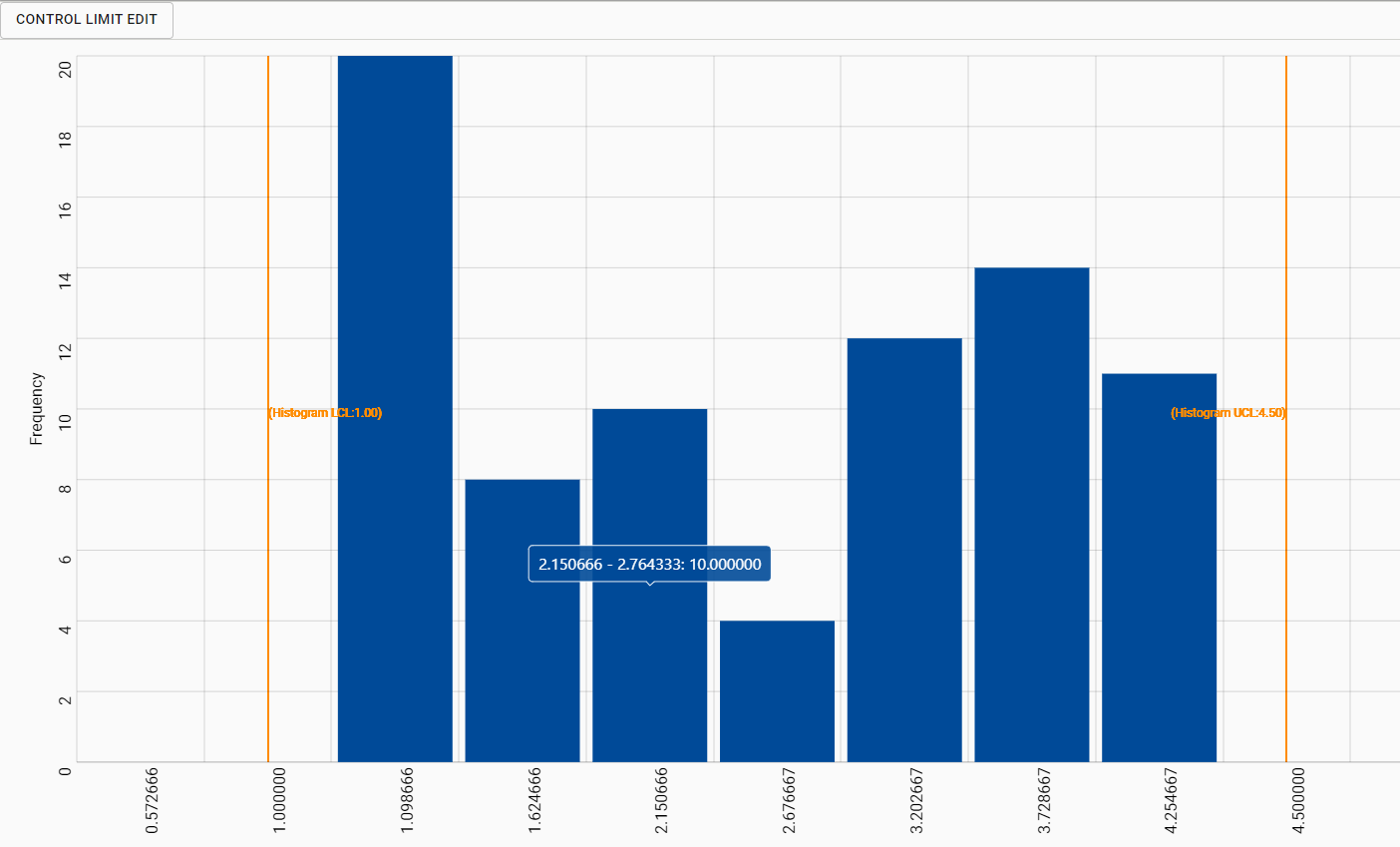
The Histogram chart is used to display frequency distribution of sample measurements. Different from control charts that present a picture of how a process varies over time. Histograms, on the other hand, present a picture of how the process "stacks up" over time. Histograms illustrate how many times a certain data value or range of data values occurred in a given time frame. Histograms reveal the distribution of data values, compare them with specification limits, and generate useful metrics and statistics that describe the data set in detail.
Table Chart Scroll Locking
 |
This feature is available in versions: MES 3.81.11 SP7 and later MES 4.83.0 RC2 and later |
State | Detailed Description |
Locked | UI: The lock icon in the taskbar appears closed and filled. Behavior: The chart view is locked to the right, automatically jumping to the end of the table whenever new data is received. Tooltip: Hovering over the icon displays the text: "Allow Free Scrolling". |
Free Scrolling | UI: The lock icon in the taskbar appears open and unfilled. Behavior: The chart maintains its current scroll position, even when new data is received. Tooltip: Hovering over the icon displays the text: "Lock Scrolling". |
Included in Sepasoft Versions:

|
MES 3.81.7 RC1 and later |
Ignition Designer
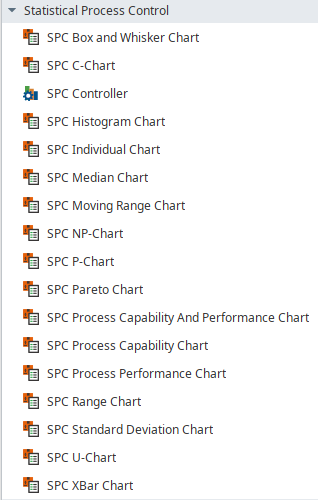
Perspective Component Palette
Component Properties
Properties are provided that can be set to affect the operation and look of the component. They can be set through the Property Editor in the Designer or through scripting.
Python |
self.getSibling("Histogram").noDataMessage = "No data message" |
SPC Perspective Chart Dataset Properties
These properties are available in the Ignition Properties Palette for SPC Charts.
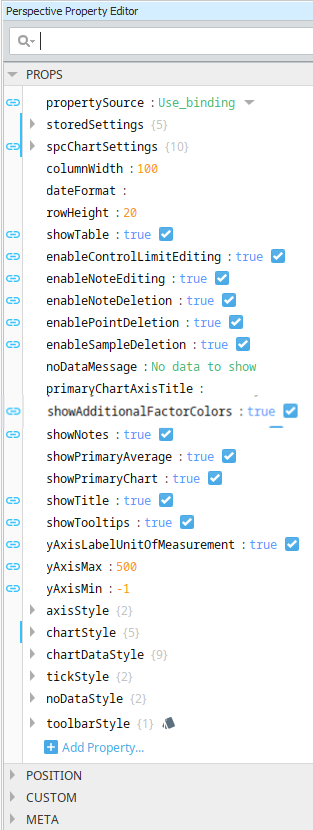
| Property Source | |
Sets the datasource mode. Toggle two options: Use_stored_settings | Use_binding Included in Sepasoft Versions:
Use_stored_settings: Sets the chart to receive data from Stored Settings. To use this, enter property values under storedSettings, see below.
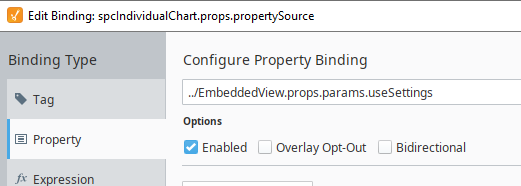
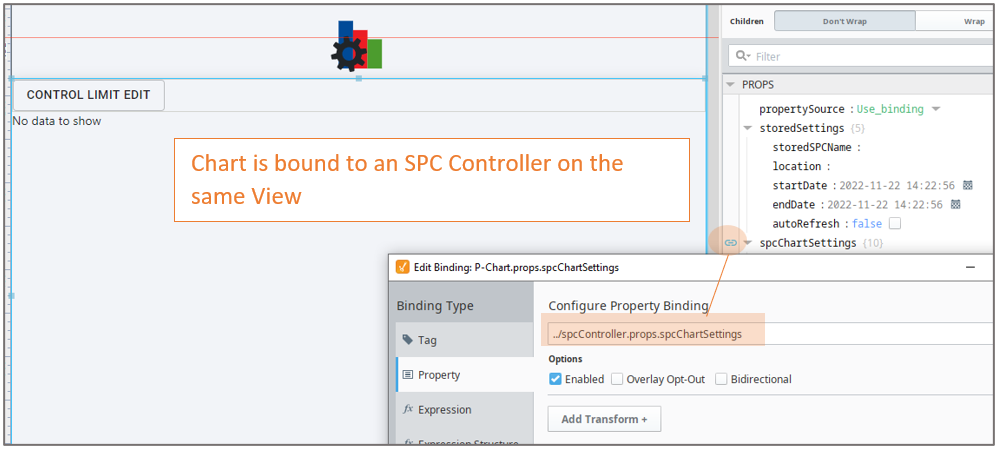
Use_binding: Sets the chart to receive data from an SPC Controller. To use this, bind to an SPC Controller under spcChartSettings, see below. When clicking the binding icon on the left side of the propertySource, the Configure Property Binding dialog appears.
|
||||||||||||||||||||||||||||||||||||||||
| Stored Settings | storedSettings |
Set property values here when propertySource is set to Use_stored_settings |
||||||||||||||||||||||||||||||||||||||||
|
|
|
|||||||||||||||||||||||||||||||||||||||||
| SPC Chart Settings |
spcChartSettings
Set property values here when propertySource is set to Use_Binding
Bind to the SPC Controller |
|||||||||||||||||||||||||||||||||||||||||
|
|
|
|||||||||||||||||||||||||||||||||||||||||
|
|
settings
|
|||||||||||||||||||||||||||||||||||||||||
|
|
histogram
|
|||||||||||||||||||||||||||||||||||||||||
|
|
dynamic When using an SPC Controller to populate a Perspective SPC Chart, these dynamic filters can be used to filter the data for display in a chart.
|
|||||||||||||||||||||||||||||||||||||||||
|
|
spcResults SPC Results including data, measurement count, messages and calculated value information. definitionUUI
measurementCount
spcData: dataset - The SPC data.
|
|
||||||||||||||||||||||||||||||||||||||||
| showTable | Boolean | Enable to display the data table. The table is updated as new data comes in. Table Chart Scroll LockingThe table chart scroll locking feature provides a user-controlled mechanism to either automatically navigate to the most recent data upon its arrival or maintain the current scroll position. The scroll lock feature operates in two distinct modes, each with specific UI indicators and behavioral responses to new data.
| ||||||||||||||||||||||||||||||||||||||||


| Scripting Reference | Description | |||
|---|---|---|---|---|
| xAxisVerticalTickLabels | Boolean | Set to True to show labels of the vertical tick marks on the x axis. | ||
| enableControlLimitEditing | Boolean | Set to True to allow end-users to edit control limits | ||
| vertical | Boolean | Set to True to set the chart in a vertical orientation. | ||
| noDataMessage | String | The message to show when there is no data returned. | ||
| valueAxisTitle | String | Title to show for the value axis. | ||
| frequencyAxisTitle | String | Title to show for the frequency axis. | ||
| chartDataStyle | |||||
| barColor | Color, picker available | Sets the color of the bars | |||
| barSpacing | Float | Spacing between bars as a percentage of the bar width. | |||
| gradient | Boolean | If true, bars are drawn with a gradient shine. | |||
| shadow | Boolean | If true, shows a shadow on the bars. | |||
| tickStyle | |||||
| tickLabelColor | Color, picker available | The color of the tick labels. | |||
| tickLabelFont | String | The font of the tick labels. | |||
| axisStyle | |||||
| axisTitleColor | Color, picker available | Color of the axis titles | |||
| axisTitleFont | Font Family | Sets the font for the axis titles | |||
| chartStyle | |||||
| showHorizontalGridLines | Boolean | If true, shows horizontal grid lines. | |||
| horzGridLineColor | Color, picker available | Sets the color of the horizontal grid lines on charts. | |||
| chartBackground | Color, picker available | The background color of the primary chart. | |||
| showVerticalGridLines | Boolean | f true, shows vertical grid lines on charts. | |||
| vertGridLineColor | Color, picker available | The color of vertical grid lines. | |||
Meta Properties in the Perspective Property Editor
Name Scripting Reference | Data Type | Description | ||
|---|---|---|---|---|
| name | String | Name of the component. Used in scripting and component tree paths by name, such as during Property Binding. | ||
| visible | Boolean | Whether or not this component should display. | ||
| tooltip | ||||
enable | Boolean | Whether the tooltip on hover | ||
width | Integer | The height of the table rows. | ||
text | String | The scroll bar x position. | ||
| style | Boolean | Toggle to show or hide the sample data table. | ||
| delay | Boolean | Image icon to show to edit control limits. | ||
| sustain | Integer | Time, in milliseconds, to display tooltip before removing it. A value of 0 results in the tooltip displaying until the mouse exits the components. | ||
| location | Boolean | The location where the tooltip displays. | ||
| tail | Boolean | Enables a decorative triangle on the tooltip that points to the tooltip owner. Ignored when location uses a value of 'mouse'. | ||
Extension Functions
This component does not have extension functions associated with it.
Custom Methods
Custom methods allow you to add your own component functions to a component that can be called through scripting. This is a useful and clean method of re-using script that is specific to the component (say you want to update a visual aspect of the component in the same way whether a user clicks on the component or a window property value changes). See Component Custom Methods in the Ignition Help Manual for more information.
Customizers
This component does not have any custom properties.
Component Functions
Example of the component on the page root container:
event.source.parent.getComponent('Box and Whisker Chart').showSetLimitPanel(True).
showSetLimitPanel
- Description
Causes the calculate and set control limit dialog to be shown.
- Parameters
Boolean - True/False
- Return
Nothing
- Scope
Client
Sepasoft MES Module Suite