Sepasoft MES Module Suite
What is Task Routing?
 |
Getting started with Task Routing requires changes to your Ignition license(s). Please reach out to Sepasoft before attempting to implement Task Routing. |
The Sepasoft modules are very powerful tools for providing context to all of your operational data. In some circumstances, particularly when the Ignition Gateway server is substantially tasked by the MES project, users have a tool called Task Routing available to them, that enables the off-loading of costly tasks like performing Analysis and serving clients.
Is Task Routing for You?
For the vast majority of users, MES Task Routing is unnecessary. The Sepasoft MES Suite is designed to be resource-efficient, and perform operations, analysis and serve clients all on the same Ignition Gateway Server. However, in certain very high impact implementations, users may find that their Ignition Gateway Server is consistently tataxeded. Here are some symptoms of an MES implementation that may be aided or improved by the addition of Task Routing:
- CPU or RAM load is very consistently high on the Ignition Gateway server that powers your MES implementation.
- You lean heavily on the Analysis tools, whether in scripting, or in Analysis Controllers or Selectors.
- Your Ignition Gateway server powers a large number of Visualization clients that use the MES components heavily.
In order for Task Routing to be worth considering, Item #1 and at least one of #2 and #3 must be true. If your server load is high, but you are not heavily employing Analysis and/or MES components, Task Routing will not help you. If CPU load isn't consistently high, then Task Routing is unnecessary. In addition, Task Routing doesn't help with load occasioned by Live Analysis, which is always run on the primary or Runtime server, even when Task Routing is implemented.
Types of Gateway Servers in the Network
Runtime
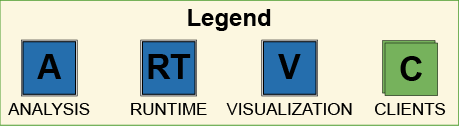
The Runtime server is the primary server in any Task Routing hierarchy, and it is unlike other server types, in that there can only be one of this type. It is where the Production model is configured, and where the actual MES work gets done. Operations are executed here, tag values are collected here, samples are collected here, recipes are configured and applied here. It acts in all ways as a normal MES server - it can execute Analysis and serve clients, if desired; you can think of it as a Runtime, Analysis and Visualization server, all in one. Another fact to keep in mind is that Live Analysis lives here - if you want other servers to see Live Analysis values, you must designate this server as a Remote Tag Provider to the other servers.
Analysis
A Task Routing hierarchy can have any number of Analysis servers. These servers must be connected to the same database as the Runtime server, and they simply execute Analysis queries against the database. This saves the Runtime server from having to do the work of actually executing such calls, and parsing and calculating the results. In addition, these servers can serve Clients and show MES components; they can act both as Analysis and Visualization servers. These servers do the Analysis work themselves, but relay all other work to the Runtime gateway. In the Task Routing configuration page for such a server, the user must designate a Route to the Runtime server.
Visualization
Likewise, a Task Routing hierarchy can have any number of Visualization servers. They do not need a database connection at all. These servers simply help offload the work of serving clients, but they don't perform any MES work - Analysis calls are sent to an Analysis server, and all other operations are sent to the Runtime server to perform. In the Task Routing configuration page for these servers, the user must configure two routes, one to an Analysis server, and one to a Runtime server. This is true even if the Runtime and Analysis servers are one and the same.
Visualization vs. Vision

|
"Visualization" refers to the graphical display of manufacturing information, not the Ignition "Vision" design environment. |
Component Support for Task Routing

|
As of 3.11.11 SP0, added Task Routing to most Batch Procedure and Document Manager Modules. |
| Server Support: | ||||
|---|---|---|---|---|
| Component | Runtime | Analysis | Visual | Notes |
| Production Module > Equipment Manager | √ | √ | √ | |
| Production Module > Analysis Controller | √ | √ | √ | |
| Production Module > Analysis Selector | √ | √ | √ | |
| Production Module > Analysis Table | √ | √ | √ | |
| Production Module > Artifact Selector | √ | √ | √ | |
| Production Module > e-Signature Template Manager | √ | √ | √ | |
| Production Module > Changelog Viewer | √ | √ | √ | |
| Production Module >Export Import Controller | √ | √ | √ | |
| Production Module > Object Editor | √ | √ | √ | |
| Production Module >Object Selector | √ | √ | √ | |
| Production Module >MES Monitor | √ | √ | √ | |
| Production Module > Schedule Selector | √ | √ | √ | |
| Production Module >Schedule View | √ | √ | √ | |
| Production Module >Work Order Table | √ | √ | √ | |
| Production Module > Material Manager | √ | √ | √ | |
| Production Module > Value Editor | √ | √ | √ | |
| Production Module > Production Bar Chart | √ | √ | √ | |
| Production Module > Production Pie Chart | √ | √ | √ | |
| Production Module > Enum Manager | √ | √ | √ | |
| Batch Procedure Module > Batch Execution | √ | √ | √ | |
| Batch Procedure Module > Recipe Manager | √ | √ | √ | |
| Batch Procedure Module > Message List | √ | √ | √ | |
| Batch Procedure Module > Phase Manager | √ | √ | √ | |
| Batch Procedure Module > EBR Viewer | √ | √ | √ | |
| Batch Procedure Module > Batch Controller | √ | Only supported on Runtime server. To support on Analysis and Runtime servers, use an IFrame to bring the page from the Runtime server. | ||
| Batch Procedure Module > Batch Monitor | √ | Only supported on Runtime server. Analysis and Visual servers are on the Development roadmap. | ||
| Document Module > Document Editor | √ | √ | √ | /web/status/sys.internaldb delete from MESMETADATA; |
| Document Module > Document Viewer | √ | √ | √ | |
| Document Module > Diff Viewer | √ | √ | √ | |
| Track and Trace Module > Lot Selector | √ | √ | √ | |
| Track and Trace Module > Material Selector | √ | √ | √ | |
| Track and Trace Module > Operation Info | √ | √ | √ | |
| Track and Trace Module > Operation Selector | √ | √ | √ | |
| Track and Trace Module > Personnel Selector | √ | √ | √ | |
| Track and Trace Module > Property Value Editor | √ | √ | √ | |
| Track and Trace Module > Segment Selector | √ | √ | √ | |
| Track and Trace Module > Supplemental Equipment Selector | √ | √ | √ | |
| Track and Trace Module > Trace Graph | √ | √ | √ | |
| SPC Module > Sample Definition Manager | √ | √ | √ | |
| SPC Module > Analysis Selector | √ | √ | √ | |
| SPC Module > Sample Entry | √ | √ | √ | |
| SPC Module > SPC Controller | √ | √ | √ | |
| SPC Module > Location Sample List | √ | √ | √ | |
| SPC Module > SPC Charts | √ | √ | √ | |
| OEE Module > Downtime Table | √ | √ | √ | |
| OEE Module > Material Manager | √ | √ | √ | |
| OEE Module > Run Director | √ | √ | √ | |
| OEE Module> Time Chart | √ | √ | √ | |
| Settings & Changeover Module > Recipe Selector Combo | √ | √ | √ | |
| Settings & Changeover Module > Recipe Selector List | √ | √ | √ | |
| Settings & Changeover Module > Settings Changelog | √ | √ | √ | |
| Settings & Changeover Module > Settings Editor Table | √ | √ | √ | |
| Settings & Changeover Module > Settings Tree Editor | √ | √ | √ | |
| Settings & Changeover Module > Settings Variance Viewer | √ | √ | √ | |
Rules on Setting Up the Network
-
Each gateway can optionally route Analysis and/or Runtime
-
Only one Runtime gateway can exist in the Task Routing network
-
Only 1 hop is allowed for remote calls, so the Task Routing network tree should only have 2 levels
Architecture Configurations
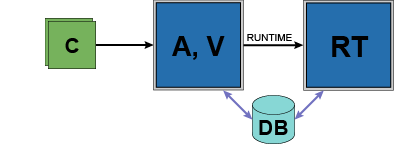
Simple Analysis/Runtime Split
In this architecture, the clients talk to main gateway and main gateway routes the Runtime server.
Client Offload
Main gateway just serves clients, forwards the Analysis/Runtime to another gateway. This has the effect of offloading the serving up of clients to a separate gateway.

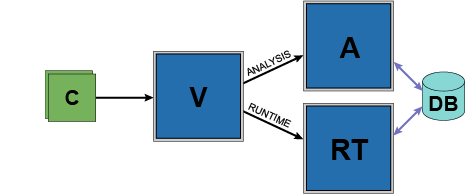
Client Offload - Analysis/Runtime Split
Main gateway just serves clients, forwards Analysis and Runtime to different gateways. This has the effect of splitting client, Analysis, and Runtime processing.
Analysis/Runtime Split Generalization
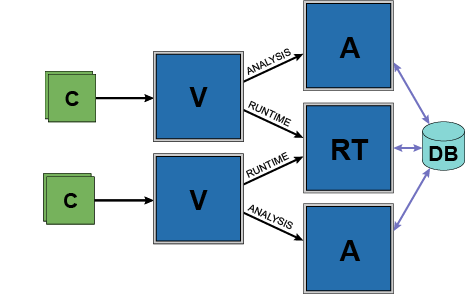
Different clients can talk to different gateways which do their own Analysis processing but route Runtime to a separate gateway.
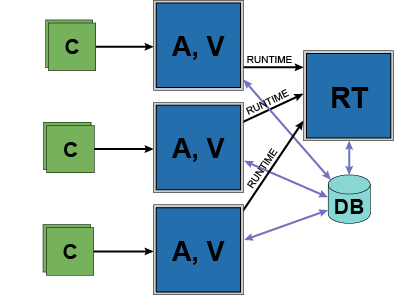
Client Offload - Analysis/Runtime Split Generalization
Different clients can talk to different gateways which helps to share the load of serving clients. Each of these gateways can further split off to separate Analysis gateways while sharing a Runtime gateway.
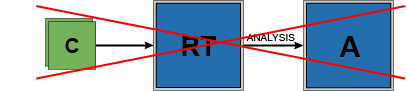
Not Applicable/Unsupported Configuration
Task Routing configuration with a Runtime routing to Analysis is NOT acceptable.
Setting Up Task Routes in Ignition Gateway
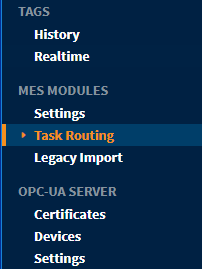
In Ignition Gateway, go to MES Modules > Task Routing:
MES Task Routes

- Click Create New Route.
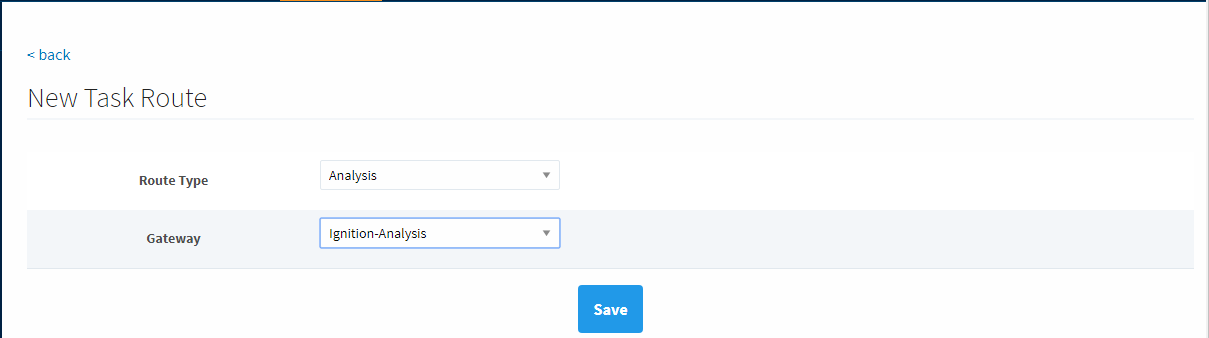
Here, you can add a new route by selecting the Route Type (Analysis or Runtime) and by choosing an Ignition Gateway in the Ignition Gateway Network.
In the example below, an Analysis Route is being set up within the Ignition Gateway named "Ignition-Analysis". This means that Analysis calls will be forwarded to "Ignition-Analysis" for processing.
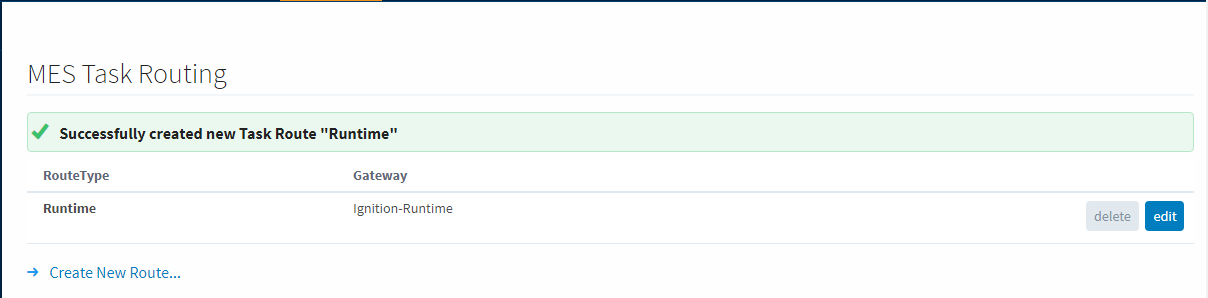
After successfully creating a new route. In this case, it was a Runtime route defined to the gateway "Ignition-Runtime".
Both Analysis and Runtime routes set up:
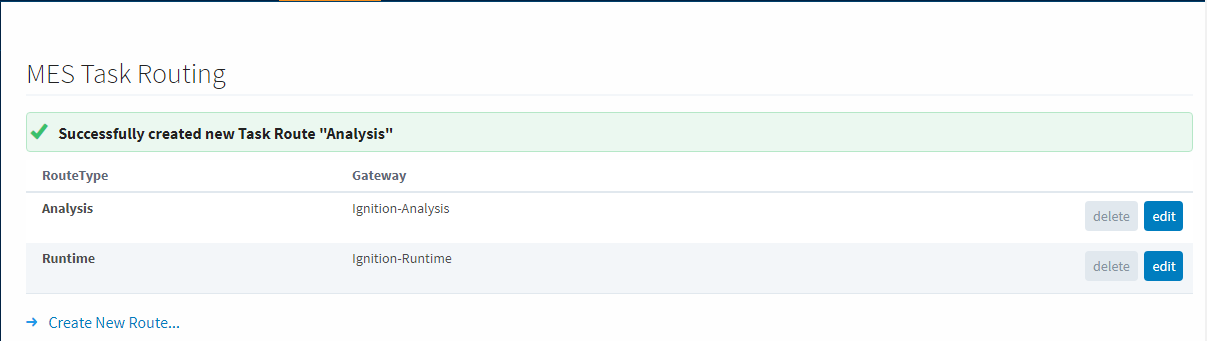
Above is the setup/settings for connecting gateways in a Task Routing network. The above example would be consistent with a situation where the local gateway is a "visualization" type that serves client connections but forwards all of its calls to the other two gateways. All Analysis calls will be forwarded to Ignition-Analysis and all Runtime calls will be forwarded to Ignition-Runtime.
Sepasoft MES Module Suite