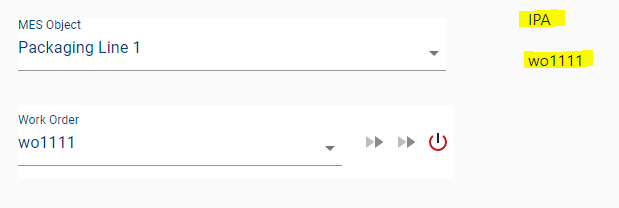
The OEE Run Director will include all materials or materials depending on the property selected. If you want to stop a run, you need to find the Material or Work Order actively running to Stop Production.
It is recommended you use Live Analysis tags to determine the active product or work order to stop the run.
Step-by-step guide
- Create Live Analysis for all Lines using the Same Live analysis name (this will create a standard folder structure) and select Product Code and Work Order
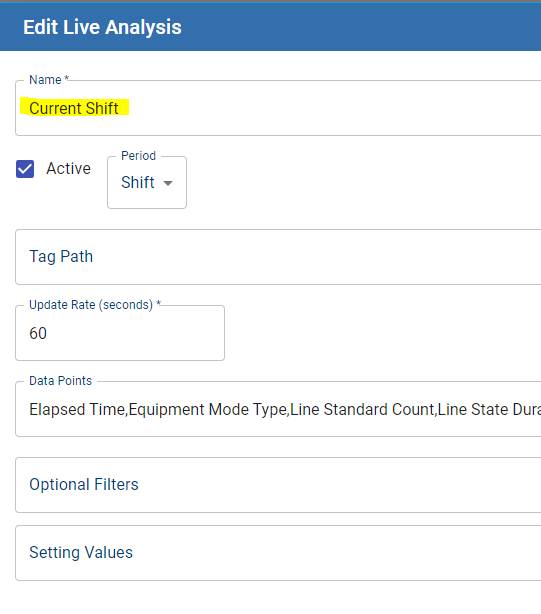
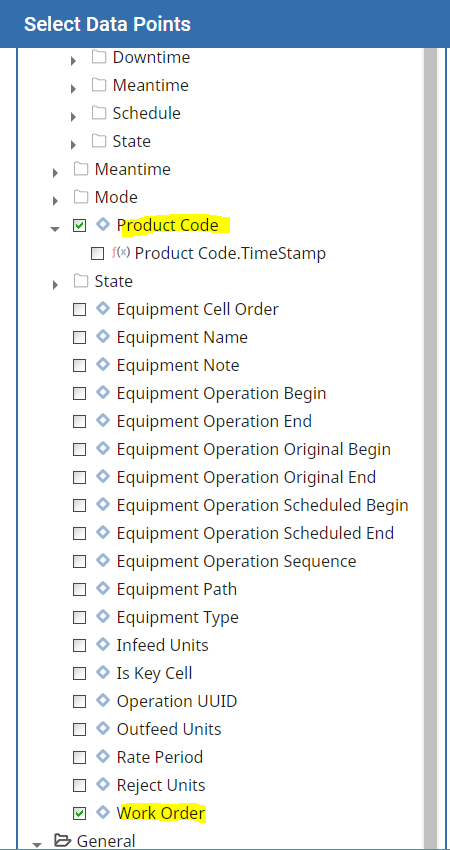
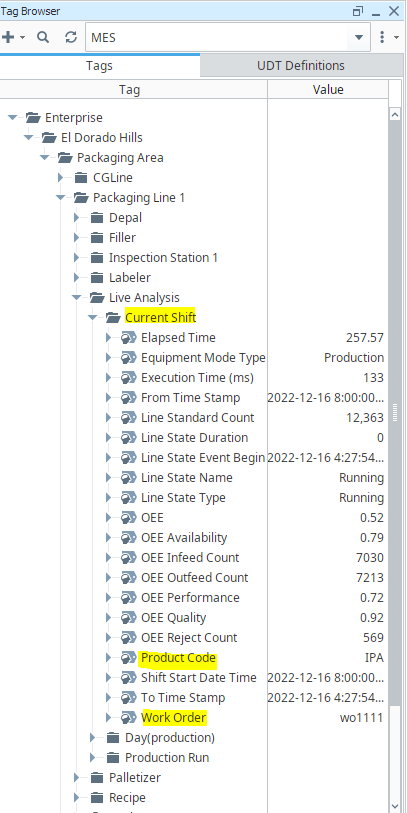
2. Derive the tag path of the MES Tag provider from the Equipment Path selected for the Line in question. This will only scale if all Lines have the same Live Analysis Name.
Create a screen with An MES Object Selector, OEE Run Director, and two labels.
Bind the label to a tag expression to parse the selected Equipment Path and build a tag path to find the Live Analysis Tag in the MES Tag provider.
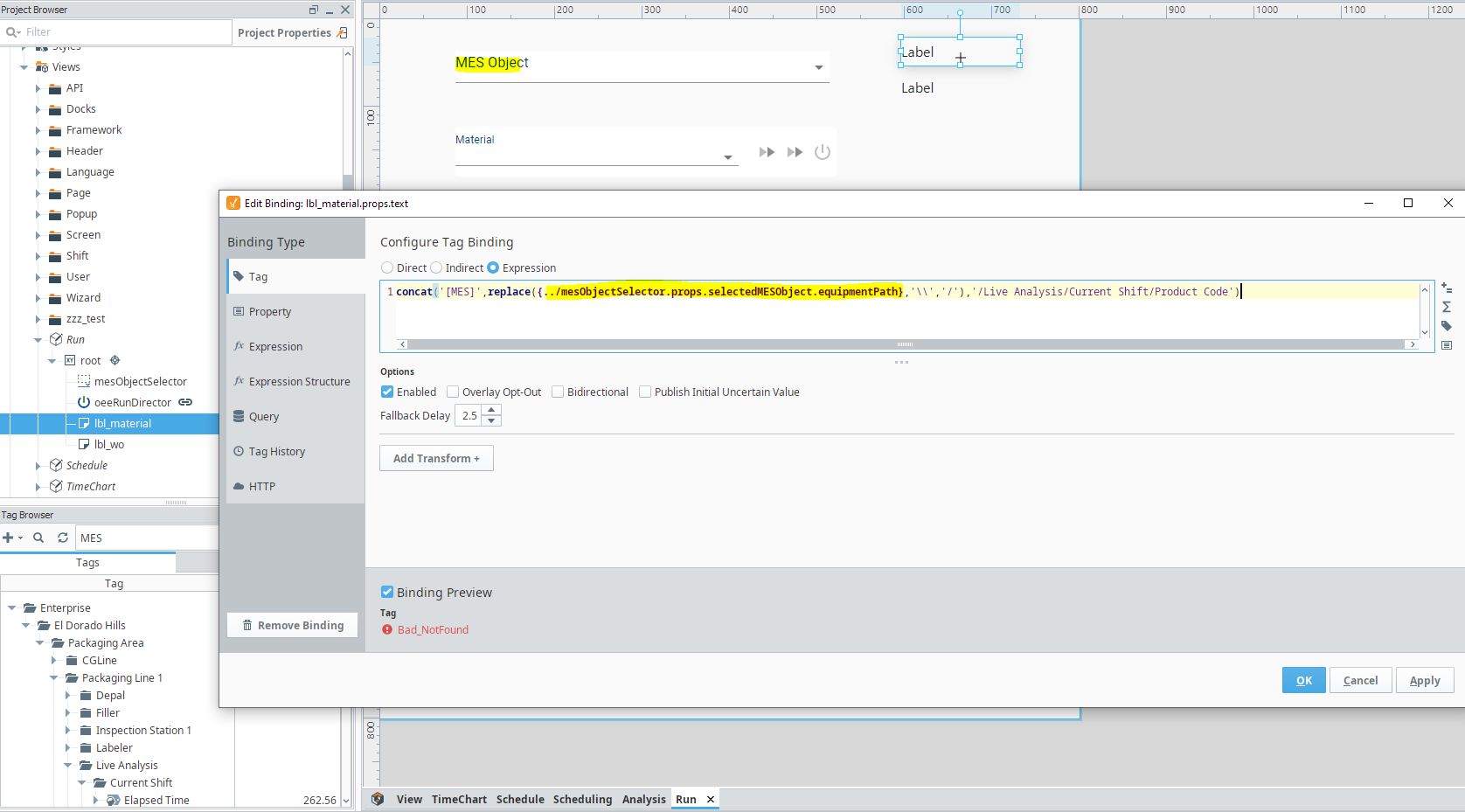
Expression Example
Code |
|
Write a similar tag binding expression to find the Work Order Live Analysis Tag.
When a line is selected, the tag path should find the correct MES Live Analysis tag.
This will display the current running Work Order or Material.
You should be able to easily find your Work Order or Material to end the Production run.