Overview
The MES Analysis Selector and MES Analysis Controller components both have a Filter By section that is typically set to the equipment path. Instead of settling for a static string value for the equipment path that must be changed manually (e.g. to run analysis on a different Line), you can create a Custom Property to use as a variable for the equipment path. This variable can now be modified on the fly via script or by binding it to the Equipment Item Path property of an MES Object Selector.
Applies To and Version Info
This feature applies to the OEE 3.0 module.
Create a Custom Property
- In either the MES Analysis Selector and MES Analysis Controller component, create a Custom Property to hold the equipment path string, such as "eqPath".
When used during run time, you can either modify the equipment path string held in this property via script or by binding it to the Equipment Item Path property of an MES Object Selector.
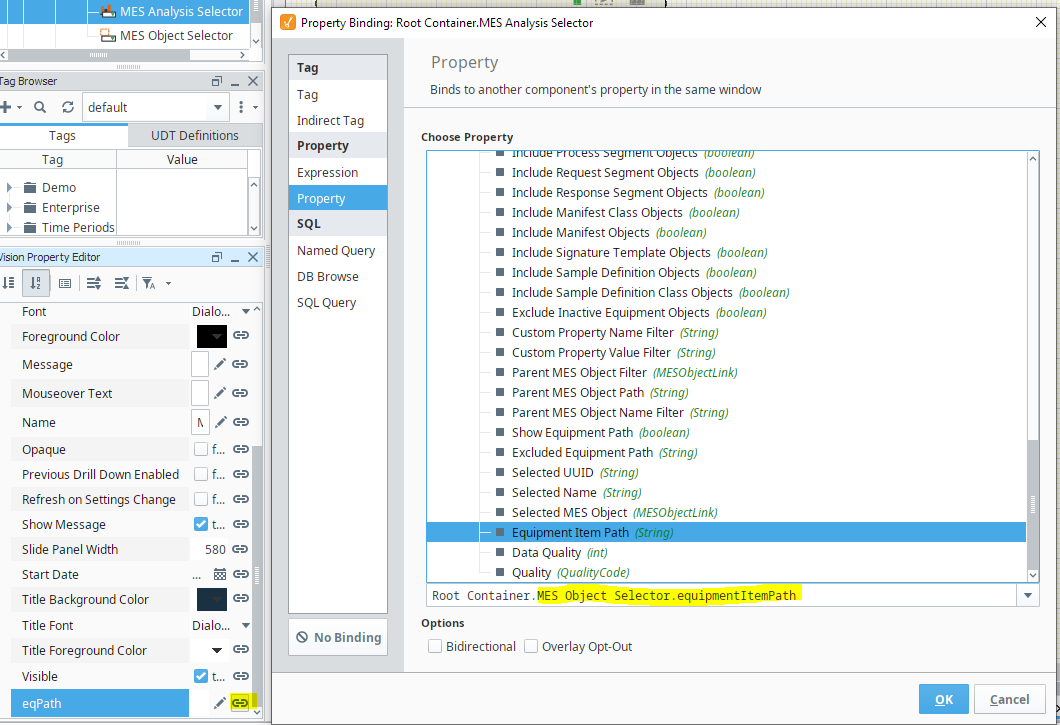
Bind Filter By to the Custom Property
MES Analysis Selector: Set Filter By to the Custom Property
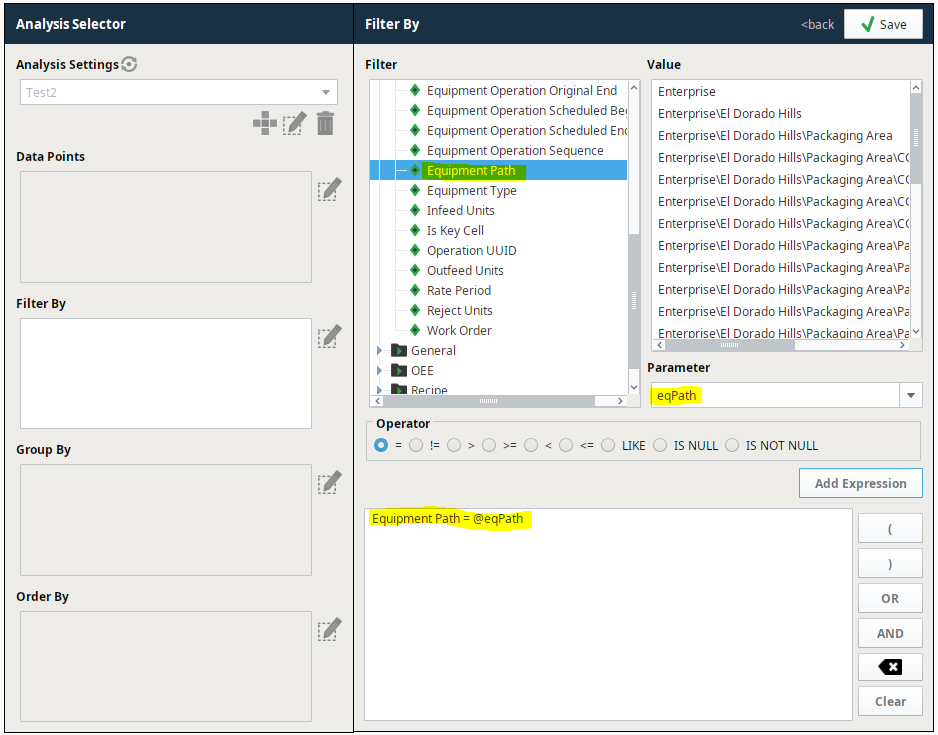
- Edit the Filter By section:
- Set the "=" radio button in the Operator section.
- Select Equipment Path in the Filter section.
- Select your Custom Property (e.g. eqPath) in the Parameter drop-down list.
- Click Add Expression. The expression will populate below.
- Click Save.
MES Analysis Controller: Set Filter By with an Expression
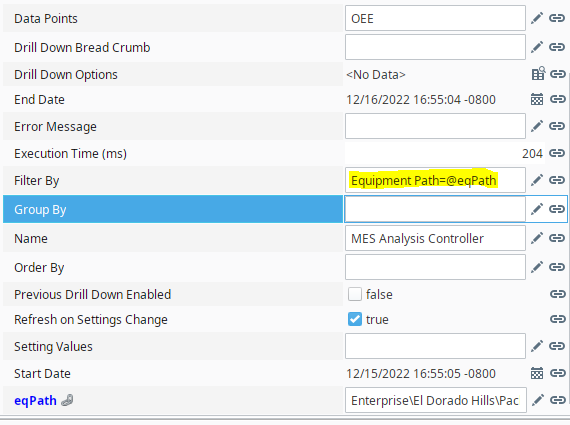
The Filter By property of the MES Analysis Controller doesn't have a graphical 'wizard' like the MES Analysis Selector has, so you'll need to generate the full string yourself.
- Create a String custom property (ex. eqPath) and bind to an MES Object Selector or other property on screen. Hard coding is an option during testing.
Type in the Ffilter By string. The string is simply:
CodeEquipment Path=eqPath
Keywords
OEE
OEE, MES Analysis Selector, MES Analysis Controller