How to use MES Schedule View showEditor() hideEditor() extension functions
Step-by-step guide
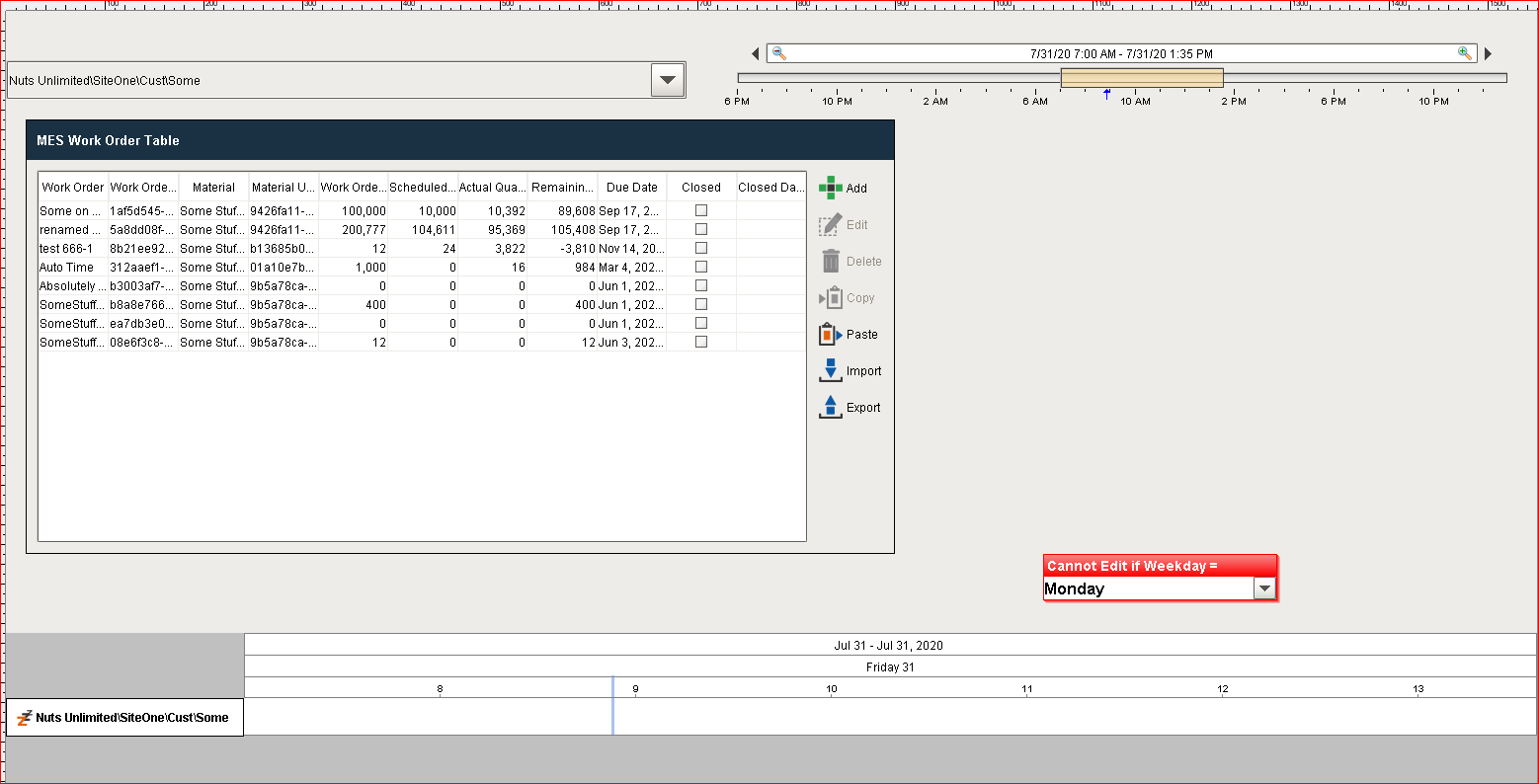
In this example showEditor() will work like this
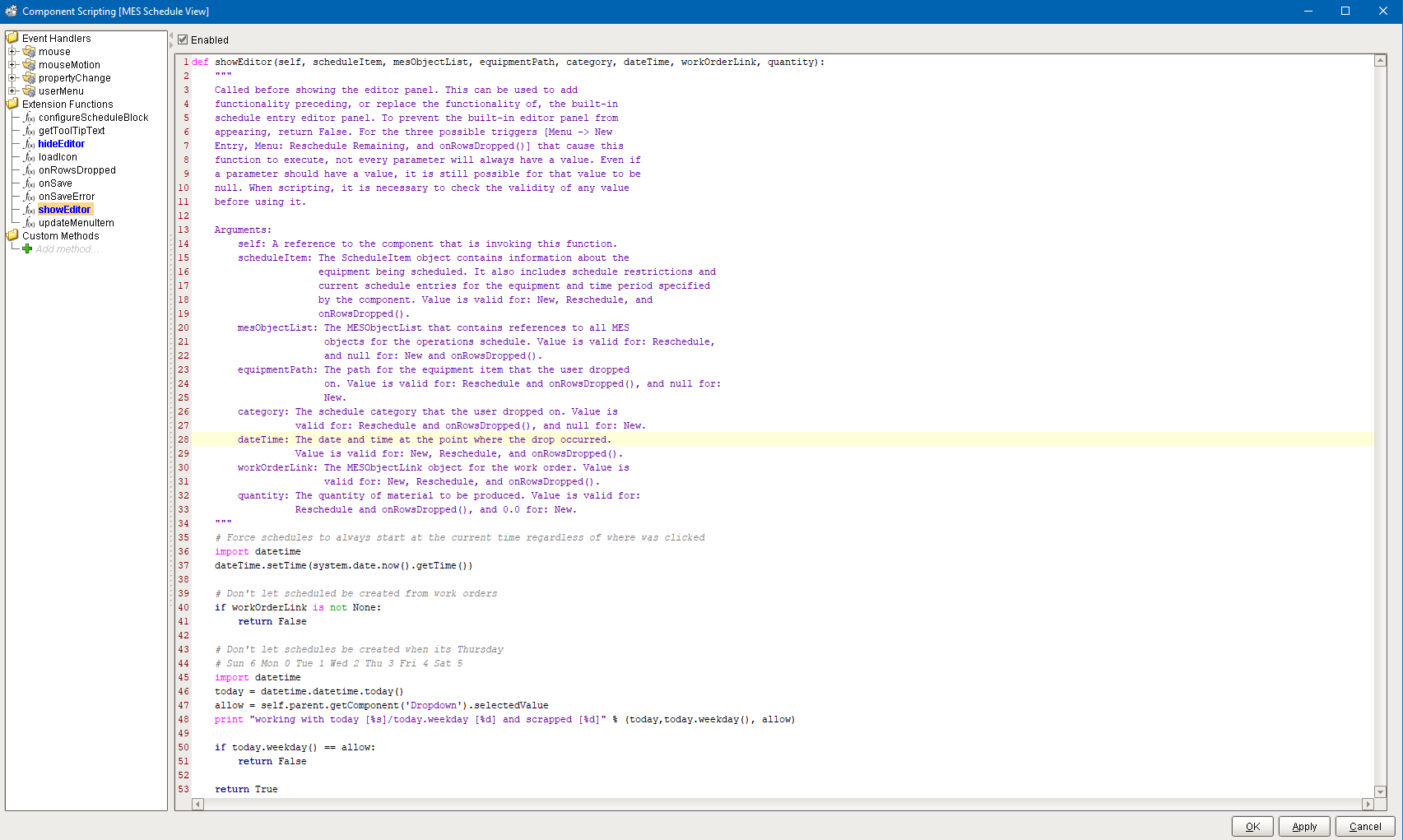
showEditor() will not let you save if you selected a specific workday (from the dropdown)Python# Force schedules to always start at the current time regardless of where was clicked import datetime dateTime.setTime(system.date.now().getTime()) # Don't let scheduled be created from work orders if workOrderLink is not None: return False # Don't let schedules be created when its Thursday # Sun 6 Mon 0 Tue 1 Wed 2 Thu 3 Fri 4 Sat 5 import datetime today = datetime.datetime.today() allow = self.parent.getComponent('Dropdown').selectedValue print "working with today [%s]/today.weekday [%d] and scrapped [%d]" % (today,today.weekday(), allow) if today.weekday() == allow: return False return True
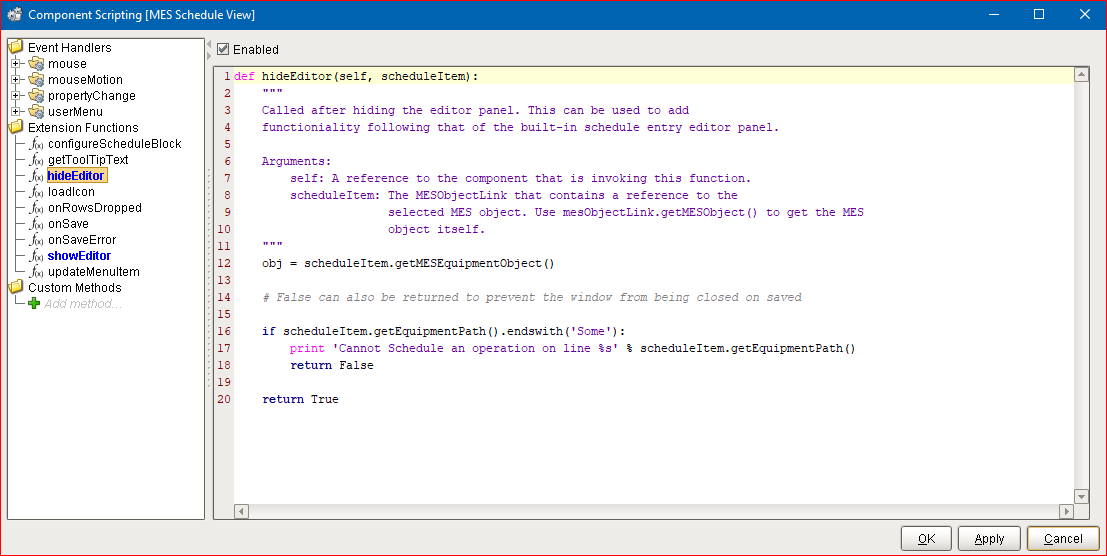
and hideEditor() will not save if your Equipment Path ends with 'xxx' (case sensitive)
Pythonobj = scheduleItem.getMESEquipmentObject() # False can also be returned to prevent the window from being closed on saved if scheduleItem.getEquipmentPath().endswith('Some'): print 'Cannot Schedule an operation on line %s' % scheduleItem.getEquipmentPath() return False return True