Running Batch Procedure Demo with Docker
Follow these instructions to run a Docker-based instance of the Sepasoft Batch Procedure demo server. The demo uses Ignition 8.1.23 with Sepasoft modules (version 3.81.8 RC1), along with a Postgres 14 database.
Prerequisites: Windows 10 or 11
Getting Setup
Uninstall Docker Toolbox
- If you have installed Docker Toolbox, an older version of Docker on Windows, then uninstall it.
Install Docker Desktop
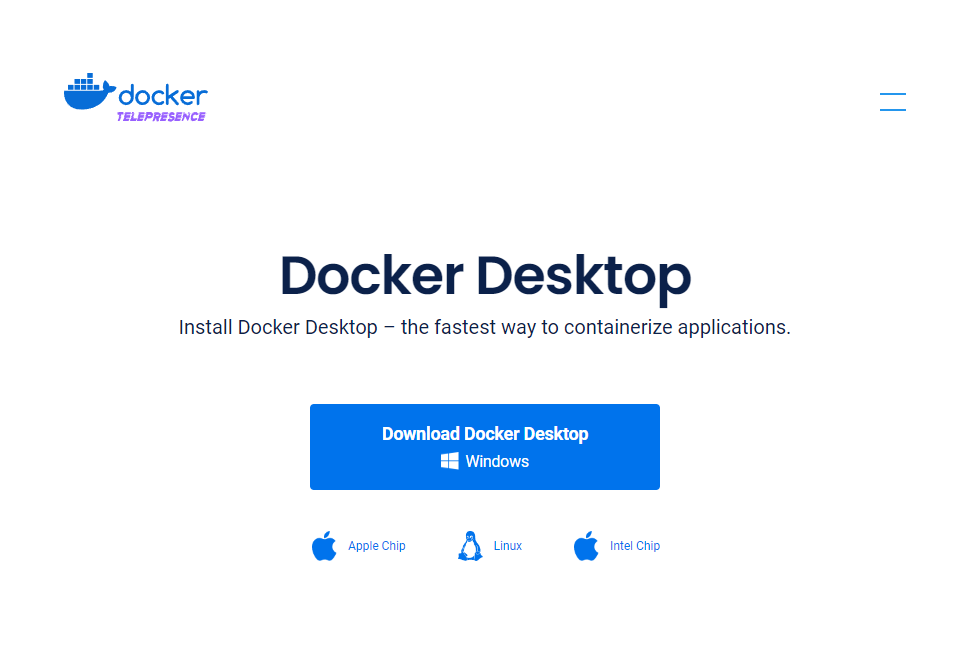
- Download Docker Desktop for Windows. If you have already installed it, be sure to upgrade it so you have an up-to-date version.

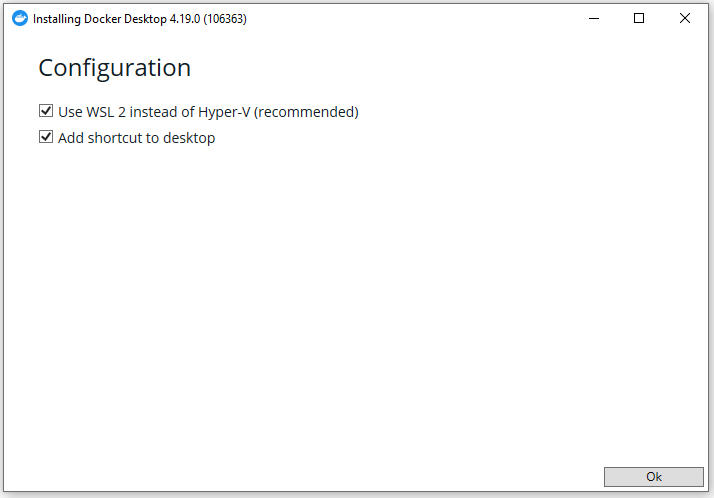
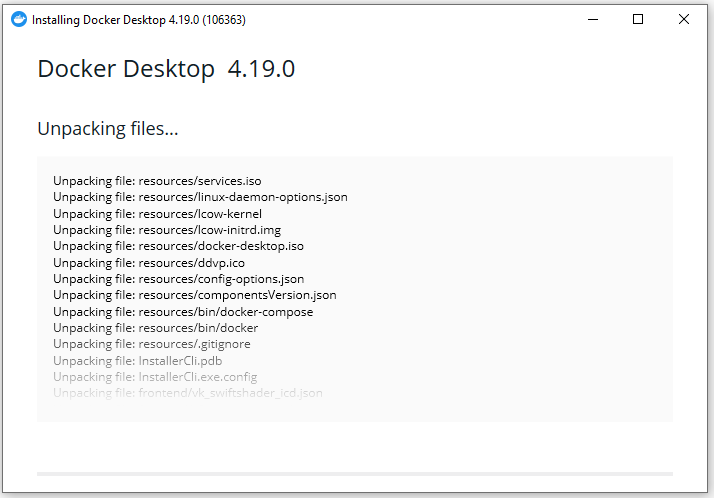
- Install Docker Desktop with the default options, as shown in the screenshots below.
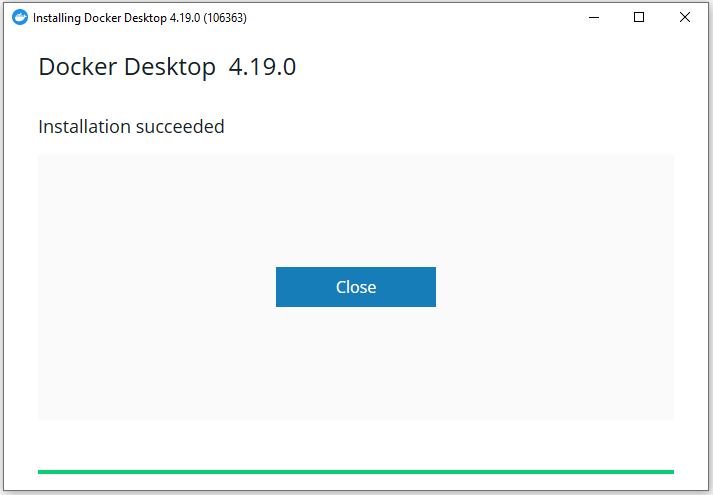
- Restart windows if prompted by Docker Desktop installer.
- You may be prompted to download WSL 2 Linux kernel updates and install them. If so, follow the links in the prompt then download and install the additional software.
- Restart your computer if prompted to do so.
- After restarting, Docker should start up automatically. If Docker isn't started, double click the Docker shortcut on the desktop.

- When docker is running, it shows as an icon in the system tray (the area with small icons in the bottom right of the the windows task bar). See icon below:

- Wait until Docker has completed starting. The system tray icon will be moving if it is in the process of starting up.
Installing/Running Sepasoft Batch Demo
- Download this file: sepasoft_batch_demo_project.zip
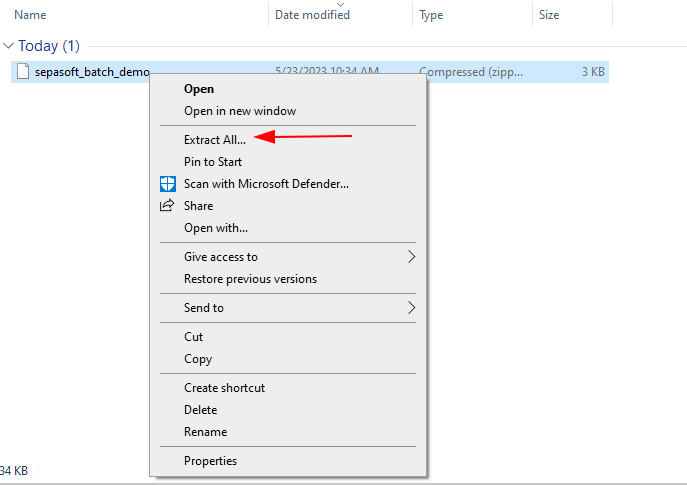
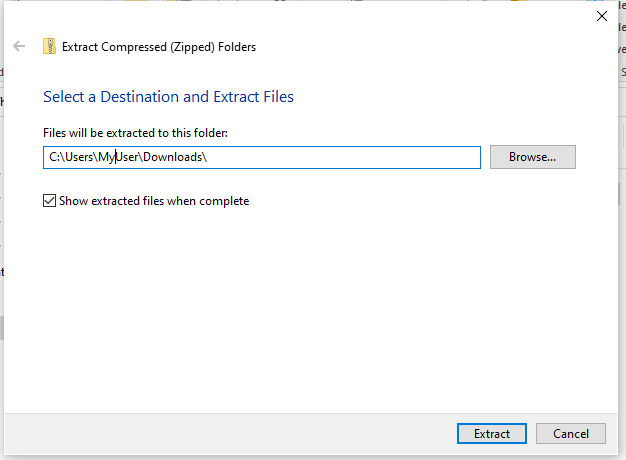
- Once the file is downloaded, extract the contents of the zip file. This can be done by right clicking on the file, selecting "Extract All" from the context menu, selecting where to extract the contents, then clicking the "Extract" button. If "sepasoft_batch_demo" is added at the end of the extraction destination, remove it since the extracted files will already be in a "sepasoft_batch_demo" folder.
In the extracted contents, there should be folder named:
sepasoft_batch_demo
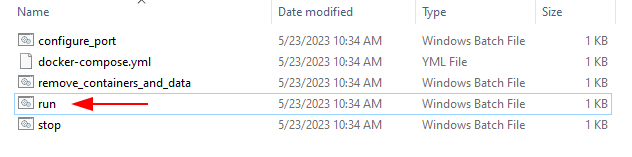
. That folder contains 4 .bat files and one .yml file. The .bat files are scripts that require the docker-compose.yml file to work. Here are the file names:
docker-compose.yml
configure_port.bat
run.bat
remove_containers_and_data.bat
stop.bat
The .bat ending may be hidden from the names when viewed in Windows
- (Optional) The Ignition network port for the Sepasoft Batch Demo defaults to 9099. If you wish to change the default port then double-click
configure_port.batto run it and then enter the desired port number and hit enter. Otherwise go to the next step.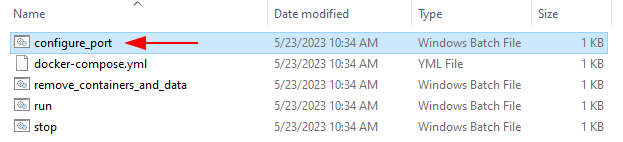
- Double click
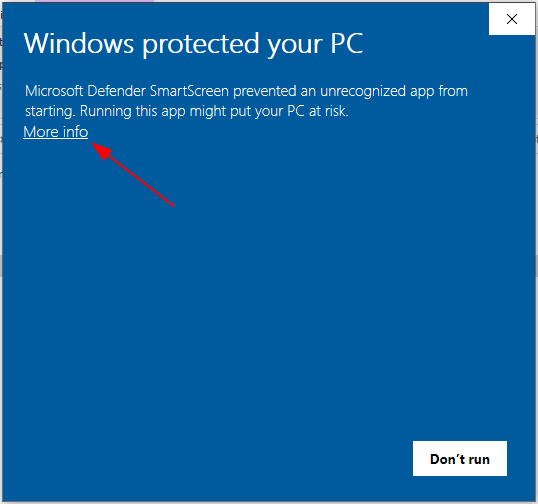
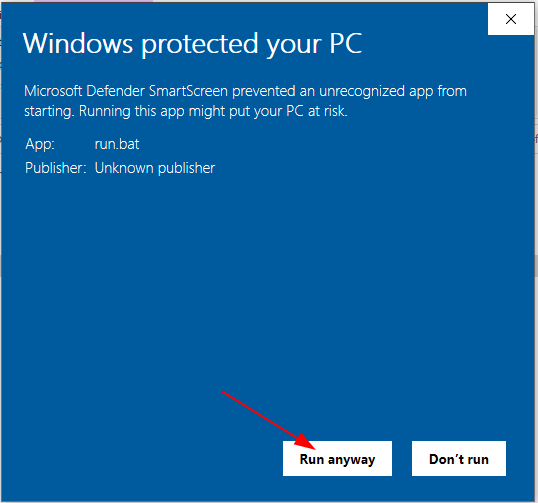
run.batto run Ignition and the database. Docker must already be running or you'll get an error. If Docker is not running then start Docker by double clicking the desktop shortcut, waiting for it to start, and then try runningrun.batagain. If Windows Smart Screen blocks you from running the file, click "More Info", and then "Run anyway".
- The first time
run.batruns Docker will download nearly 2GB of data in the background so it may take several minutes. This 2GB data includes Ignition, the database, and other data associated with the demo project. While that downloading is happening you'll see this message: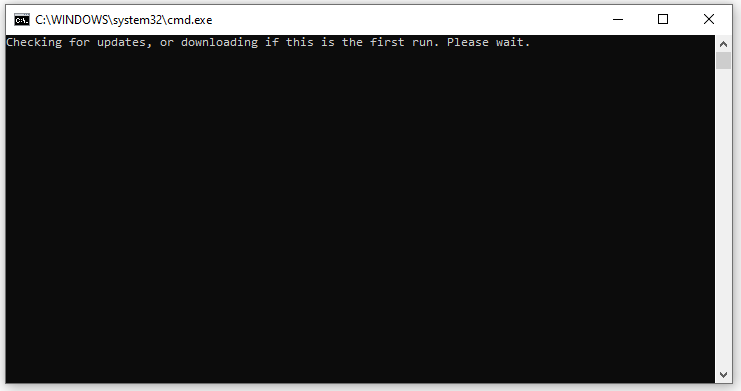
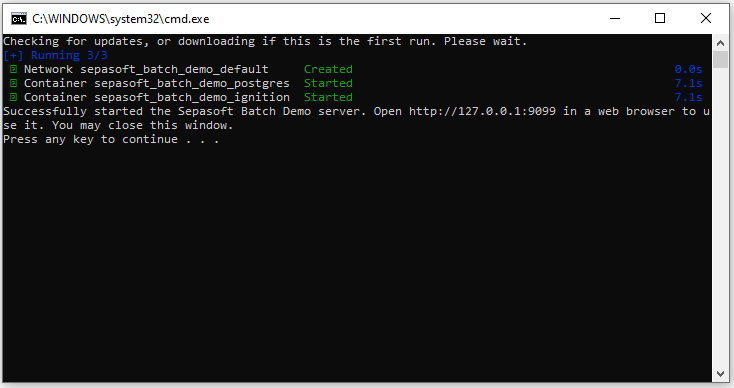
- When the process is complete you should see a message "Successfully started the Sepasoft Batch Demo server. Open http://127.0.0.1:9099 in a web browser to use it". You can close the window by clicking the X in the top right, or by pressing any key.
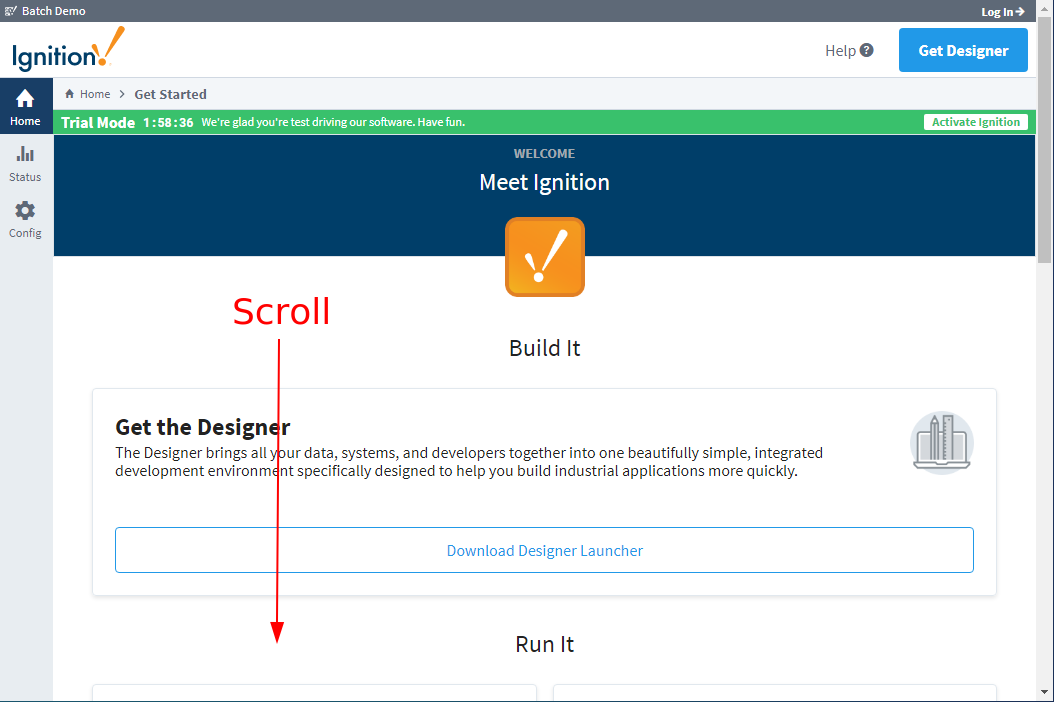
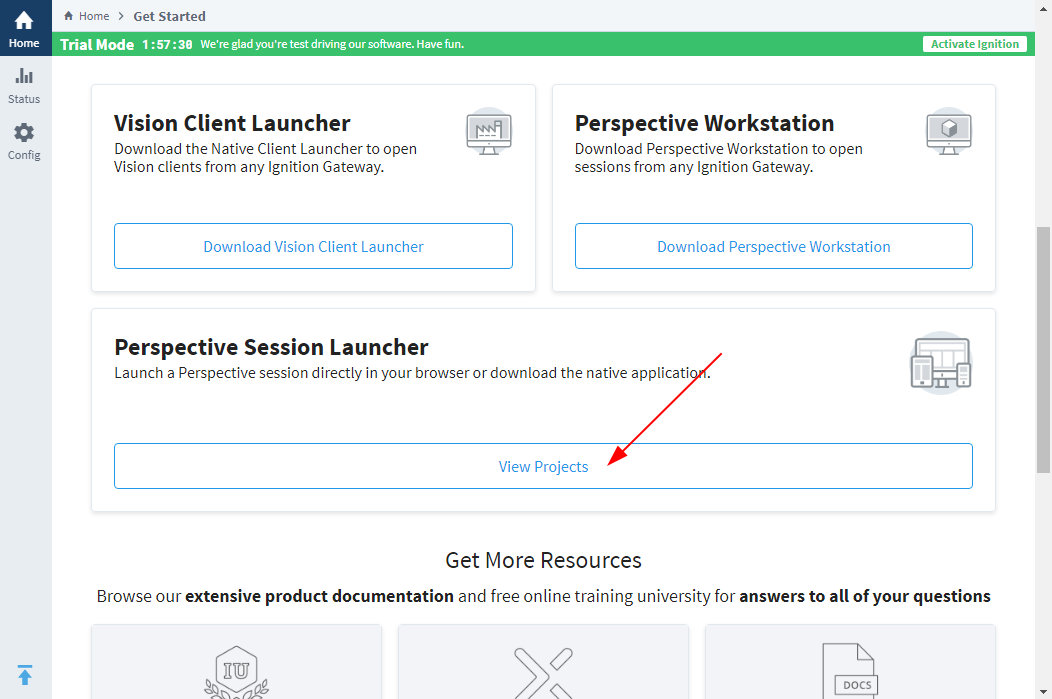
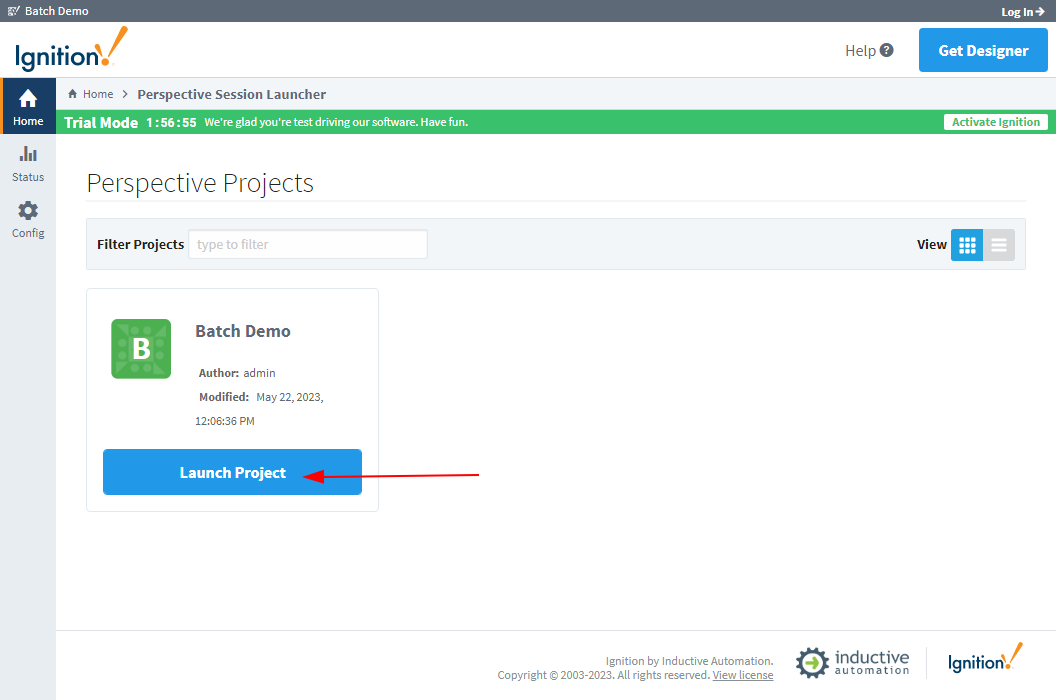
- Open http://127.0.0.1:9099 in a web browser to see the Ignition home screen. If it hasn't started yet, wait 30 seconds and try to reload the page. Once Ignition has started you can navigate to the Batch Demo application by scrolling down to "Perspective Session Launcher" and clicking "View Projects". On the next screen click the "Launch Project" button.
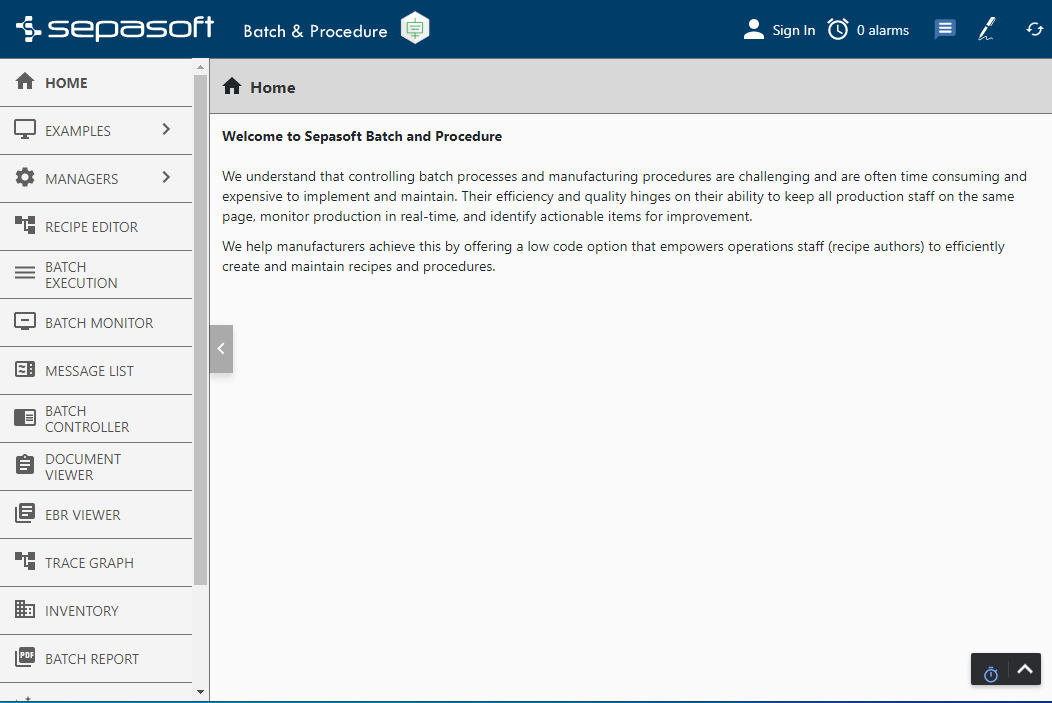
- The batch demo project doesn't require a login but the Ignition web pages and designer do. You can log in with the username
adminusing the passwordpassword.The password should be changed if Ignition will be accessible by anyone else.
Stopping Sepasoft Batch Demo
The demo server will remain running unless you either stop it with the stop.bat script, or stop Docker. To stop it with the script:
- Find the
stop.batfile that was extracted in the "Installing Sepasoft Demo" steps.
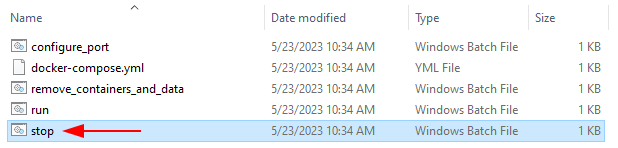
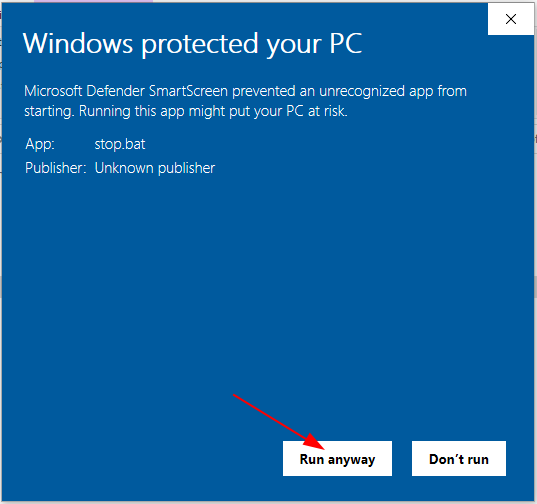
- Double-click the file to run it. If Windows Smart Screen blocks you from running the file, click "More Info", and then "Run anyway".
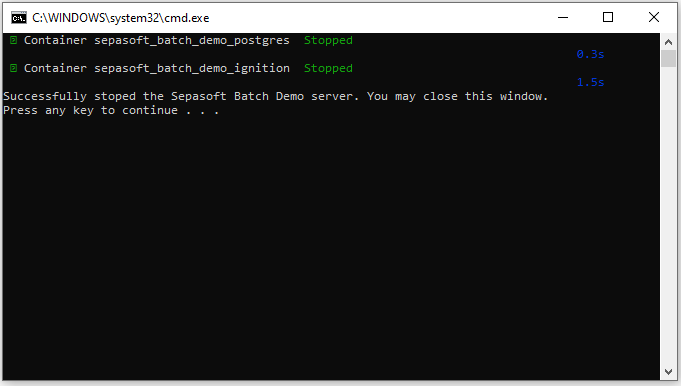
- If successful you'll see a message "Successfully stopped the Sepasoft demo server. You may close this window.
Removing Sepasoft Batch Demo
Performing these steps will remove the demo server and all data associated with it:
- Find the
remove_containers_and_data.batfile that was extracted in the "Installing Sepasoft Demo" steps.
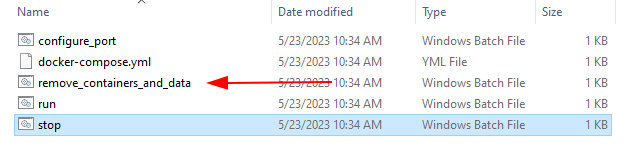
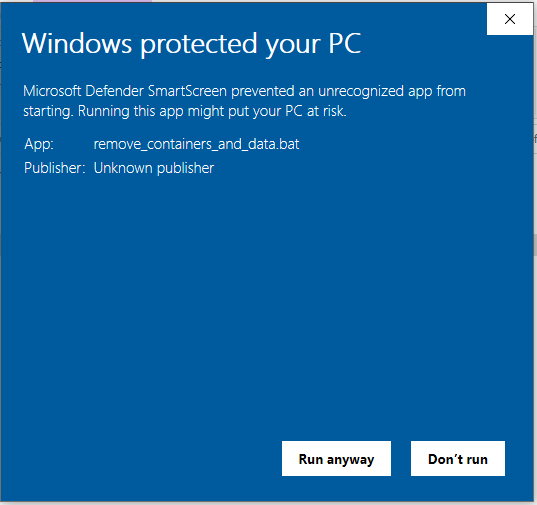
- Double-click the file to run it. If Windows Smart Screen blocks you from running the file, click "More Info", and then "Run anyway".
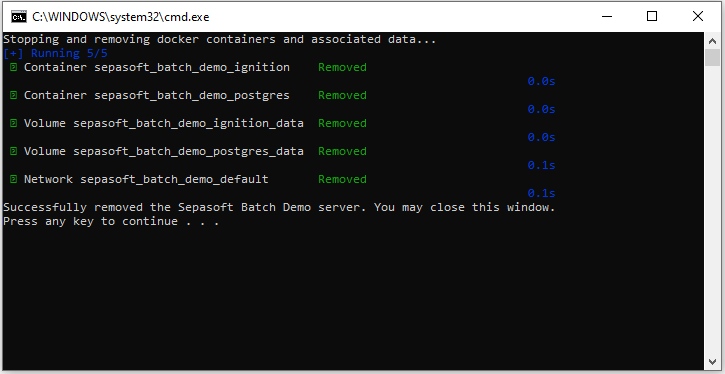
- If successful you'll see a message "Successfully removed the Sepasoft Batch Demo server. You may close this window."