Configure weatherREST API
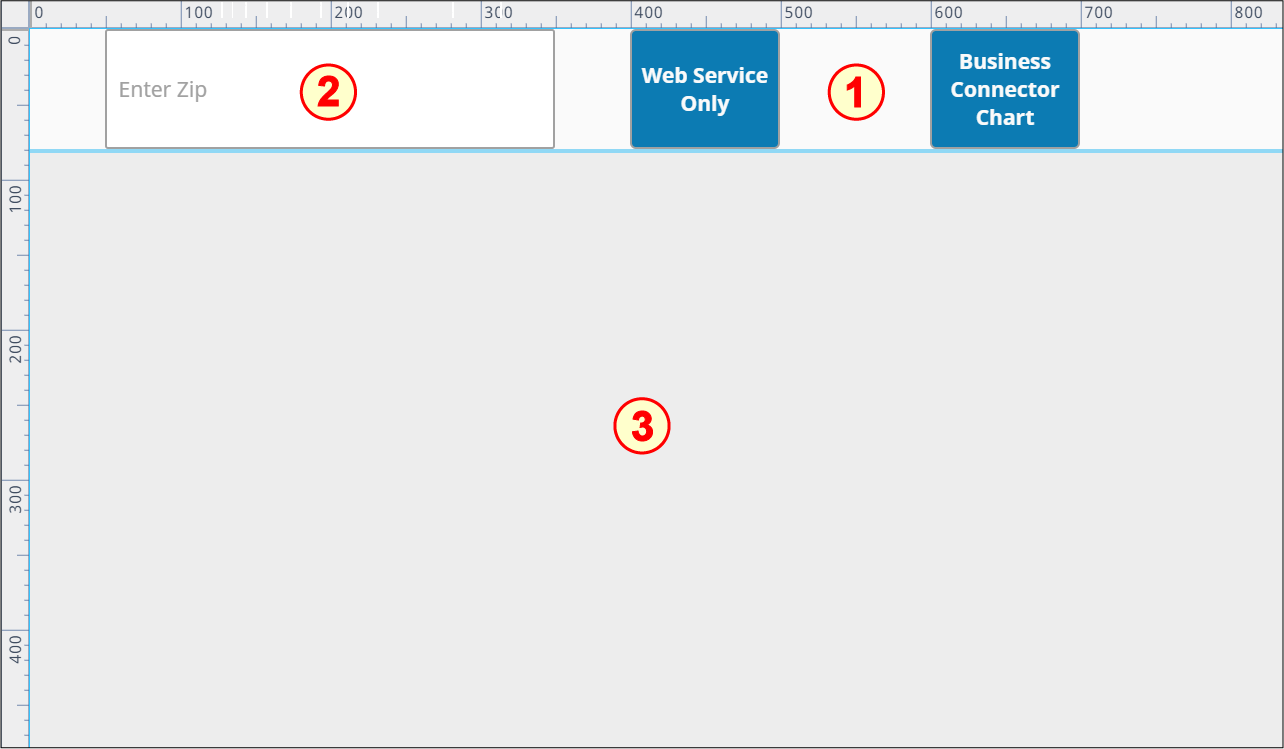
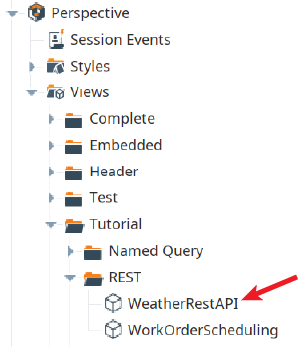
The weatherRestAPI view is located in the Perspective → Views → Tutorial → REST folder. Now configure it to call the getWeather consumer and display the results graphically using the Ignition Map component. Portions of the Perspective view have been been pre-built to save time.
The WeatherRestAPI view has three main components:
- Button (Ignition)
- Text Field (Ignition)
- Map (Ignition)
Configure Web Service Only Button to Execute getWeather API
Set up the Web Service Only button script to execute the getWeather API and return an Ignition dataset.
- Open the WeatherRestAPI view in your Tutorial folder
It has two Button components, one that will be configured to run the getWeather API directly, and another to run it via a Business Connector chart. It also has a Text Field component to collect a zip code. The Map component will display a Google map image for the location selected.
- Open root → webServiceSettings. Right-click on btn_ws and select Configure Events from the menu. A partially-built script has been provided in the onActionPerformed event.
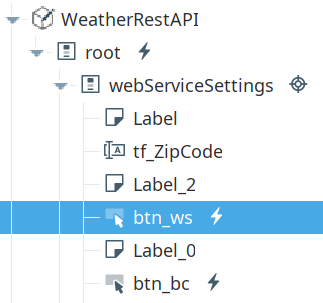
- In place of the six quotes and "Add WS Call here" on lines 4-8, paste in the following line, which will be used to capture the user-entered zip code in the Text Field:
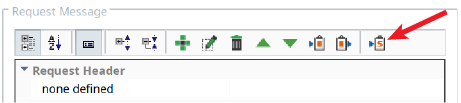
zip = self.getSibling("tf_ZipCode").props.text - In the Web Services section of the Project Browser, click on your getWeather RESTful Consumer and click Copy Sample Script to get a copy of what we need in order to execute getWeather from within a script elsewhere (in our case, a Button in a Perspective view).
- Navigate back to the btn_ws button script in the WeatherRestAPI view and paste the script below the new zip code line. In the third line of the pasted sample script, change the string containing the zip code digits to the variable zip (no quotes), to provide getWeather with the user-entered zip code value from the Text Field instead. It should look like this:
'zip': zip, - Remove the 5th line (containing appid) and the ending comma on the 4th line, since the getWeather API will get the key for your account from the tag openWeatherKey instead of feeding it just an empty string.
Perspective View
Python |
zip = self.getSibling("tf_ZipCode").props.text results = system.ws.runWebService("Complete/getWeather", { # Query String Variables: 'zip': zip, 'units': "Imperial" }, None, None) data = system.ws.toDict(results) city = data['Root']['name'] lat = data['Root']['coord']['lat'] lon = data['Root']['coord']['lon'] temp = data['Root']['main']['temp'] humidity = data['Root']['main']['humidity'] #center on lat/lon self.parent.parent.getChild("Map").props.init.center = { "lat": float(lat), "lng": float(lon) } #add marker and pass params to view self.parent.parent.getChild("Map").props.layers.ui.marker[0] = { "name": "", "lat": float(lat), "lng": float(lon), "opacity": 1, "icon": { "path": "material/location_on", "color": "#4190F7", "size": { "width": 36, "height": 36 }, "style": { "classes": "" } }, "tooltip": { "content": { "text": city, "view": { "path": "Embedded/WeatherPopup", "params": { "temp": temp, "name": city, "humidity": humidity, } } }, "direction": "auto", "permanent": False, "sticky": False, "opacity": 1 }, "popup": { "enabled": False, "content": { "text": "", "view": { "path": "", "params": {} } }, "width": { "max": 100, "min": 50 }, "height": { "max": None }, "pan": { "auto": True }, "closeButton": True, "autoClose": True, "closeOnEscapeKey": True, "closeOnClick": None } } |
Configure Web Service Only Button to Display on Map
Next, we'll set up the Web Service Only button script to parse the Ignition dataset returned by the getWeather API and display the selected location on the Map component, along with the familiar marker pin and an associated hover tooltip.
- Paste the following line below the sample script, to turn the returned Ignition dataset into a Python dictionary called data:
data = system.ws.toDict(results) - Now, we'll write some of the data returned by the weather app into associated properties in the Map component , so it can display a map centered at our coordinates. Replace the five lines under the comment "get data from ws response" with the lines below, so that values passed to the Map component will be coming from the dictionary data instead of just being fixed values.
city = data['Root']['name']
lat = data['Root']['coord']['lat']
lon = data['Root']['coord']['lon']
temp = data['Root']['main']['temp']
humidity = data['Root']['main']['humidity']
Note that the lines under the comment "center map on lat/lon" will cause the Map component to display a map centered on the latitude and longitude provided by the getWeather API.
Note also that the script command under the comment "add marker and pass params to view" will cause the Map component to display a marker pin configured with the values specified (including the same latitude and longitude values). The marker's optional hover tooltip is also configured to display the city and the current temperature and humidity. The command populates the property fields in the Map component shown to the right (layers → ui → marker in the PROPS area in Designer).
The completed script should look like this:
Python |
zip = self.getSibling("tf_ZipCode").props.text results = system.ws.runWebService("Complete/getWeather", { # Query String Variables: 'zip': zip, 'units': "Imperial" }, None, None) data = system.ws.toDict(results) city = data['Root']['name'] lat = data['Root']['coord']['lat'] lon = data['Root']['coord']['lon'] temp = data['Root']['main']['temp'] humidity = data['Root']['main']['humidity'] #center on lat/lon self.parent.parent.getChild("Map").props.init.center = { "lat": float(lat), "lng": float(lon) } #add marker and pass params to view self.parent.parent.getChild("Map").props.layers.ui.marker[0] = { "name": "", "lat": float(lat), "lng": float(lon), "opacity": 1, "icon": { "path": "material/location_on", "color": "#4190F7", "size": { "width": 36, "height": 36 }, "style": { "classes": "" } }, "tooltip": { "content": { "text": city, "view": { "path": "Embedded/WeatherPopup", "params": { "temp": temp, "name": city, "humidity": humidity, } } }, "direction": "auto", "permanent": False, "sticky": False, "opacity": 1 }, "popup": { "enabled": False, "content": { "text": "", "view": { "path": "", "params": {} } }, "width": { "max": 100, "min": 50 }, "height": { "max": None }, "pan": { "auto": True }, "closeButton": True, "autoClose": True, "closeOnEscapeKey": True, "closeOnClick": None } } |

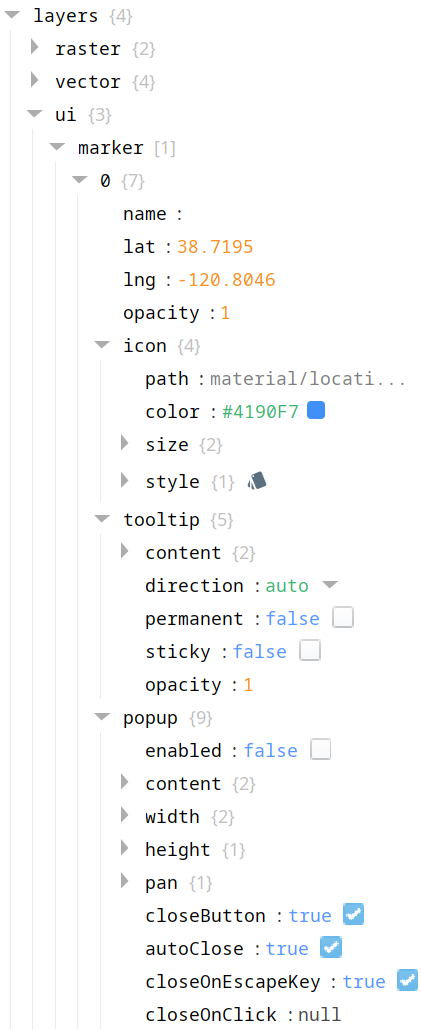
Marker properties in Map