Create Calculator SOAP Provider from WSDL Import
This method contrasts sharply with the first exercise. Where Exercise 1 represented a "schema-first" design built manually within Ignition, this exercise demonstrates a "logic-first" approach. By importing a pre-defined WSDL file, you create a provider where the service's contract—its operations and data types—is already established. This significantly reduces manual configuration and allows you to focus immediately on implementing the business logic for each operation.
Designer Launch
 |
Launch the designer using the ipaddress:port instead of localhost:port. The WSDL will be generated based on the designer setting, which may not route correctly from a consumer. |
Importing the WSDL File and Initial Setup
This process begins by importing the
calculator.asmx.wsdl file directly into the Web Services project structure.- In the Project Browser, right-click on the Tutorial folder located under
Web Services → Providers → SOAP Endpoints. - Select the option to Import WSDL File and choose
calculator.asmx.wsdl. This action will automatically create a new SOAP provider with all its structures and operations pre-defined.
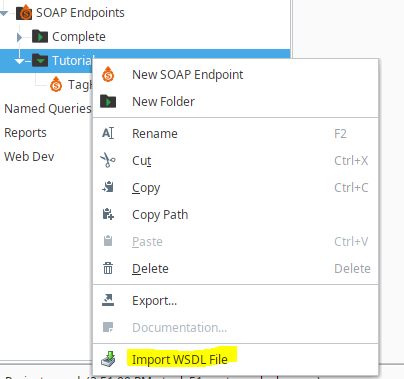

|
It is recommended to launch the designer using the server's IP address and port (e.g., 192.168.1.10:8088) instead of localhost:8088. The WSDL generated by the provider is based on the designer's connection setting, and using localhost may cause routing issues for external consumers. |
Scripting the Imported Operations
While the WSDL import creates the service structure, the functional logic for each operation must still be added via scripting. You need to edit each imported operation to provide the functionality described by its name.
For the
Add operation, the following Python script demonstrates how to access the input values, perform a calculation, and structure the response.Python |
def Add(input) # function definition already included in the function. Added here as example. |
This script accesses the two input integers, intA and intB, from the request body, performs the addition, and places the result in the AddResult field within the output_body dictionary, which is then returned as the SOAP response.
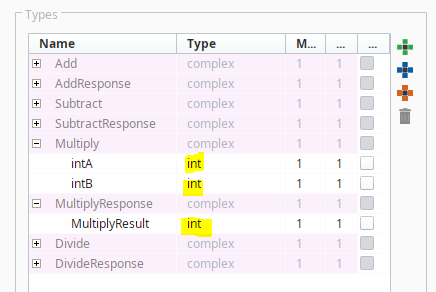
- Modify the data type of an operation inputs and output.
Creating and Testing the Corresponding Consumer
To test the new provider, a corresponding consumer must be created.
- In the Project Browser, navigate to the SOAP Consumers section, right-click the
Tutorialfolder, and select New SOAP Configuration. Rename it as desired (e.g.,Calculator). - n the newly created provider (e.g.,
calculator.asmx), right-click and select Copy WSDL URL.
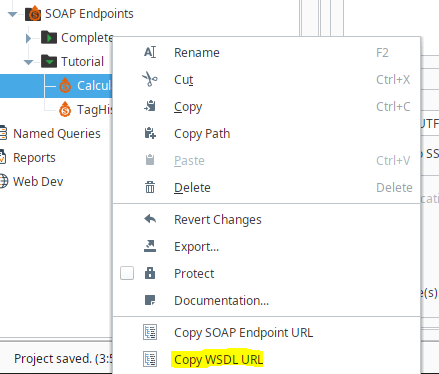
- Paste the copied URL into the WSDL URL field of the new consumer.
- Click the Refresh button to populate the operations from the endpoint.
- Be sure to save the project after all editing is complete.