Add and Configure MES Equipment Manager
Configure the MES Equipment Manager component on the window OEE_01_GUI/01_Configuration.

|
On these next three pages, you'll configure the MES Equipment Manager, Material Manager and Schedule Management components. Generally, these three components are for administrators only and are unavailable to production floor staff. When all three are put on a screen with an Ignition Tab Strip component, they provide a powerful, one-window portal for handling a wide variety of set-up, configuration and monitoring tasks. |
We'll start with the first of the three components here (the MES Equipment Manager):
Configure MES Equipment Manager
The MES Equipment Manager component is used for editing the properties of your Production Model equipment items. First, we need to configure the MES Equipment Manager component itself, so it works with the Ignition Tab Strip component in this tutorial. Follow the steps below.
There are two components:
- Tab Strip (Ignition, already in place for you)
- MES Equipment Manager
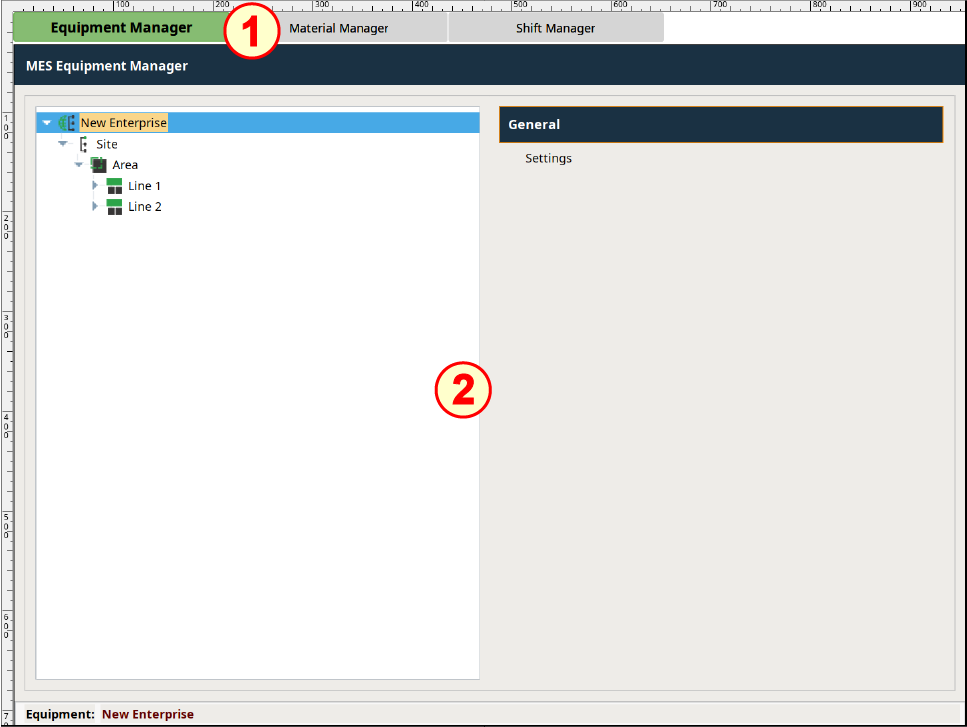
Configure the components as follows:
- Drag the MES Equipment Manager component from the OEE Downtime component palette onto the window and position it under the Tab Strip (built for you already), so it looks like the image above. Resize to the remaining area of the window.
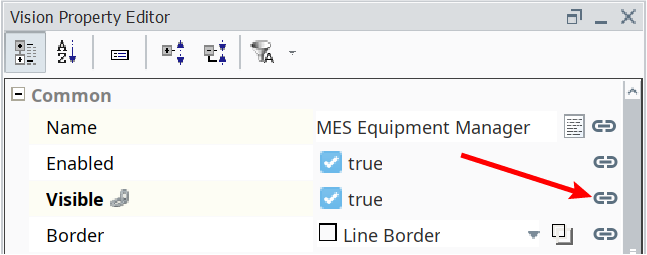
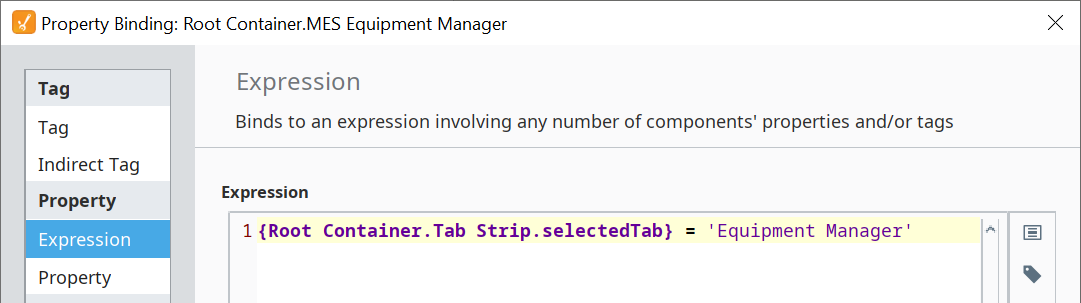
- Bind the Visible property to the following expression. This will cause the MES Equipment Manager to be visible only when the user clicks on the "Equipment Manager" tab in the Tab Strip component.
- OEE Equipment Manager 'Visible' expression
Python |
|
|
|
When you click on each of the tabs in the Tab Strip component, the MES Equipment Manager is only visible when the "Equipment Manager" tab is clicked, else it hides. |
Test the MES Equipment Manager
You may or may not see the equipment items from your Production Model displayed in the MES Equipment Manager:
If you see the equipment items displayed in the MES Equipment Manager, then proceed to the next page of the tutorial (it's working).
If you don't see your equipment items, then restart the Production module, as follows:
- On the Ignition Gateway page, navigate to the Configuration tab. Click Modules in the left column.
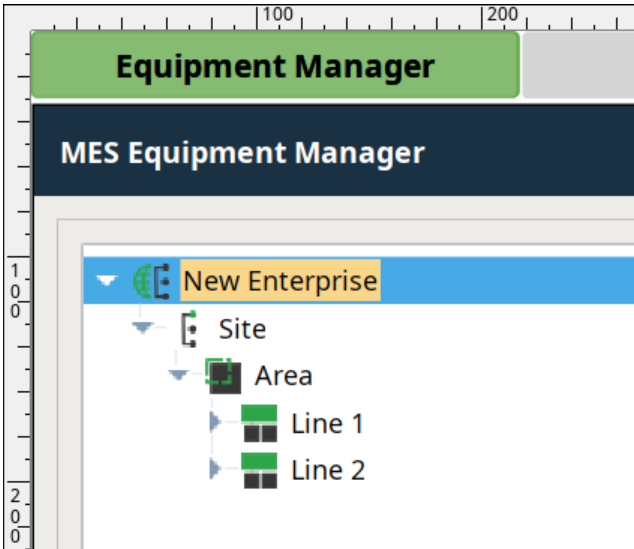
- Scroll down to the Production module, click restart and then Confirm. The Production module will restart and you should now see the equipment items displayed, as shown to the right.