Configure OEE Tags
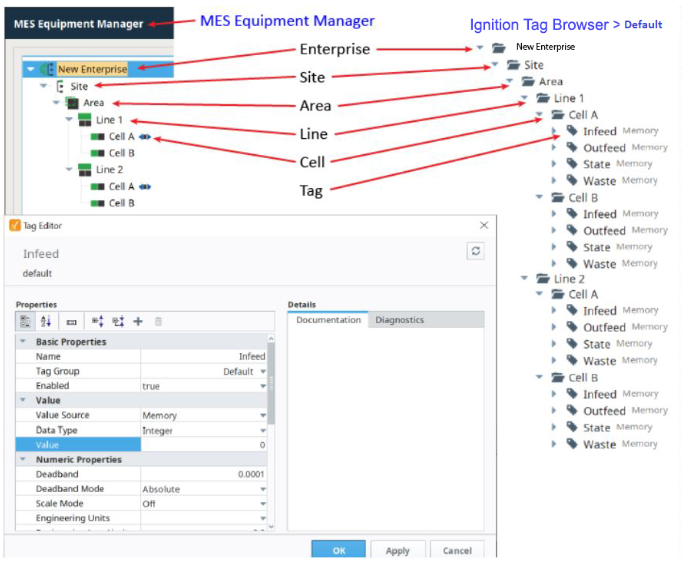
Create the following Tag folder structure and Tags (if you haven't already created it in a previous section). The paths are deliberately created to exactly match the Production Model, so the "{Equipment Path}" prefix can be used in scripting for the Equipment Path to simplify Tag handling (as well as being able to use the Copy Tag Path command in the Production Model when assigning tag paths).
Add Default Tag Group
To add a Tag Group:
- In Ignition Designer >Tag Browser, click the three dots on the right side of the panel.
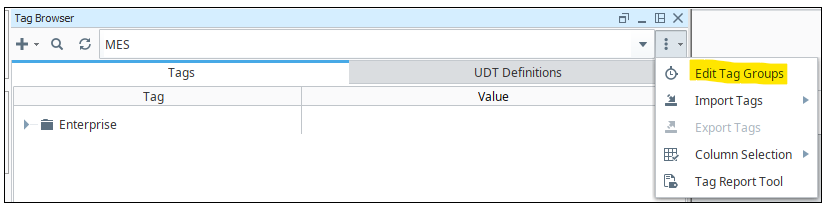
- Click the Plus icon to add a new tag group and name it: Default.
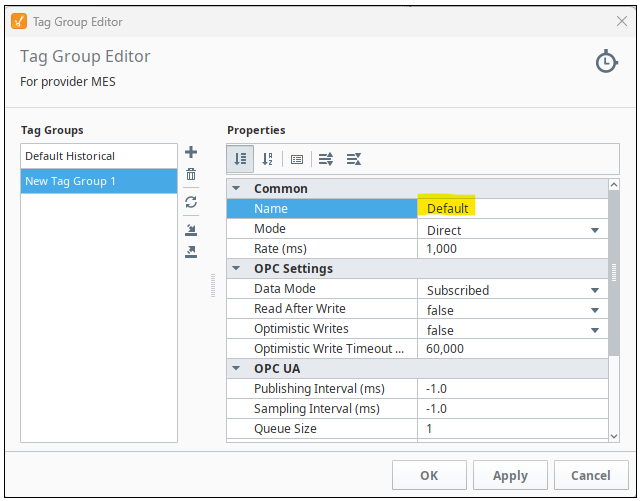
- Click OK.
Create Tag Folders
-
Create the following folder tree in
Tags
in the Tag Browser, within the Default Tag Provider to match the the Production Model items in
New Enterprise
:
- Create a Site folder called Site .
- Create an Area folder called Area .
- Create two Line folders called Line 1 and Line 2 .
- In both the Line 1 and Line 2 folders, create Cell folders called Cell A and Cell B .
Create Tags
-
In the Cell A folder of Line 1, create four Memory Tags as data type Integer:
Infeed , Outfeed , Waste and State .
- Highlight all four tags, right-click and select Copy. Paste these same four tags into the other three Cell folders. Your completed tag structure should look as shown below.
Create MES Counters
Tags you just created will drive OEE functionality via
-
In the MES Equipment Manager, click to highlight Cell A of Line 1.
-
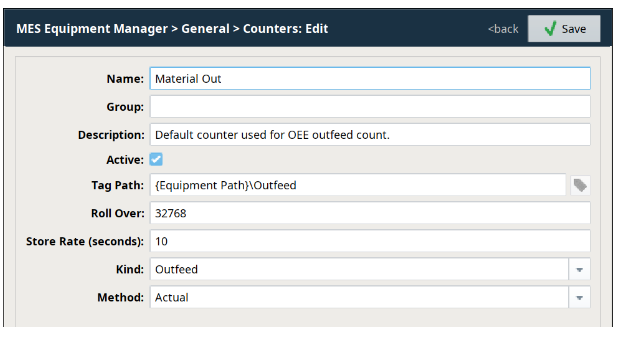
In the General section, click Counters and click the Edit button on the right side for the
Material Out
counter in the MES Counter section. Edit the following:
- Tag Path: {Equipment Path}\Outfeed
- Store Rate: Change to 10 (seconds)
- Kind: Should already be set to Outfeed
- Method: Set to Actual
-
Create two new counters,
Material In
and
Waste
with settings as shown to the right and below (in Counters, click
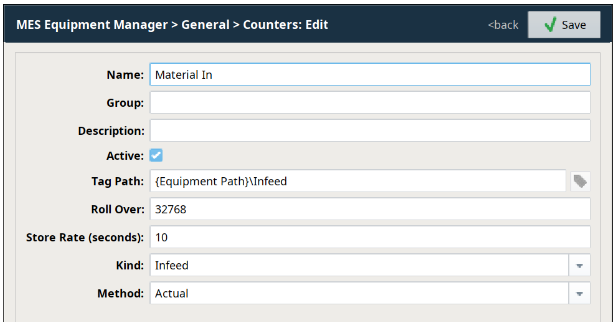
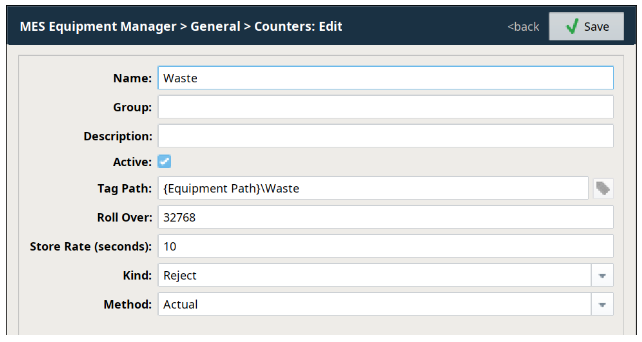
- Edit/create (or copy/paste) the same three counters for the other three Cells.
Assign State Tag Paths
OEE calculations require State inputs at the Cell and/or Line level, to know the local status of equipment (i.e. is the cell running or down?). In this tutorial, we will use a State memory Tag in each Cell to simulate the state of each Cell.
-
In the MES Equipment Manager, click to highlight Cell A of Line 1.
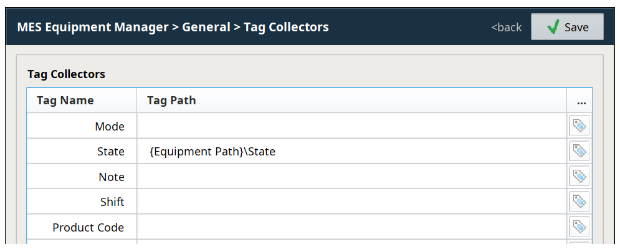
- In the General section, click Tag Collectors.
-
Type {Equipment Path}\State into the State field and hit Enter (you must hit Enter before you click Save, or your change will not be saved!)

|
Using the implied Equipment Path {Equipment Path}
is the preferred method, instead of explicitly providing the entire tag path string, since it allows easy 'copy/paste' duplication of Cells and Lines without having to go in and manually update all of the tag paths.
|
- Repeat for the other three Cells (using the string {Equipment Path}\State each time means that each Cell's State Tag Path will point to the State Tag in that Cell's corresponding folder).
Add Additional Factors
The Analysis Engine within the OEE Downtime Module can utilize historical data from custom additional factors that might be useful for improving efficiency and tracking downtime or production delays. These additional factors are created at the Line or Cell level.
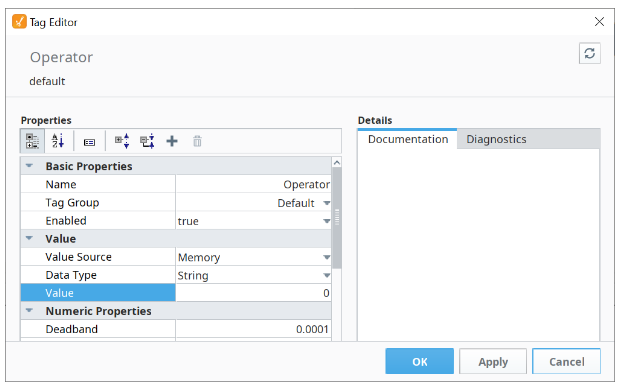
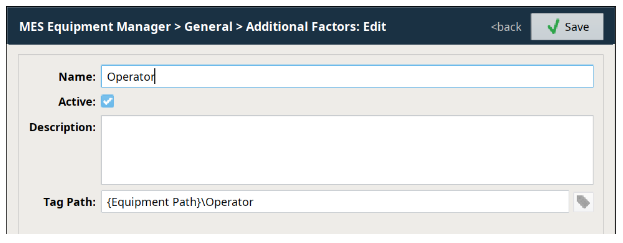
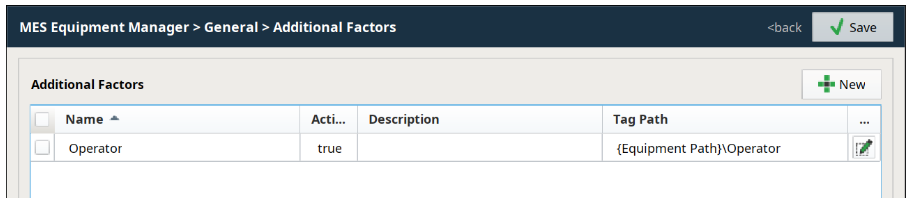
For this tutorial, create an Additional Factor called Operator for Line 1:
- In the Tag Browser, create a new Memory Tag called Operator in the Line 1 folder of type String.
-
In the MES Equipment Manager, click to highlight Line 1.
-
In the General section, click Additional Factors.
-
Click
- Repeat for Line 2 (create the same Tag and Additional Factor).
- Save Your Ignition Project.