Monitor Functions
Interact with data from the MES Monitor component through scripting with system.mes.monitor functions.
Create and Manipulate a Custom Counter
Create a Custom Counter on the MES Monitor and manipulate its value:
Click the Create Counter button, which contains the following script line:
Create Counter Button
Codesystem.mes.monitor.count("Counter1")
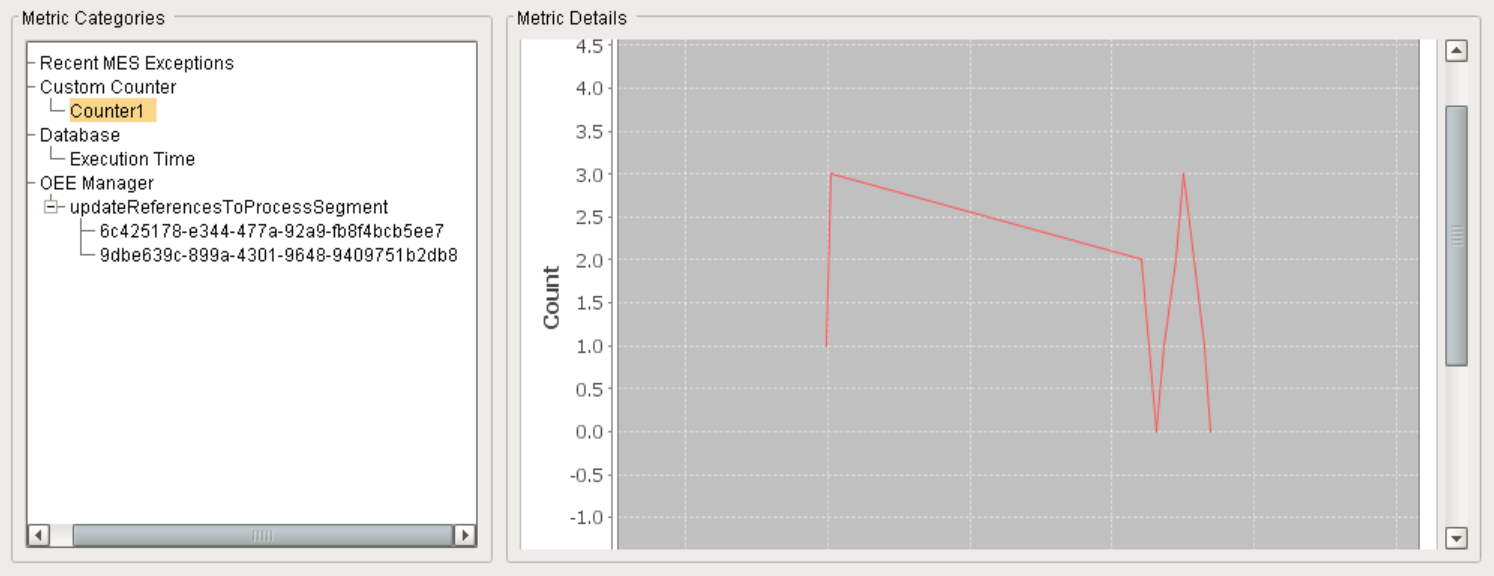
- Navigate in the Metric Categories pane of the MES Monitor to find the new counter, Counter1. Click to highlight it.
Click the Increment and Decrement buttons to manipulate the value of the counter. Those buttons contain the following scripts:
Increment Button
Codesystem.mes.monitor.count("Counter1").increment()Decrement Button
Codesystem.mes.monitor.count("Counter1").decrement()- Observe how the counter value is reflected on the graph in the Metric Details pane (updated every 60 seconds). Right-click on the graph and select Zoom Out → All Axes to shrink the graph.
Reference
- system.mes.monitor.count
Create and Manipulate a Custom Value
Create a Custom Value on the MES Monitor and manipulate its value:
Click the Value button to create a new Custom Value, called MyValue (the first write will create it if it doesn't exit). The button contains the following script line:
Value Button
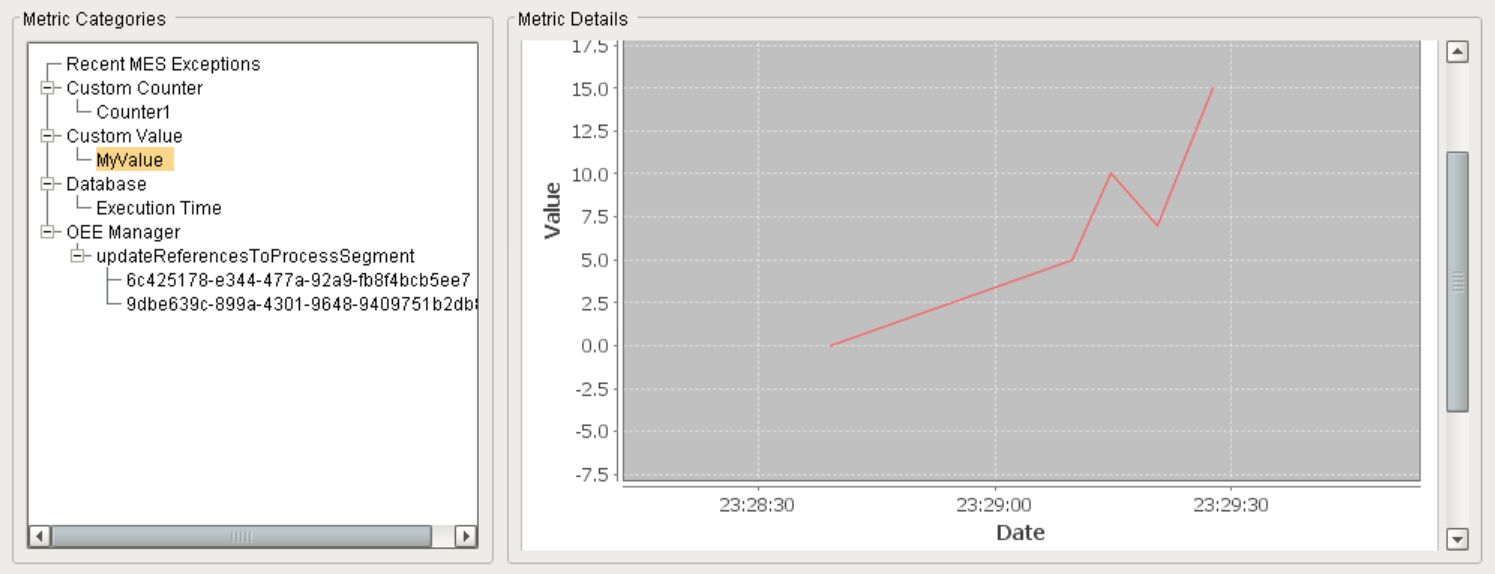
Codex = event.source.parent.getComponent('Numeric Text Field').doubleValue system.mes.monitor.value('MyValue', x)- Navigate in the Metric Categories pane of the MES Monitor to find the new counter, Myvalue. Click to highlight it.
Enter different values into the Numeric Text Field (suggestion: between 1 and 20) and click the Value button each time, to manipulate the value of the Custom Value.
- Observe how the Custom Value is reflected on the graph in the Metric Details pane (updated every 60 seconds). Right-click on the graph and select Zoom Out → All Axes to shrink the graph.
Reference
- system.mes.monitor.value
Create an Exception
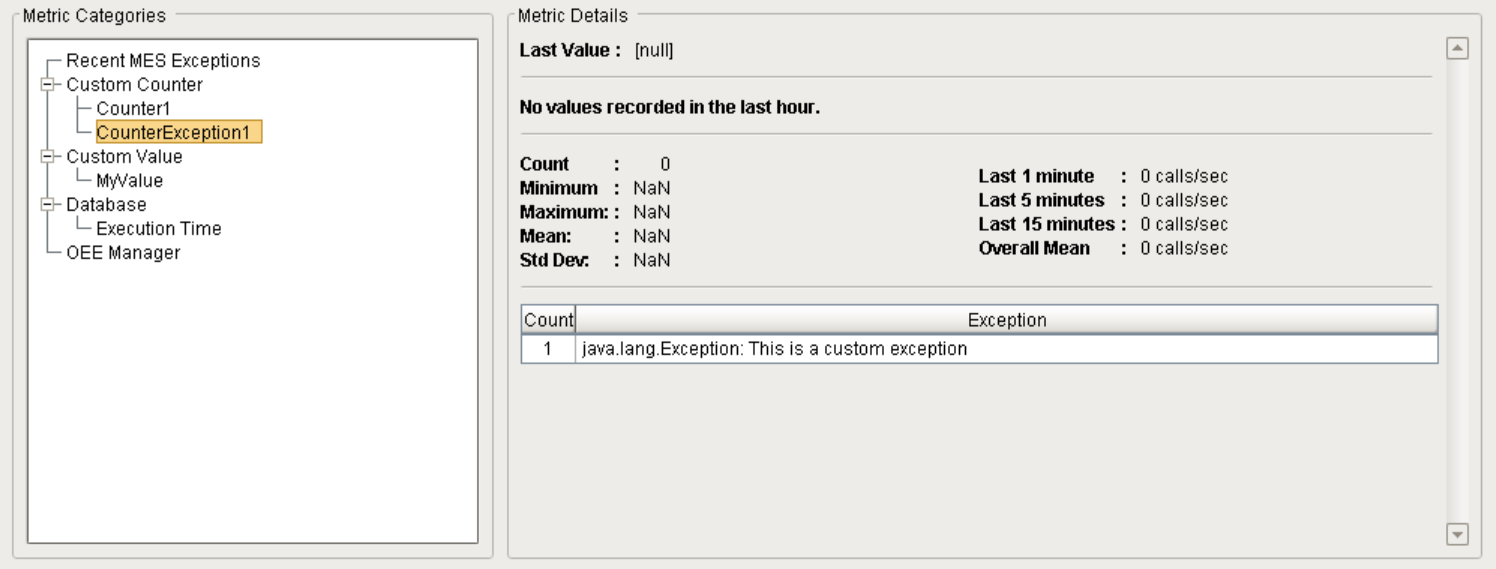
Create a new Counter Exception:
Click the Add Exception button to create a new Counter Exception called CounterException1, which will appear in the Custom Counter section of the Metric Categories pane. The button contains the following script line:
Add Exception Button
Codefrom java.lang import Exception system.mes.monitor.count("CounterException1").addException(Exception('This is a custom exception'))
Reference
- system.mes.monitor.addException