Configure Production Line
Create Equipment in the Production Model
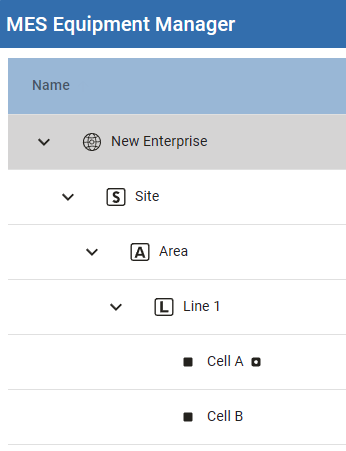
- In the Equipment Manager component, create this structure:
- Create a Site called Site.
- Create an Area called Area.
- Create a Line called Line 1.
- In Line 1, create two Cells called Cell A and Cell B.
- Make the each node in the line Active in the Equipment Manager property panel, on the right.
- Save the project.
Scripting Bonus
The following script creates a line under the "Test Area", then creates the recipe set points linked to the tag server. Review first and ensure the tags are present.
Create Line within an Area
|
##Create a New Line in a given Area:
parentObj = system.mes.loadMESObject('Test Area', 'Area')

##Create a new line, set the name, set it as active, make it a child of the area, and save the object.
newMESObj = system.mes.createMESObject('Line')
newMESObj.setPropertyValue('Name', 'Line B')
newMESObj.setActive(1)
newMESObj.addParent(parentObj)
system.mes.saveMESObject(newMESObj)


eqPath = 'New Enterprise\Site\Test Area\Line B'
setPointNames = ['Torque Setting 1', 'Torque Setting 2', 'Zero Location', 'Vacuum Pressure Target']
baseTagPath = '{Equipment Path}/'
tagDataType = 6
### int is 4
### float4 is 6
### float8 is 8

##Load the Line we created above.
obj = system.mes.loadMESObjectByEquipmentPath(eqPath)

##Loop through the setpoints, setting the tag, tag type, and default value for the recipe value item.
for sp in setPointNames:
    defaultRecipeValue = obj.createDefaultRecipeValue(sp)
    defaultRecipeValue.setTagPath(baseTagPath + sp)
    defaultRecipeValue.setRecipeDataType(tagDataType)
    defaultRecipeValue.setDefaultValue(10.0)

##Save the line after the recipe changes.
system.mes.saveMESObject(obj)
|
Next