Self-Paced Training Tutorials
Training Tutorial Prerequisites
Use Ignition with Sepasoft 3.80.0 modules with these tutorials.
Requirements:
- A Windows PC (or virtual Windows environment)
- Inductive Automation Ignition Gateway software
- MySQL database (created using MySQL Workbench)
- Sepasoft MES modules

|
Use a clean Ignition install and new MySQL database for this tutorial. Remnants from old projects could interfere with the tutorial outcome. |
See below:
- Install Ignition
- Install a Database Server
- Supported Databases
- Install MSSQL Server
- Download MySQL
- Install MES Modules
- Configure Database Connection
- MES Module Settings
- Setting Up for MES 3.0 Training
- Check to enable Enterprise Root
- Gateway Comm Mode
Install Ignition
Click the link below to go to Inductive Automation's Downloads page and click Download for Windows:
- Follow the downloading and installation instructions.
Install a Database Server
A database server is required to store your project and historical values during operation. This tutorial utilizes MySQL. Install both the MySQL Server (the database) and MySQL Workbench (the toolkit you use to create and maintain schemas).
Supported Databases
- Microsoft® SQL Server
- MySQL
- Oracle
- Postgres
Install MSSQL Server

|
Modules require MSSQL database connections to use Read Committed Snapshot. Fresh databases will be forced to have the setting turned on, and prevent module spin up. Upgraded gateways will only log a warning, but allow module spin up. For details, see Database | Check for MSSQL Snapshot on Startup. |
Download MySQL
Download MySQL Server (installer)
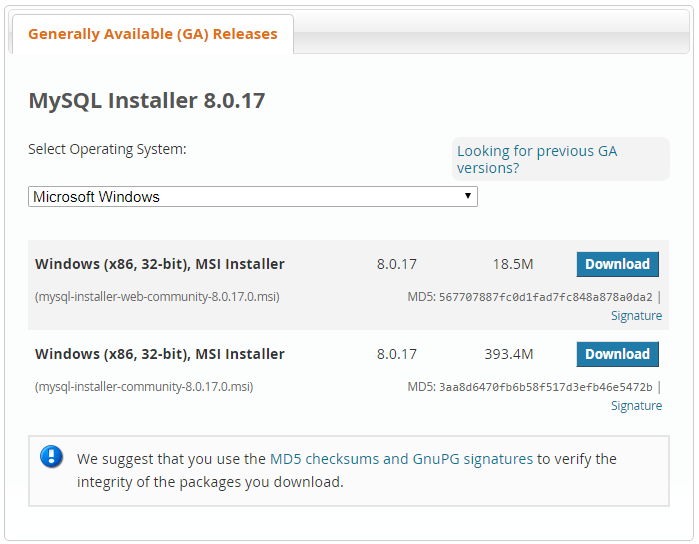
Which MySQL Installer MSI file?
 |
Either choice will work. Generally, choose the first option, since you will have a working internet connection during installation. |
- Follow the downloading and installation instructions on their download page.
- Follow the downloading instructions on their download page (choose the "Complete" option).
- Open the MySQL Workbench application.
- Right-click in the SCHEMAS pane and select Create Schema...
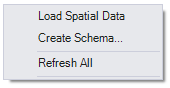
- Name the new schema mes. Click Apply.
- A dialog box appears, already pre-configured to run a SQL command to create your new schema. Click Apply. The command will create the new schema. Click Finish.
- Close the MySQL Workbench application (no configuration is required).
| |
Write down your MySQL password. You will need it later when configuring Ignition/MES. |
Install MES Modules
Download and install the Sepasoft MES modules listed below (latest version of each) required for the demo and the tutorial. Please note that the version numbering should be consistent with your Ignition instance. Sepasoft 3.0 modules indicates inclusion of the enterprise feature set.
- Production (install last)
- Batch Procedure
- Track and Trace
- OEE Downtime
- SPC
- Settings & Changeover
- Web Services
- Business Connector
- Document Management
- On the Ignition Gateway page (localhost:8088/main/web/home), navigate to the Configure tab. Click Modules in the left column.
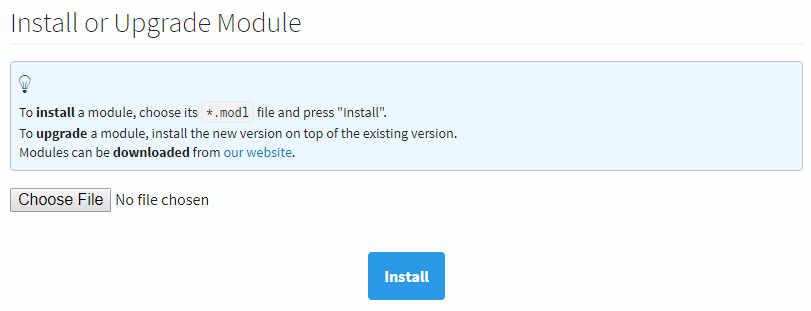
- At the bottom of the page, click:

- Click Choose File and then select the module .modl file to install
(see top-right figure). The modules may be installed in any order, except for the Production module, which should be installed last. - Click Install and accept the licensing agreement (click the checkbox,
see bottom-right figure). Confirm again to trust and install the module. - Click Okay. The module will install.
- The module installed should show as Trial and Running on the Module Configuration page.
Configure Database Connection
The MES modules create and maintain their own schemas to store configuration information and production data. All you have to do is provide the database for them to reside in.
This tutorial uses MySQL, so we'll utilize a MySQL ConnectorJ connection to the mes database schema that you created earlier.
To configure the MySQL database:
- Log in to your Ignition Gateway page (localhost:8088/main/web/home).
- Go to: Configure tab → Databases section → Connections.
- Click Create new Database Connection...
- Choose the MySQL ConnectorJ and click Next.
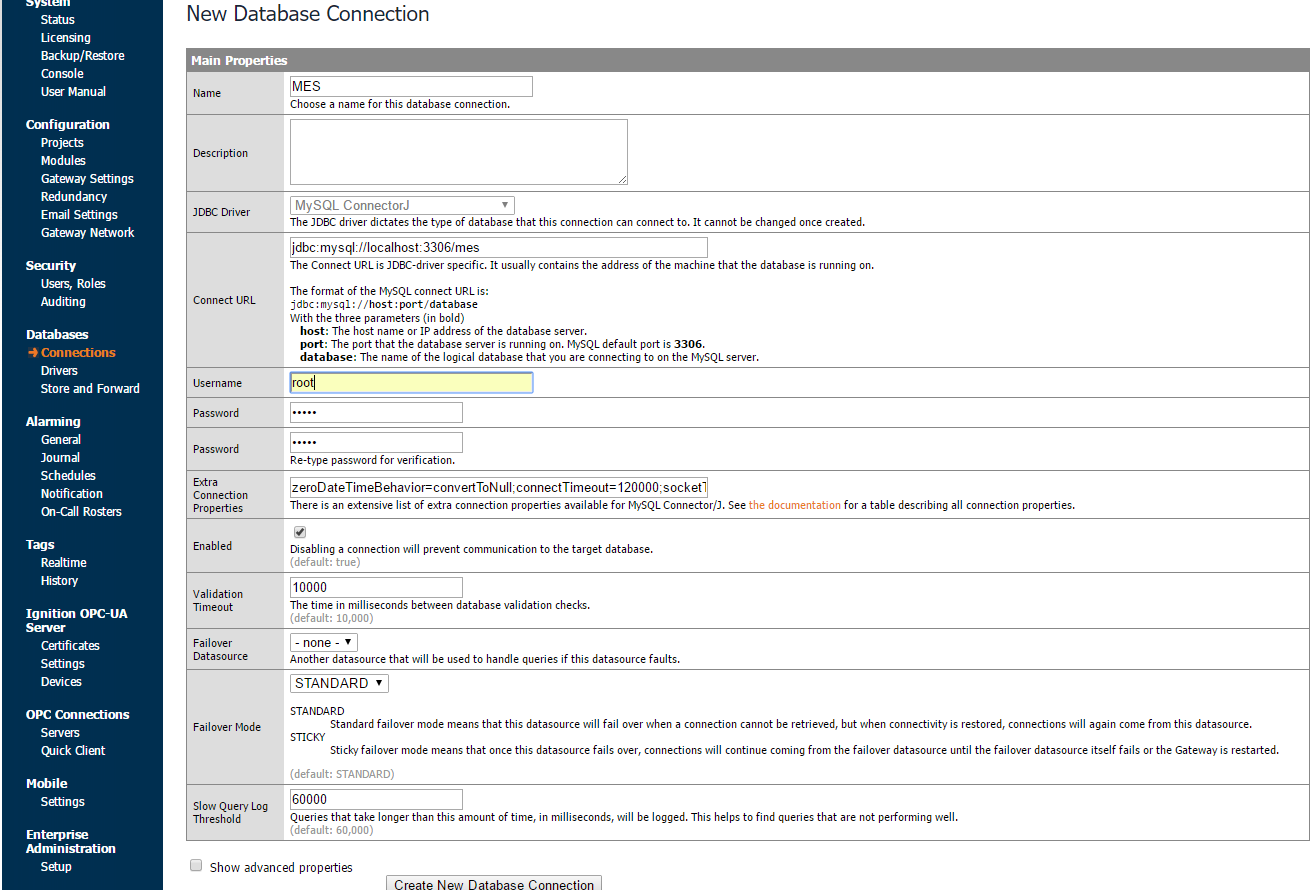
- Complete the following configuration items below:
- Name: mes
- Connect URL: jdbc:mysql://localhost:3306/mes
- Username: root
- Password: 12345 (or whatever password you used to create the database originally)
- Extra Connection Properties: Append
serverTimezone=UTC to the end of the settings. This is a new requirement for MySQL Connector/J . More info is available in Section 4.14 and Section 4.3.3.1.7 of the MySQL documentation.
- Click Create New Database Connection at the bottom of the page.
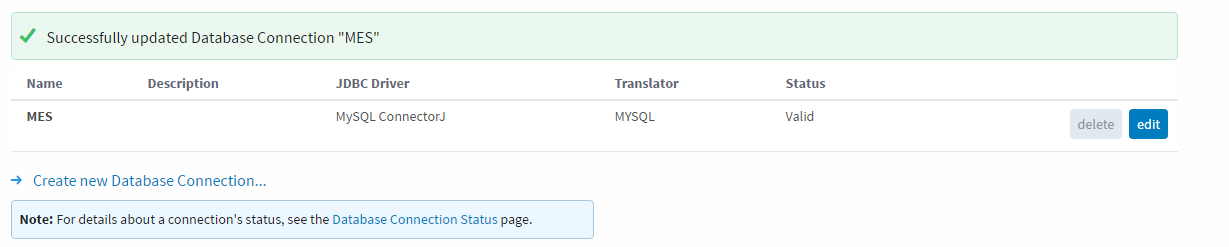
- Verify that the connection displays valid on the database status page before continuing to the next section. We now have a connected database to store the MES data in.

MES Module Settings
The MES Modules store data in a MySQL database. Because Ignition can be configured to use multiple databases, the MES Module Settings configuration page is used to select which database will be used by the MES module(s) to store data in. If only one database has been configured in Ignition, then it will be selected by default.
Do the following:
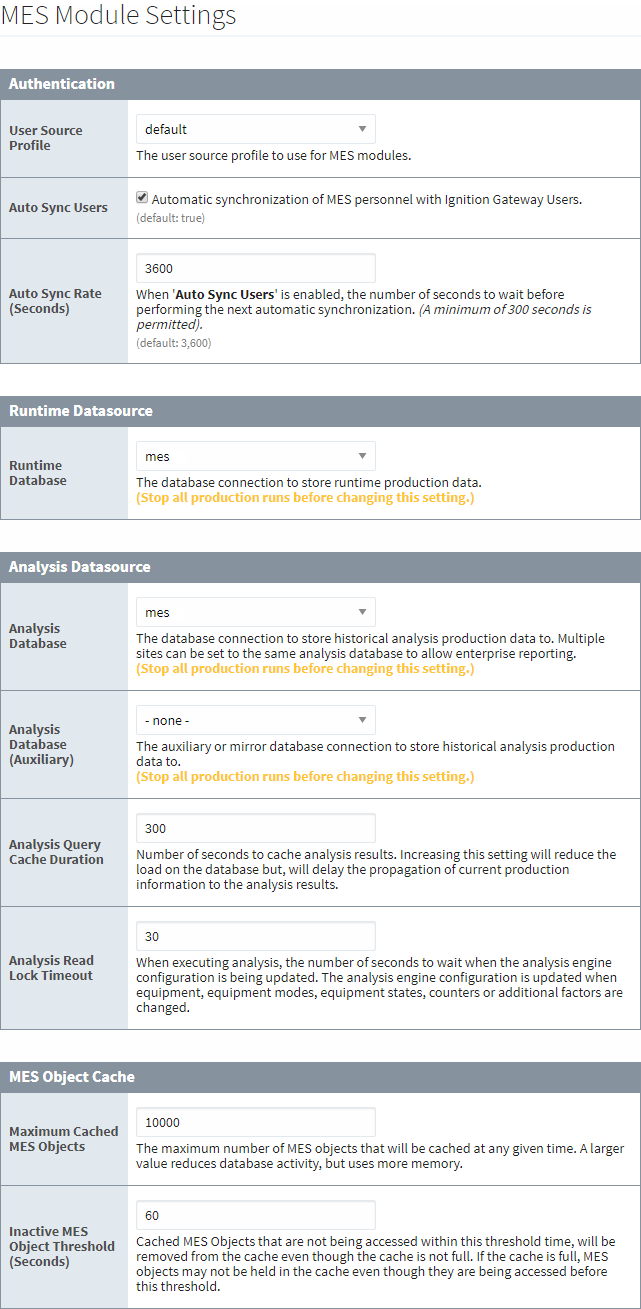
- Log in to the Ignition Gateway Configure page and navigate to MES Modules → Settings.
- In the Authentication section, set User Source Profile to the profile that the MES system will use. For this training, we will use default.
- Set the Runtime Database to point to mes (the database connection we recently created).
- Set the Analysis Database to also point to mes (analysis data captured via the MES OEE Module will share the same database).
- Save your changes.
Setting Up for MES 3.0 Training
You need to configure MES Enterprise Settings. For this tutorial, we'll be using one Ignition server in a stand-alone fashion, not in a multi-server connected enterprise.
Therefore, we'll complete the following steps:
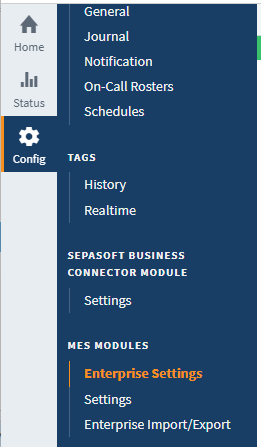
- Ignition Gateway > Config > MES > Enterprise Settings ( You must have the production module installed for the MES category )
Check to enable Enterprise Root
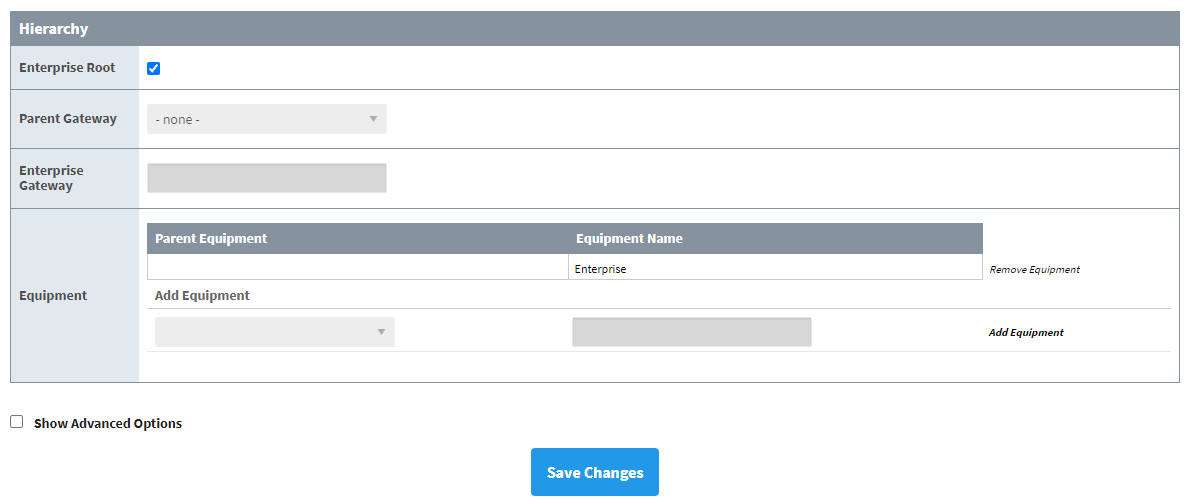
- Save Changes.
This gateway is now the top level of the Production Equipment Model structure. Enterprise
Gateway Comm Mode
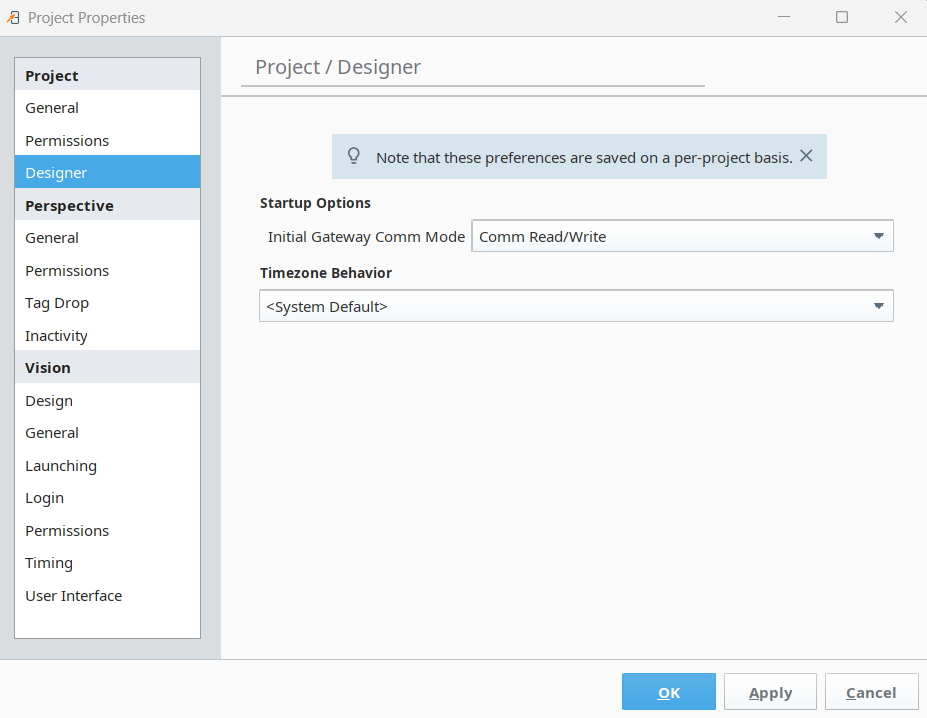
- In Ignition Designer file menu, open Project → Properties.
- In the Designer → , set the Initial Gateway Comm Mode to full Comm Read/Write.