Configure Analysis Data
The Analysis Data page on the window SPC_03_Scripting/03_Analysis has four components:
- SPC Controller
- Power Table (Ignition) (two instances)
- MES Analysis Controller
Configure SPC Controller
- Drag an SPC Controller component onto the window (away from where the Power Table will be placed).
- Set the checkboxes for:
- Automatic Update
- Auto Refresh
- Use Default Chart Type
- Add text to:
- Stored SPC Name: Dimension Sample B
- Stored SPC Name: Dimension Sample B
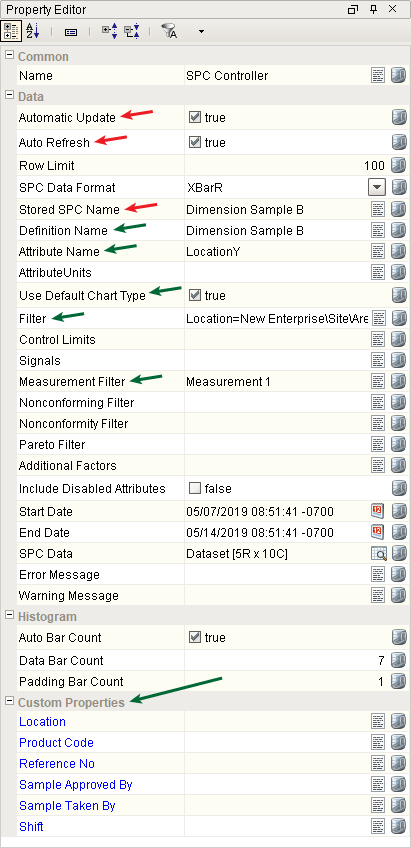
- The following will immediately be filled in or created automatically (see the green arrows in the image to the right):
- Definition Name: Dimension Sample B
- Attribute Name: LocationY
- Filter: Location=New Enterprise\Site\Area\Line 1\Sample Location
- Measurement Filter: Measurement 1
- Custom Properties: Location, Product Code, Reference No, Sample Approved By, Sample Taken By, Shift.
Configure Power Table
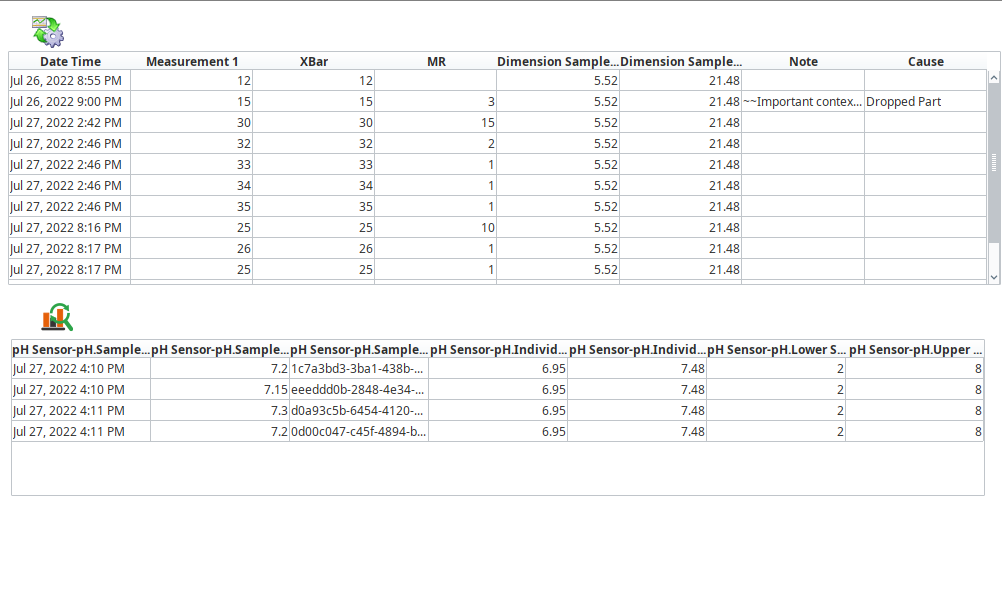
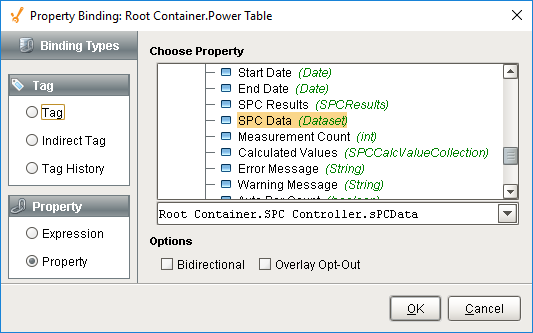
- Bind the Data property to the SPC Data property of the SPC Controller. The samples you created on the last screen should now be visible in the table.
- (optional) In the Table Customizer (Ctrl-U), hide the SampleUUID column.

Configure Perspective MES Analysis Controller
Since SPC data analysis is supported in SPC 3.0 across the MES Analysis Selector and Controller components, users can leverage Perspective support for those components with SPC data display requirements. As an additional exercise, a Vision screen or Perspective View with Ignition tables or charts powered by the MES Analysis Controller publishing SPC data. Here are the
- Drag an MES Analysis Controller onto the screen (or view).
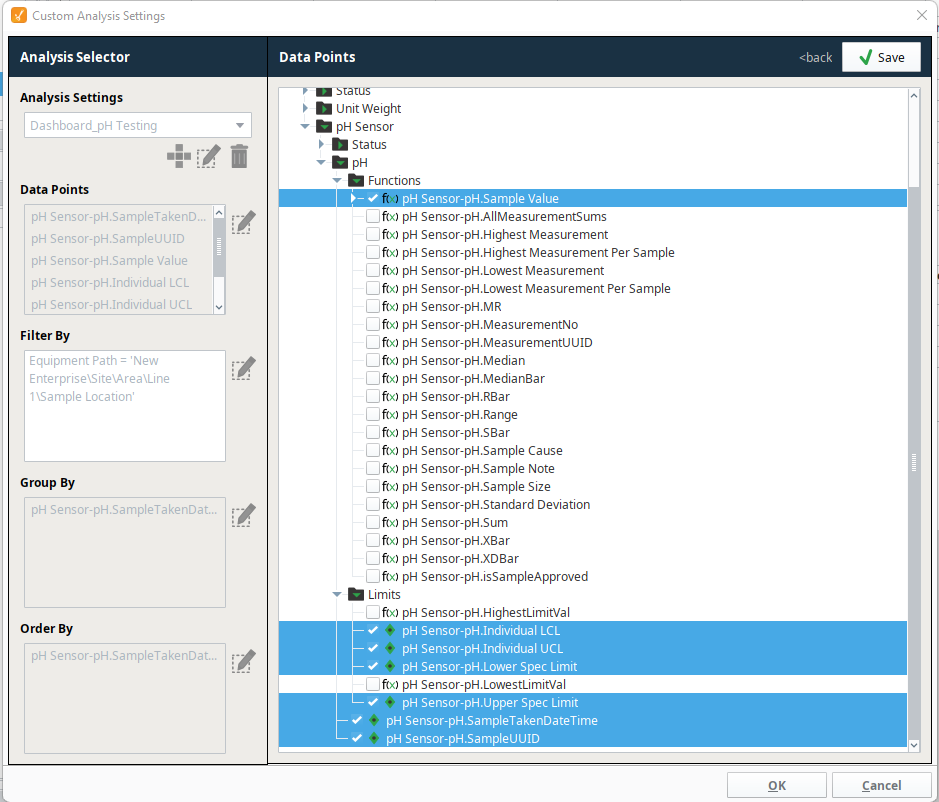
- Right click on the MES Analysis Controller, selecting Customizers, and Custom MES Analysis Settings.
- Configure the Data Points, Filter By, Group By, and Order By as seen in the screen shot at right.
- Bind the Data property of the Power Table to the MES Analysis Controller's data property, allowing for the output to be displayed on screen.
Note that both of these controller components are invisible during runtime within the screen under preview mode. Further, note that the MES Analysis Controller is supported in both Vision and Perspective, which may drive which component to use. Further, the MES Analysis Controller is the newer component that provides access data across multiple modules or functional domains - such as OEE, SPC, Batch, etc. Therefore, chose wisely for your project which components you drive display data.
