Setting Up Production Equipment Model for SPC
Let's create a simple equipment line with multiple cells, using the MES Equipment Manager component:
Create Production Model Equipment in the MES Equipment Manager
- Create a new Ignition Vision window called MES Equipment Manager and place an MES Equipment Manager component on it. Go into Preview mode.
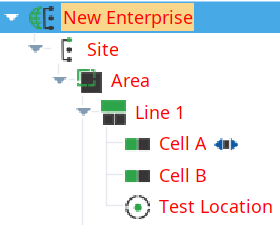
- Create the Production Equipment items shown to the right under New Enterprise in the MES Equipment Manager component by right-clicking and selecting the type of equipment item to create:
- Create a Site called Site.
- Create an Area called Area.
- Create a Line called Line 1.
- In Line 1, create two Cells called Cell A and Cell B.
- In Line 1, create a Location called Test Location (this is for SPC).
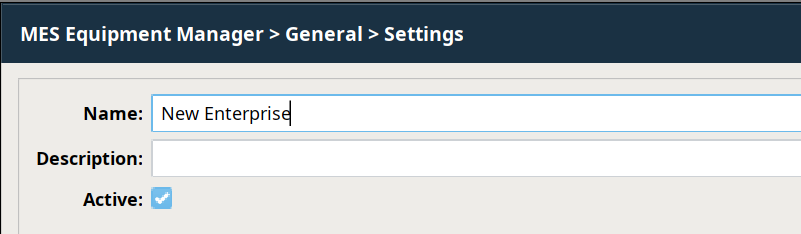
- Click to highlight New Enterprise in your Production Model. Click Settings and activate the Enterprise by checking the Active checkbox, as shown to the right.
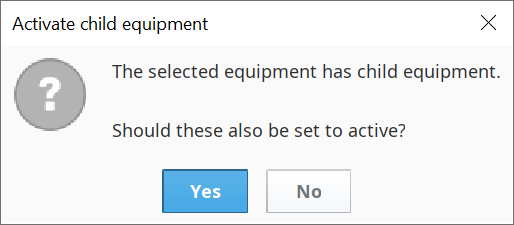
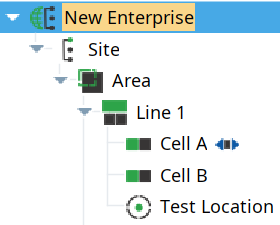
Right-click on the Site item and select Activate. Answer Yes to the pop-up dialog box asking to activate child Equipment items. The Site item and all the child items will turn from red to black, indicating that they are all activated.

Due to a deliberate restriction in the Activate functionality, it will not activate equipment items (and their children) that were previously deactivated manually. To activate these, right-click on the highest parent level that is not activated, select Activate and answer Yes. Repeat for any other equipment items that were not activated by activating from the Site level.