Configure SPC-Driven Report
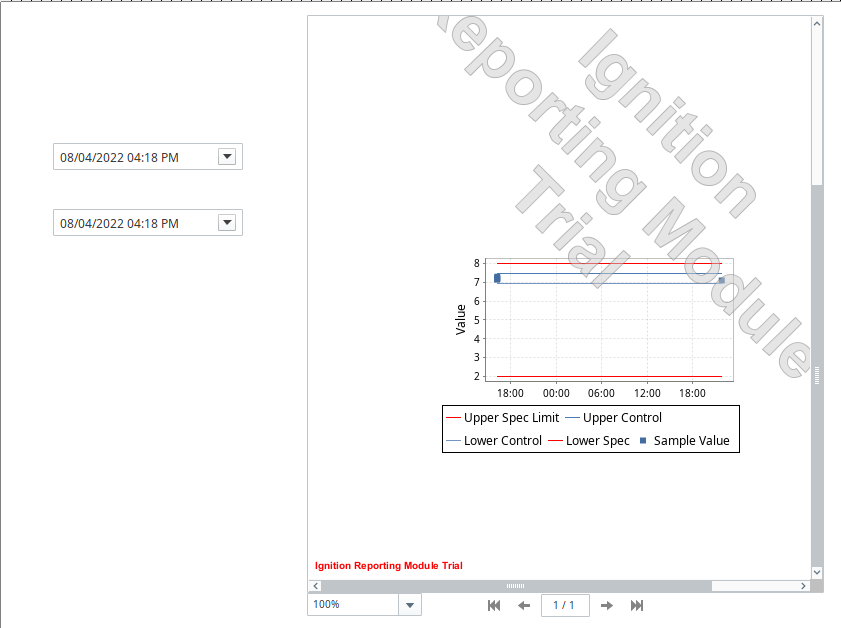
The SPC-Based Report set-up on the window SPC_02_Tags/04_Reporting has the following components:
- Two Popup Calendar (Ignition)
- Report Viewer (Ignition)
Configure Popup Calendars
- Drag two Ignition Popup Calendar components and two Ignition Label components onto the window. Position and resize as shown above.
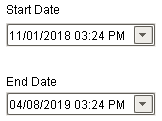
- Rename the upper Popup Calendar to puc_StartDate. Change the Label above it to read Start Date.
- Rename the lower Popup Calendar to puc_EndDate. Change the Label above it to read End Date.
Create pH Report
To create this simple report, we will use the MES Analysis data source within the Reporting module's Design tab. By creating an Analysis Setting, we can call for SPC data and seamlessly integrate that data into a report.
- Create a new report called "pH Report".
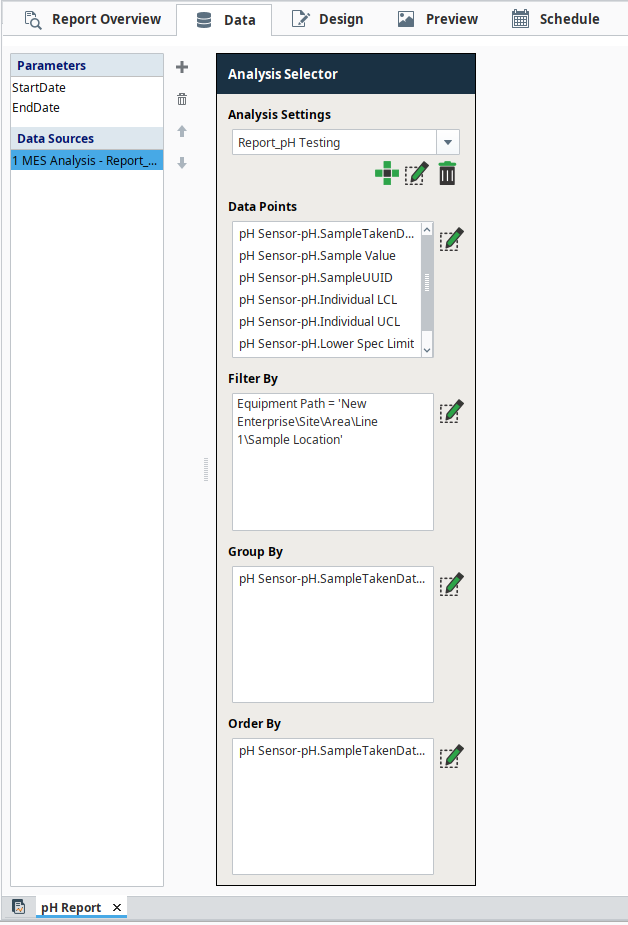
- In the Data tab of the report editor, add an MES Analysis Data source. Call the analysis setting "Report_pH Testing". We suggest prepending "Report_" to indicate where this analysis is called and to help users in the future understand that modifying this analysis (which can be called through script and gui components) could break your report.
- Configure the data points selection to include the sample value, upper and lower spec and control limits, and the sample taken date time.
- Ensure the Filter By expression includes the sample location and the group by includes the sample taken date time data point.
- Lastly, the start and end date will need to be bound to the Analysis Setting level start and end date, accessible through the Analysis Setting edit menu.
- On the Design tab, create a table and a chart, binding the data from the "Report_pH Testing" data source to the respective elements in the report. For assistance with the details of report building, which is outside of the scope of this tutorial, please refer to the Inductive University sections on the Reporting Module.
Configure Report Viewer
- Drag a Report Viewer component onto the window. Resize it to fill the entire right half of the window, as shown above.
- Select the report called pH Report in the Report Path property.
- Bind the StartDate parameter to the Date property of the puc_StartDate Popup Calendar.
- Bind the EndDate parameter to the Date property of the puc_EndDate Popup Calendar.
- View the report on screen.
