ERP Connectivity Training Resources
This section provides the necessary steps to configure your local environment for the ERP Connectivity training examples. All required assets for this setup are contained within ZIP resource package listed below. Below are the essential prerequisites and the step-by-step procedure to ensure your environment is correctly prepared for the tutorials.
Training Resource ZIP
This file contains the resources necessary for training: ERPConnectivity.zip
Contents of ERPConnectivity.zip
Component | Purpose in Training Examples |
Ignition Gateway backup | Provides a full gateway configuration, including all required projects, database connections, and settings. |
classicmodel database backup | Serves as a sample database for the named query examples in the Business Connector training. |
historian database backup | Contains historized tag data required by the Web Services examples. |
mes database backup | Provides the sample OEE data used by both the Web Services and Business Connector examples. |
Project Resource export | Offers a project-only alternative to the full gateway backup, containing only the necessary project assets. |
Understanding the function of each component provides valuable context for the final setup process. You are now ready to proceed with the hands-on configuration.
Setup Procedure
This section provides the final, hands-on steps to complete the environment configuration. Please follow this sequence carefully to ensure all components are installed and activated correctly.
- Restore Training Resources Perform the following restore operations in your Ignition environment. It is critical to choose the correct option in step A to avoid unintended data loss.
- Restore the
Ignition Gateway backup. This is a full system restore that will overwrite all existing Gateway settings, making it ideal for a dedicated training machine. Alternatively, for a non-destructive import that only adds the necessary project assets to a shared or existing development environment, use theProject Resource export. - Restore the three database backups:
classicmodel,historian, andmes.
- Restore the
- Launch Client Open a Perspective client.
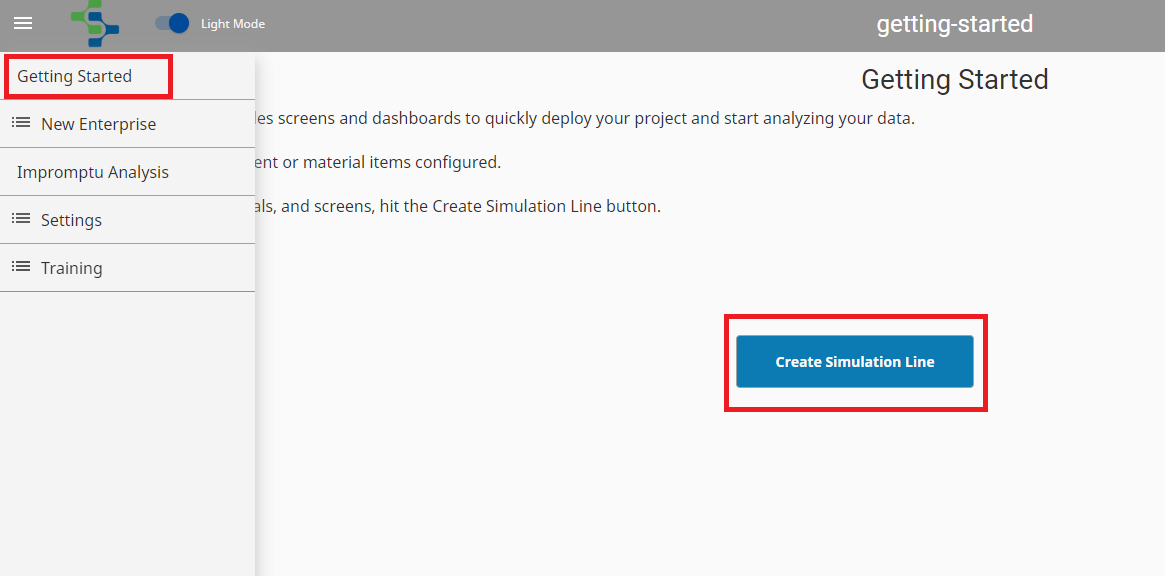
- Navigate Within the client, navigate to the "Getting Started" page.
- Execute Simulation Click the "Create Simulation Line" button on the screen.
- Confirm Completion The setup is complete once the progress animation on the screen disappears.
Conclusion
By completing the steps outlined above, your training environment is now fully configured and ready for use. You can now proceed with the ERP Connectivity training tutorials.