Track and Trace Tutorial
The Track and Trace product has experienced several large feature additions in late 2022 and early 2023 that relegate older ways of using the modules to corner cases. The tutorial below would largely be considered a legacy approach as of 2023.
For Batch Procedure integration, see Material Resource Tracking and Traceability | Batch Procedure.
Therefore, while the tutorial below may still be helpful for some use-cases, consultation appointments with the Sepasoft Design Consultation team should be prioritized until such time as updated tutorial information leveraging the latest features is furnished on this website. Please contact sales@sepasoft.com for more information and to schedule a Design Consultation appointment.
Get Set Up First!

|
Before proceeding, complete the Getting Set Up section to get Ignition and your database installed and configured. |
Version Specific
| |
This tutorial is valid for version 3.81.8 RC1 or greater. |
Summary
This tutorial is the primary tutorial for Track and Trace when used in isolation (that is, apart from the Batch Procedure Module). The ideal design use-case for Track and Trace includes integration with Batch Procedure for workflow and procedural control. However, there are use-cases where tracking materials and WIP inventory reporting in isolation may be necessary, and this tutorial has its focus there.
The scenario explored here is a simple coffee roasting process. Raw materials including coffee beans and packaging materials are received, then tracked through a series of operations, resulting in packaged, roasted, coffee beans as finished product. By working through the tutorial, the engineer should be capable of mapping out their own material traceability information needs on another project and utilize the features of the Track and Trace Module to record, track, and report on the transformation from raw materials to finished goods.
Key Points
Key learning points from this lesson include the ability to:
- Understand and practice proper material process flow information collection and mapping.
- Configure Material and Equipment through the GUI for traceability.
- Quickly record operations to begin tracking production activity.
- Visualize trace history through the Trace Graph.
- Quickly retrieve WIP Inventory information.
- Retrieve Traceability data for the purpose of reporting and sharing with other systems.
Configuration
Material Process Flow Diagram
Mapping out what equipment, material, and information is involved (and required) for the relevant manufacturing processes to be tracked by the Track and Trace module implementation is critical for a successful project. Therefore, each project should begin with a documentation of processes similar to this example. Here each place where material movement or transformation can be identified is documented as well as relevant information (e.g. material identification, quantity determination, etc.) for the process. The total of these material movements and transformations, or operations, creates a material process flow representing the entirety of the manufacturing processes to be tracked.
In this simple tutorial we will receive Raw Coffee Beans into inventory. We will also receive packaging materials. Once we have the raw materials necessary, we will roast the coffee beans, and finally, package them. All told we have four operations - two receiving steps, roasting, and packaging. Below we outline necessary information for each operation.
In an actual production facility the data needs and control requirements are usually much greater. This is where Batch Procedure combined with Track and Trace can add a lot of value. While we won't go into this now, it is a subject for greater discussion later.
Process Mapping
| Operation Name | Receive Coffee |
|---|---|
| Description | Simple operation to receive coffee beans to a local silo. |
| Equipment | Receiving Dock |
| Personnel | N/A |
| Tooling | N/A |
| Material | In/Out | Material Type | Location | Lot Name | Qty | Status |
|---|---|---|---|---|---|---|
| Coffee Beans in Inventory | Out | Raw Colombian Beans or Raw Ethiopian Beans | Silo 1 or Silo 2 | Picked up off of label scan | 100lb bags | N/A |
| Operation Name | Receive Packaging |
|---|---|
| Description | Simple operation to receive packaging materials to the receiving dock. |
| Equipment | Receiving Dock |
| Personnel | N/A |
| Tooling | N/A |
| Material | In/Out | Material Type | Location | Lot Name | Qty | Status |
|---|---|---|---|---|---|---|
| Finished product Bags | Out | Bags | Receiving Dock | Picked up off of label scan | manual entry based on shipping label | N/A |
| Finished product labels | Out | Labels | Receiving Dock | Picked up off of label scan | manual entry based on shipping label | N/A |
| Finished product cases | Out | Cases | Receiving Dock | Picked up off of label scan | manual entry based on shipping label | N/A |
| Operation Name | Roast Coffee |
|---|---|
| Description | Value add step where raw beans are roasted making coffee. |
| Equipment | Roaster 1 |
| Personnel | N/A |
| Tooling | N/A |
| Material | In/Out | Material Type | Location | Lot Name | Qty | Status |
|---|---|---|---|---|---|---|
| Raw Beans coming in | In | Raw Colombian Beans or Raw Ethiopian Beans | Silo 1 or Silo 2 | Picked up off of label scan | manual entry based on process | N/A |
| Roasted coffee going out | Out | Dark Roast Colombian or Medium Roast Ethiopian | Finished Goods Silo 1 or Finished Goods Silo 2 | Picked up off of label scan | manual entry based on process | N/A |
| Operation Name | Package Coffee |
|---|---|
| Description | Value add step where coffee beans are packaged. |
| Equipment | Packaging Line 1 |
| Personnel | N/A |
| Tooling | N/A |
| Material | In/Out | Material Type | Location | Lot Name | Qty | Status |
|---|---|---|---|---|---|---|
| Coffee beans coming in | In | Dark Roast Colombian or Medium Roast Ethiopian | Finished Goods Silo 1 or Finished Goods Silo 2 | Picked up off of label scan | manual entry based on process | N/A |
| Bags coming in | In | Bags | Receiving Dock | Picked up off of label scan | Picked up off of label scan | |
| Labels coming in | In | Labels | Receiving Dock | Picked up off of label scan | Picked up off of label scan | |
| Cases coming in | In | Cases | Receiving Dock | Picked up off of label scan | Picked up off of label scan | |
| Packaged coffee going out | Out | Dark Roast Colombian or Medium Roast Ethiopian | Receiving Dock | Assigned within system | manual entry based on process | N/A |
Configure Equipment
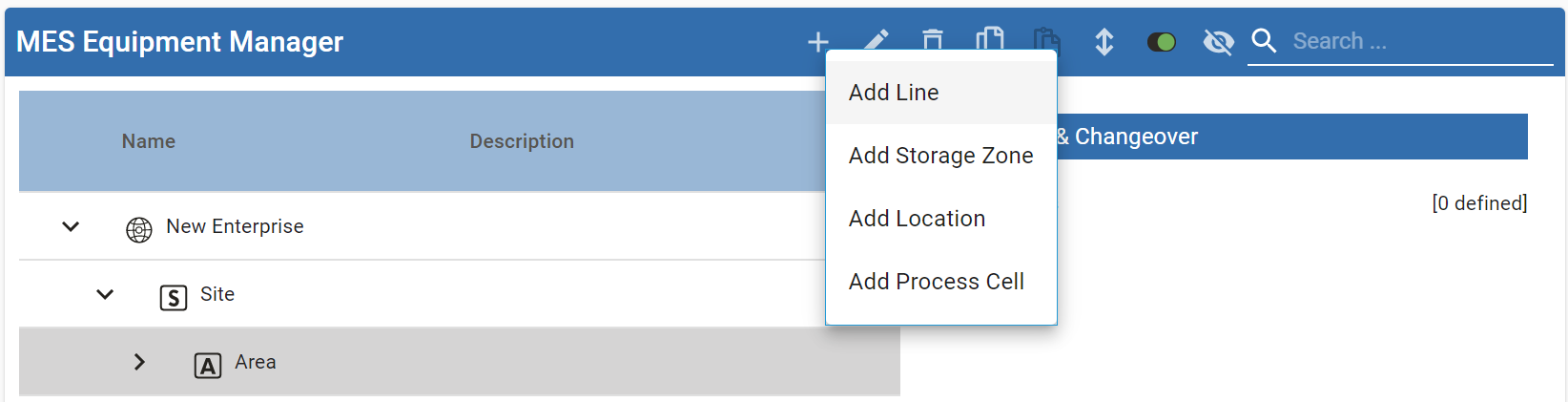
Equipment is the key reference for the MES model, as illustrated by the ISA-95 and ISA-88 standards. Therefore, we must configure our equipment model first before collecting traceability data. This is done through the MES Equipment Manager Component. Create a new view and add the MES Equipment Manager to it.
Using the MES Equipment Manager component on your Perspective View, add equipment under the Enterprise. Within the hierarchy, add ‘Site’, ‘Area’, a line called ‘Roaster 1’, a line called 'Packaging Line 1', as well as a line called ‘Receiving Dock’ to the Equipment Hierarchy.
Further, create a Storage Zone (named "Storage Zone") with Storage Units named ‘Silo 1’, ‘Silo 2’, ‘Finished Goods Silo 1’, and ‘Finished Goods Silo 2’.
Equipment Path is a unique address of an Equipment Item (e.g. Enterprise\Site\Area\Line), to uniquely identify the equipment within the model. Therefore spelling, spacing, and capitalization differences will lead to errors.
Configure Material
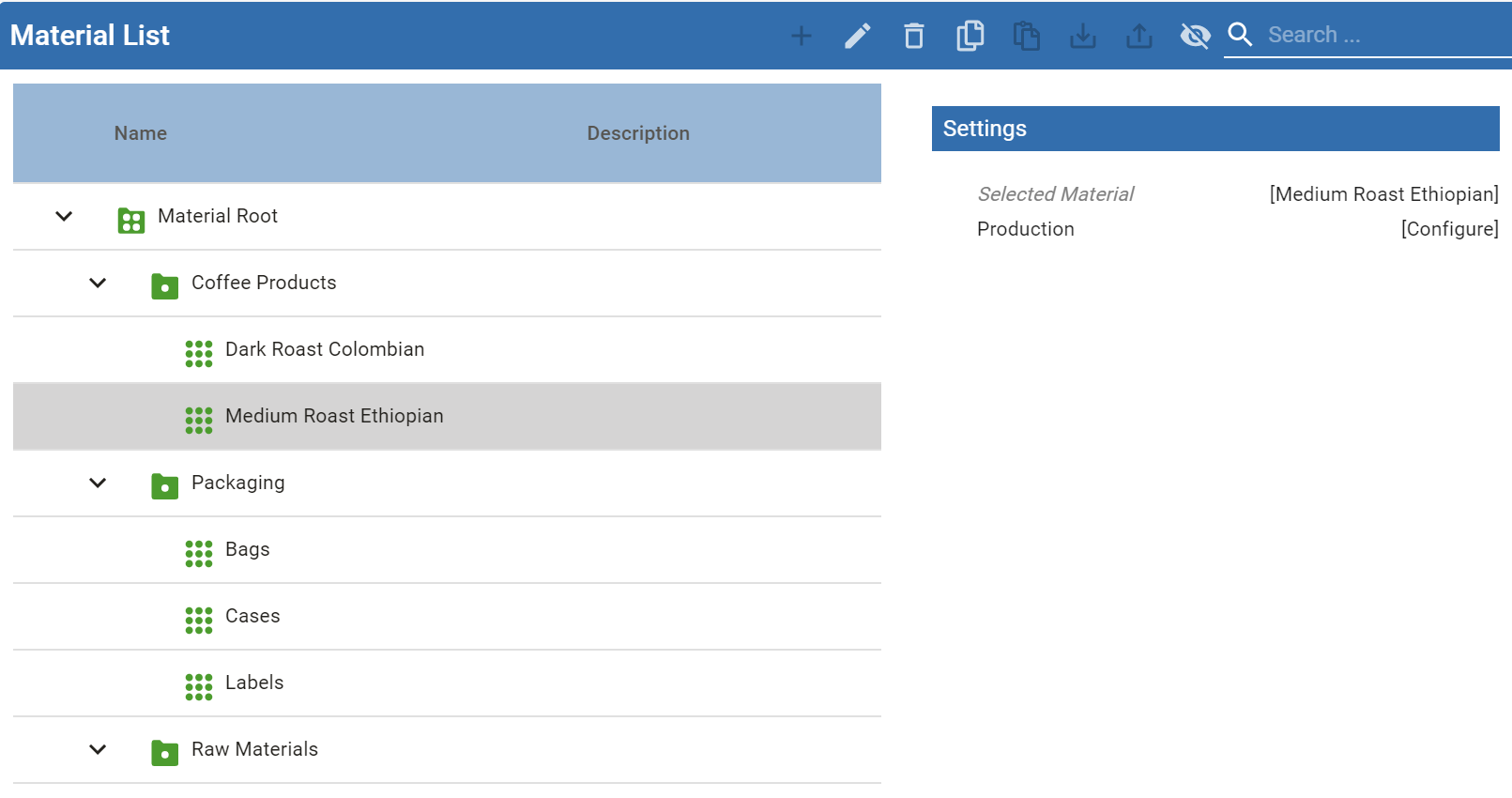
Materials are an important reference for MES data, giving context to runtime data and informing necessary settings. Configuration of Material Classes and Material Definitions may be done through script or through the MES Material Manager Component. At present this component is supported by the OEE Downtime Module. Please ensure OEE DT is installed to access the Material Manager. In the future, this will be part of the Production Module (which supports T&T, OEE DT, SPC, Batch & Procedure, etc.)
- Create a view and add the MES Material Manager component to it.
- Using the Material Manager Component, add a Material Class called ‘Raw Materials’, under which, add the Material Definitions:
- ‘Raw Colombian Beans’ and
- ‘Raw Ethiopian Beans’.
- In addition, add a second Material Class called ‘Packaging’, under which add
- the Material Definitions ‘Bags’, ‘Cases’, ‘Labels’. Lastly,
- add a third Material Class called ‘Coffee Products’, under which add
- Material Definitions ‘Dark Roast Colombian’, ‘Medium Roast Ethiopian’, ‘Dark Colombian 12oz’, ‘Medium Ethiopian 12oz’, ‘Dark Blend 12oz’.
By creating these material objects we now have the necessary context to store configuration settings specific to different products or capture runtime data in terms of different product execution.
Run-Time Set Up
Introduction
The stand-alone Track and Trace approach utilizes python scripting functions for maximum flexibility in material tracking with minimal initial set-up. In the following instructions, the scripting functions will be introduced, alongside some best practices to minimize errors in implementation.
system.mes.trace.recordOperation()
This is the main function used at run-time. The function takes in relevant resource information such as Equipment and Material, but also Operation name, tooling, personnel, and more. The strength of this approach compared to the legacy approach, is that rigorous Operation definition up front is bypassed, and is only required in so far as data collection at runtime necessitates.
To continue our coffee example, we will record the import of raw coffee beans to the factory to their respective silos. Then we will import packaging materials. Lastly we will record roasting and packaging of the coffee. Consult the Material Process Flow Spreadsheets for reference. For each one of these steps, buttons on the screen will be used as triggers. Understand however, that any script event in Ignition could execute these scripts. Therefore triggering signals could come from almost anywhere, enabling flexibility for production systems based on the data and signals available.
Receive Raw Coffee 1 Script
Create a View which will act as our control mechanism to trigger the collection of traceability data using a series of buttons firing scripts. Add a button to the screen and place the following script into the button's action performed event. Triggering this button will record material information for receiving coffee, which we mapped out in the material process flow earlier in the tutorial. This coffee will go to Silo 1, storing our Raw Colombian Beans. Note that this script uses hard-coded values for equipment paths, quantities, and material types. This is purely for ease of use in the tutorial. In a production environment, these types of data would be gathered from appropriate sources and leveraged here.
Receive Raw Coffee
Python |
##Gather necessary information such as ID, equipment paths, and material names. |
Receive Raw Coffee 2 Script
Add another button to the screen and place the following script into the button's action performed event. Triggering this button will record material information for receiving coffee, which we mapped out in the material process flow earlier in the tutorial. This coffee will go to Silo 2, storing our Raw Ethiopian Beans.
Receive Raw Coffee 2
Python |
##Define required information like material lot identifiers (typically collected from Perspective Views or Ignition tags) and equipment path where the operation will be executed. |
Visualize Traceability
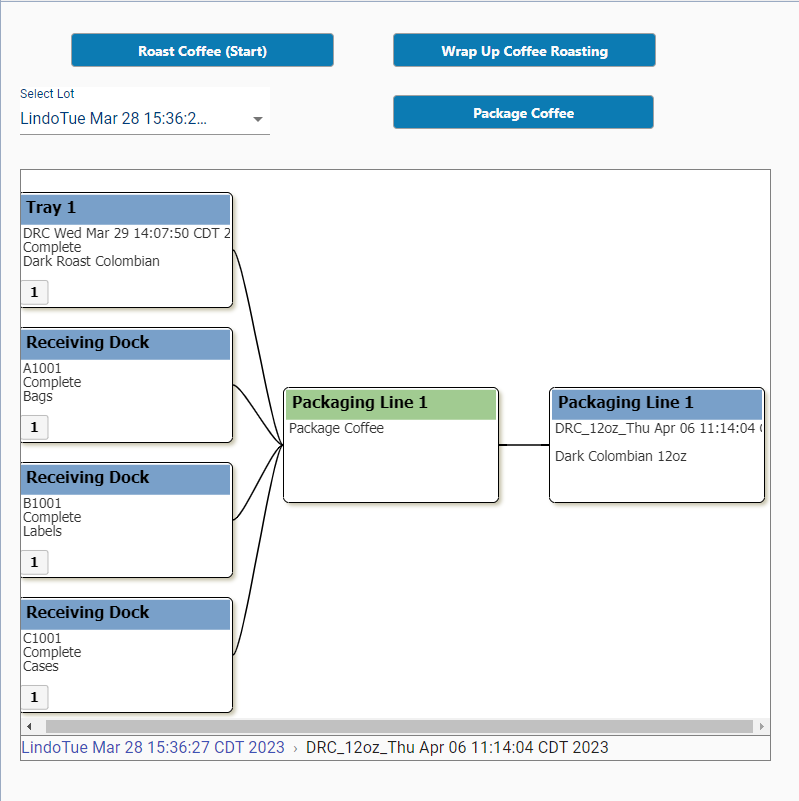
On the same view where we received raw beans, add an MES Lot Selector and an MES Trace Graph component. With these components we can select a Material Lot from the MES Lot Selector. Take care with the filter criteria available in the selector, especially the time frame, as our target may be filtered out inadvertently. The MES Trace Graph shows the genealogy data for the material lot selected. In order to indicate the selected lot, bind the MES Trace Graph's lotUUID property to the MES Lot Selector's selectedLotUUID property (e.g. "../mesLotSelector.props.selectedLotUUID"). This binding informs the trace graph of which particular material lot it should display genealogy data.

Receive Packaging Script
Add a final button to the view and place the following script into the button's action performed event. Triggering this button will record material information for receiving packaging materials that will be used later to package final products, which we mapped out in the material process flow earlier in the tutorial. These materials will go to the Receiving Dock, storing our Labels, Bags, and Cases.
Receive Packaging
Python |
##Define required information like material lot identifiers (typically collected from Perspective Views or Ignition tags) and equipment path where the operation will be executed. |

Inventory Feature
Introduction
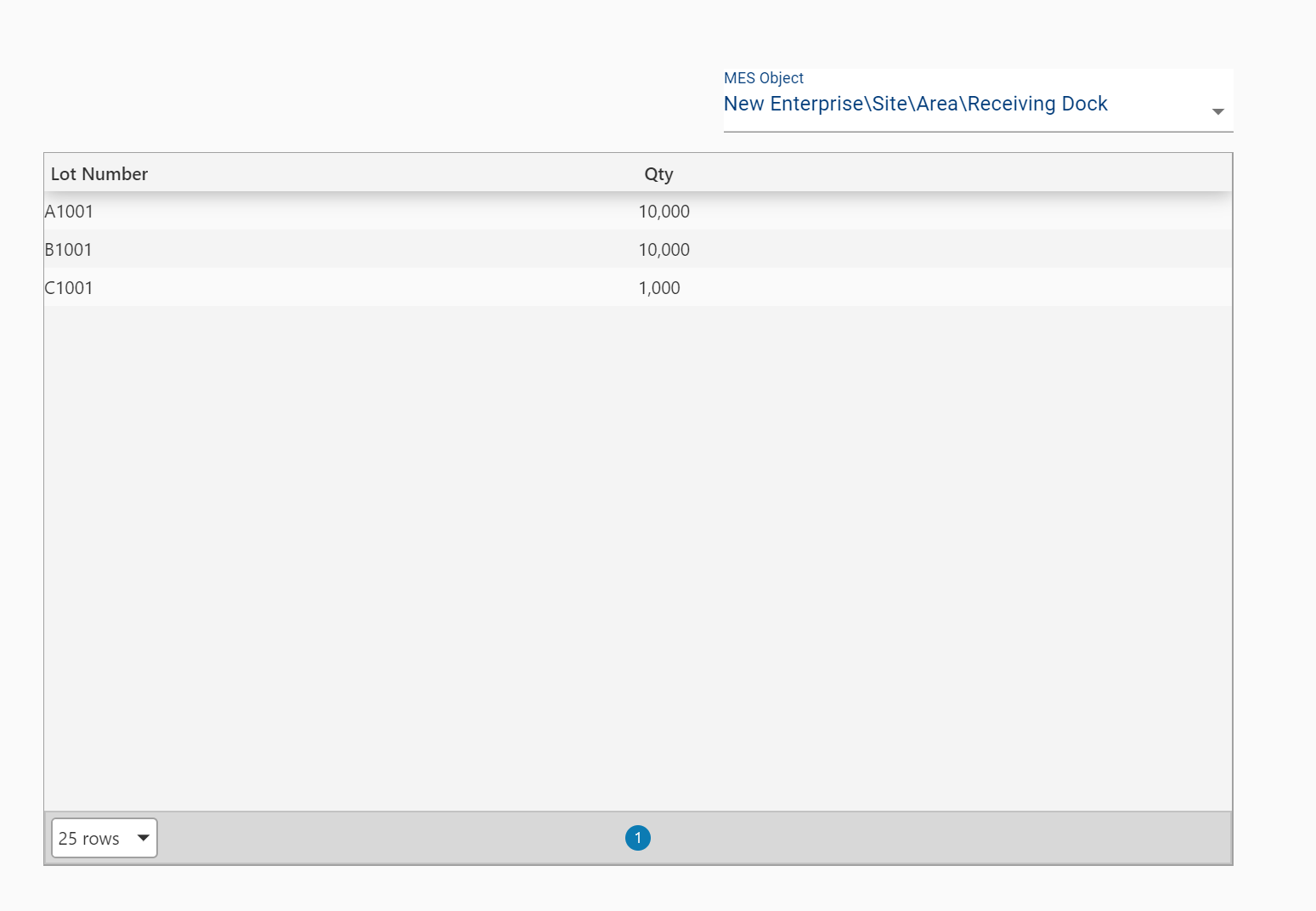
Before we trigger coffee roasting, we want to show inventory for the materials we received in the prior steps. To show users current inventory levels, we will call the system.mes.trace.getInventory() function, filtering on equipment path. Note that other filtering criteria are available, including Lot Numbers, Material Name, and Lot Status.
Example Inventory Script
To build this screen, add an MES Object Selector, then add the following script to the object selected event. Ensure that the MES Object Selector has Line and Storage Unit equipment included in the drop down selections. Next add a table to the screen named "Table". When a different equipment item is selected from the MES Object Selector, the table will show the inventory for the selected equipment item.
Display Inventory
Python |
##Describe the Equipment for which we want inventory data |
Roast Coffee
Introduction
In this operation we will consume some raw coffee beans and record the roasting process. We will then update this process with a second trigger in order to provide a final time and qty. This approach, in two steps, uses an initial call to recordOperation() followed by a system.mes.trace.modifyOperation() call in order to "wrap up" the operation with final data. Of course, if we know all of the information up front, we can record that off at once. Note therefore that there are three approaches that emerge from this capability: 1) record everything up front (i.e. one recordOperation() call), 2) record initially and "wrap up" at the end with modify operation (i.e. recordOperation() followed by modifyOperation()), and 3) wait until we have all of the information and record at the end (i.e. one recordOperation() call). Depending on the nature of the operation, the reporting needs, and availability of information, we may chose one approach or another. Keep in mind that when any of these factors (that is, nature of the operation, access to data, reporting needs, etc.) change, the approach should be re-evaluated.
Roast Coffee Record Operation
Therefore create a view with three buttons, one to record the operation and another to perform the "wrap up" and final data collection. The final button will be used for Packaging Coffee later.
Roast Coffee
Python |
##Define required information like material lot identifiers (typically collected from Perspective Views or Ignition tags) and equipment path where the operation will be executed. now = now = system.date.now() |
Wrap Up Coffee Roasting
In the second button on the view, we want to finish roasting coffee. In this step we will update the operation with qty and finish time data. To do this we will use the modifyOperation() scripting function call.
Modify Operation to Wrap Up Roasting
Python |
##Define required information like material lot identifiers (typically collected from Perspective Views or Ignition tags) and equipment path where the operation will be executed. |
View Material Lot Genealogy on the Trace Graph
In order to view the roasting operation data that we just completed, add an MES Lot Selector and MES Trace Graph to the view. Be sure to bind the Trace Graph's lotUUID property to the Lot Selector's selected Lot UUID property (e.g. ../mesLotSelector.props.selectedLotUUID). This will allow the appropriate UUID to be passed to the Trace Graph, then display the trace data.
Package Coffee
Introduction
Our packaging process will bring together the roasted coffee recorded earlier, with packaging supplies previously received into the plant. The end result will be a finished good with traceability back to raw materials for the value add product its self, as well as packaging materials delivered to the customer. This would be a point where integration with OEE Downtime would be very helpful in a production project (as opposed to a simple training project).
Add a button to the view for capturing packaging operation data. Place the following recordOperation() focused script in the button's actionPerformed event:
Record Packaging Operation
Python |
##Define required information like material lot identifiers (typically collected from Perspective Views or Ignition tags) and equipment path where the operation will be executed. |
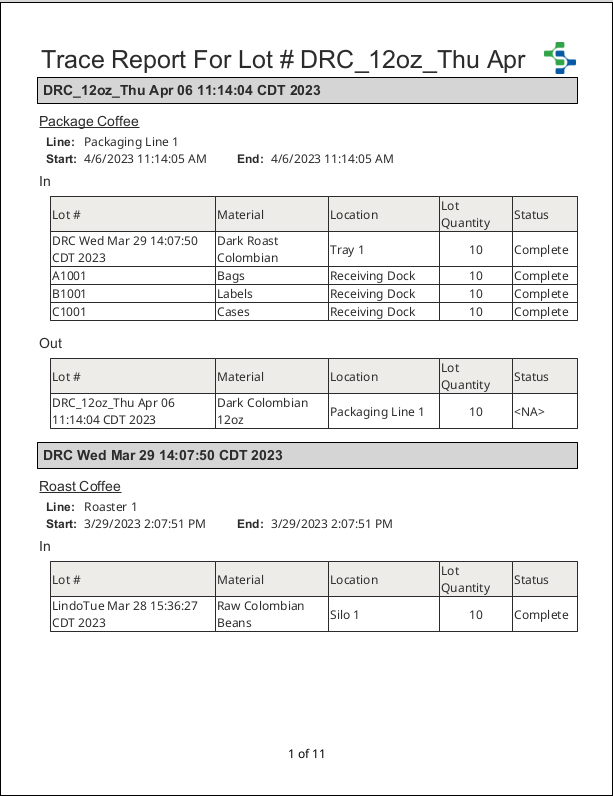
Example Track and Trace Report
Introduction
In this example report, a lot number is provided as an input, then the traceability data is broken out into tables for each operation. The script retrieving data and providing it to the tables is given below.
Trace Report Script
Python |
##Retrieve lot number from Report data map. |