Sepasoft MES Module Suite
Production Counts
The MES Counters are used to associate Process Segments (Operations) with production counts. MES Counters record production counts 24/7, independent of scheduled production runs.
Counter names and the associated tag are defined in the Production Model. In the MES Management screen, the Quantity Source of Infeed and Material Process Segments can be set to use these MES counters.
MES counters are available for the Line, Cell Group, Cell or a Storage Unit equipment items in Counters in the General section of the MES Equipment Manager component.
When an OEE Line does not define a reject counter, rejects will be determined automatically by the OEE module in this way:
-
All cell reject counters under that line will be summed to determine the reject count for the line
-
If there are no reject counters defined for any cell under the line, then the difference between the Infeed counter and the Outfeed counter will be used.

|
For serial production scenarios, it is recommended to set up MES Counters at the cell level in order to accurately capture counts while indexing product on the line. Addition configuration must be accomplished with the cell settings in the production model. Please note that if you have a single machine on the line, setting up that machine at the Line level is preferred. |
|
|
The quantity from the MES counters can be obtained through scripting. See system.mes.getTagCollectorDeltaValue, system.mes.getTagCollectorValue, system.mes.getTagCollectorValues and system.mes.getTagCollectorLastValue. See: |
Adding an MES Counter
To configure an MES Counter, select a Line, Cell Group, Cell, or a Storage Unit in the MES Equipment Manager component and then select Counters in the General section. Click the Add button (plus icon) to create a new counter for the equipment item. Select the counter row in the component, then select the Edit button (pencil icon) to configure the counter.
Counter Name
Name of the counter. The name may be up to 255 characters in length.
Characters Not Allowed in Names
These characters are reserved by the Sepasoft modules.
Production Equipment
. ? ! # % ^ * ~ [ ] { } + = ` \ @ & ( ) < >,
MES Person
. ? ! # % ^ * ~ [ ] { } + = ` \/ " $ | < >
Other MES Objects
. ? ! # % ^ * ~ [ ] { } + = ` \/ " $ | ,
Machine Recipe Name in Settings & Changeover Module
Follows the same convention as Other MES Objects
Exception: Full-stop period . is allowed as of 3.81.10 SP2
Batch Names in Batch Procedure Module
. ? ! # % ^ * ~ [ ] { } + = ` \/ " $ | ,
Counter Name in Analysis

|
When an MES Counter is viewed or selected in an Analysis, the Counter Kind (and a dash) will precede the counter's Name. Analysis tags created will also have this prefix, as shown here:
|

Counter Group in Analysis
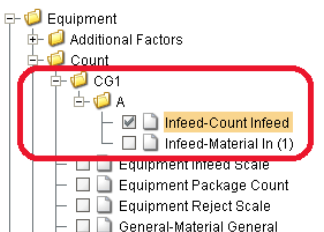
- Counters with the same name and group appear as a single data point in analysis.
- If two counters have the same name but a different group value, then the counters display as name/group, as shown below.
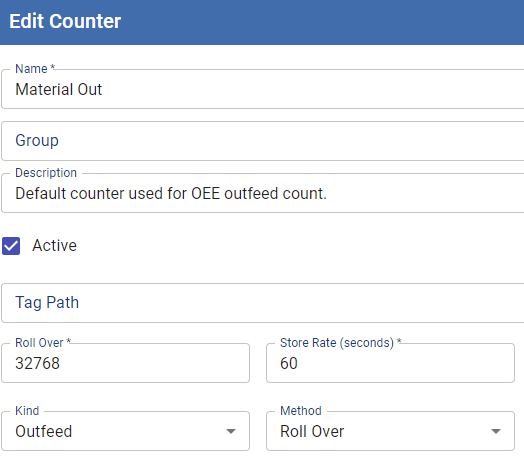
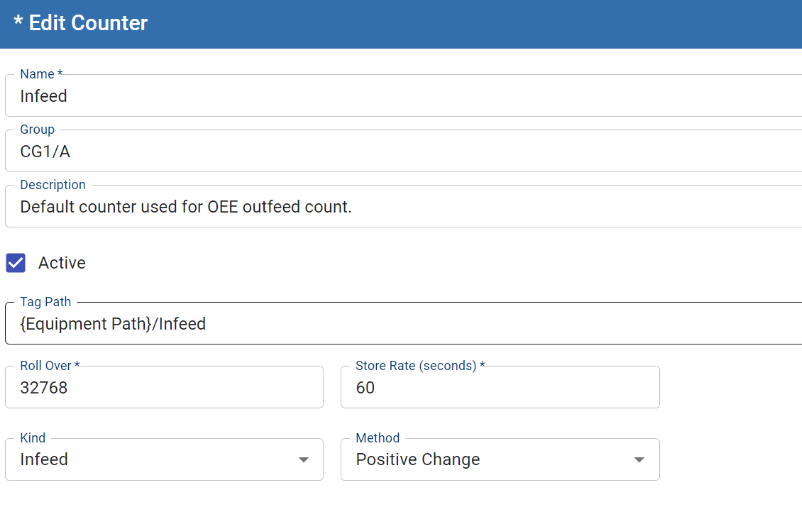
Counter Configuration
|
Counter configuration field
|
Behavior
|
|||||||||||||||||||||
|---|---|---|---|---|---|---|---|---|---|---|---|---|---|---|---|---|---|---|---|---|---|---|
|
Name
|
Required - Counters with the same name and group appear as a single data point in analysis |
|||||||||||||||||||||
|
Group
|
Group' defaults to blank, the counter displays in the Equipment > Count folder.
If the group value is not blank, then multiple folders can be specified separated by the / character.
|
|||||||||||||||||||||
|
Description
|
Optional description
|
|||||||||||||||||||||
|
Active
|
Enabled or disabled
|
|||||||||||||||||||||
|
Tag Path
|
The path to the Tag Provider and Ignition tag where the count value should come from (typically, but not limited to, a PLC counter, a Memory Tag or a SQL data value).
Parameterized Tag Paths can be used here which allows for indirection and exported MES Counters to be easily deployed to other equipment.
|
|||||||||||||||||||||
|
Rollover
|
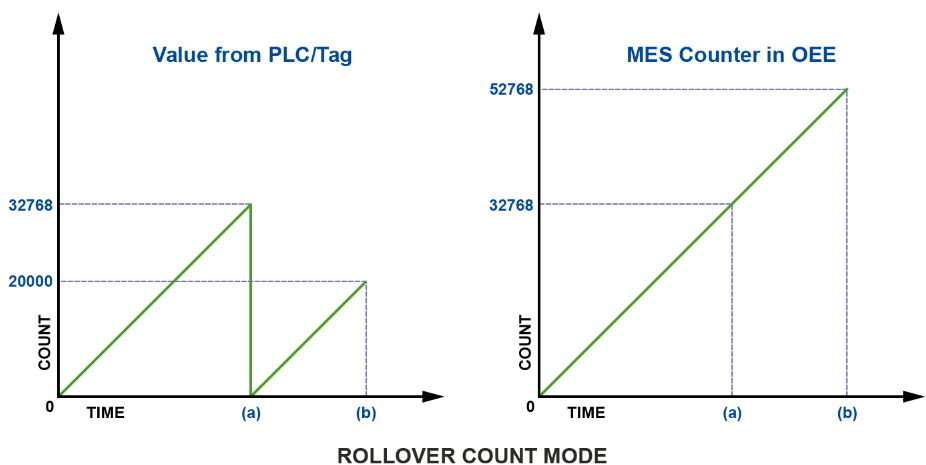
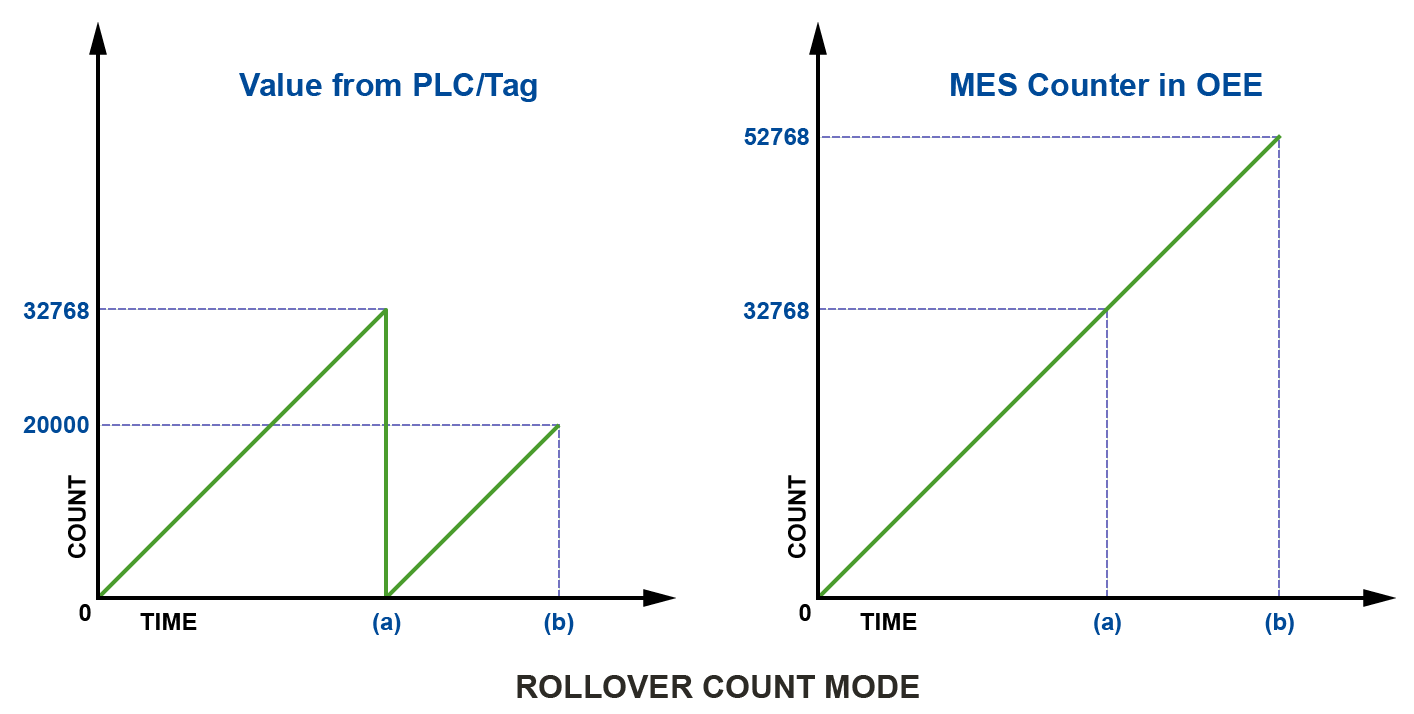
For PLC counter tags that that do not get reset, eventually reach a finite maximum value at which point, the value will 'rollover' back to zero. The Roll Over setting allows you to define the value that should be added to the count tag whenever a roll over occurs. The maximum roll over value for the MES counters is 9,223,372,036,854,775,807.
The counter value that is saved is stored as a BigInt (2^63 - 1). The actual counter value that is saved is a BigInt so it can go to a massive number. But the rollover is a regular signed int. By default, it is 32768 which equates to a 16-bit signed data value. Your setting will be dependent upon the datatype of your PLC counter tag.
During a production run, the incoming count value is added to the Roll Over setting multiplied by the number of times that a rollover has occurred.
|
|||||||||||||||||||||
|
Store Rate
|
The MES counter is captured and stored in the database after this specific interval in seconds if the value has changed.
If the Store Rate is set to zero, every value change is recorded.
The default value is 60. If your PLC produces values at a very high rate, you should leave the Store Rate near its default value, since zero would result in a very high quantity of data being stored. This can cause slower analysis results as time progresses.
Since the minimum interval for analysis examination is one minute, you will likely find that leaving your Store Rate at 60 will provide much faster system performance than setting it to 0 (every value change recorded). |
|||||||||||||||||||||
| Kind | MES Counters can be set to four different kinds:
You can configure production lines with combinations of Infeed, Outfeed, and Waste count tags. See OEE Material Production Settings. Infeed, Outfeed and Reject kinds are used by the OEE Downtime module to calculate OEE Performance and OEE Quality metrics as part of the total OEE calculation. In addition they represent production counts for goods produced. The General kind counter can be used for any other count value, such as consumables like packaging.
| |||||||||||||||||||||
|
Method
|
The Count Method determines how the module pre-processes counter values that are collected. Count Method can be set to one of three options:
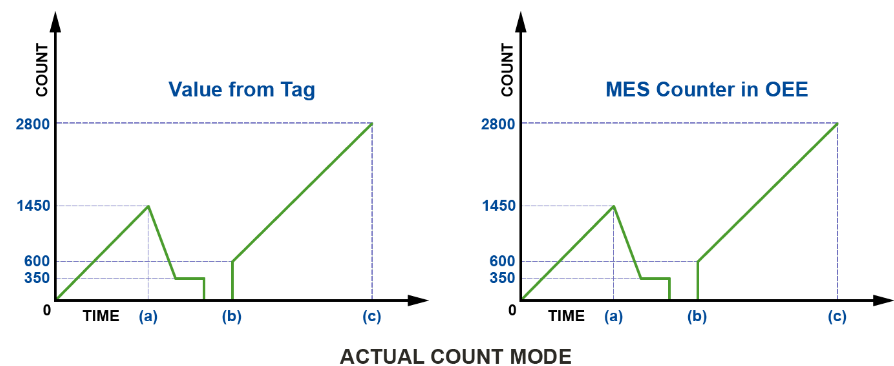
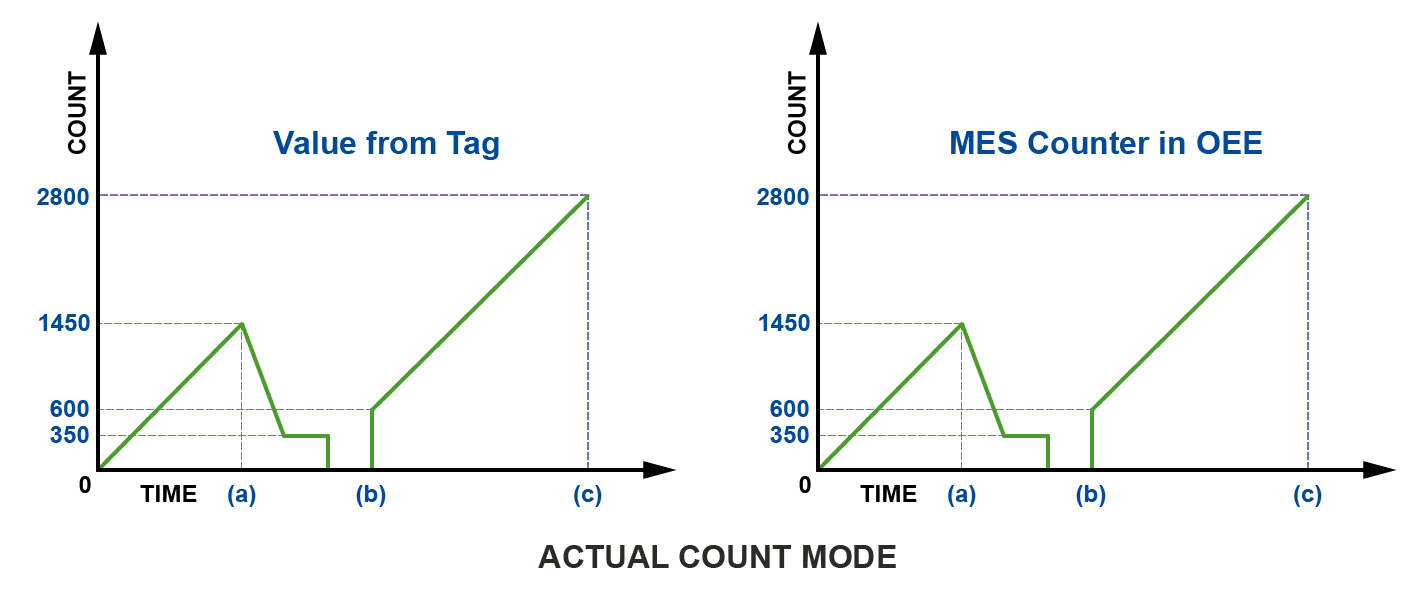
The Actual count mode simply uses whatever value is passed through the Tag specified in Tag Path to represent the actual production counts. Production counts can go down as well as up.
No coll = No MES Counter tag collection record occurred for this. Decreases in Tag count value and any transition from 0 to N are not accumulated and are not recorded.
|



|
|
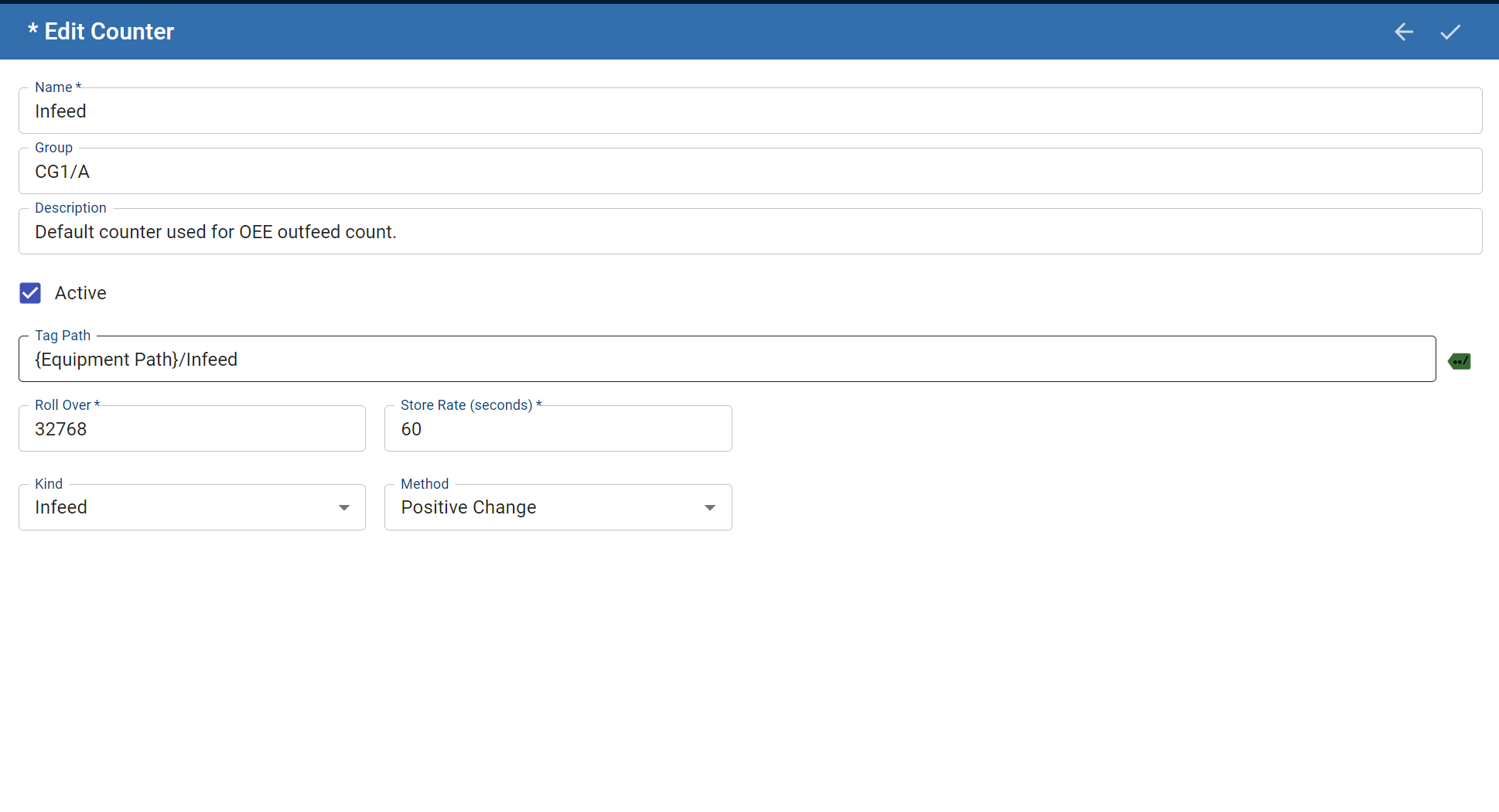
Counter Rapid Development Features Not only do counters allow for parameterization (as shown above), they also support copy, paste, import, and export features for rapid development. Configure the infeed counter for one Production Model Node (i.e. a Cell or Line) with parameterization, then copy and paste it to the other cells. Alternatively, copy and paste the Node itself and rename it for a similar effect. |
|
|
Making Manual Tag Collector Entries to Adjust MES Counter History You may wish to 'repair' the count recorded in the Tag Collector history by an MES Counter, in cases where the hardware PLC counter misses some counts. Be aware that the MES software will automatically add/subtract the new delta in counter value that you added to/from all entries forward in time of the entry point to the present (updating each Tag Collector entry for that counter by the same increment) when editing a value. A delta offset is not automatically calculated and applied forward when inserting new records for counters. Refer to this Sepasoft Knowledge Base article for details: How Manually Adding a New Historical Tag Collector Value Affects an MES Counter |
Counter Group Overview
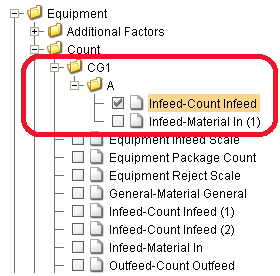
Name of group the counter belongs to.
- Counters with the same name and group will appear as a single data point in analysis.
- If two counters have the same name but a different group value, then the counter name will be Group/counter name.
- If a group value is blank (default), then it will appear in the Equipment > Count folder. If the group value is not blank, then multiple folders can be specified separated by the / character.

Counter Description
The description for the MES counter. This setting is not mandatory.
Enabled
The counter can be enabled or disabled here.
Tag Path
The path to the Tag Provider and Ignition tag where the count value will come from is assigned to the MES counter here (typically, but not limited to, a PLC counter, a Memory Tag or a SQL data value).
Parameterized Tag Paths can be used here which allows for indirection and exported MES Counters to be easily deployed to other equipment.
Roll Over
For PLC counter tags that that do not get reset, they will eventually reach a finite maximum value at which point, the value will 'rollover' back to zero. The Roll Over setting allows you to define the value that should be added to the count tag whenever a roll over occurs. The maximum roll over value for the MES counters is 9,223,372,036,854,775,807. The counter value that is saved is stored as a BigInt (2^63 - 1). The actual counter value that is saved is a BigInt so it can go to a massive number. But the rollover is a regular signed int. By default, it is 32768 which equates to a 16-bit signed data value. Your setting will be dependent upon the datatype of your PLC counter tag.
During a production run, the incoming count value is added to the Roll Over setting multiplied by the number of times that a rollover has occurred.
| Production Count | PLC Counter Tag | Rollover Occurrences | Calculation |
|---|---|---|---|
| 32700 | 32700 | 0 | 32700 - 32768 * 0 |
| 32750 | 32750 | 0 | 32750 - 32768 * 0 |
| 32918 | 150 | 1 | 150 - 32768 * 1 |
| 131372 |
300 |
4 | 300 - 32768 * 4 |

|
This value is only used when the Count Mode is set to Rollover. |
Store Rate
The MES counter will be captured and stored in the database after this specific interval in seconds if the value has changed. If the Store Rate is set to zero, every value change will be recorded. The default value is 60. If your PLC produces values at a very high rate, you should leave the Store Rate near its default value, since zero would result in a very high quantity of data being stored. This can cause slower analysis results as time progresses. Since the minimum interval for analysis examination is one minute, you will likely find that leaving your Store Rate at 60 will provide much faster system performance than setting it to 0 (every value change recorded).
Counter Kind
MES Counters can be set to four different kinds:
- General
- Infeed
- Outfeed
- Reject
|
|
Production line can be configured with a number of combinations of Infeed, Outfeed, and Waste count tags. See OEE Material Production Settings page for more details. |
Infeed, Outfeed and Reject kinds are used by the OEE Downtime module to calculate OEE Performance and OEE Quality metrics as part of the total OEE calculation. In addition they represent production counts for goods produced. The General kind counter can be used for any other count value, such as consumables like packaging.
|
|
When an OEE Line does not define a reject counter, rejects will be determined automatically by the OEE module in this way:
OR
|
Count Method
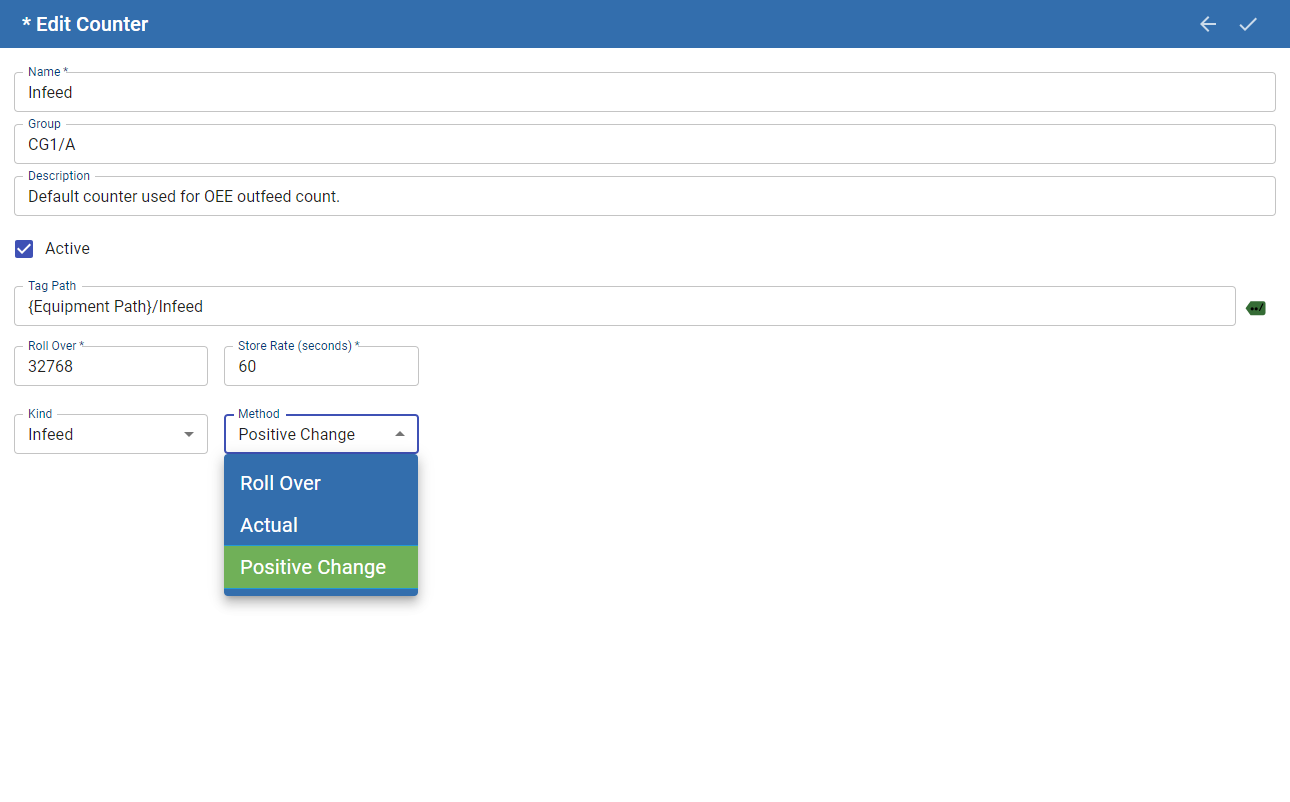
The Count Method determines how the module will pre-process counter values that are collected. Count Method can be set to one of three options: Roll Over, Actual and Positive Change.
Roll Over
This count mode is intended for finite, upward-counting PLC counters. As the PLC count increases (via a Tag specified in Tag Path), the MES Counter will also increase by the same amount. However, if the PLC count value drops to any lower number (typically back to zero because it reached its highest value for the number of counter bits and is rolling over to zero), then the MES Counter will continue to climb upwards by adding on the new PLC count value. It will then continue to increase in step with the PLC counter value.
See Rollover section above for this count mode.
| Roll Over Mode | Time >>> | |||||||||||
|---|---|---|---|---|---|---|---|---|---|---|---|---|
| PLC/Tag Count | 0 | 1 | 2 | 3 | 32766 | 32767 | 0 | 1 | 2 | 3 | 2 | 1 |
| MES Count | 1 | 2 | 3 | 32766 | 32767 | No coll | 32769 | 32770 | 32771 | 65538 | 98305 | |
No coll = No MES Counter tag collection record occurred for this, but the MES Counter did include the "-1" value change (internal value = 32768).
Log Entry on Rollover Event
|
|
Whenever a rollover event occurs, a log entry will be generated for debugging purposes (in case the behavior was not expected or desired). Example: A counter named (Material Out) on equipment ([global]Enterprise\Site\Area\Line\Cell) has detected a rollover due to the following raw count values (3000, 1) resulting in a new total value of (32769) |
Actual
The Actual count mode simply uses whatever value is passed through the Tag specified in Tag Path to represent the actual production counts. Production counts can go down as well as up.
| Actual Mode | Time > | |||||||||||
|---|---|---|---|---|---|---|---|---|---|---|---|---|
| Tag Count | 0 | 1 | 2 | 3 | 2 | 1 | 0 | -1 | -2 | -3 | 100 | 101 |
| MES Count | 1 | 2 | 3 | 2 | 1 | 0 | -1 | -2 | -3 | 100 | 101 | |
Positive Change
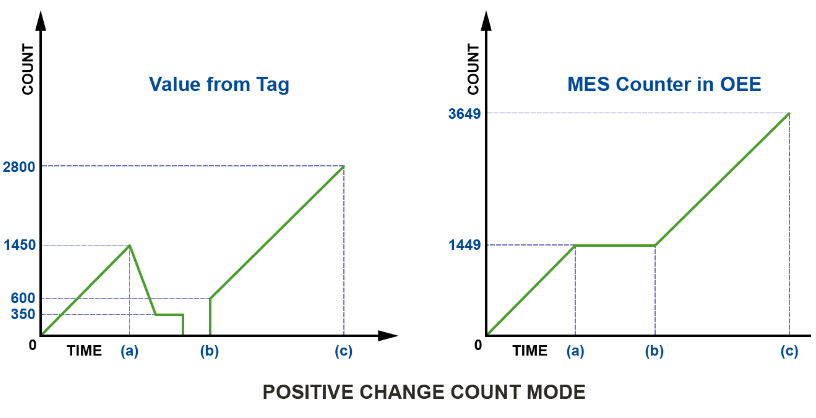
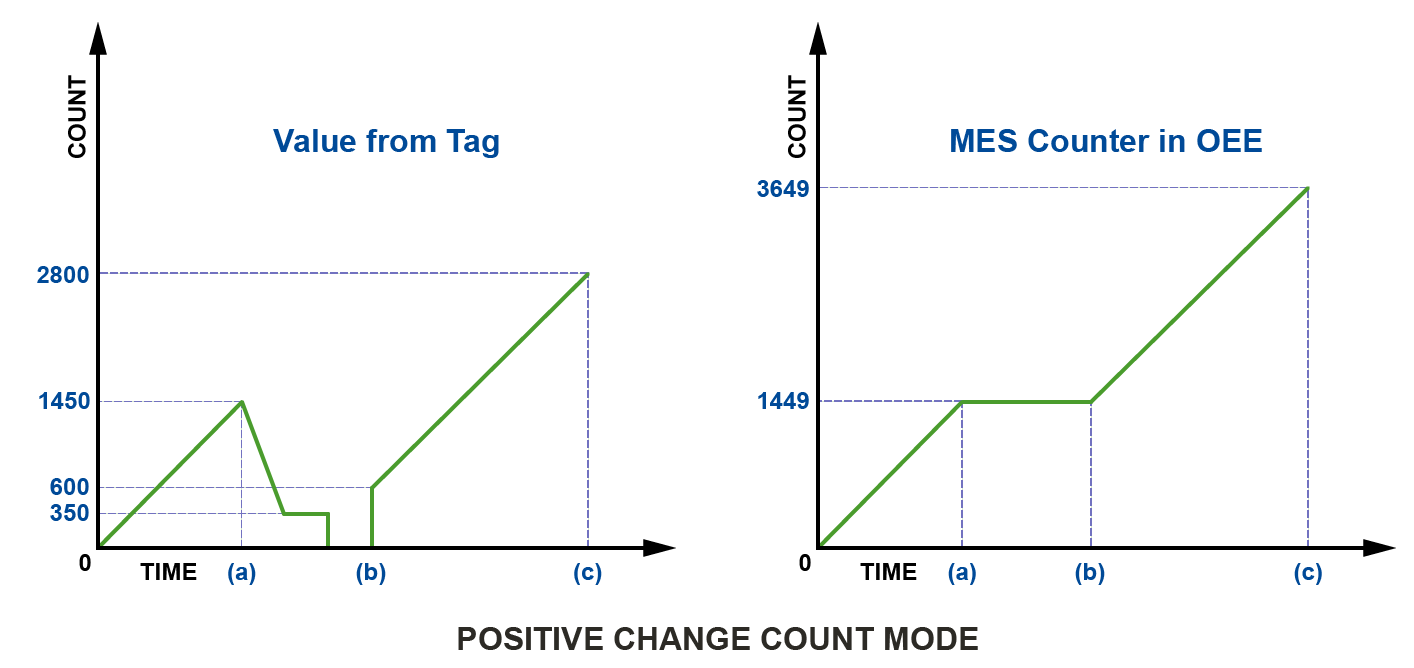
The Positive Change mode always accumulates upward in count value by the same delta increase in Tag value specified in the Tag Path. However, in the special case of the Tag count value changing from zero to any positive value N, the MES Counter will ignore it and not create a tag collection record.
Positive Count Mode ignores any 0 to N transition
|
|
Note that since no MES Counter value increase or tag collection occurs for each case where the Tag value changes from zero to any positive value N, the MES Count in Positive Change mode will lag N counts further behind each time a zero-to-N count change occurs. In the sample diagram to the right, the Tag value started from zero and incremented each time by one to a count of 1450 before decreasing, so the MES Counter plateaued at 1449 (the first Tag change from zero to one was ignored). Further on in time, the Tag value abruptly changes from zero to 600 (which gets ignored), so the MES Counter reaches 3649 when the Tag reaches 2800.
The reason for ignoring Tag changes from zero to N is that sometimes PLC values drop to zero on a communication loss before they can report that the data is bad. Upon communications return, the abrupt change from zero back to the current PLC counter value should not get counted as a legitimate increase in count.
|
| Positive Change Mode | Time >>> | ||||||||||||||
|---|---|---|---|---|---|---|---|---|---|---|---|---|---|---|---|
| Tag Count | 0 | 1 | 2 | 3 | 4 | 5 | 4 | 3 | 4 | 5 | 32766 | 32767 | 0 | 1 | 2 |
| MES Count | No coll | 1 | 2 | 3 | 4 | No coll | No coll | 5 | 6 | 32767 | 32768 | No coll | No coll | 32769 | |
No coll = No MES Counter tag collection record occurred for this. Decreases in Tag count value and any transition from 0 to N are not accumulated and are not recorded.
Counter Rapid Development Features
|
|
Not only do counters allow for parameterization (as shown above), they also support copy, paste, import, and export features for rapid development. Configure the infeed counter for one Production Model Node (i.e. a Cell or Line) with parameterization, then copy and paste it to the other cells. Alternatively, copy and paste the Node itself and rename it for a similar effect. |
Making Manual Tag Collector Entries to Adjust MES Counter History
|
|
You may wish to 'repair' the count recorded in the Tag Collector history by an MES Counter, in cases where the hardware PLC counter misses some counts. Be aware that the MES software will automatically add/subtract the new delta in counter value that you added to/from all entries forward in time of the entry point to the present (updating each Tag Collector entry for that counter by the same increment) when editing a value. A delta offset is not automatically calculated and applied forward when inserting new records for counters.
|
Sepasoft MES Module Suite