Sepasoft MES Module Suite
Additional Factors
Additional Factors are user-defined data points that are logged along with the production and downtime information. Once they are logged, they can be shown in charts, tables and reports. Additionally, other analysis can be done by filtering and/or setting up comparisons by their values.
Additional factors are used with:
- OEE,
- Trace and
- SPC, see Sample Additional Factor Object
See Also Equipment Object Functions - Additional Factor
An Additional Factor is additional information that is recorded about the production item.
Additional Factors can be added to the Line, Cell Group and Cell Production Items in MES Equipment Manager > General > Additional Factor.
Any primitive datatype value that can be read from an Ignition Tag can be added as an additional factor. This includes values derived from scripts, or from barcode readers, databases, calculations, PLCs, etc.
Any tag can be added as an additional factor.
To configure Additional Factors:
- In MES Equipment Manager, select a Line in the Production Equipment Model and click General >Additional Factors, then click the New Additional Factor
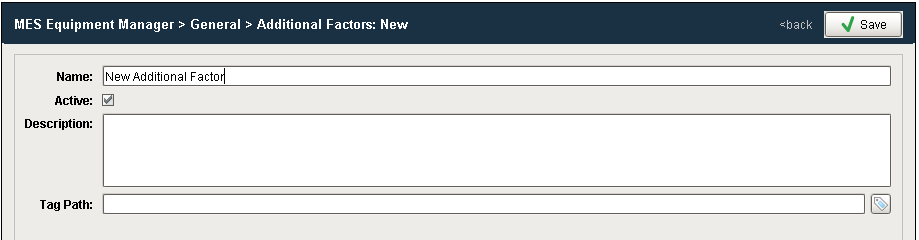
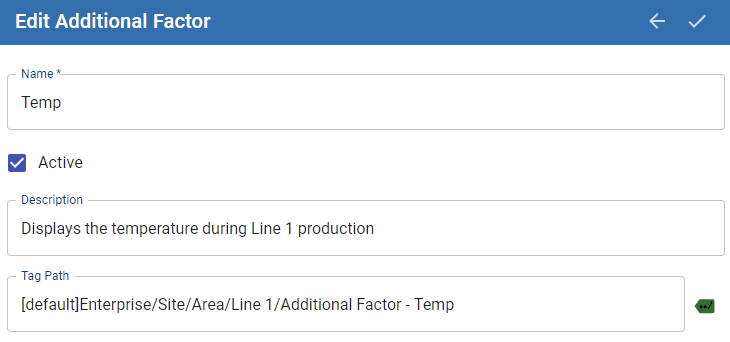
- Enter a name, description and navigate to the Ignition tag.
Shown here is Additional Factors configuration in Vision:
Shown here is Additional Factor configuration in Perspective:
| Name |
This reflects the name of additional factor that is configured in the Ignition Designer.
|
String
|
||
| Active | Sets the additional factor to active or inactive. Active means that the Ignition tag is collecting data and the Additional Factor can be used in the system. | Boolean | ||
| Description | Optionally, this property can be set to a description for the additional factor. It is not used by the OEE Downtime and Scheduling Module other than for reference. | String | ||
| Tag Path |
This reflects the Factor tag path setting that additional factor is configured for in the Ignition Designer. It is the name of Tag to read the factor value from. Tag Path Button
|
String
|



String Data Type Additional Factors Example
In the example, we have two factors, Cardboard Vendor and Operator. The operator can select the vendor that provided the cardboard or it can be obtained from some other source. Now, OEE and downtime results can be shown for each cardboard manufacturer. This can identify quality problems with raw material that directly affect production efficiency. With the operator setup as an additional factor, the operator's name will be logged along with the production and downtime data. By doing so, OEE and downtime information can be filtered and grouped by the operator name. But this could just as well be the production crew, supervisor, maintenance crew or any other user defined value that can be monitored or entered into the system.
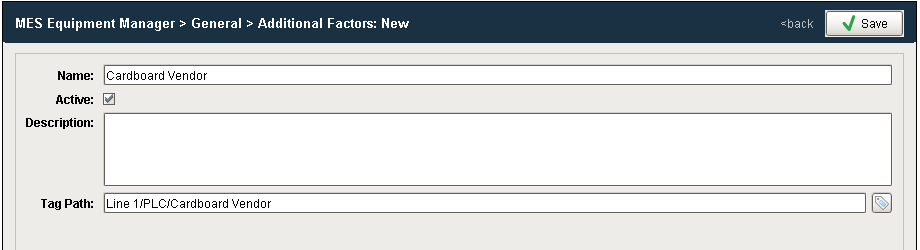
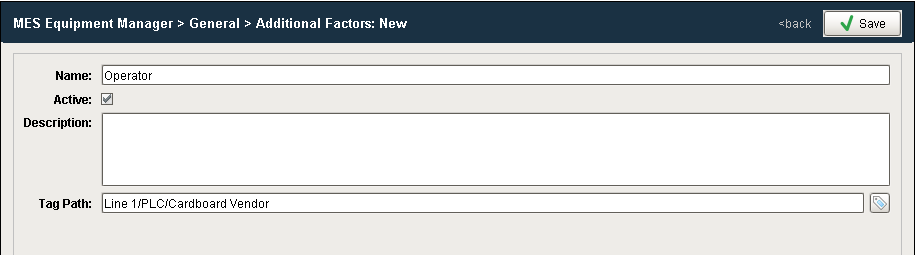
Adding these factors to a production line will allow us to capture the value of these tags whenever they change. In the impromptu analysis, we can then compare OEE values by our additional factor: Operator
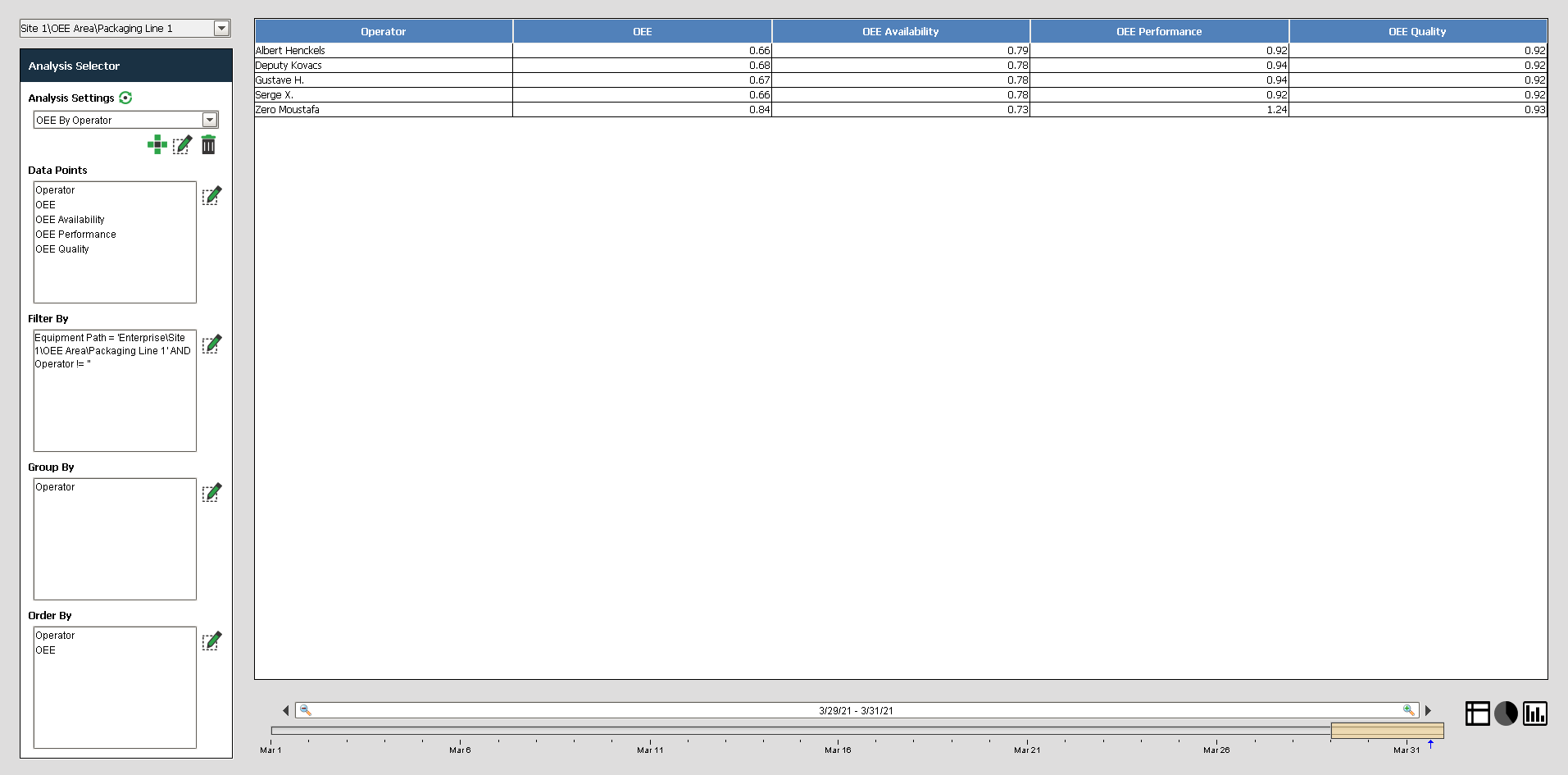
The additional factors configured at the Production Model show up in the MES Analysis Selector component which can be used for reporting.
When a string data type tag is used to create a new, user-defined Additional Factor, one additional data point is automatically created and maintained for each:
-
TimeStamp – The DateTime that this Additional Factor value was last updated (as shown to the right).
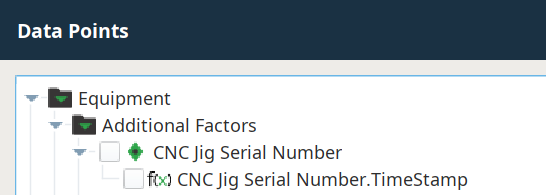
Numeric Additional Factors
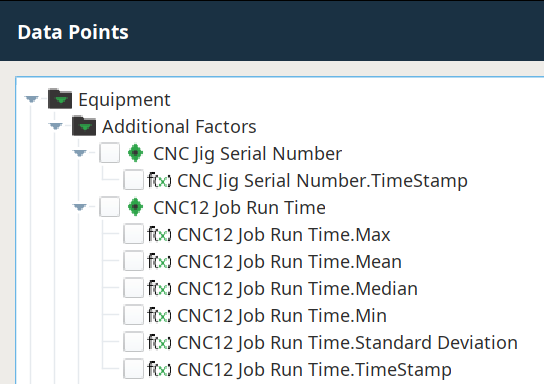
When tags of the numeric data types listed to the left are used to create a new, user-defined Additional Factor, six additional data points are automatically created and maintained for each (calculations are performed using all of the resulting values from that analysis run):
- Min – The lowest value among the results.
- Max – The highest value among the results.
- Median – The sum of all the resulting values divided by the number of results.
- Mean – The value where half of the remaining resulting values are larger and half are smaller. For even numbers of values, the mid-point between the mean two values is returned.
- Standard Deviation – (calculated as Sample Standard Deviation) The square root of the average of the squared individual differences of each resulting value from the calculated mean.
- TimeStamp – The DateTime that this Additional Factor value was last updated.
Sepasoft MES Module Suite